
Welcome to issue 26 of the Sheets Insiders membership.
You can see the full archives here.
This week, we’re looking at… shh, don’t tell anyone… it’s secret… *glances left, glances right* we’re looking at the world of hidden, undocumented functions.
Gasp!
These are secret functions hidden in Google Sheets that aren’t officially documented anywhere.
This is about as exciting as it gets for us spreadsheet nerds, so buckle up and get ready for the spreadsheet equivalent of a CSI crime show.
You’ll find a template of all these functions linked near the bottom of this email.
Undocumented Functions in Google Sheets
Delve into the source code of Google Sheets, and you’ll uncover the list of function names. All the regular ones are there, like SUM, VLOOKUP, and newer ones like LAMBDA and VSTACK, but there are also around 70 undocumented function names.
Wait, what?
These are names listed in the source code to denote functions. They include legacy functions, Excel functions that are not implemented in Sheets, some functions for internal use, and many that don’t work or do anything.
But, there are also a handful of genuinely useful undocumented functions!
Caveat: It’s important to understand that these functions are not officially documented so there’s no guarantee that they’ll always work the same way or even exist in the future. However, they’ve existed for many years so I’d be surprised if they change.
CONDITION_ONE_OF_RANGE Function
Perhaps the most useful of these undocumented functions, the CONDITION_ONE_OF_RANGE Function can be used as a shorthand to test for multiple or conditions in a FILTER operation.
I.e. we want to return a or b or c etc. from the filtered data.
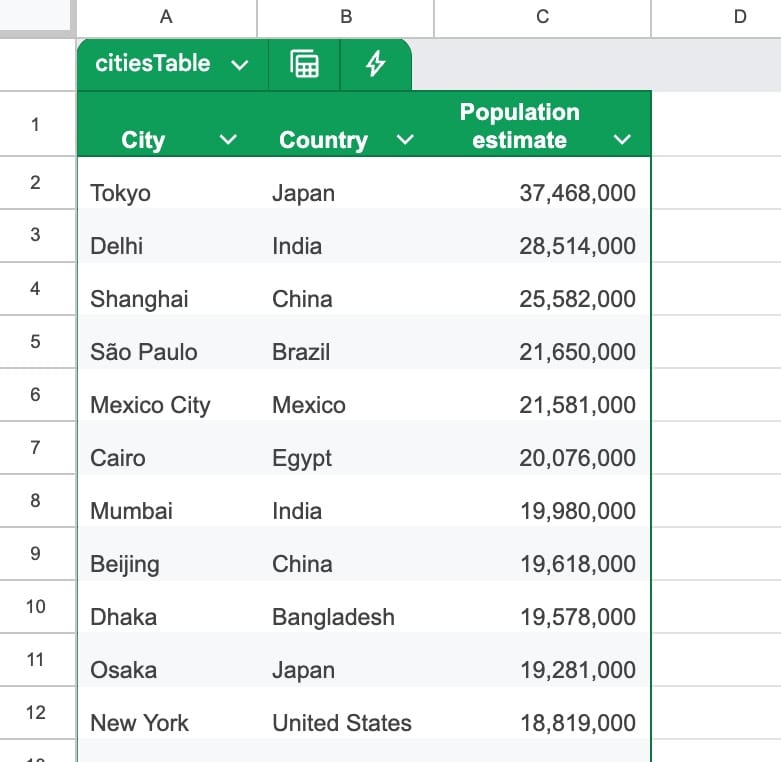
Let’s start with this table of the world’s most populous cities:
Separately, we have a list of South American countries in cells E1 to E12:
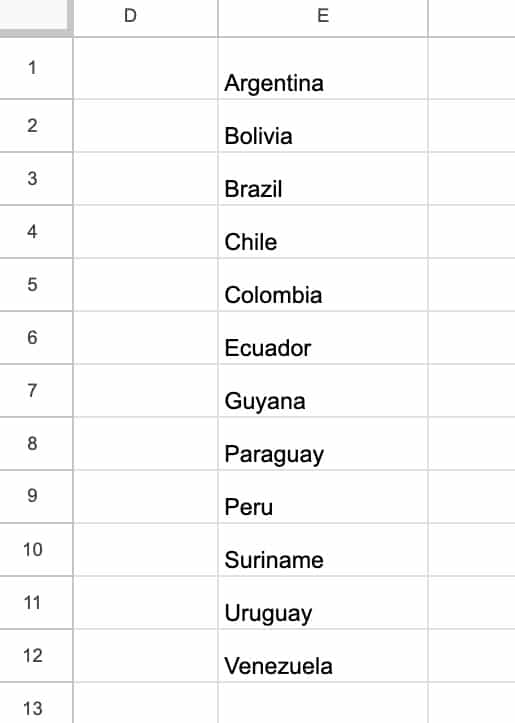
We want to find all the South American cities in the original table.
The undocumented CONDITION_ONE_OF_RANGE makes this a breeze.
We set it up like this, where citiesTable[Country] references the country column in the Cities Table:
=CONDITION_ONE_OF_RANGE( citiesTable[Country] , E1:E12)
This generates a TRUE for any country name in the Table if it’s found in the list of South American countries, and FALSE otherwise.
We can nest this new TRUE/FALSE list inside a FILTER function to return the corresponding data:
=FILTER( citiesTable ,
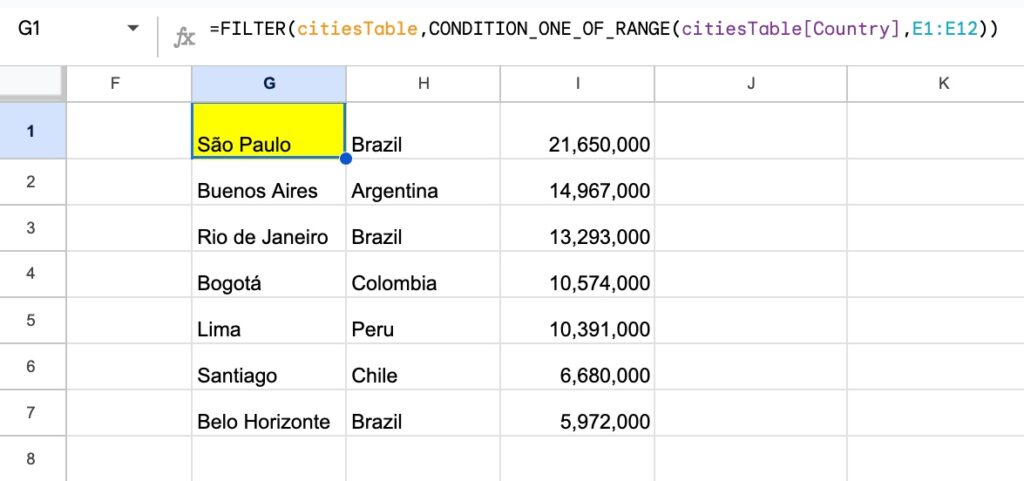
CONDITION_ONE_OF_RANGE( citiesTable[Country] , E1:E12))
The output is a list of the South American cities found in the original table:
Note: Although it is possible to do this with a regular FILTER function (using a special “or” syntax), it’s tedious.
The formula is long and unwieldy, and it’s easy to make a mistake.
STRICT Date and Time Functions
Google Sheets has the regular, built-in ISDATE function. It returns TRUE for dates, datetimes, and time values.
But sometimes we need more precise data validation.
The undocumented STRICT date and time functions give us that precision.
- ISDATE_STRICT returns TRUE if and only if the value is a date.
- ISTIME_STRICT returns TRUE if and only if the value is a time value.
- ISDATETIME_STRICT returns TRUE if and only if the value is a datetime.

REFERENCE Function
The REFERENCE Function extracts an array of data, bounded by the top left cell of the first argument and the bottom right cell of the second argument.
E.g.
=REFERENCE(A22,D29)
will extract this array of data A22:D29.
Easter Egg Functions
There are also a number of hidden, fun functions in Google Sheets (hidden features in software are commonly called “Easter Eggs”):
📌 COINFLIP generates a random TRUE or FALSE, e.g.
=COINFLIP()
📌 CURSORPARK generates a “parking lot” for viewers of your Sheet to park their cursors during a presentation
=CURSORPARK()

📌 DUCKHUNT generates the duck emoji
=DUCKHUNT()
E.g. 🦆
📌 WHATTHEFOXSAY randomly generates a string of text based on the viral hit song “The Fox (What Does the Fox Say?)”
=WHATTHEFOXSAY()
E.g. Fraka-kaka-kaka-kaka-kow!
Questions
Have you ever seen these undocumented functions before?
Do you use them?
Do you have use cases for any of the other undocumented functions?
Template
Download the All Functions Template
Click on “Use Template” in the top right corner to make your own copy.
There is no Apps Script with this template.
A Word on Methodology
If you’re interested, here’s how you can find the entire list of Google Sheets functions
Open a Google Sheet in Chrome.
Open the Developer Tools via the menu:
View > Developer > Developer Tools
Go to the “Sources” tab within the Developer tools.
Click the Escape key to toggle the console draw, which includes the search bar. (It may already be showing.)
Search for a function name and pick one that is not a common word, e.g. VSTACK.
Click on the search results to find the one that shows the full list.
Copy and paste into your Google Sheet to explore!