
In issue #33 in June, I shared how we’ve entered the era of homemade add-ons (the idea anyone can build custom add-ons without knowledge of how to code).
It’s one of the most exciting frontiers in the spreadsheet universe at the moment.
This week I’ve been exploring the idea in depth by building a fully featured add-on for Sheets to improve the humble Notes in Sheets.
I want to share the process and some best practices so you can build your own.
(I’m using App and Add-on interchangeably to refer to the same thing.)
How to build a Sheets Add-On with Gemini
Notes were the subject of this week’s Monday tips newsletter (see issue 356: Make a note of this one).
The native Notes feature in Google Sheets looks like this:
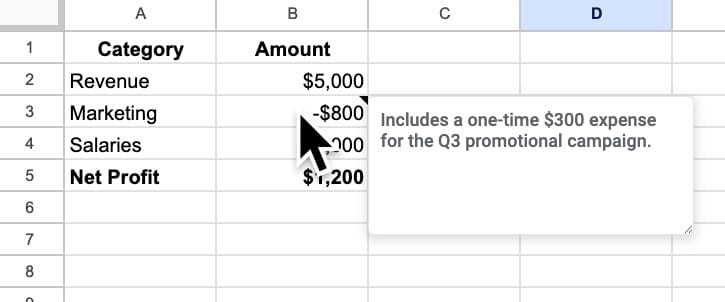
And that’s about it. No holistic view. No search.
It’s like the unloved cousin of the Comments feature, which is a shame because it could be genuinely useful.
So, armed with Gemini AI, I set out to build a new Notes App to fix what I see as the major issues:
- Notes are a pain to insert
- Even more of a pain to delete
- No way to see all notes together
- No way to search notes
And here’s what I was able to build in a couple of hours, without writing a single line of code myself:
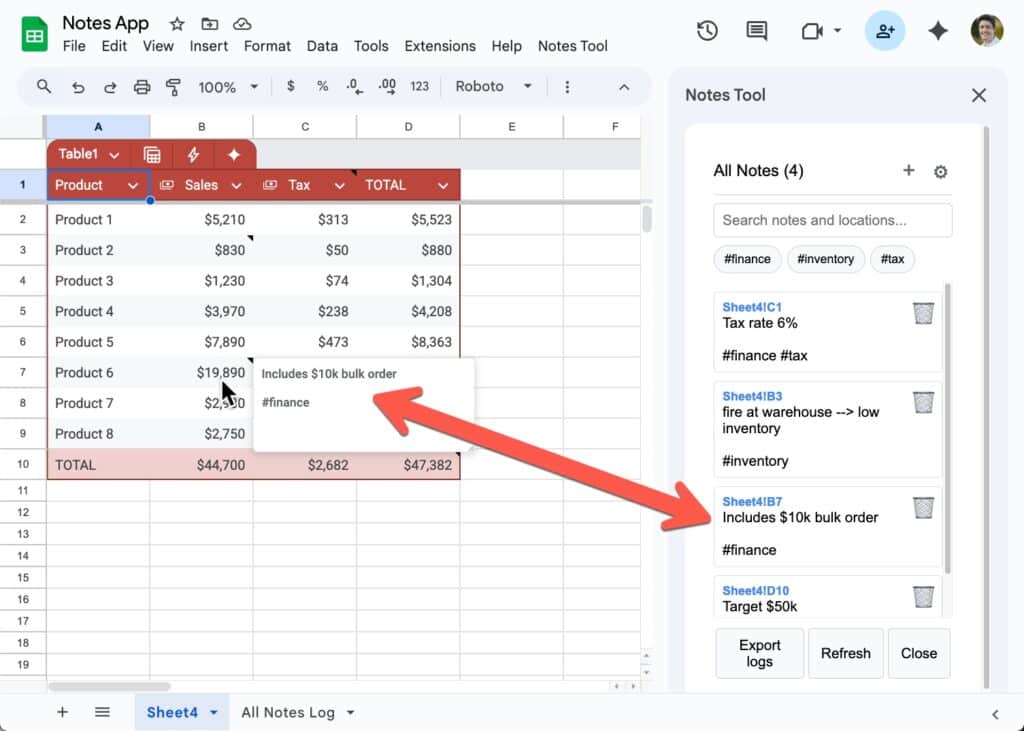
(I added the red arrow to show how a note in the Sheet shows up in the sidebar Notes app.)
This Notes App improves the creation and deletion of Notes, implements a searchable log of all notes, and adds a hashtag feature so that notes can be categorized.
Read on to find out how it unfolded and grab the template.
Start Small
I began with a short prompt to create a very simple initial version of the idea:
I have a google sheet with notes attached to cells.

Create an apps script that finds all these notes and adds them sequentially with an ID number (1,2,3, etc.) in a new sheet called "Notes <timestamp>".

Add a custom menu so I can run from the Sheet.

Use modern JavaScript syntax, add comments to the code, and add this code to restrict the scope /** * @OnlyCurrentDoc */
Gemini created a script that I copied and pasted into my Apps Script editor (from your Sheet, go to the menu Extensions > Apps Script).
It worked like this:

This is great! Already an improvement on the native feature because it builds a log of the notes so I can see them all in one glance.
Extending the Notes App
The approach to building an app is the same whether we’re writing the code or not.
We create a list of desirable features, prioritize those features, and then add the features one at a time, testing at each step.
🌟 Pro tip: ask Gemini to suggest what features to add.
Continuing in the same chat thread as the original prompt, I asked Gemini:
what else could I do to help manage notes in a spreadsheet
From Gemini’s answer, I came up with a shortlist of features to build:
- a custom sidebar
- a search bar
- hashtag system to categorize notes
- an easier way to add/delete notes to a cell
- links from the notes in the sidebar to the cell with that note
Then it was time to build.
For example, I used this simple prompt to get Gemini to code a popup for user input:
can you add a menu item that links to a function that opens a popup for a user input that is turned into a note on the current cell?
followed by this prompt to add a delete option:
can you also add a menu item to delete notes in the current cell. it should open a popup showing the note with an option to delete or cancel
Debugging with Gemini
Coding with an LLM involves a lot of back and forth: prompt, copy-paste code, test the script, copy the error or output, prompt, etc.
It can sometimes feel like a carpet that is too small to fit the room. You drag it into place on one side only for it to leave a gaping hole on the other side.
Perseverance is key.
Keep sharing the outputs or error messages you get and work with Gemini to fix the errors.
In my Notes example, some of my prompts were simply error messages:
now i get the error "ReferenceError: headers is not defined"
🌟 Pro tip: test at every step of the process.
Don’t request multiple features in each prompt, unless they’re very simple changes.
Test thoroughly before adding another new feature.
Notes Tool: Sidebar
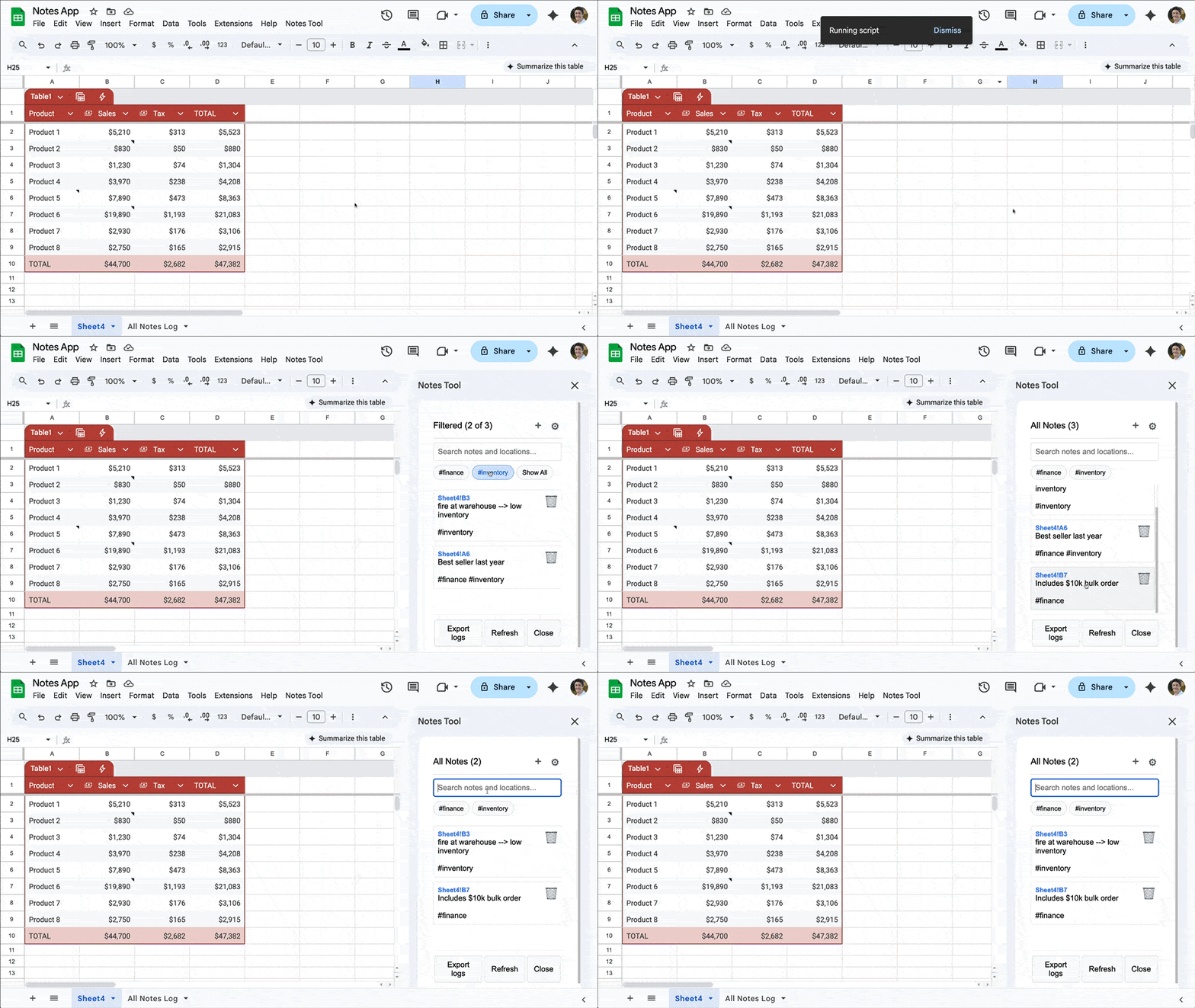
This was the prompt I used to move the notes log into a sidebar rather than the Sheet:
let's add a sidebar to the sheet where a user can see the notes log, in addition to the table showing in the log sheet. There should be an option in the menu to open the sidebar and a button to close the sidebar in the sidebar itself. There should be a way for a user to click a note in the sidebar and be taken to that note in the sheet.
Notes Tool: Working with hashtags
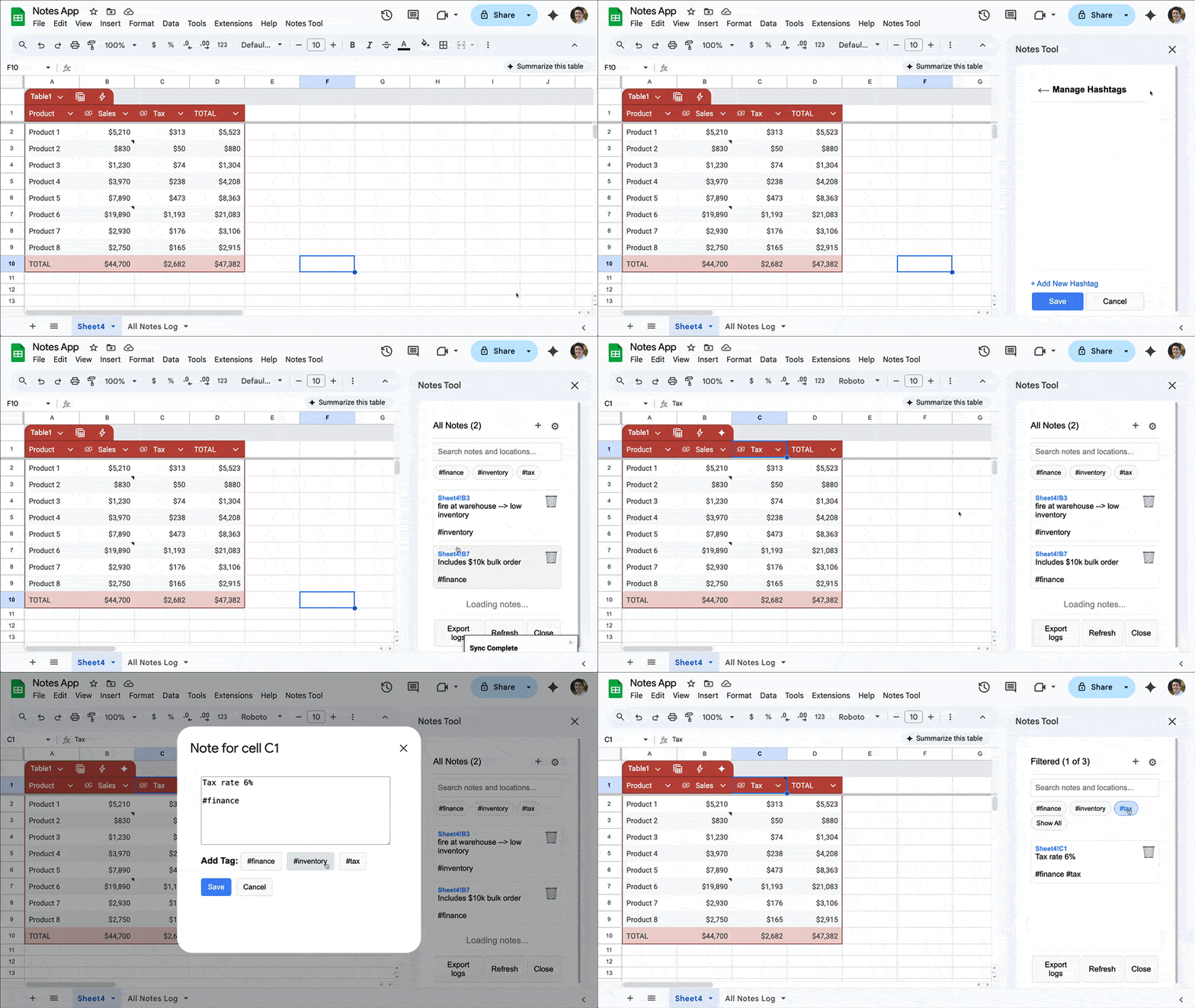
For complex features, it pays to be as specific as possible. For the hashtags feature, I gave Gemini an example of how I wanted to add hashtags to a note:
can you add buttons to the popup for adding notes that add pre-defined hashtags "#formulas", "#financial" and "#other" to the note on a newline with a blank line between the note and the hashtag. So the note might look like this:

"Includes a one-time $300 expense for the Q3 promotional campaign.

#financial"
In Gemini, it looks like this:

Tips for coding with Gemini (or other LLM)
- Be patient to let it finish outputting all the code before copying, otherwise you’ll only copy the half-finished code.
- Implement one change at a time and test before continuing.
- Know that it’s both amazing and amazingly frustrating, like trying to fit a carpet to a room that is too small. So be patient.
- Knowing a little code is super helpful in thinking through the process and writing good prompts e.g. one change at a time, then testing.
- Make sure you copy code into the correct file if you have more than one file in your Apps Script project.
- if you make your own changes in the code editor, for example changing a title name or a cell reference, paste that code back into Gemini and say “this is my latest code” to keep the code in sync.
Template
Feel free to explore the template:
Download the Notes App Template
Click on “Use Template” in the top right corner to make your own copy.
Caveats
I want to be clear that this app is not a finished, complete add-on, like the ones you might download and pay for from the marketplace. It’s a quick tool that I built to solve a specific pain point.
It’s rough around the edges, slow, and may have errors that I haven’t seen yet.
But the point is, it’s good enough to solve the original pain point.
Fixing all the edge cases and making it a professional level product is a whole other ball game.
Next steps
The next step to take would be to turn this tool into an internal Add-On, so that it’s available in other Sheets in my Drive.
Internal add-ons are add-ons that are available only to users inside your domain. They are private to your domain and do not appear on the public marketplace. They are not verified or checked by Google.
For info on how to publish internal add-ons, check out:
Sheets Insiders 16: Internal Add-Ons with Apps Script
I encourage you to experiment and get building!