
Welcome to issue 32 of the Sheets Insiders membership.
You can see the full archives here.
This week, we’re looking at Conditional Notifications.
These were introduced a year ago but I suspect they fly under the radar somewhat. I haven’t seen much online about people using them.
The basic idea is that you can set up rules in your Sheet that respond to events in the Sheet. For example, send an email when a cell value exceeds a threshold.
Conditional Notifications keep you and others alerted on any changes within a spreadsheet.
It’s a similar concept to conditional formatting except that it can perform actions rather than just change formatting colors.
Currently, the native feature is only available for specific Google Workspace accounts (details below). For those without, I’ll show you how to set up equivalent rules using Apps Script, towards the end of this email.
Conditional Notifications in Google Sheets
Template
Download the Conditional Notifications Template
Click on “Use Template” in the top right corner to make your own copy.
View the Apps Script via the menu: Extensions > Apps Script
What can you do with Conditional Notifications?
Conditional Notifications (CNs) send email notifications when cell values change.
You can be alerted to any change in a cell or add optional rules that are triggered only by specific changes.
How to set up Conditional Notifications
I recommend using Tables with CNs because you can access and use the column headings in the set up. It’s easier than working with plain column letters.
CNs can be accessed via the toolbar (Tools > Conditional Notifications) or via the quick access button built into Tables (looks like a lightning bolt):
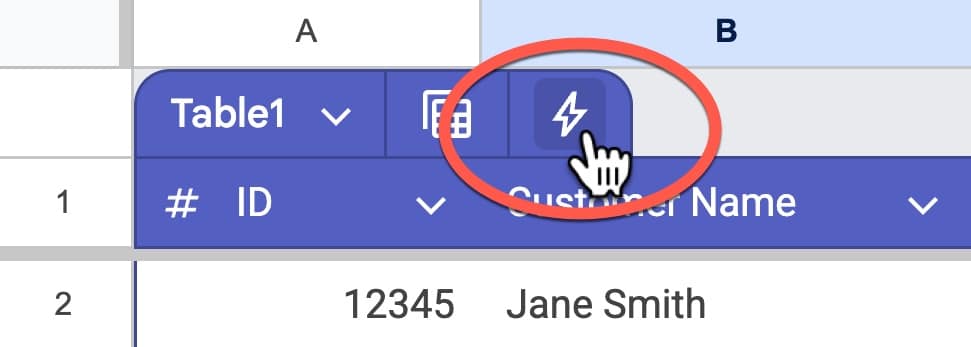
Either of these opens up the sidebar where you create the CN rules.
Click “Add rule” to get started.
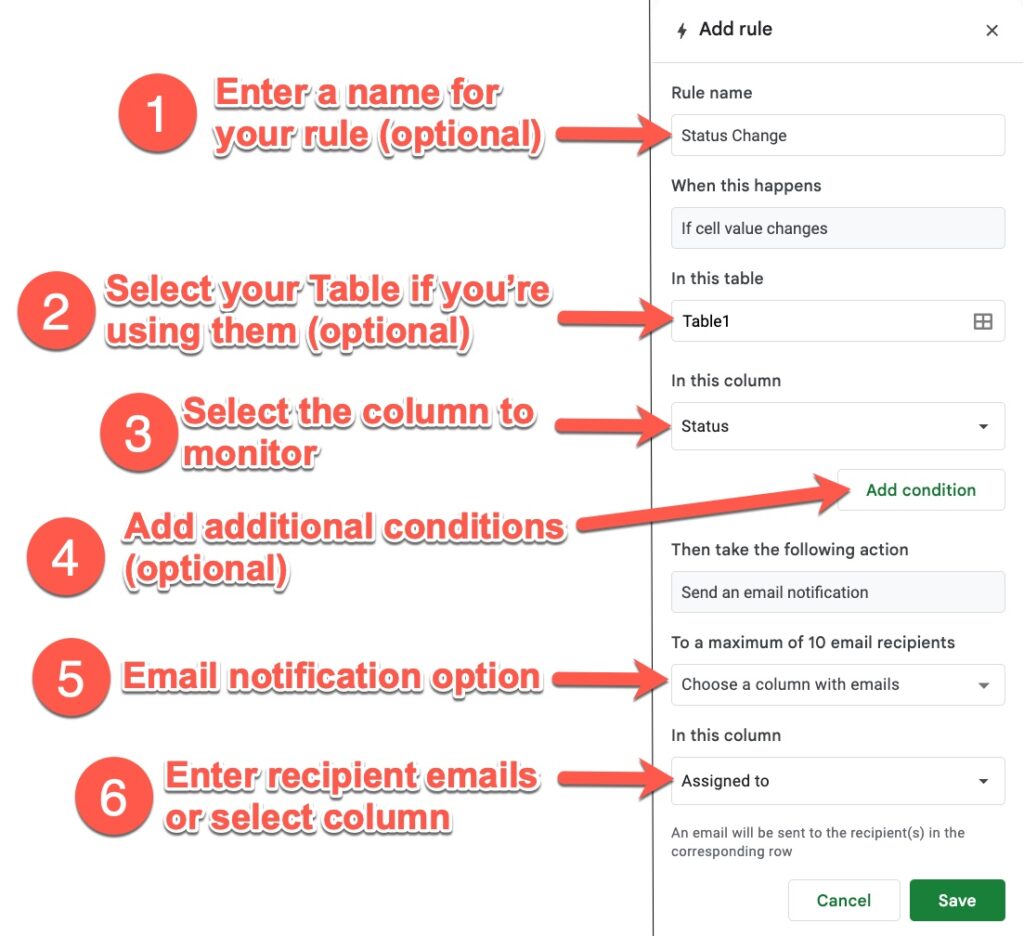
- Give your rule a memorable name, e.g. “Status change”.
- Select the Table where the rule applies, if you’re using Tables. If you’re not using Tables, this option does not show.
- Select the column to monitor for changes. If you’re using Tables, you’ll see column headings otherwise you’ll see column letters e.g. Column A, Column B, etc.
- Add optional conditions for specific changes (see details below).
- Choose whether you want to manually enter email addresses or select a column containing email addresses (where the notification email goes).
- Enter the email addresses or select the column containing email addresses.
It looks like this in our sidebar:
Optionally, you can add condition(s) to monitor specific changes.
For example, in this case, I want to be alerted whenever there’s a change in the “Priority” column, but only for orders over $200.

Press “Save” and your rule is ready!
Once you’ve created a rule then you should test it. Manually change the cell value to trigger the rule.
You can check the “View Trigger History” button in the CN sidebar to check it fired.
Finally, check your emails to see the notification email. The notification email won’t come through instantly and sometimes they are batched, so you need be patient.
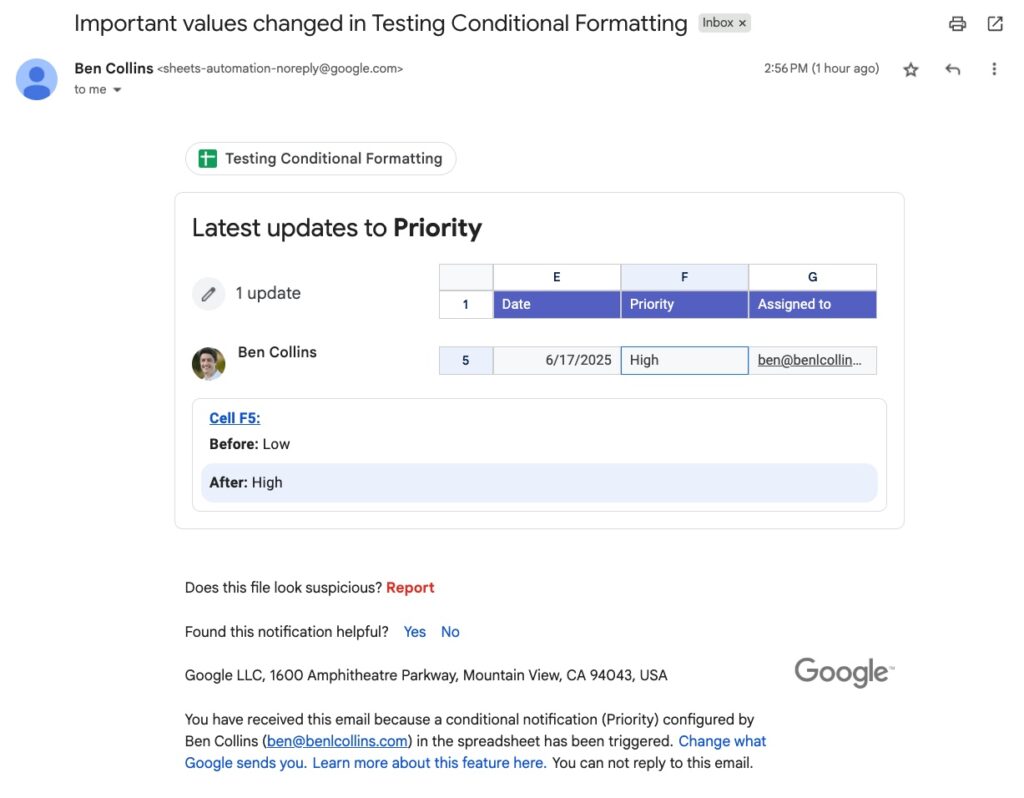
Never miss an important update again!
Availability
Conditional Notifications are available for the following Google Workspace users:
- Business Standard, Plus
- Enterprise Starter, Standard, Plus
- Education Plus
- Enterprise Essentials
If you don’t have access to the native Conditional Notifications, you can build your own version with Apps Script. Check it out below.
What to do if you don’t have Conditional Notifications?
If you don’t have access to the built-in conditional notifications feature, don’t stress!
It’s relatively straightforward to code up your own rules using Apps Script.
Even if you’ve never coded before.
Homemade version with Apps Script
Start with determining what you want your rule to do.
Then turn this into a suitable prompt for your favorite AI tool, if you’re not familiar with Apps Script.
For example, here’s the prompt I used to create a rule that watches the “Priority” column for any cells that change to the value “High”:
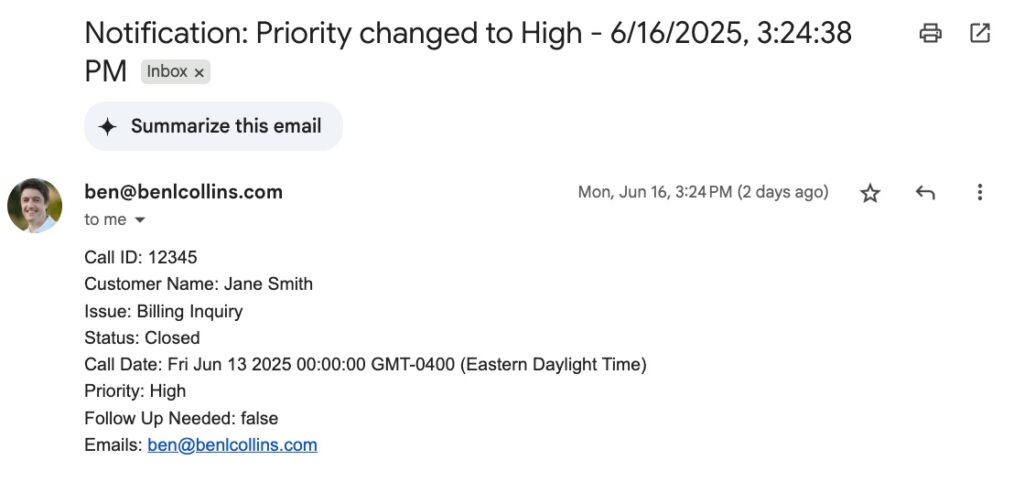
I have a table in Google Sheets. Column F is called the Priority column and column H contains email addresses, separated by commas. I want you to generate an apps script that sends an email to the address in column H anytime the status in column F changes to the word “High”.
The email should have the subject line “Notification: Priority changed to High” with the datetime appended. The body of the email should contain the details from that row in a list with the column headers so I can see the data at a glance.
Use modern Javascript with functional loops like forEach etc. and const. Add a comment above any function names using JSDocs style.
This will generate code that mirrors the native conditional notification feature. And if it doesn’t work perfectly, paste any error messages or unexpected results into the AI tool and ask it to remedy them.
I won’t paste my code here because it makes this email unwieldy. But you can find it in the template (via the menu Extensions > Apps Script).
Writing the code is only half the answer though. We need to set up a trigger to run the code when the Sheet changes.
From the Apps Script editor window, select the Triggers section:
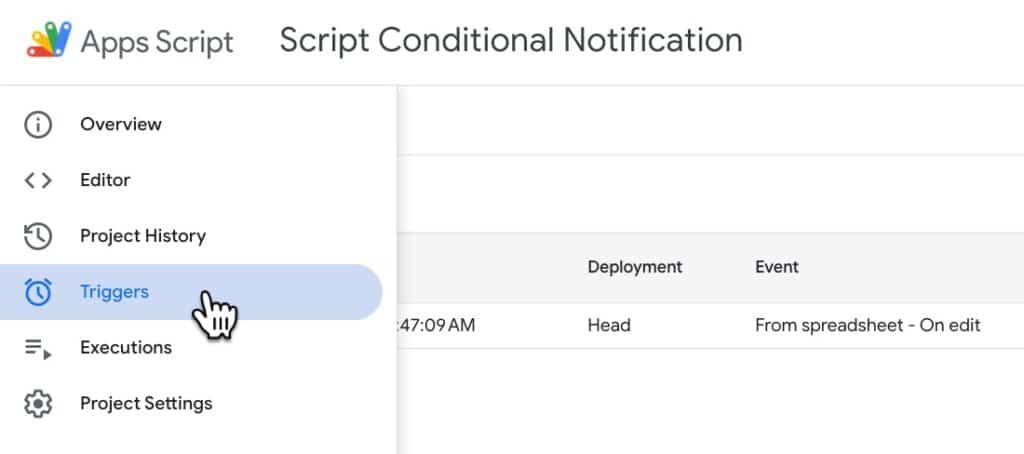
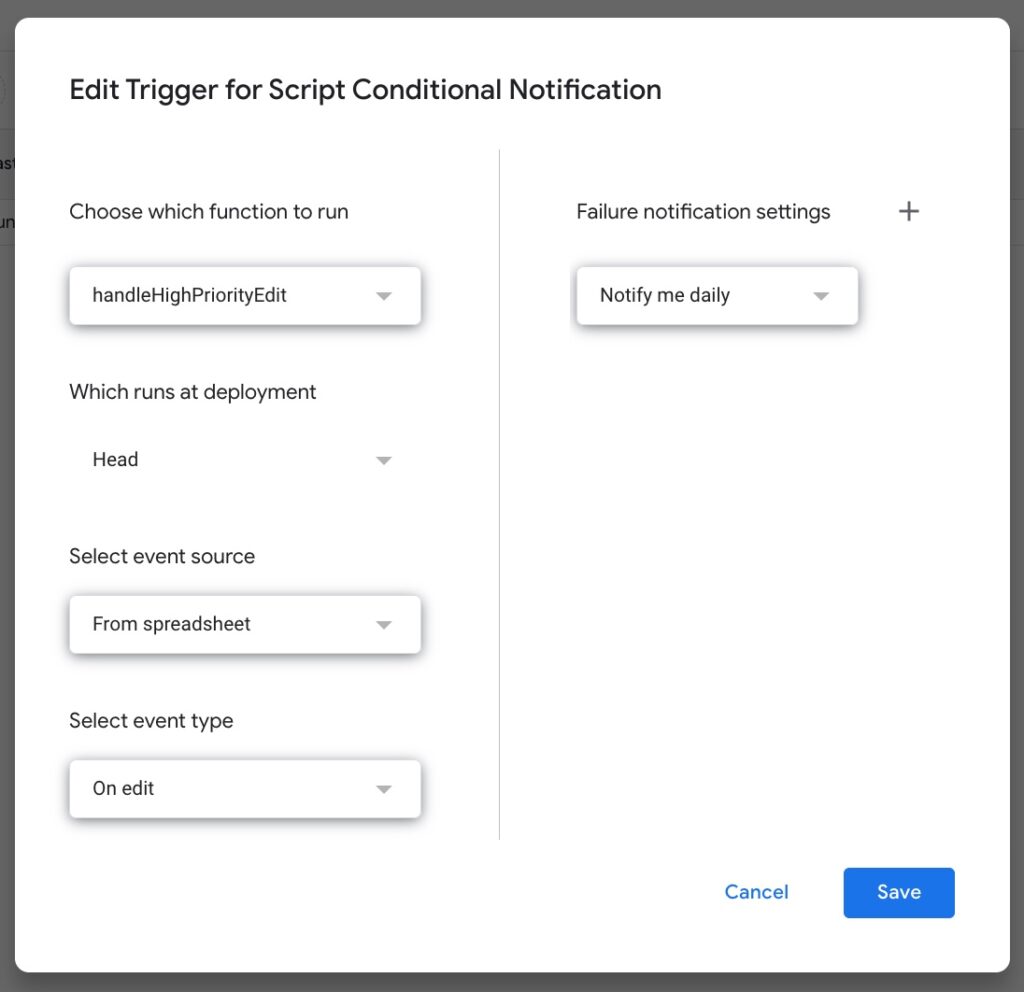
Click on the “Add Trigger” button to add a new trigger.
Set it up by selecting the function name (in my example “handleHighPriorityEdit”) and set the source to “From spreadsheet” and the event type to “On edit”:
Hit “Save” and you’re all set!
Test your rule and you should get an email notification.
It may look something like this, depending on how you set up your script:
Great stuff!