
This week, we’re working with Google Sheets Tables via Apps Script. It’s a question that I’ve heard frequently since Tables were launched last year “can I build Tables with Apps Script?”.
The answer is Yes. Earlier this year, Table operations were added to the Sheets API Advanced Service.
Don’t worry if that’s not familiar, we’ll go through it all in this tutorial.
Tables with Apps Script
Introduction
We’ve covered Tables extensively already in Sheets Insiders issue 6 and more generally on my website.
I highly recommend using them because of all the built-in benefits.
Specifically, I love the fact that:
- formatting and formulas automatically copy down to new rows of data.
- a TOTAL row can be easily toggled on/off at the bottom of a Table.
- Dropdowns are easy to create and use inside Tables.
There are many other benefits too, these are just my favorites. But I find myself converting all my plain data tables into proper Tables now.
Tables with Apps Script
Taking it a step further, suppose we want to do create and work with Tables in our Sheets using Apps Script.
We want to do what is known as CRUD operations (Create, Read, Update, and Delete) on Tables with Apps Script.
The good news is that it’s possible!
The slightly-less-good-news is that we need to use the Sheets API rather than a built-in Apps Script method to do it. So the code is a little more complex than other Sheets actions with Apps Script.
But fear not, in this age of AI, we have experts ready to help us. Using an LLM tool like Gemini or ChatGPT is dramatically easier and quicker than writing the code manually.
However, they’re not always perfect. After several back-and-forth iterations with Gemini, the script was still giving errors and could not insert a Table.
However, ChatGPT got it working correctly on the first try.
I encourage you to try using both (or the other big one, Claude) if you don’t get the correct answer right away.
Prompt
Here’s the exact prompt I used to create a script that created a 3-column, 12-row Table in Google Sheets:
I want you to write apps script code that uses the Sheets API advanced service to work with Tables object inside my Google Sheet. The script should have 3 functions:
1. Create a new Table.
Give the new Table a unique ID and unique name, to avoid conflict with any existing Tables in the Sheet.
The Table should have 3 columns called “Product”, “Region”, and “Value” and 12 rows consisting of 3 products, each with 4 rows for North, South, East, West and a random number value for each between 1 and 100.
2. Delete a Table.
Add a second function that deletes a Table. It should be available to use from the custom menu as a second option. The script should only delete the table under the active cell. If the user is outside the Table, then prompt them to say no table selected and end the script.
3. Update a Table.
Add another new function, that can be accessed from the menu, that inserts a new row of data. Prompt the user for the name of the product, and which regions they want out of North, South, East, West. add the row or rows to the Table where the user has active cell. If no Table selected, prompt the user and end the function.
Use modern javascript and add a custom menu to the Sheet so the user can run these functions.
Submit the prompt and let the LLM generate some starter code.
Setup in our Sheet
In our Sheet, go to the menu:
Extensions > Apps Script
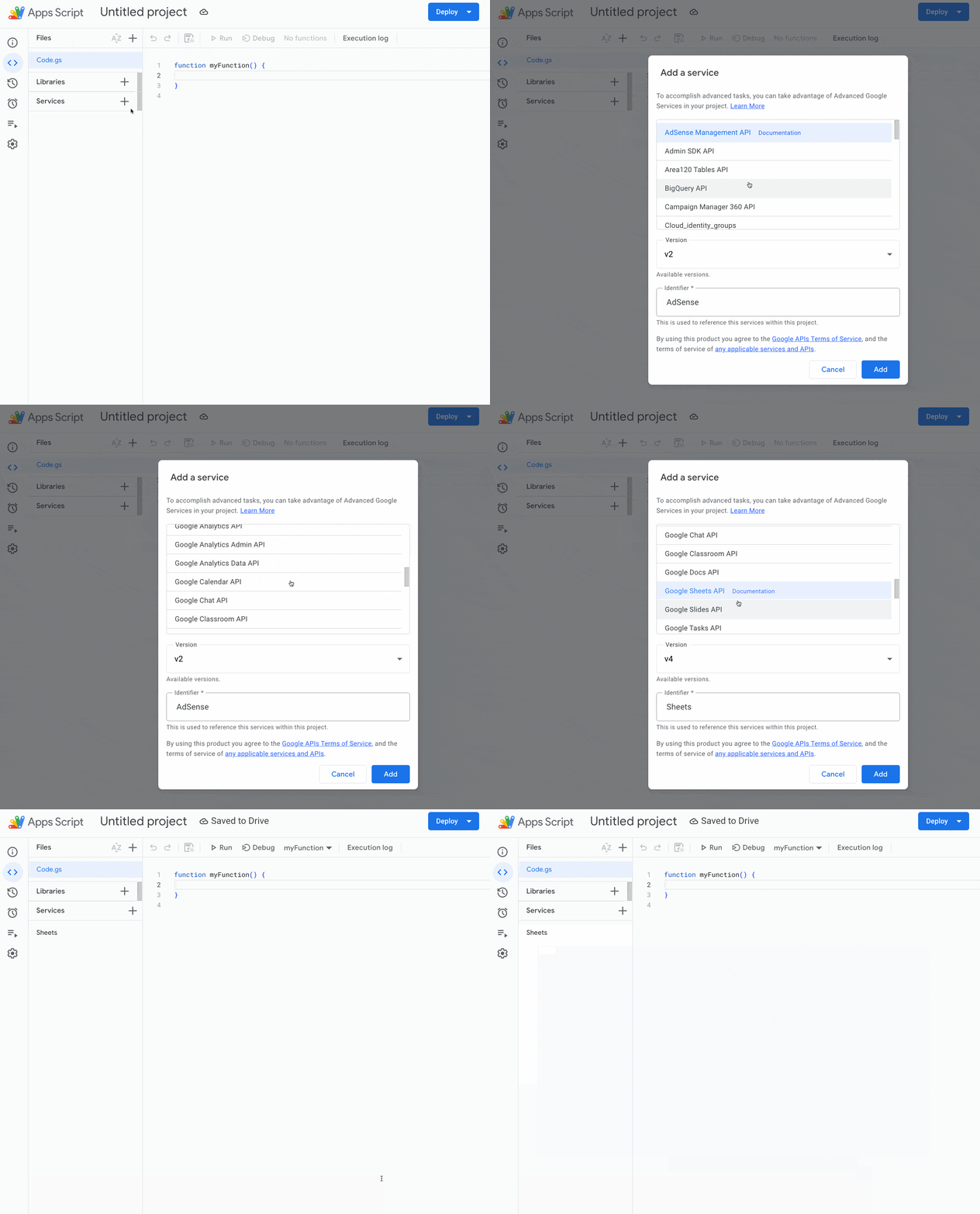
First, we need to add the Sheets Advanced Service to the project so we can access the Sheets API:
- In the script editor, look at the left-hand menu.
- Next to the Services header, click the
+icon. - From the list, select Google Sheets API.
- The identifier should be
Sheets. Click the Add button.
Next, delete the existing code and paste in the code the AI tool generated from our prompt.
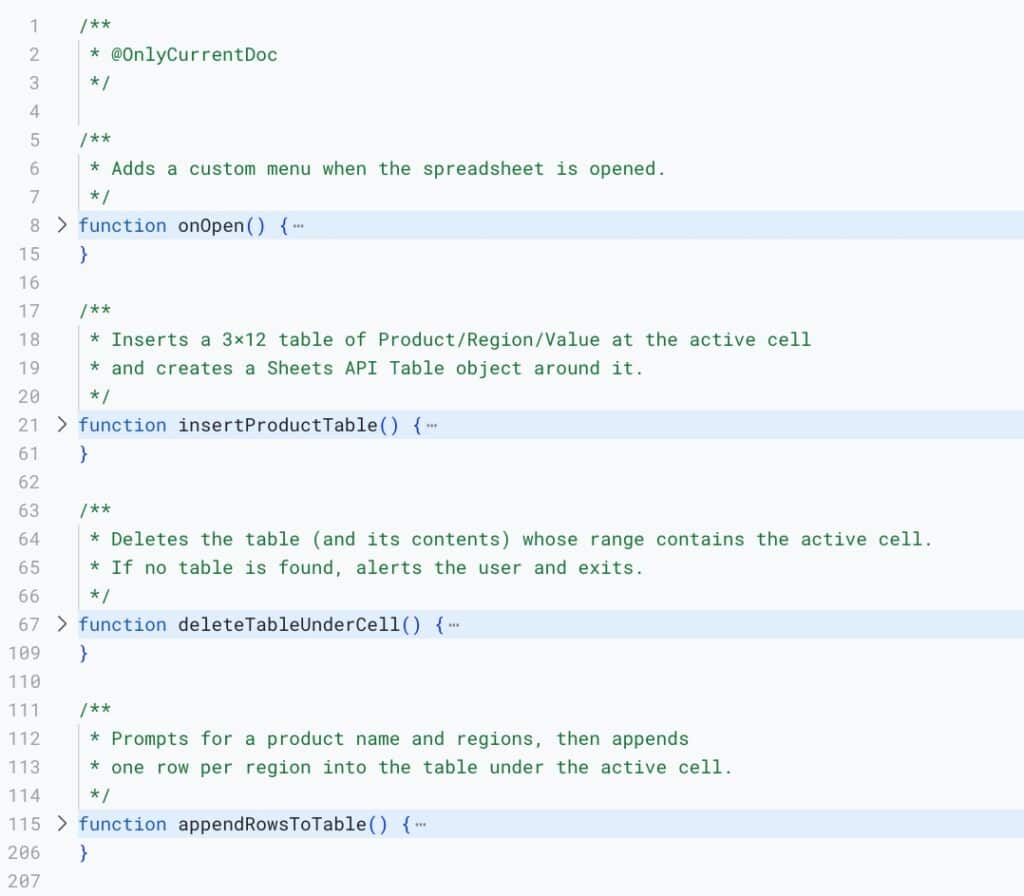
The code consists of four functions:
- one for the custom menu
- one to insert a Table
- one to delete a Table
- one to append rows to a Table
These are highlighted in blue in my Apps Script code, to show an overall view of the program structure.
(Pro tip: I’ve hidden the lines of code inside each function by toggling the small arrow between the line numbers and the word “function”. It helps to make long code files readable.)
I won’t go through all the code here (too long!) but I’ll share a few key snippets.
Here is the line in the script to paste plain data (from the variable “allValues” to our Sheet:
sheet.getRange(startRow, startCol, allValues.length, headers.length).setValues(allValues);
And here is the code that defines the Table and the Table range coordinates:
const requests = [{
addTable: {
table: {
tableId: String(newTableId),
name: tableName,
range: {
sheetId: sheetId,
startRowIndex: startRow - 1,
endRowIndex: endRow,
startColumnIndex: startCol - 1,
endColumnIndex: endCol
} } } }];
And this line actually applies the Table formatting in our Sheet:
Sheets.Spreadsheets.batchUpdate({ requests }, ssId);
All the code can be viewed/copied/modified in the Tables with Apps Script template.
Output
The script is accessed through a custom onOpen menu.
Here’s a GIF showing how we can insert a Table into our Sheet:
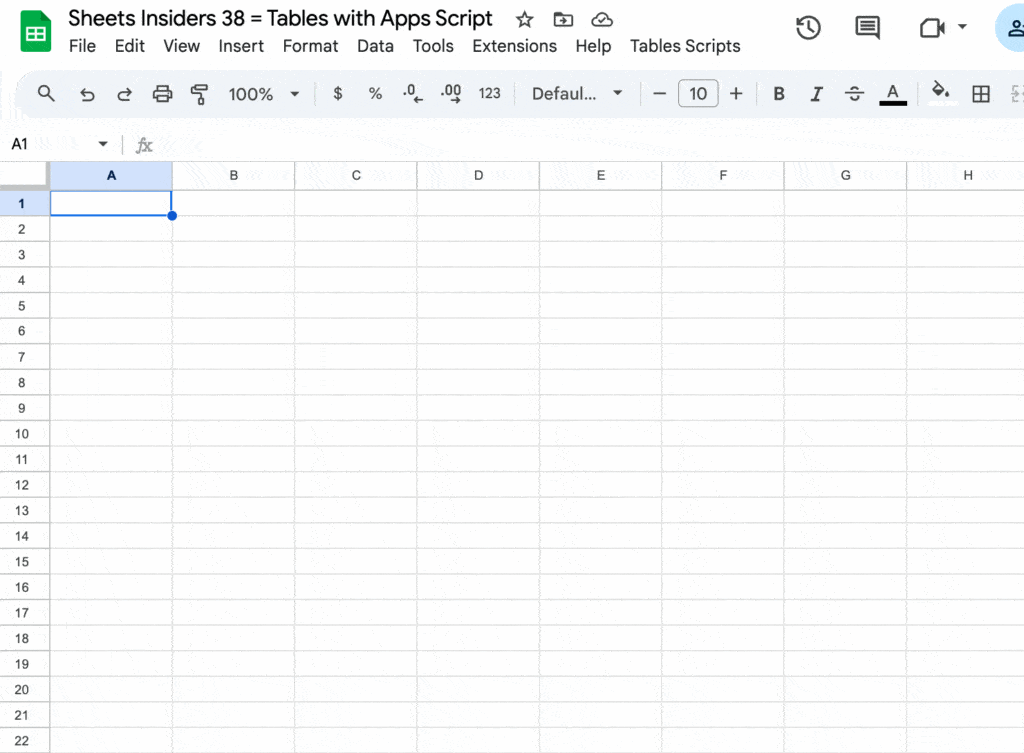
The user can also delete or modify a Table.
I hardcoded the number of rows and columns, containing specific content. So you would want to modify the prompt to cater to your situation.
Template
Download the Tables with Apps Script Template
Click on “Use Template” in the top right corner to make your own copy.
To access the Apps Script, go to the menu: Extensions > Apps Script
Also, check out the Tables reference page in the Sheets API documentation here.