
Welcome to issue 33 of the Sheets Insiders membership.
You can see the full archives here.
This week, we’re talking about why there’s never been a better time to build your own custom Sheets tools. I’m calling it the era of homemade add-ons.
The idea is that we have a specific problem we want to solve, or process we’d love to automate. Before, we would have used a third-party app or hired a developer to build a custom tool or even built it ourselves if we had the time and skill. But now, with the proficiency of AI coding assistants, the barriers have disappeared.
The time and cost to solve these specific, limited problems has collapsed to near zero. We can spend 30 minutes building a tool with AI, use it to solve a problem and move on.
To illustrate this, we’re going to build an add-on to handle 3-D referencing (which we’ll explain below!). It’s something you can do in Excel but not Google Sheets.
It’s a perfect example of an ultra-specific problem that isn’t big enough to throw lots of time or money at. But, where having an automated solution would still be helpful.
So, we’ll start this tutorial with a review of 3-D references and what you can achieve with formulas.
Then we’ll jump over to our AI tool and talk about how to solve the problem with Apps Script.
3-D References
A 3-D reference is a reference to the same cell or range on multiple sheets. 3-D references are a useful and quick way to reference several sheets that follow the same pattern, such as monthly financial data.
Instead of writing a formula like this:
=SUM(Jan!D10 + Feb!D10 + ... + Dec!D10)
it would be nice to write a formula like this:
=SUM(Jan:Dec!D10)
to sum all the values for each month.
(This is how they’re implemented in Excel.)
Unfortunately however, 3-D references are NOT available in Google Sheets:
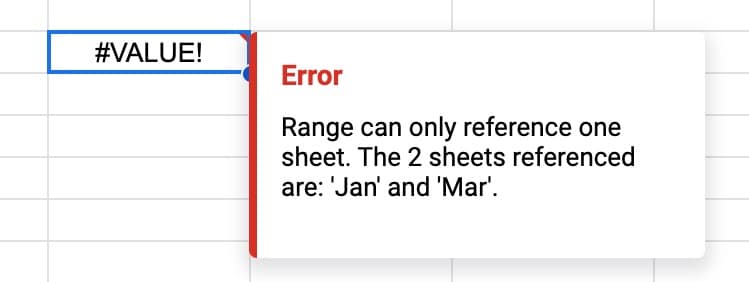
But fear not.
We are going to see a formula example for simple cases and a more robust Apps Script version.
3-D Reference Formula Workaround
In this example, we have three sheets labelled “Jan”, “Feb”, and “Mar”. Each contains a small table with a total value in cell B7:

Suppose we want to sum these totals, i.e. the sum of the values from Jan, Feb, and Mar.
In the TOTAL sheet, we start by making a list of the sheet names in column A:

In B1, enter this formula
=A1&"!B7"
which outputs Jan!B7
Add an INDIRECT function to turn this string reference into a live cell reference:
=INDIRECT(A1&"!B7")
which turns the output into the total value from the Jan sheet.
Next, we use a BYROW + LAMBDA to operate on the entire range of sheets in column A:
=BYROW( A1:A3 , LAMBDA( r , INDIRECT(r & "!B7" )))
This outputs a list of total values, e.g. 62, 64, 49
Finally, we wrap this with whatever aggregation we want to perform, e.g. SUM:
=SUM( BYROW( A1:A3 , LAMBDA( r , INDIRECT( r & "!B7" ))))
which gives the answer 175.

Nice!
(But it would be even better if we had proper 3D references.)
Era of homemade Add-Ons
The formula approach above is valid, but limited. It requires a list of sheet names and breaks easily if they change.
Instead, we can approach this problem with Apps Script and build a bespoke tool to solve this specific problem.
For example, here’s a version I built in under an hour last week:
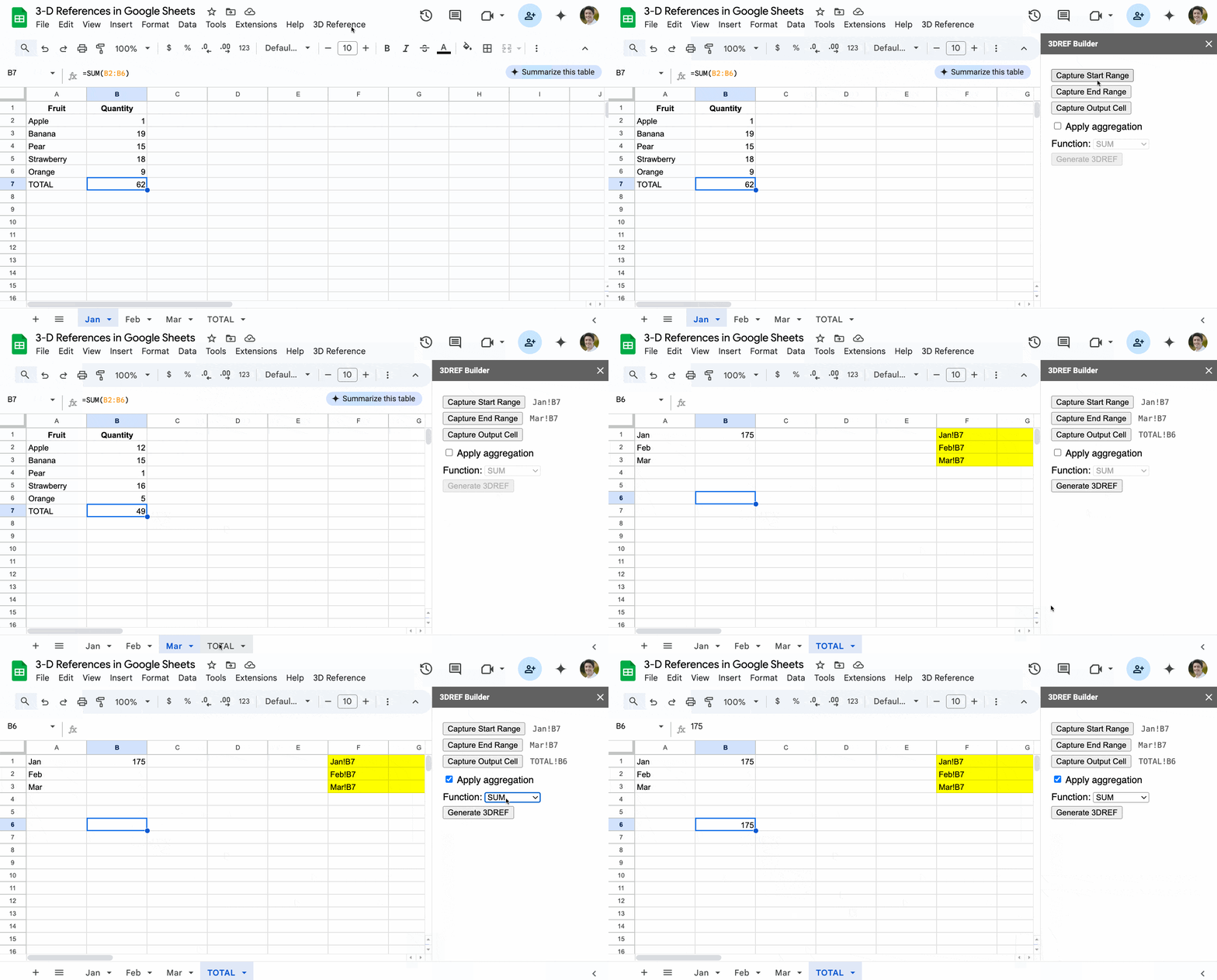
To start, the user opens up a sidebar application (like an add-on) from a custom menu.
Next, the user selects the start and end cells of the 3-D reference, as well as the output cell. Users can also select whether to apply an aggregation operation (e.g. sum) or not.
The script runs and calculates the result across the sheets.
And now here’s the best bit… I’ll let you in to a little secret…
I didn’t write a single line of code.
I used ChatGPT (their o4-mini-high model) to generate the entire script.
And you can do the same.
If you have an idea, open up your favorite AI tool and describe what you want to do. Be specific and detailed. Share examples of the expected output and anything you don’t want to see.
There’s never been a better time to build your own apps and automations within Google Sheets and Google Workspace.
We truly are in an era of homemade add-ons.
Let’s dive back into this 3-D reference example and understand how it was built.
The Prompt
It took quite a bit of back-and-forth with the AI tool to get to this end result.
So I asked ChatGPT to summarize the work into a single prompt that would get somebody to this result more quickly. If I was starting from scratch now, here’s the prompt I would start with:
In Google Sheets, I want a true “3-D reference” feature that:
1) Lets me click a start-range on one sheet, an end-range on another sheet, and an output cell, all via a custom sidebar UI (no manual string typing).
2) Optionally applies one of a set of aggregation functions (SUM, AVERAGE, COUNT, COUNTA, MAX, MIN, PRODUCT, STDEV, VAR, HSTACK, VSTACK, etc.) based on a checkbox + dropdown in the sidebar.
3) Stacks (or aggregates) the values in that same A1-range from every sheet between the first and last sheet tabs (inclusive) in their current tab order, excluding tabs moved outside the range and automatically including any new tabs inserted between.
4) Supports multiple live outputs: every time I “Generate 3DREF” in a different output cell, that new range stays live alongside prior ones.
5) Automatically refreshes all outputs on any sheet edit and once per minute via installable triggers, and shows a toast when each job runs.
Please give me:
Code.gs with menu, sidebar launcher, insertThreeDRef() and trigger logic, multi-config storage in PropertiesService, the refreshThreeDRef() loop, and all aggregation helpers.
Sidebar.html with buttons to capture the three ranges, a checkbox + dropdown for aggregation, and an “Insert 3DREF” button that passes (startA1,endA1,outputA1,applyAgg,aggFunc) back to insertThreeDRef().
Make it production-ready, using modern Apps Script best practices.
This will generate two blocks of code: one for the script itself that handles logic, and a second for building the sidebar.
Next, open the Apps Script editor via the menu: Extensions > Apps Script
Add an HTML file and call it “Sidebar”.
You will have two files in your code editor:
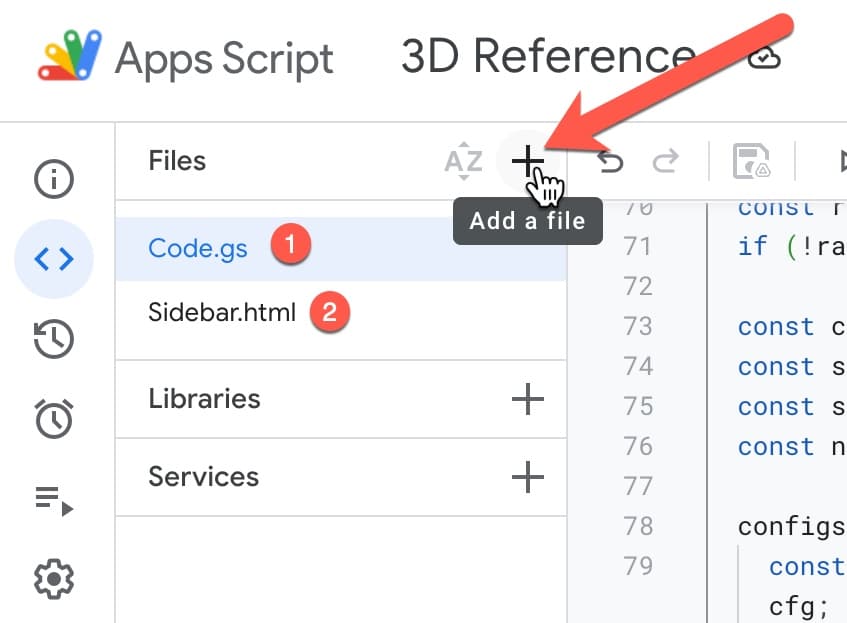
The Apps Script code should be pasted into the Code.gs file.
And the HTML code should be pasted into the Sidebar.html file.
Then, click on the Code.gs file. In the toolbar at the top, choose the onOpen function and hit Run.
This runs the script and adds the custom menu to your Sheet toolbar. The first time you do this, you’ll need to grant permissions to the script so that it can work with your Sheet and create a sidebar.
My code example has this block at the top of the Code.gs file. This limits the scope (think of this as who and what has access) to only the Google Sheet that the script is attached to:
/**
* @OnlyCurrentDoc
*/
Turning your tool into an Add-On
So far, this 3-D tool is only available in the single Sheet.
If we want to distribute it so that we can use it from other Sheets then we need to publish it as an internal add-on.
Internal add-ons are add-ons that are available only to users inside your domain. They are private to your domain and do not appear on the public marketplace. They are not verified or checked by Google.
We covered how to publish internal add-ons earlier in the year:
Sheets Insiders 16: Internal Add-Ons with Apps Script
Template
Download the 3-D References Template
Click on “Use Template” in the top right corner to make your own copy.
The Apps Script is accessed via the menu: Extensions > Apps Script