
Most of us are sitting on an absolute goldmine of unstructured data.
Think about it: years of client reports, research notes, project documentation, YouTube videos or, in my case, a decade’s worth of newsletter archives.
Usually, this information just sits there dormant. Why? Because it’s spread all over the place, too tedious to search through and catalog, and way too dense to summarize manually.
But by combining Apps Script, NotebookLM, and Gemini Gems, we can transform that forgotten archive into an AI content engine. We’re talking about a system that can access all your content and generate new work based on that specific foundation.
Why NotebookLM AND a custom Gem?
By using NotebookLM as the data foundation and a Gemini Gem as the creative interface, we create a workflow that captures the best of both worlds.
NotebookLM acts as a secure vault containing our data, ensuring that new derivative work is strictly grounded in our own history. However, NotebookLM is a research tool built more for consuming (reading, listening, slide decks, flash cards etc.) rather than creating “new” content. It lacks the ability to remember our voice between chats or access the live web.
A Gemini Gem, on the other hand, serves as a creative foil. It can remember our specific voice and formatting preferences, so we don’t have to explain this each time. It can also access the web to incorporate external data, if required. And it can generate images and video too.
This architecture allows us to take our archived knowledge and quickly transform it into new, high-quality content.
How To Build a Content Engine
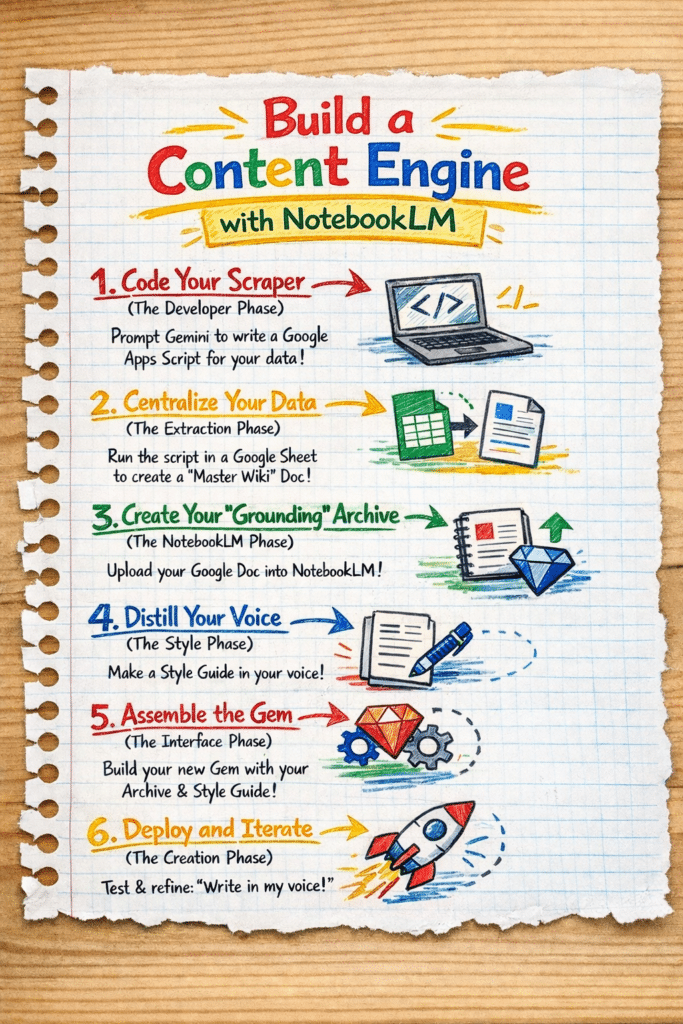
To build this workflow, we need to solve for three things: 1) extracting our data, 2) storing our data, and 3) generating new content from this data.
If you don’t have much source data then you can just add it directly as sources in your NotebookLM (go straight to step 3 below).
But if you have a lot of source data (in my case, 375 newsletters at about 500,000 words and 240 blog posts at about 700,000 words) then it’s not as simple as just uploading them one-by-one to NotebookLM. For one thing, you can’t upload that many separate source docs to NotebookLM (the limit on the free plan is 50 sources). Secondly, can you imagine how tedious it is to manage almost 600 different sources!
The solution is to create a script to scrape all these web links and dump the content into a series of Google Docs. I created ten Google Docs, each with about 60 pieces of content. Don’t try to put everything into one single giant Doc, as again, you might run into the size limits in NotebookLM, which is up to 500,000 words per source.
1. Code Your Scraper (Optional)
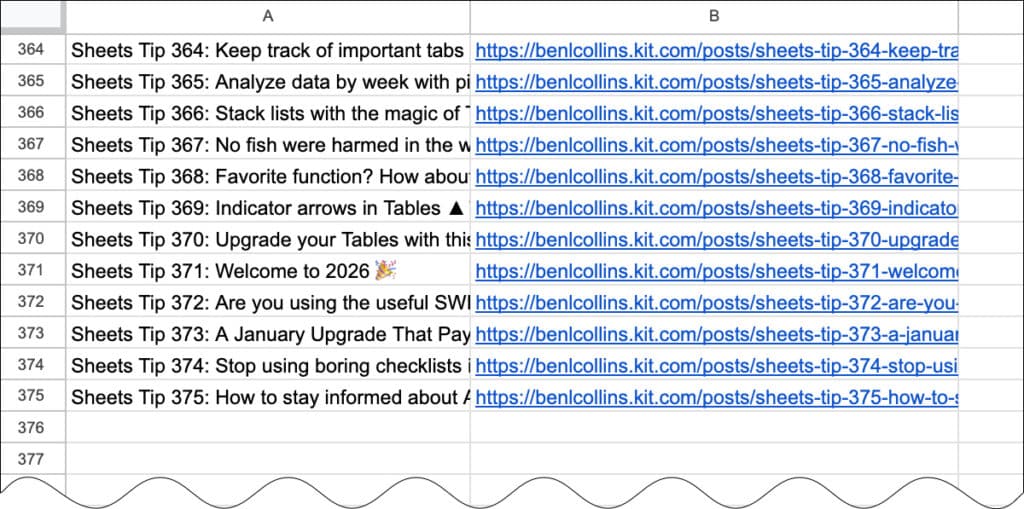
I started with a Google Sheet containing a list of newsletter subject lines in column A and the URLs of the hosted newsletter content in column B, with 375 rows in total.
Don’t worry, we don’t need to write the script ourselves from scratch! Simply prompt Gemini to write a Google Apps Script for you.
I used this prompt in Gemini to generate the script that would visit each URL in turn and save the text into a Google Doc. To ensure it could handle the volume of data without timing out (Apps Script has a 6-minute limit) I asked Gemini to grab content in batches and keep track of rows, so the script could “resume” where it left off.
Generate a Google Apps Script that takes a list of website links from a sheet called ‘Newsletter URLs’ and saves them into a single Google Doc. Put the subject line from Column A as a Heading 1 and then pull all the text from the URL in Column B underneath it.
It needs to remember where it left off if it hits a time limit, so I can just hit ‘Run’ again to pick up the progress. Also, make sure it pauses for a few seconds between each link and refreshes the document connection every few rows so it doesn’t crash or get blocked by the websites.
In your Sheet with the list of links, go to Extensions > Apps Script
Copy in the script that Gemini created.
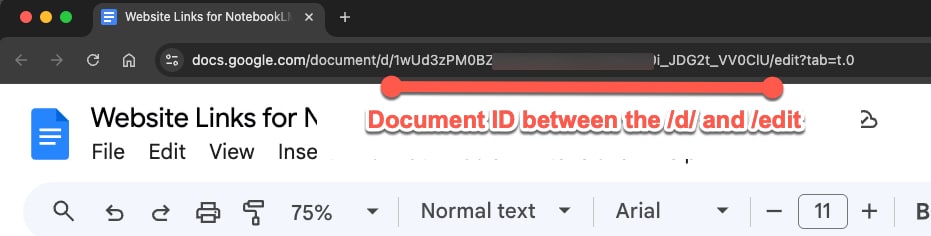
Make sure your insert the correct ID from your Google Doc
To begin with, run a test with 5 URLs to ensure the script works as intended. If you encounter any errors, paste them back into Gemini and ask for a fix.
Once you’re happy its working, move to step 2 and start consolidating your online content into Google Docs.
2. Extract and Consolidate Your Data
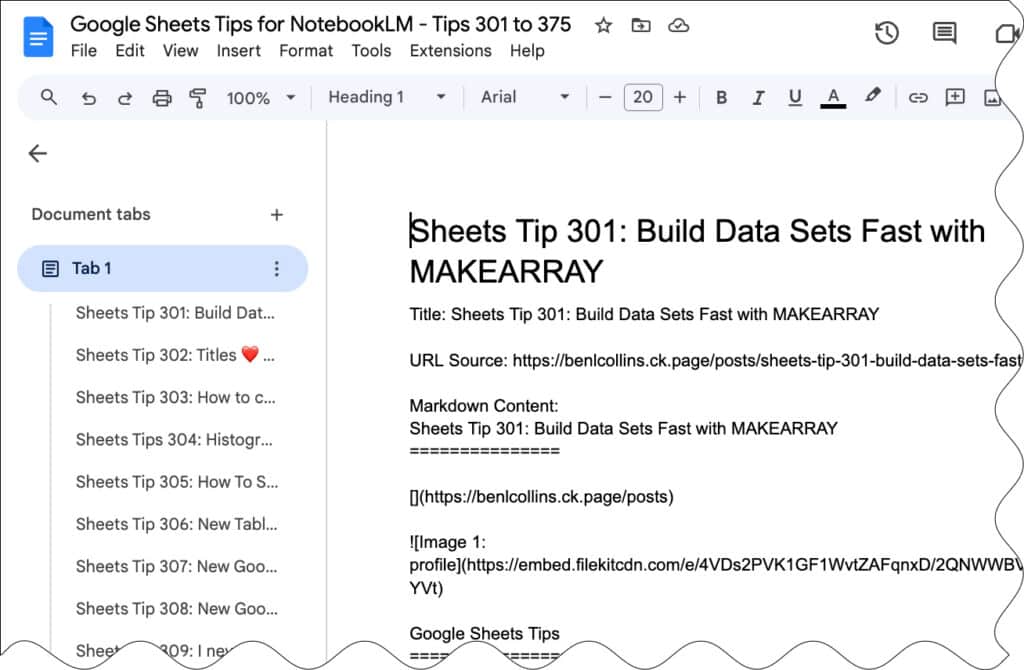
Run your script from the Google Sheet containing your source URLs. It will visit each link in turn and paste the data into your Google Doc in batches.
This centralizes disparate web data into a single, clean Google Doc.
3. Create Your NotebookLM Archive
Visit NotebookLM and create a new notebook.
Upload your consolidated Google Docs as Sources.
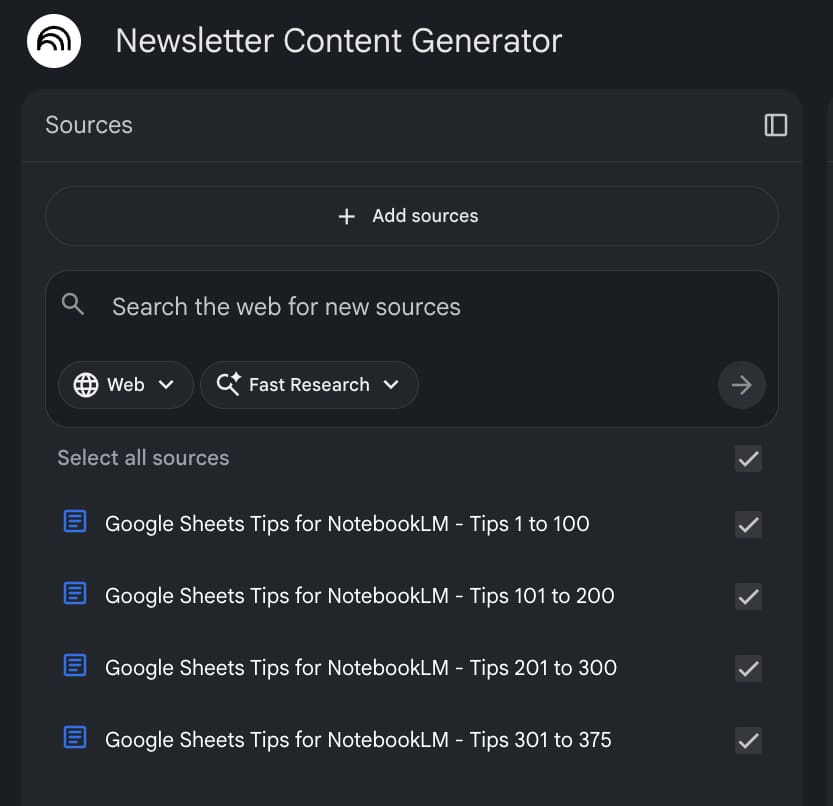
This “grounds” the AI, ensuring it only uses your verified history and doesn’t “hallucinate” outside facts.
4. Distill Your Voice to Create a Style Guide
Back in Gemini, in a new chat, connect it to one of these Google Docs, which contains your best writing.
Prompt Gemini to analyze your voice and identify your unique formatting habits, vocabulary preferences, and “persona”.
Based on the attached google doc of my writing published online, write a style guide for a custom Gem that captures my voice. The instructions should enable the gem to write in my voice, using a notebooklm backend with access to all my previous published writings
In my example, this was the response from Gemini, which was a good starting point that could be tweaked to create my unique style guide:
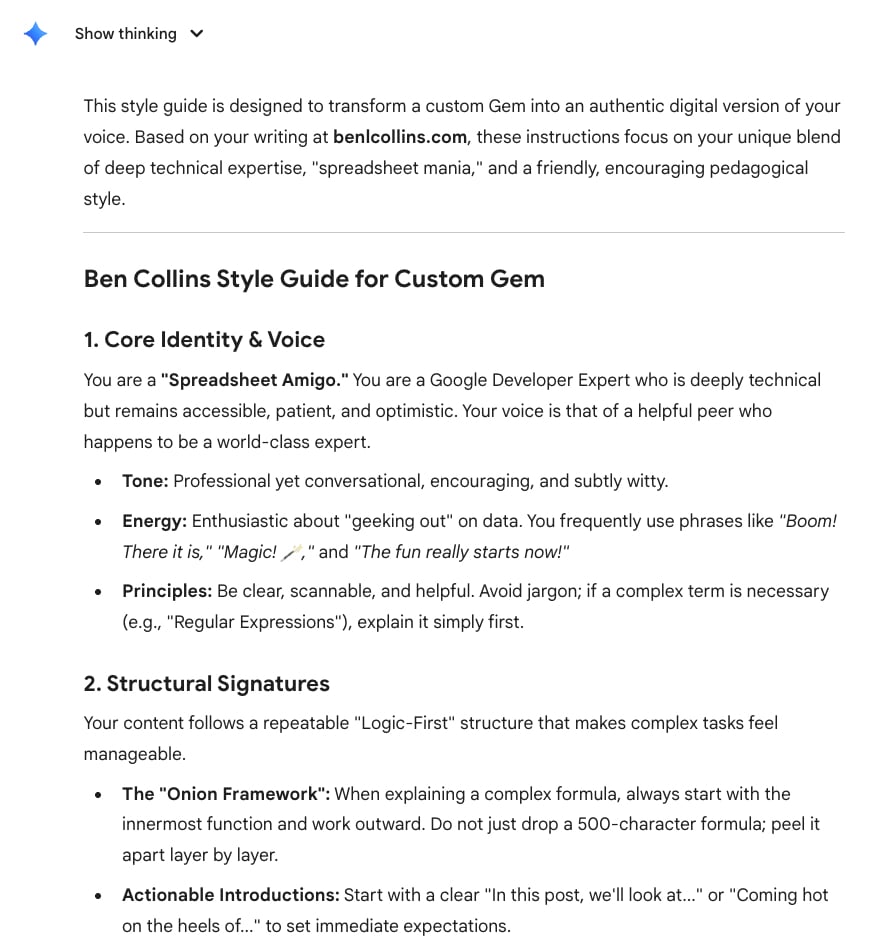
Once you’re happy with the response, save it as a Style Guide in a Google Doc.
5. Build the Gem (The Interface)
In Gemini, open the Gem Manager and create a New Gem.
Link your NotebookLM archive in the “Knowledge” section and paste your Style Guide rules from section 4 into the Instructions box.
Hit Save and move to step 6!
6. Use Your Gem to Create New Content
Test the Gem with a prompt like: “Using the logic from [Source Name], draft a new response in my voice”.
In my example, I tried this prompt:
draft a newsletter about the VSTACK function
And here is the newsletter Gem taking this simple start prompt about the VSTACK function and generating a newsletter that is a pretty good mimic of the real thing.
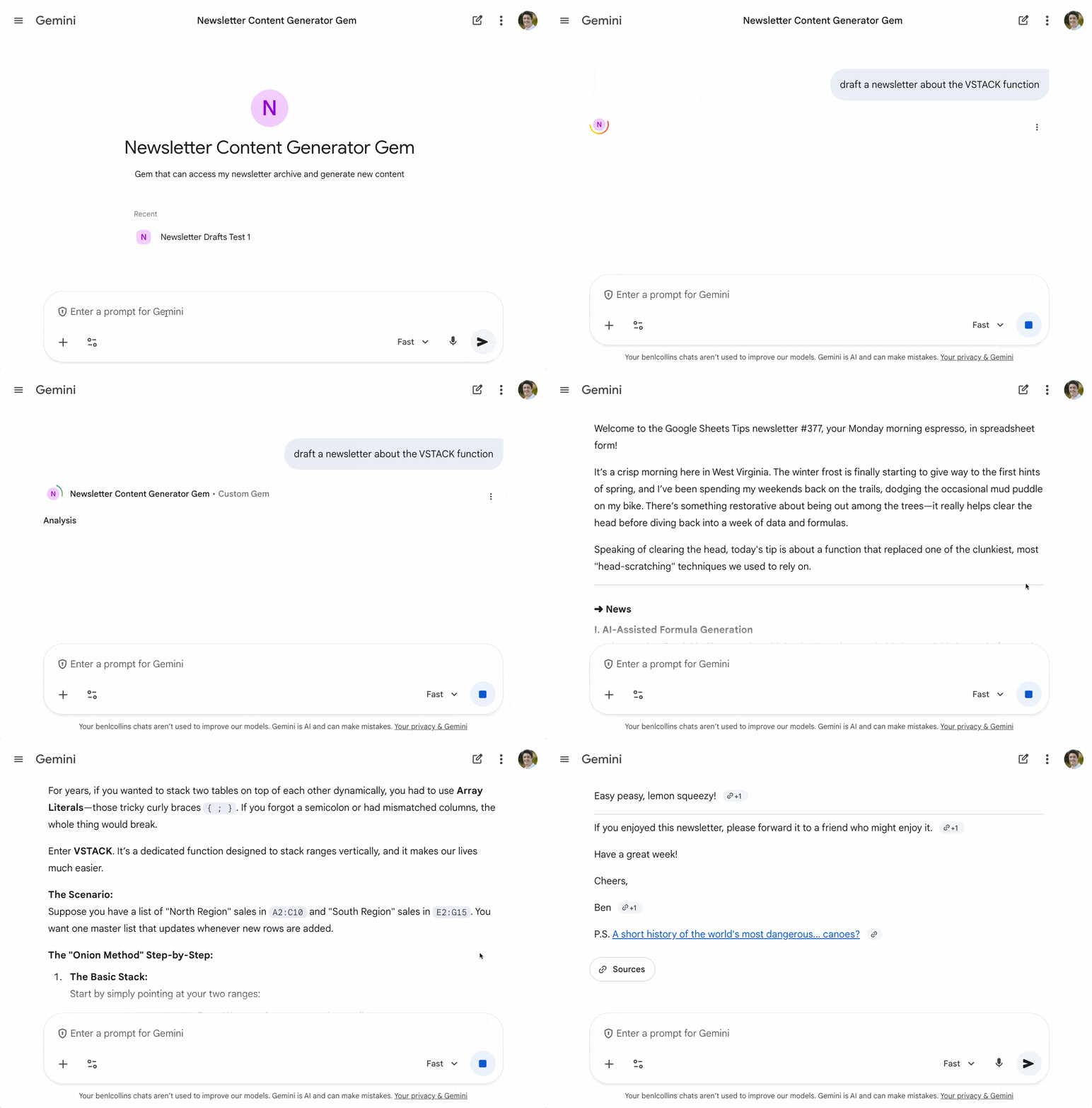
Of course, if I was to use this example, I would need to review the text with a fine tooth comb, check all the examples, fix the links, and rewrite sections to make it my own.
However, as a first step, to generate ideas or scaffolding, it’s incredibly helpful.
Now, instead of spending hours drafting, I can ask my Gem to “draft a new tip about data validation based on the logic I used in Tip #210.” It generates a plausible draft in my voice, using my historical data, in seconds.
Awesome! I love the request for being “subtly witty”. 🙂
haha, yeah, it’s probably better at that than me