18 Best Practices for Working with Data in Google Sheets

This article outlines 18 best practices for working with data in Google Sheets.

It’s a compilation of my own experiences of working with data in spreadsheets for 15+ years, along with the opinions of others I’ve worked with and reports and articles I’ve read online.

By no means is it meant to be exhaustive or the last word on the subject, but if you follow these guidelines, you should have a robust data workflow.

Following these best practices for working with data will make you more efficient and reduce the chance of errors creeping in. It’ll make your work easier to follow and understand and add value to your team’s or client’s workflow process. It’s a good habit to have, and it’ll serve you well as you progress with your data career.

Continue reading 18 Best Practices for Working with Data in Google Sheets

Thoughts on productivity

Slow Google Sheets loading bar

I’ve been thinking about productivity a lot in the past year.

I’ve had to.

Life is busier now than it’s ever been.

My wife and I have a young family (two sons under the age of three) so we have our hands full at home. We both work full time and have ambitious career goals.

Balancing these two worlds has undoubtedly been the most challenging puzzle of my life thus far.

In an earlier stage of my career, when time seemed to be an almost unlimited commodity compared to today, I could work until 9, 10 or 11pm (or later) no problem. Work at the weekend if necessary.

Now, with a young family I don’t have that option (and nor do I want to be working at the weekend), so I have to look more critically at how I use my time.

I’m continually trying to be more productive.

Imagine this scenario, and ask yourself if you relate:
Continue reading Thoughts on productivity

How to Create a Scatter Plot in Google Sheets

Whenever I’ve taught data analysis classes or data visualization classes, for General Assembly or privately or online, I find that the humble scatter plot is often poorly understood.

Perhaps it’s because they’re less common than simple bar charts, line charts or pie charts? Or maybe it’s because they take a bit more mental effort to understand what they’re telling us?

Regardless, they’re a crucial tool for analyzing data, so it’s important to master them. This post looks at the meaning of scatterplots and how to create them in Google Sheets.

What is a scatter plot?

Simply put, a scatter plot is a chart which uses coordinates to show values in a 2-dimensional space.

In other words, there are two variables which are represented by the x- and y-axes.

scatterplot in google sheets

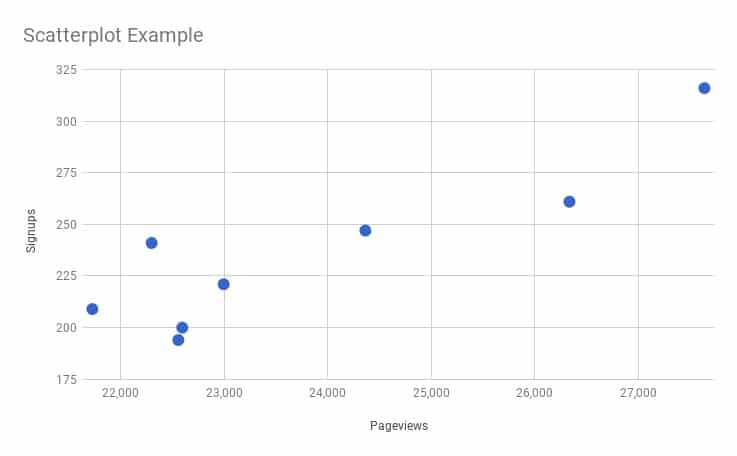
In this example, the scatter plot shows the relationship between pageviews of a website and the number of signups that website received. As you can see, when the number of pageviews increases, the number of signups tends to also increase. They are positively correlated, but more on that in a minute.

Often the variable along the x-axis is the independent variable, which is the variable under the control of the experimenter, and the variable up the y-axis is called the dependent variable, or measured variable, because it’s the variable being observed to see how it changes when the independent variable changes.

It’s possible for both variables to be independent, in which case it doesn’t matter which axis they’re plotted on and the scatter plot shows any correlation between the two.

Why is a scatter plot useful?

A scatter plot is incredibly useful because it can show you, at a glance, what the big picture is, what the overall relationship is, what the trend is, between two variables.

Looking at the numbers alone is not particularly intuitive. It’s hard, impossible often, to determine how they’re related to each other.

Scatter plot example

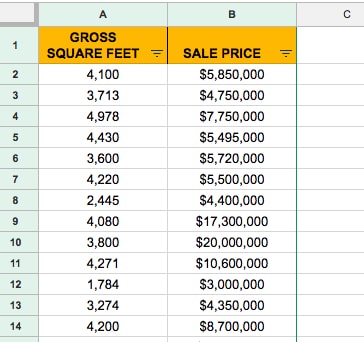
Let’s take a look at a real-world example, using data showing property sales in Manhattan. I’ve extracted the data for properties between 1,000 sq.ft. and 5,000 sq.ft. and removed any without a sales price listed.

This leaves 250 values in a dataset, like so:

Scatter plot data

To create a scatter plot, highlight both columns of data (including the header row).

Then click Insert > Chart

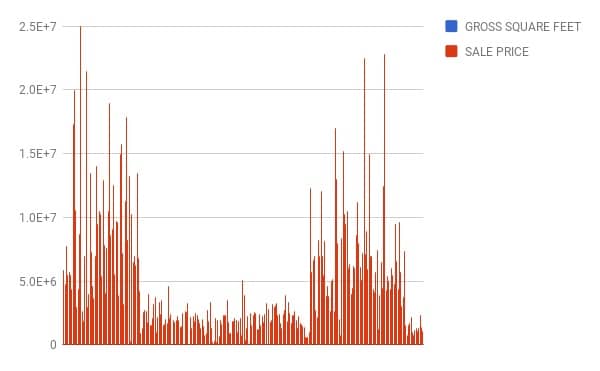
Initially it’ll create a terrible bar chart, where each of the 250 rows of data is represented by a bar. Yikes!

bad bar chart

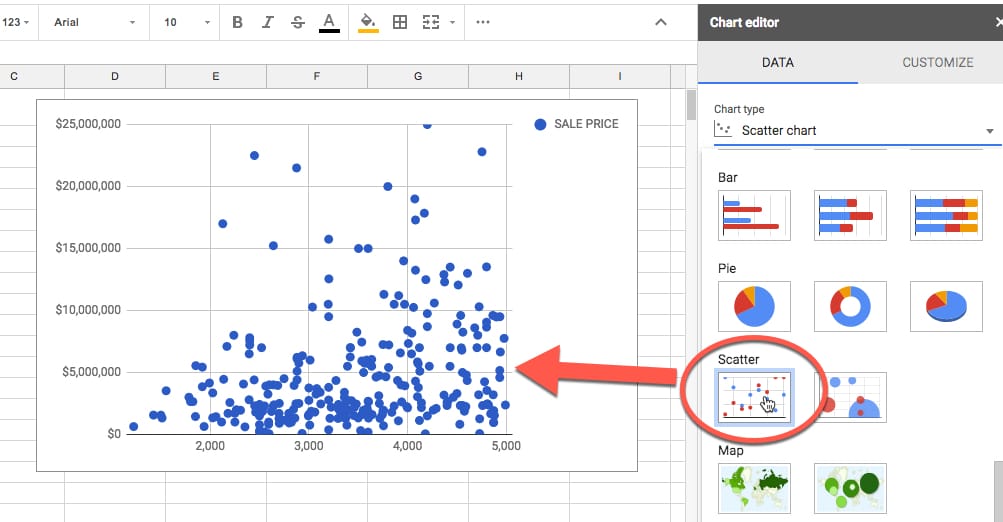
It’s a very simple fix to transform it into a scatterplot. On the chart menu, on the Data tab, simply choose the Scatter option, as shown in this image:

scatter plot menu

There you have a nice scatter plot!

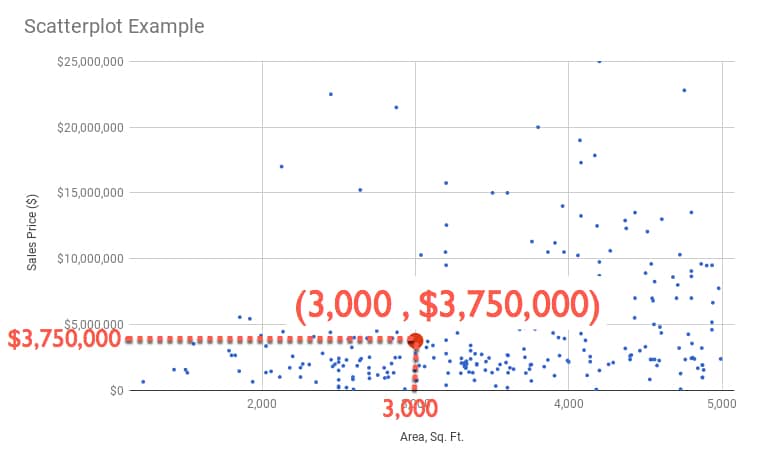
Focus on a single point for a moment (shown in red in this image):

Reading a scatterplot

You can read off a pair of values, in this case 3,000 sq. ft. and $3,750,000, which tell us that we have a data point (representing a property sold in Manhattan) which was 3,000 square foot and had a sales price of $3.75 million.

We can write it as a coordinate pair: (3,000 , 3,750,000)

So each point, each plot, in our chart represents a coordinate pair of area and sales price, each plotted according to the rows of data in our dataset.

This is the real power and beauty of a scatter plot. It shows all of those rows of data in a single chart, so we can absorb something about the dataset as a whole.

Interpreting a scatter plot (correlation)

Well all those points on your scatter plot are pretty and they show something, but what exactly? And is there anything else we can glean from the scatter plot?

They show trends within our dataset.

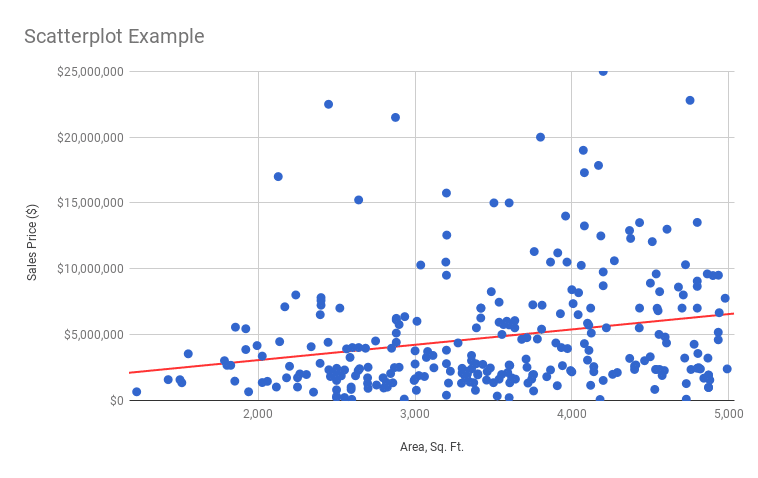
But it’s hard to see this from just the points, so we can add a trendline like so (shown in red):

scatterplot with trendline

Ah ha! That’s interesting and useful.

It shows a general upward trend, which is what we’d expect. As the size of a property increases, so does it’s sales price.

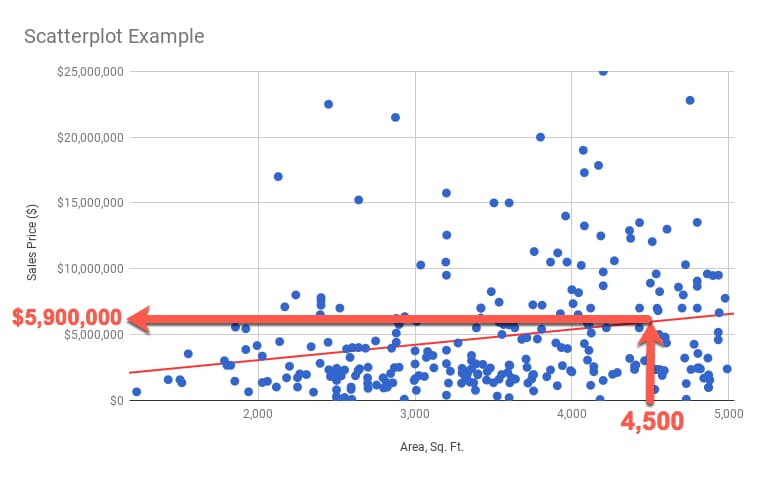
Now, if we want to predict a sales price for a given area, say 4,500 sq. ft., we can use this line.

Start at the 4,500 sq. ft. mark on the x-axis, trace up to the line and then across to the y-axis and read off the value:

scatter plot and trendline

I can read off a value of $5,900,000 as the predicted value of a 4,500 sq. ft. property.

You might be wondering how to do that a bit more “scientifically”?

Well, we can use the equation of the trend line to calculate the number.

The line equation takes the basic form:

y = ax + b

So to predict y, we need to know the value of x (4,500 sq.ft. in our example) multiplied by the value of a (which is the slope of the line) and adding on the value of b (the intercept, or where the line crosses the y-axis).

We calculate a from our data using the SLOPE function:

=SLOPE( B2:B277 , A2:A277 )

which gives us: 1166.42218

We calculate b from our data using the INTERCEPT function:

=INTERCEPT( B2:B277 , A2:A277 )

which gives us: 712264.7317

Then I can calculate my predicted y-value using the equation:

y = 1166.42218 x + 712264.7317

into which I plug in the x-value of 4,500 sq. ft.:

y = 1166.42218 * 4500 + 712264.7317

to get the answer: $5,961,165

All that from a humble scatterplot.

How do we know if this line is a good fit? Will it give us “good” predictions?

Stay tuned for the next post, where we’ll look at how to answer that question.

See Also

How to make a Histogram in Google Sheets and overlay a Normal Distribution Curve

Want to learn more about Data Analysis?

There’s a lot more to scatterplots, and my new course, Data Analysis with Google Sheets, does a deep dive into scatterplots and how to use them to understand your data better.

Understanding Average In Google Sheets With The World’s Richest Person

This is a story about a bar, 10 regular folks, and the world’s richest man, to explore different measures of average in Google Sheets.

Somewhere along the way, we’ll seek to demonstrate the robustness of the different average measures, but more on that in a minute.

I want you to picture your favourite bar or pub.

For me, it might be a pint of ale at The Dickens Inn, near the River Thames in London:

Dickens Inn London pub

I should just finish this blog post here, and we could all spend the rest of the day in happy reverie, supping our favourite tipple.

Alas, that won’t do! We have work to do and things to learn, so let’s get started.

Continue reading Understanding Average In Google Sheets With The World’s Richest Person

Explaining syntax differences in your formulas due to your Google Sheets location

Did you know that formulas are written differently depending on where in the world you’re located? For example, the syntax in the US is different to that in Italy.

This post explores the syntax differences that occur based on your Google Sheets location, i.e. the location you’re working in, assuming your Google settings match (which they would by default).

Formula syntax based on Google Sheets location
What wizardry is this? Either this format will look utterly normal to you, or it won’t.

If you’ve ever copied a template but been unable to get it working, or simply not understood a formula, then it’s possible you’ve run into this syntax issue due to Google Sheets location.

This handy guide will show you the differences and hopefully help you translate seamlessly when sharing Sheets in different locations.

For the most of the world, aside from Europe, you write decimals with a decimal point notation (for example $2.50) and your formulas will use commas to separate the different parts.

I’m currently based in the US, my Google account is set to a US location, so all the articles and template downloads on this site use this notation. (Incidentally, I’m from the UK originally, but since they use the same decimal notation there, formulas in my Google Sheets are the same regardless.)

For countries using decimal comma separators (for example €2,50), which is most of the European countries and a select few others, the syntax for formulas is slightly different, as explained below.

So, ask yourself now where you’re based and how you write your decimal numbers, and then see the different sections below for guidance on how your formulas are written.

Continue reading Explaining syntax differences in your formulas due to your Google Sheets location