OpenAI recently launched their agent tool called Operator. It’s an AI powered tool that can navigate the web and perform tasks for you using its own browser. It can click, type, scroll, and generally interact with web pages the way you or I would.
Naturally, I tested it out with a Google Sheets project to see how it fared. Specifically, I asked it to complete 3 tasks for me:
Create a pivot table
Create a chart
Write a script to email a pdf copy of the Sheet to me
Here’s how it got on:
OpenAI Operator in action
I pasted the URL of my Google Sheet into the Operator chat window and asked it to get to work.
It opened the Sheet in a Linux browser within Operator and then handed control to me to login to the Sheet. Once that was complete I handed control back to Operator to work it’s magic.
It was wild watching the computer take control of my Sheet. I watched it open menus, insert objects, and write code.
The craziest moment was when it made a mistake with the pivot table and self-corrected 🤯.
It got itself completely stuck when it was trying to save the script it wrote. It kept pressing the “Undo” button and, eventually, I had to step in and tell it where the “Save” button was.
I felt like I was like working with a digital assistant.
I’m excited for this to go fully multimodal. Imagine working through this scenario with voice activation instead of using a chatbot.
We overestimate the short-term change, but underestimate the long-term change. It feels like we’re moving pretty darn fast at the moment 😯.
Operator Availability
At the time of writing (27th January 2025) Operator is available to OpenAI Pro users in the U.S..
Hardly a week passes at the moment without some technology announcement that makes me go “wow!”.
This week it’s Google’s AI Studio that has been impressing me, offering a glimpse into what the future of software education could look like.
What’s different with this tool is that it lets you share your screen and have a verbal conversation with the AI model (in this case Gemini), so it can walk you through a problem.
In my case, I used it to walk me through building a pivot table. And whilst it didn’t get everything correct (yet!), it’s impressive and feels like you’re talking to an assistant, not your computer.
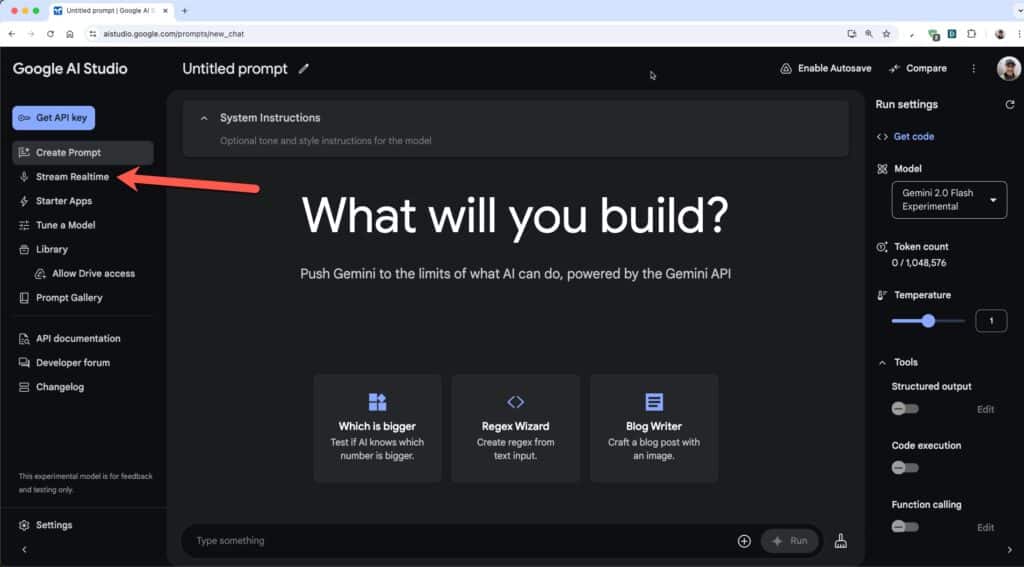
Sign in with your Google account. It’s free to use. When you log in, the homepage looks like this:
Click on the “Stream Realtime” in the left menu (shown by the red arrow).
Share your screen and have a conversation with AI Studio! For example, you could say: “I want you to walk me through building a pivot table that summarizes the total sales price by property type.” (And say it out loud, don’t type it in.)
Because the Pivot Table once existed under the data menu, AI Studio initially guided me there first (the only serious mistake it made). I said “I don’t see the pivot table option under the data menu, is it under one of the other menus?” So, don’t hesitate to interject if you can see it making a mistake.
Once you have a basic pivot table, you could ask for help sorting the data or adding another category.
Another great use case is asking it to explain lines of code to you. For example, share your screen showing a code block and try something like this “can you explain what the code on lines 52 – 56 does?”
It’s early days, so it’s far from perfect. It does make mistakes so you can’t rely on it blindly. You still need to cultivate your own knowledge.
But it’s a glimpse into what’s around the corner when we have infinitely patient AI assistants at our beck and call. And I think that’s a bright future, where we can be dramatically more efficient, focused on insights and outcomes, not code syntax or formula issues.
One of my goals this year is to experiment with AI tools and have fun doing it. This is the first in the series, using Open AI’s Sora text-to-video tool to create a fictional advertisement for Polar Explorers back in the polar heyday:
The sheer number of daily AI announcements and new tools feels overwhelming at the moment.
One way to cut through this noise is to set yourself an AI project and see it through to the end.
Whether you use one tool or 10, and whether it’s the latest this-or-that or just run-of-the-mill ChatGPT, it doesn’t matter. What matters is that you complete something with GenAI. In the process, you’ll learn how to use these tools, what they’re good at, and what they’re not good at. And in the process, you’ll keep yourself relevant in the future.
For this experiment, I wanted to learn about creating videos using GenAI, and specifically, OpenAI’s text-to-video tool: Sora AI.
Background
The inspiration for this project came from this article at the end of last year, about Coca-Cola creating an entire ad using AI tools and how the project was more like developing software than a traditional film shoot.
I was also reading Shackleton’s biography at the time.
The expedition is famous because the ship Endurance was trapped in the ice and sank, leaving 28 men stranded on the sea ice with no hope of rescue. The men escaped via a perilous small boat crossing of the Southern Ocean, in what has become one of the greatest survival stories of all time.
Shackleton posted this famous, likely apocryphal, newspaper advertisement to recruit sailors and explorers for his expedition and received over 5,000 responses.
It’s often touted as an example of good copy, although the original has never been found and it seems the general consensus is that it’s not authentic.
Polar Ad for the TikTok Generation
I decided to try recreating this ad as a video for the TikTok generation, with the help of AI. In other words, imagine if Shackleton had TikTok and YouTube back in the day, what would his ad look like?
Here’s the result:
And, of course, the TikTok generation would most likely watch it in portrait orientation on their phones, so I uploaded to YouTube shorts here (since I’m not on TikTok).
For example, to get the video of the gentleman reading his paper wearing a bowler hat, I used this prompt:
A gentleman in a finely tailored suit, wearing a polished top hat, strides confidently along New Burlington Street. The street is bustling with horse-drawn carriages, women in Edwardian dresses, and men in similar formal wear. The architecture is early 20th century, with brick buildings lining the street. The scene is lively and captures the essence of London in 1914.
And to get the polar explorers on the ice, I used this prompt:
5 edwardian polar explorers walk slowly across a wind-swept ice cap with snowy mountains in the distance. The 5 men are dragging a heavily laden sledge behind them. We are behind them looking at their backs.
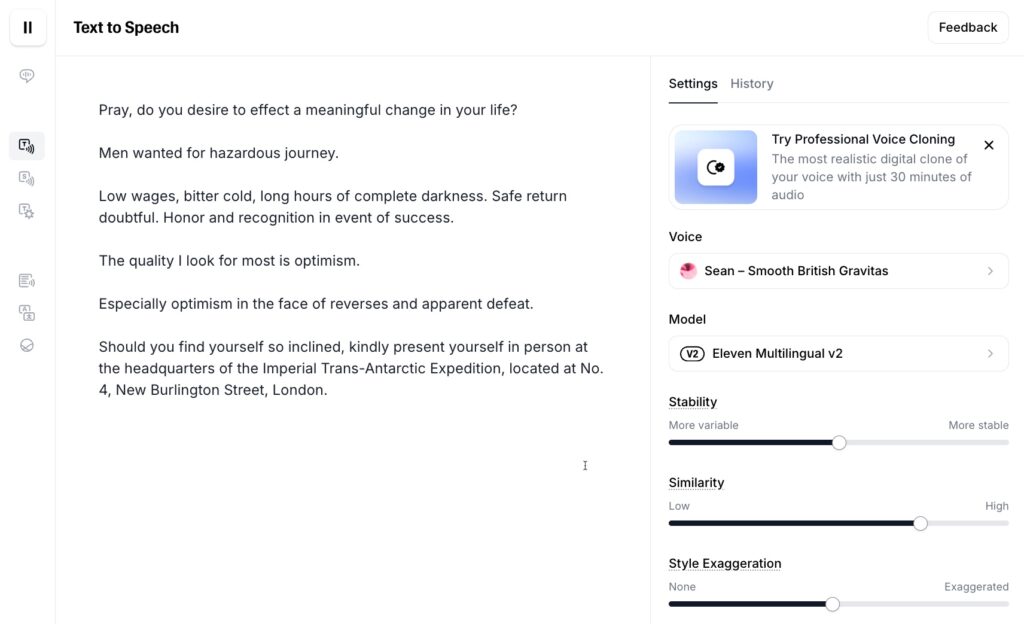
ElevenLabs to generate voices
ElevenLabs is a tool that converts text to speech, with a wide variety of voices to play with.
I inputted the text from the ad:
“Men wanted for hazardous journey. Low wages, bitter cold, long hours of complete darkness. Safe return doubtful. Honour and recognition in event of success.”
And then experimented with various old-fashioned voices to get the tone I was looking for.
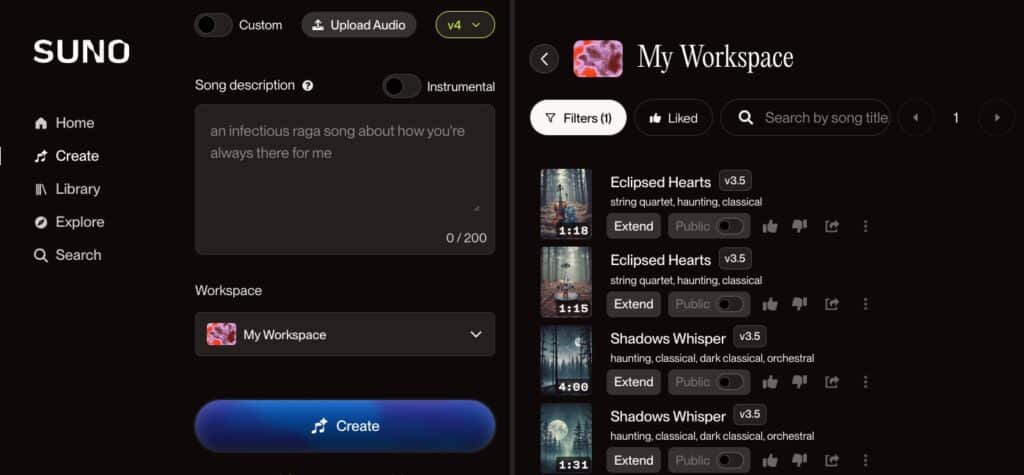
Suno to generate background music
To create background music, I used a tool called Suno.
Suno generates music based on a song description and optional settings like whether it’s instrumental or not.
Video Production
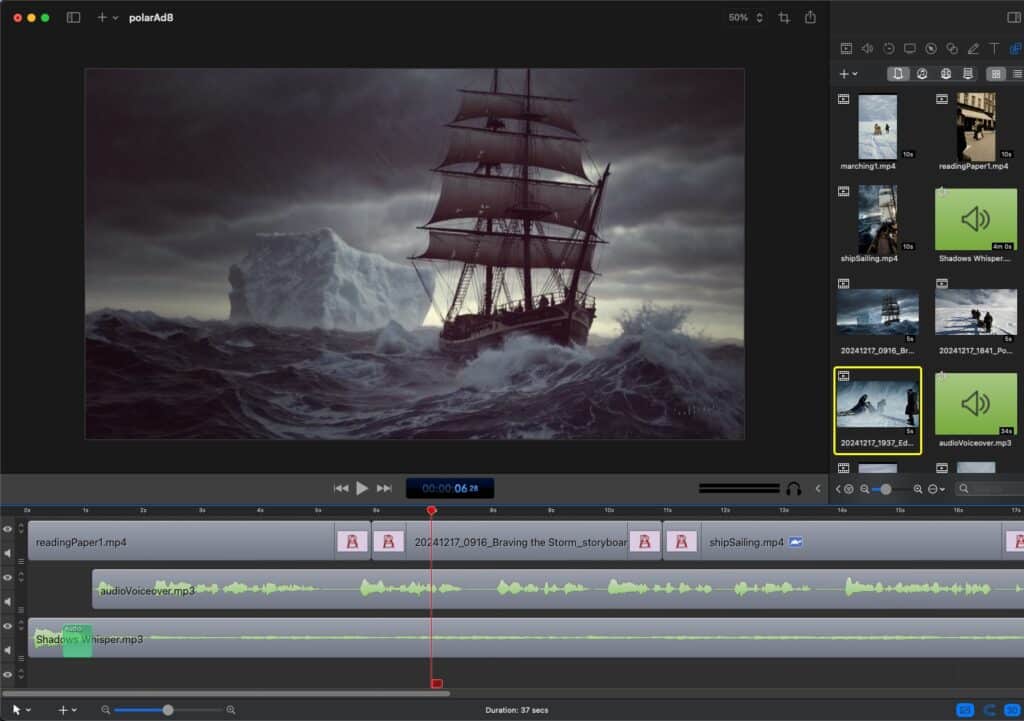
I’ve been making course videos for years, so I used the same tools to bring the different Sora clips together into a single video.
Steps:
Download the assets from the AI tools above
Import into Screenflow
Add video and audio clips into timeline and trim as needed
I added a vignette and vintage filter to the videos to make them look older
Export
Using Handbrake to shrink the video file size
Upload to YouTube
ScreenFlow workflow
I had some fun creating this and learnt some new skills along the way.
And, although the videos are very obviously AI generated, it’s incredibly impressive that all this was generated from a few paragraphs of text.
Just image where this leads… it’s not hard to picture a world where you ask Netflix to generate a new Jurassic Park movie set in the Caribbean featuring Dwayne Johnson. And you come back half an hour later and it’s ready for you to watch.
Sunrise over the Potomac River from a hike in October 2024
Ten years in business. Ten years working for myself. As I write this, I still can’t quite believe that it’s been ten years.
In some ways it feels like only yesterday that I was wearing a suit to an office on K-Street in Washington DC, and yet, also, it feels like I’ve been doing this for a really long time now.
I want to go back and give my naive 2015 self a quick pep talk and say “it’s hard but it works out ok!”, when I was flailing around after quitting my accounting job.
Here’s a look at 2024:
2024 Highlights
The work highlight of 2024 was launching my new membership:
I worked hard to launch this in September and feel like the work over the past few months has been some of the best I’ve ever done.
We’re up to 414 members now and have covered data visualization techniques, drop-down menus in detail, analytical functions, the new Google Sheet Tables in detail, user interface with Sheets elements, and, of course, AI.
And, we have a 3-part Apps Script beginner workshop coming this January (it’s not too late to join!).
In addition to live workshops, members enjoy an exclusive weekly newsletter, packed with Sheets tutorials, news, and templates.
Template #6 for Sheets Insiders on the new Tables feature
Advanced chart tutorial for Sheets Insiders members
I sent 44 Google Sheets Tips newsletters this year, starting with #285 in January and ending with #328 in December. I really enjoy putting the weekly newsletter together and I’m still blown away that it goes out to nearly 55,000 people every week. 🤯
If you’re one of those folks, thank you for your support!
And if you’re not, and you’d like to level up your Sheets skills with a bite-size tutorial each week, you can sign up here.
Website
This year I published 14 new and updated posts on this website. My favorite posts to research and write were:
Website traffic declined again this year, following the trend from last year.
I think there are a combination of factors at play, including: 1) more competition from other Google Sheets sites, 2) competition for search traffic generally from AI chatbots, and 3) younger audiences consuming content in video form, via YouTube or social media.
YouTube
I focused on my YouTube channel for the first few months of 2024 and saw good results, finally reaching 10k subscribers! After this initial burst of energy at the beginning of the year, things slowed down and I’ve only had minimal growth since then.
Google Partnership
One of the highlights of every year is working closely with the Google Sheets team to provide feedback on new features and this year was no exception.
I was also honored to continue as a Google Developer Expert and be part of the Champions Innovator program for another year. 🙏
Craft & Commerce Conference
This was so fun!
Working with AI Tools
It’s crazy how fast these tools are improving, although there are signs those gains are slowing down. But what’s really crazy is how good these tools are getting at doing my job! Yikes 😉
From generating formulas, explaining concepts, writing code, or even drafting blog posts, gen AI can seemingly do it all now.
It’s very clear that what has worked incredibly well for me the past 10 years will not carry me forward for another 10. I’m okay with this though.
One of the things I love most about my job is all the learning I get to do. I’ve always considered adaptability one of my strengths and I’m excited to jump into new technologies this year.
Obviously, AI will be a big focus of my work for 2025 (mostly in a spreadsheet context of course).
Non-Work Highlights
Although a foot injury slowed me down for the second half of 2024, I have many wonderful memories of adventures with family, friends, and solo, to savor from last year.
Another lap around the sun and 2024 is in the rear view mirror.
The challenges of 2023 — creative burnout, feeling like I’m running on a treadmill balancing work, parenting and life — continued to affect me in 2024.
I realized in the spring that I didn’t have the enthusiasm for another Google Sheets course, and it took me a while to figure out what my next step was. I was sick for a while in the spring too (a rough cold and then a cough that rumbled on for months), which didn’t help.
A break, participating as a student in an online course myself, and a change of approach (shifting from courses to membership has helped).
I’m looking forward to starting afresh this year and delivering consistent, high-quality teaching through the Sheets Insiders membership.
Looking Forward To 2025
2025 Work Goals
Similar to the past few years, I have a couple of annual goals that I strive for:
Send my weekly Google Sheets newsletter every week, except for holidays and a short summer break
Hit 60k newsletter subscribers
I also have internal (non-public) goals for my business, around revenue and subscriber numbers for the Sheets Insiders membership. I want to grow the membership in 2025.
Other 2025 Goals
My 2025 non-work goals are similar to my 2024 ones, mostly to get out for lots of outdoor adventures with friends and family:
Have another healthy year
A C&O canal bike tour with my boys
Get fit on the bike again (and do a 200 mile double century ride!)
Join a hiking or biking club to meet more people to go adventuring with
An adventure trip with my brother
A trip home to see family in the UK
Weekly brainstorming hike with my wife
Read 20 books
Thank You!
Thank you for your support on this journey.
A huge thank you if you read my newsletter, have joined Sheets Insiders, or taken one of my online courses. I hope they’re helpful to you!
Google Sites is an amazing app for bringing together information across an organization’s Google Workspace domain. However, Google Sites doesn’t natively have a CMS, databases or even a decent option for basic tables. Therefore, Google Sheets is hugely important for building a Google Sites hub that serves up fresh data to teams.
Let’s discuss key use cases for Google Sheets in Google Sites and how to implement them. Also, we’ll learn about how to effectively utilize Google Sheets for organizing, sharing and managing information. There are some limitations when integrating Sheets into a Google Site, which we’ll also cover.
How to Embed a Sheet and Adjust Settings
The process for inserting a Sheet into Google Sites is streamlined. You won’t have to deliberately publish the Sheet(s) or any special iframe code.
Here’s how easy it is:
Enter editing mode on your site
Select “Insert” from the right panel
Choose “Drive” from the top four primary options
Select the Google Sheets file from your Drive or Shared Items
Drag and drop the sheet into place on the page and confirm sharing settings
Check embedded widget settings to select the default displayed sheet tab
Your embedded Sheet may look different than what you natively see in the full Sheets version. For instance, not all custom fonts are supported for your embedded Sheet. So a tip is to stick to basic universal fonts like Arial, Georgia, or Trebuchet.
In addition to this in-page widget, you can use the Google Sites full page embed for a more full screen sheets experience. This user experience is very useful for comprehensive project trackers because the scrolling is easier to manage.
Charts from sites can also be embedded into Google Sites if you’ve already generated them within your Google Sheet. The sheets and charts stay synced (at least upon page load), so you only need to manage your data in one location.
Google Sheets for Workspace Intranets Examples
1. Project Management and Task Tracking
A Google Sites intranet is designed to be a knowledge hub and a source of truth, so it makes sense that important information be accessible. Checklists and gantt charts created with Sheets can be embedded directly into intranet pages. There’s no need to launch Drive, dig in various folders or even use search.
Here’s an example of an intranet developed by Kirksville Web Design using Google Sites. In this case, you’ll see an onboarding portal’s checklist using emoji, dropdowns, checkboxes and images. Convert this type of sheet to a table for an even more polished look.
2. People Directories and Org Charts
You can maintain an up-to-date employee directly really easily with Sheets. Common data points include phone numbers, email addresses, roles and departments. Employ smart chips in sheets for a more advanced directory.
Google Sheets itself also supports org charts, which rely on a role hierarchy to be generated. Once you have everything prepared in Sheets, drop it right into the Workspace company intranet powered by Google Sites. Power users can go a step further by utilizing Apps Script to import active directory contacts.
3. Deploy a Simple CMS (Content Management System)
Build a project tracker, requests tracker or other CMS using Sheets connected to Google Forms. Reorganize and reformat user submitted data sent to Sheets.
You can embed both the form and the resulting CMS sheet into a private Google Site. Use cases include survey results, job applications or event registrations.
You can even create a dashboard that integrates directly with a Sites company wiki.
Caveats
Embedded Google Sheets don’t behave exactly like the in-app counterpart. For instance, tables won’t have the same easy filters installed on column headings. You can’t live edit spreadsheet data from the embedded version. Likewise, you won’t see a fully live, collaborative sheet inserted into your website or wiki.
Conclusion
Sheets + Sites is an intuitive low-cost option for businesses to consider for intranet solutions.
Gemini AI within Sheets also makes the whole experience that much easier to get off the ground.
Written By
Kyle Horst is a developer specializing in the Google Sites apps. He builds custom intranet solutions for enterprises to help increase employee knowledge, engagement, and performance.
Learn more about using Google Sites for intranet applications and explore Kyle’s professional templates here: Kirksville Web Design