Is Formula Writing Dead? (And why we shouldn’t mourn it)

Why spend hours crafting formulas yourself if Gemini can do it for you?
For the better part of two decades, I’ve viewed my spreadsheet work through the lens of a craftsperson, rather than as a corporate analyst.

The grid of cells was my canvas and the formula my brush.

I pushed the limits of what formulas could do, creating clockschess gamesetch-a-sketch, and join-the-dots games, using only built-in formula logic.

But recently, over the past few months, something has shifted.

We’re seeing the “formula syntax barrier” dissolve in real-time. Years of experience and a deep knowledge of the function landscape is no longer required to write complex formulas.

The true impact of this realization hit me while I was experimenting with a new formula game: building a Minesweeper demo in Google Sheets, using only formulas. (Spoiler: I don’t believe it’s possible to do fully, without using code to control the game play.)

I started the traditional way, experimenting with various OFFSET functions to “see” what was in the adjacent cell to the formula. It was intellectually satisfying, but also slow going.

The New Way

Once I had a working OFFSET formula that checked a single cell, I decided to see what Gemini would do. Truthfully, I couldn’t justify the time doing it myself when I had “real” work to do (or, was I just too lazy to do that much hard thinking?).

So I plugged the formula into Gemini with this prompt:

I have this formula in Google Sheets that checks whether the cell directly below is equal to "A". It gives an output 1 if the cell below equals A and blank otherwise:

=IF(OFFSET( INDIRECT( ADDRESS( ROW(), COLUMN())),1,0)="A",1,)

can you extend this concept and create a formula that checks if any of the adjacent cells that border the formula cell are equal to "A". There are 8 cells that surround the formula cell.

The formula Gemini generated was complex:

=IF(COUNTIF( OFFSET( INDIRECT( ADDRESS( ROW(), COLUMN())),-1,-1,3,3),"A")-IF( INDIRECT( ADDRESS( ROW(), COLUMN()))="A",1,0)>0,1,"")

But guess what? It worked. It just plain worked!

It extended the logic to check if there was an “A” in any of the cells surrounding the formula cell.

I like to think I would have got there myself, but it would have taken me a LOT longer than the minute that Gemini took.

After more back-and-forth with Gemini, where I only directed Gemini and didn’t write any more formulas myself, I had a working demo of Minesweeper:
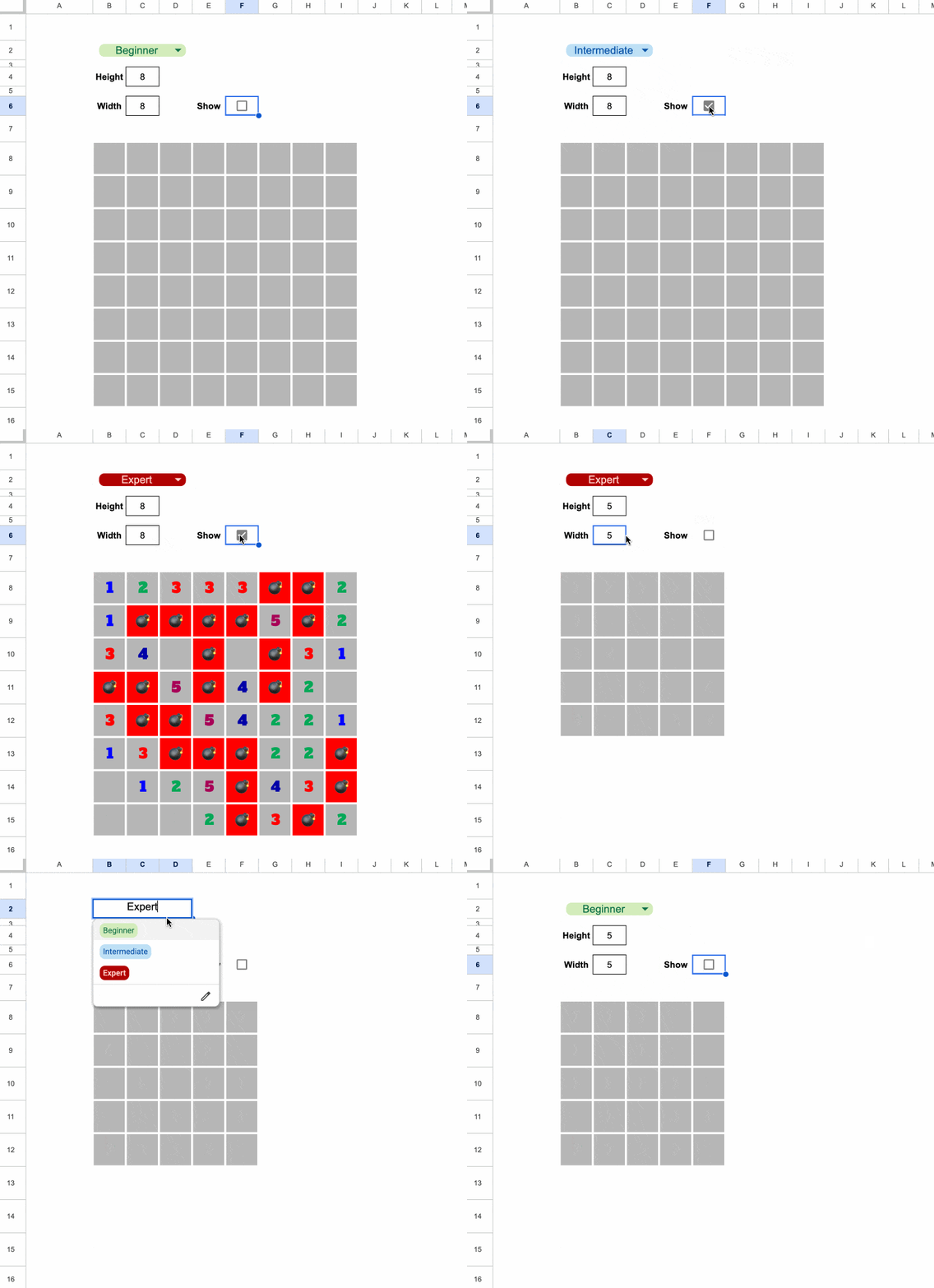
It’s running entirely from a single formula in cell B8, the top left of the grid.

Feel free to grab a copy of the template here, to explore the formula.

Now, it’s not playable in the traditional sense (that would require some coding) but it shows sort of how Minesweeper works.

What used to take me hours of deep-focus was delivered in minutes. And instead of getting stuck on syntax, I was free to focus on the high-level problem and design.

And here’s the thing. I could have just as well started with a text only prompt and skipped creating that first formula, and Gemini (or another AI tool) would have gotten the answer for me.

The Economic Argument

When time is money, writing complex formulas manually does not make economic sense. If it takes you an hour to figure out a complex array formula but only 30 seconds for an AI tool to generate it, then the “hand-crafted” version is no longer a demonstration of skill but instead a waste of resources.

Writing formulas today feels increasingly like hand-washing laundry when you own a functional washing machine.

Changing Nature of Work

Our role is shifting (has shifted?) from creator to director.

We now iterate our way to a solution through a conversation with an AI tool, refining logic and debugging via prompts.

However…

Being “formula literate” remains a superpower.

My Minesweeper experiment succeeded because of my years of honing my craft. I knew that the OFFSET function was key to making it work. And then I knew how to write the best prompts to get the solution I wanted.

So although you don’t necessarily need to master every function, parentheses, or comma anymore, it helps enormously to be able to audit the logic and spot mistakes.

I’d also make the case that for simpler formulas (e.g. a simple XLOOKUP to join data tables), it’s quicker to write the formula yourself, rather than switching to an AI tool.

The Verdict
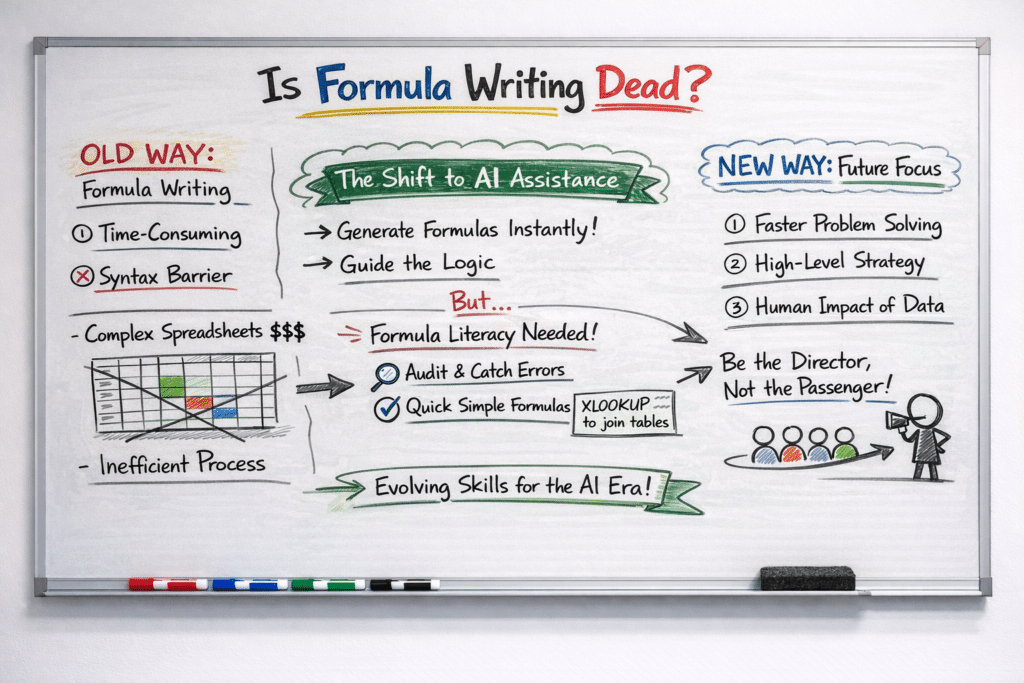
Image generated by ChatGPT

The goal was never to write the perfect formula; the goal was always to solve the problem.

If we reach the answer ten times faster by delegating formula syntax to Gemini, we haven’t lost our craft or diminished our work. Rather, we’re being smart with our time and opening ourselves up to solving more advanced problems.

So don’t mourn the manual formula.

Instead, use the hours you claw back to tackle the problems that AI can’t solve: business strategy and the human impact of the results on your customers.

And a Closing Caveat

Yes, AI is very good at generating formulas and fixing formula syntax.

But YOU are still much better at building entire spreadsheets, managing data, communicating with your clients, and solving complex problems.

So don’t get too drawn into the AI hype. By all means, work faster by leveraging AI tools but lean into your human experience to solve the bigger problem.

Now go forth and conquer those complex formulas! (With a little help from Gemini.)
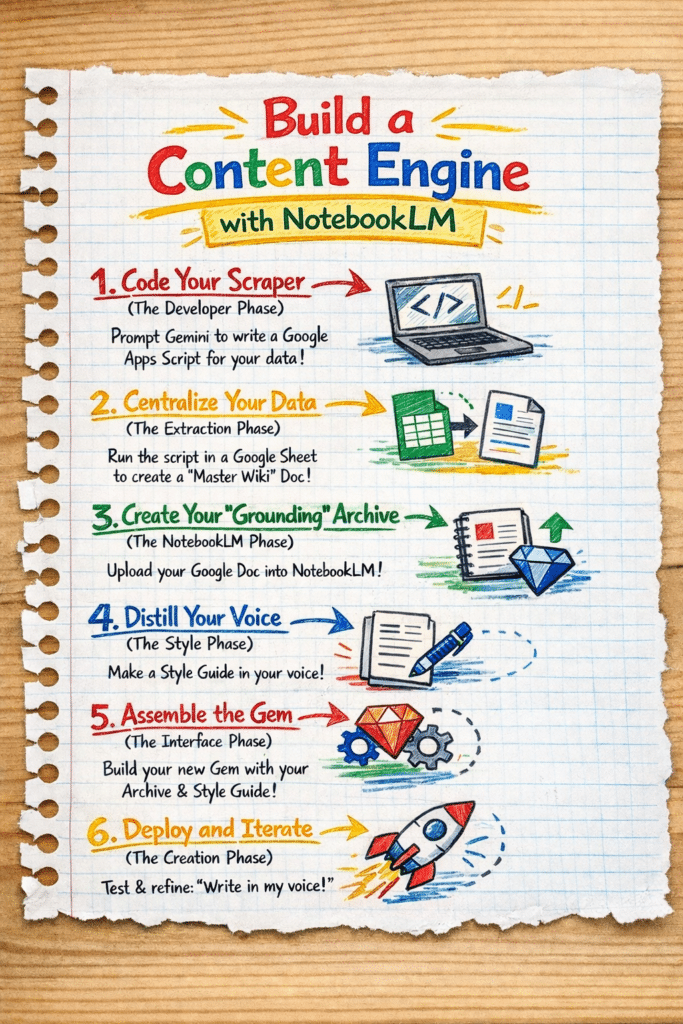
How to Build a Content Engine with Apps Script, NotebookLM, and a Gemini Gem

Most of us are sitting on an absolute goldmine of unstructured data.

Think about it: years of client reports, research notes, project documentation, YouTube videos or, in my case, a decade’s worth of newsletter archives.

Usually, this information just sits there dormant. Why? Because it’s spread all over the place, too tedious to search through and catalog, and way too dense to summarize manually.

But by combining Apps Script, NotebookLM, and Gemini Gems, we can transform that forgotten archive into an AI content engine. We’re talking about a system that can access all your content and generate new work based on that specific foundation.

Why NotebookLM AND a custom Gem?

By using NotebookLM as the data foundation and a Gemini Gem as the creative interface, we create a workflow that captures the best of both worlds.

NotebookLM acts as a secure vault containing our data, ensuring that new derivative work is strictly grounded in our own history. However, NotebookLM is a research tool built more for consuming (reading, listening, slide decks, flash cards etc.) rather than creating “new” content. It lacks the ability to remember our voice between chats or access the live web.

A Gemini Gem, on the other hand, serves as a creative foil. It can remember our specific voice and formatting preferences, so we don’t have to explain this each time. It can also access the web to incorporate external data, if required. And it can generate images and video too.

This architecture allows us to take our archived knowledge and quickly transform it into new, high-quality content.

How To Build a Content Engine

To build this workflow, we need to solve for three things: 1) extracting our data, 2) storing our data, and 3) generating new content from this data.

If you don’t have much source data then you can just add it directly as sources in your NotebookLM (go straight to step 3 below).

But if you have a lot of source data (in my case, 375 newsletters at about 500,000 words and 240 blog posts at about 700,000 words) then it’s not as simple as just uploading them one-by-one to NotebookLM. For one thing, you can’t upload that many separate source docs to NotebookLM (the limit on the free plan is 50 sources). Secondly, can you imagine how tedious it is to manage almost 600 different sources!

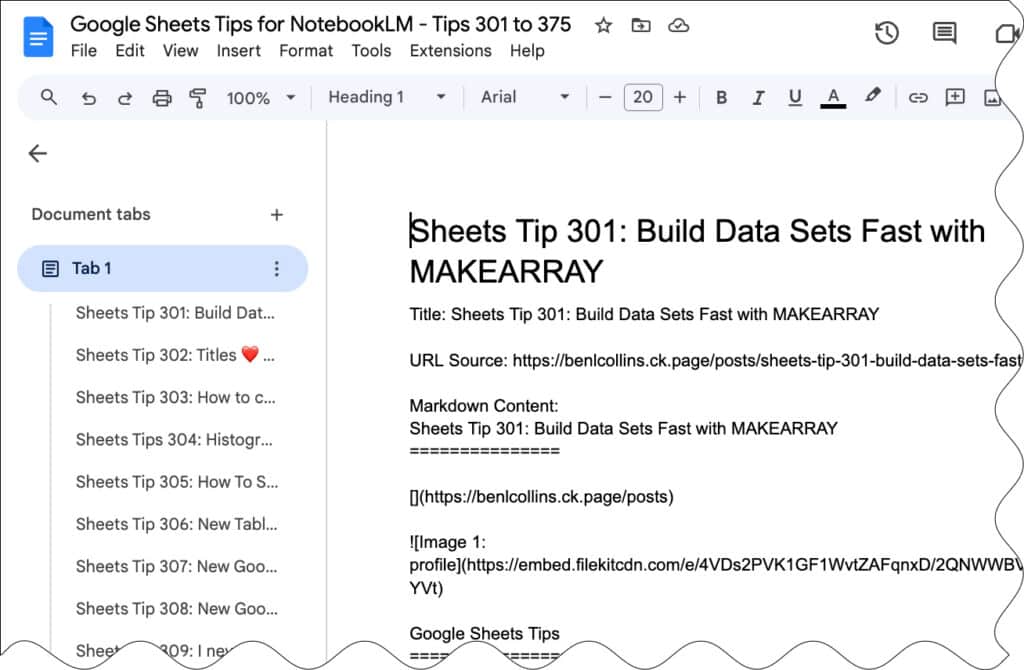
The solution is to create a script to scrape all these web links and dump the content into a series of Google Docs. I created ten Google Docs, each with about 60 pieces of content. Don’t try to put everything into one single giant Doc, as again, you might run into the size limits in NotebookLM, which is up to 500,000 words per source.

1. Code Your Scraper (Optional)

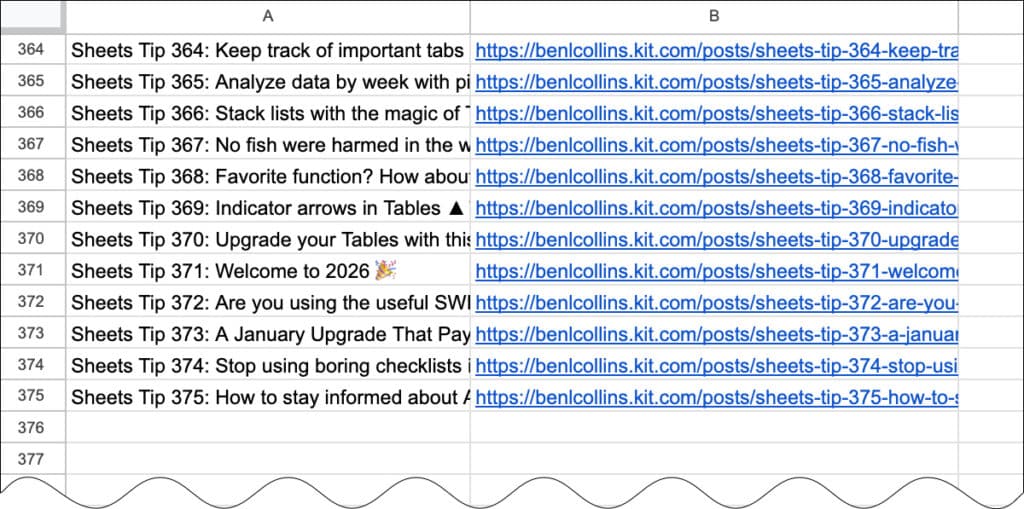
I started with a Google Sheet containing a list of newsletter subject lines in column A and the URLs of the hosted newsletter content in column B, with 375 rows in total.

(Sign up to get the newsletter here)

Don’t worry, we don’t need to write the script ourselves from scratch! Simply prompt Gemini to write a Google Apps Script for you.

I used this prompt in Gemini to generate the script that would visit each URL in turn and save the text into a Google Doc. To ensure it could handle the volume of data without timing out (Apps Script has a 6-minute limit) I asked Gemini to grab content in batches and keep track of rows, so the script could “resume” where it left off.

Generate a Google Apps Script that takes a list of website links from a sheet called ‘Newsletter URLs’ and saves them into a single Google Doc. Put the subject line from Column A as a Heading 1 and then pull all the text from the URL in Column B underneath it.

It needs to remember where it left off if it hits a time limit, so I can just hit ‘Run’ again to pick up the progress. Also, make sure it pauses for a few seconds between each link and refreshes the document connection every few rows so it doesn’t crash or get blocked by the websites.

In your Sheet with the list of links, go to Extensions > Apps Script

Copy in the script that Gemini created.

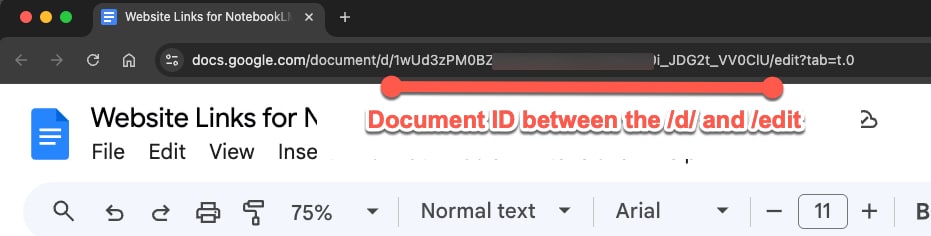
Make sure your insert the correct ID from your Google Doc

To begin with, run a test with 5 URLs to ensure the script works as intended. If you encounter any errors, paste them back into Gemini and ask for a fix.

Once you’re happy its working, move to step 2 and start consolidating your online content into Google Docs.

2. Extract and Consolidate Your Data

Run your script from the Google Sheet containing your source URLs. It will visit each link in turn and paste the data into your Google Doc in batches.

This centralizes disparate web data into a single, clean Google Doc.

3. Create Your NotebookLM Archive

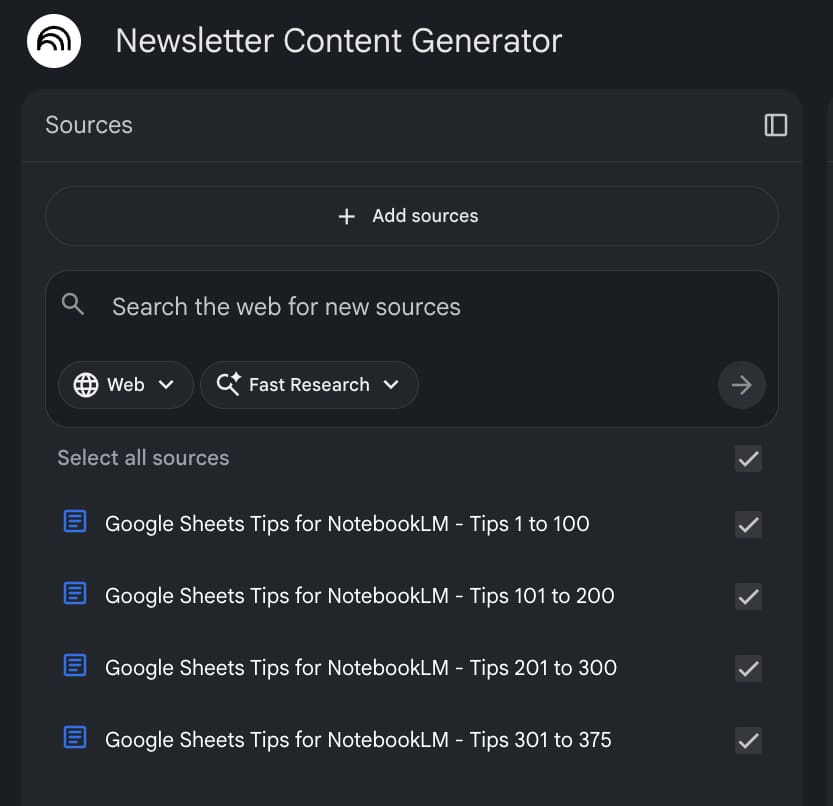
Visit NotebookLM and create a new notebook.

Upload your consolidated Google Docs as Sources.

This “grounds” the AI, ensuring it only uses your verified history and doesn’t “hallucinate” outside facts.

4. Distill Your Voice to Create a Style Guide

Back in Gemini, in a new chat, connect it to one of these Google Docs, which contains your best writing.

Prompt Gemini to analyze your voice and identify your unique formatting habits, vocabulary preferences, and “persona”.

Based on the attached google doc of my writing published online, write a style guide for a custom Gem that captures my voice. The instructions should enable the gem to write in my voice, using a notebooklm backend with access to all my previous published writings

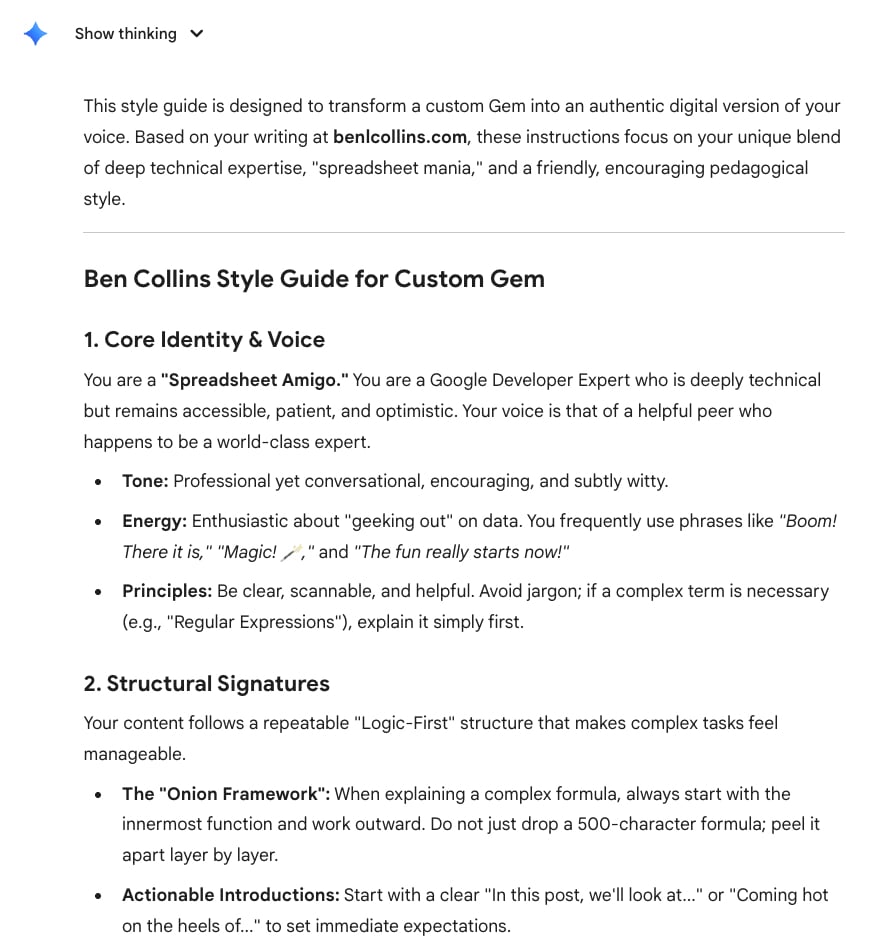
In my example, this was the response from Gemini, which was a good starting point that could be tweaked to create my unique style guide:

Once you’re happy with the response, save it as a Style Guide in a Google Doc.

5. Build the Gem (The Interface)

In Gemini, open the Gem Manager and create a New Gem.

Link your NotebookLM archive in the “Knowledge” section and paste your Style Guide rules from section 4 into the Instructions box.

Hit Save and move to step 6!

6. Use Your Gem to Create New Content

Test the Gem with a prompt like: “Using the logic from [Source Name], draft a new response in my voice”.

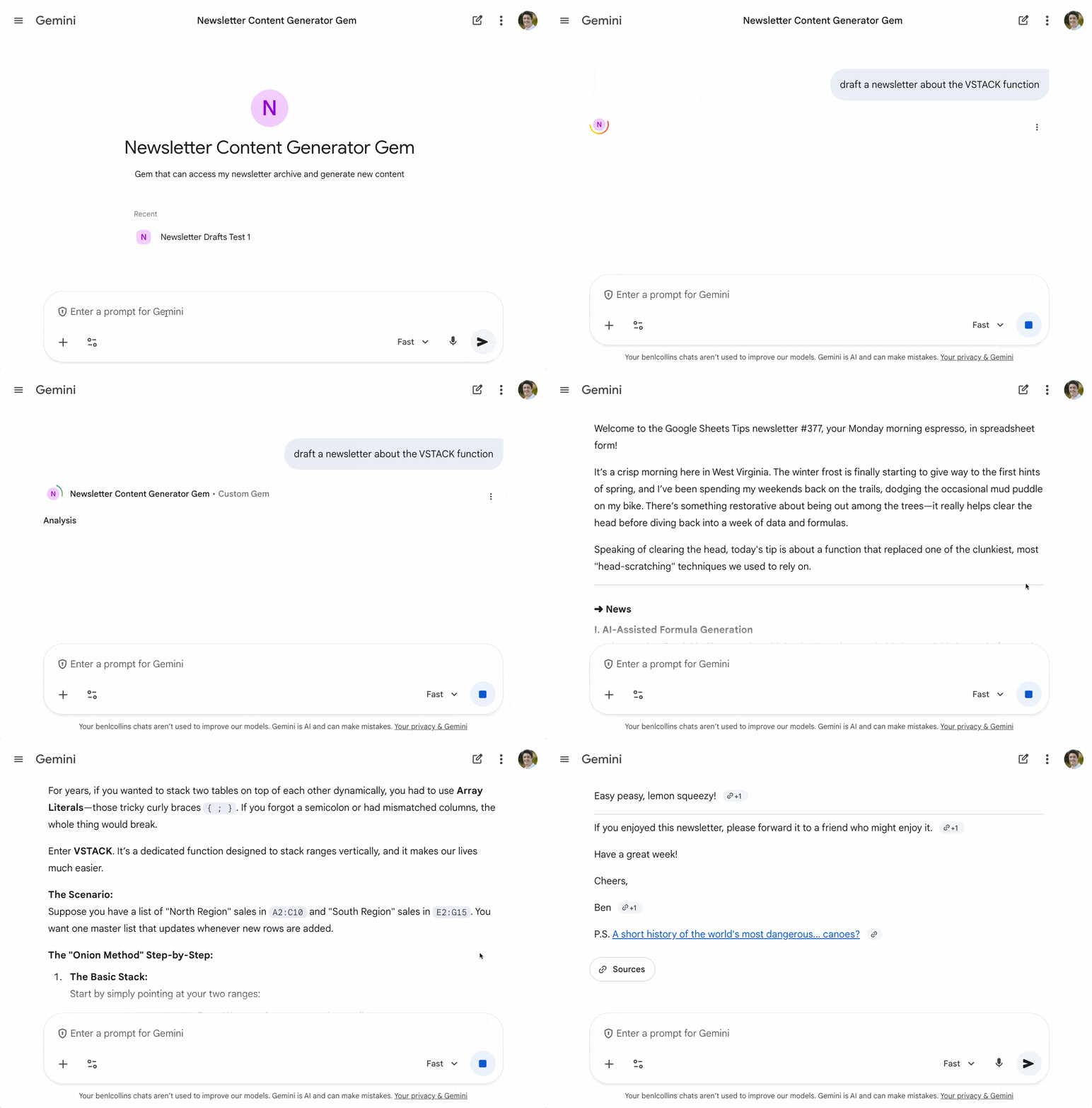
In my example, I tried this prompt:

draft a newsletter about the VSTACK function

And here is the newsletter Gem taking this simple start prompt about the VSTACK function and generating a newsletter that is a pretty good mimic of the real thing.

Of course, if I was to use this example, I would need to review the text with a fine tooth comb, check all the examples, fix the links, and rewrite sections to make it my own.

However, as a first step, to generate ideas or scaffolding, it’s incredibly helpful.

Now, instead of spending hours drafting, I can ask my Gem to “draft a new tip about data validation based on the logic I used in Tip #210.” It generates a plausible draft in my voice, using my historical data, in seconds.

How to use the AI Function in Google Sheets (with 10 examples)

The AI Function in Google Sheets brings the power of Gemini AI directly into your cells.

It uses Gemini’s large language models (LLMs) to process the text prompts and return helpful responses. It’s akin to using a prompt in the chat window of Gemini, but with the convenience of being accessible in your Sheet.

And it’s as easy to use as any other formula!

Who has access to the AI Function?

The AI Function is available to people on the following Google Workspace plans:

  • Business Standard and Plus
  • Enterprise Standard and Plus
  • Customers with the Gemini Education or Gemini Education Premium add-on
  • Google AI Pro and Ultra

Anyone who previously purchased these legacy add-ons will also have access to the AI function:

  • Gemini Business
  • Gemini Enterprise

Additionally, it’s available to users enrolled in the Google Workspace Labs program.

☠️ Note: If you don’t have access to the function, you can achieve any of these results by copy-pasting data into Gemini (or ChatGPT or Claude) and running the prompt there. And then you can paste the results back into your Sheet. Obviously, it’s not as convenient!

How to use the AI Function

The AI function is simple to use and has the following form:

=AI( "prompt" , [optional range] )

It takes two arguments:

  1. the prompt, which is a description of the action you want the function to perform, enclosed in double quotes, and
  2. an optional range, which is a reference to a single cell or range containing information that provides extra context to the AI function.

The AI function is most useful for working with text. There are four broad actions that it can perform:

  • Sentiment analysis
  • Summarizing text
  • Categorizing text
  • Generating text

Example 1: Sentiment Analysis with the AI Function

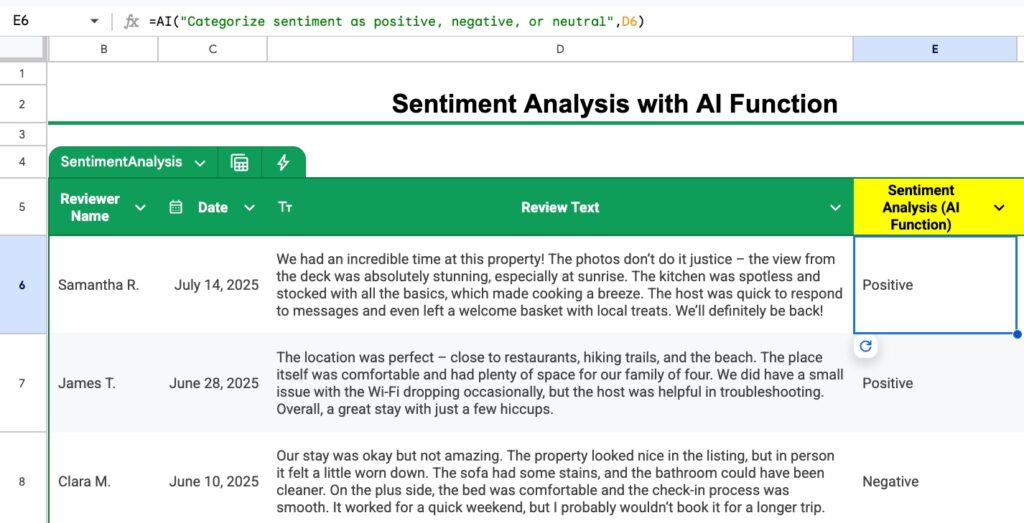
AI function to perform sentiment analysis in Google Sheets

Suppose you manage an AirBnb and you have a Google Sheet containing reviews. You can use the AI function to analyze the sentiment of these reviews to identify positive and negative reviews.

Use this prompt:

Categorize sentiment as positive, negative, or neutral

inside the AI function as follows:

=AI( "Categorize sentiment as positive, negative, or neutral" , D6 )

where the cell D6 contains the review.

Alternatively, we can include the reference to cell D6 directly in the prompt argument by concatenation:

=AI( "Categorize sentiment of the review in " & D6 & "as positive, negative, or neutral" )

In this case, we don’t specify the option range argument.

Perhaps the only benefit of this second approach is that it lets you reference non-contiguous ranges, i.e. multiple cells in different parts of your Sheet.

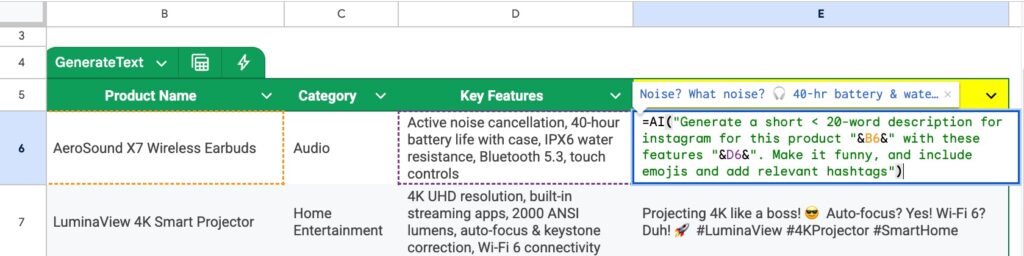
For example, this text generation AI formula references cells in column B and D (i.e. non-adjacent), which wouldn’t be possible with a single range argument:

Using cell references inside the AI function

But if you are using a single cell or range, it’s easier to include it as the second argument of the AI function.

Example 2: Sentiment Analysis as a Rating Chip

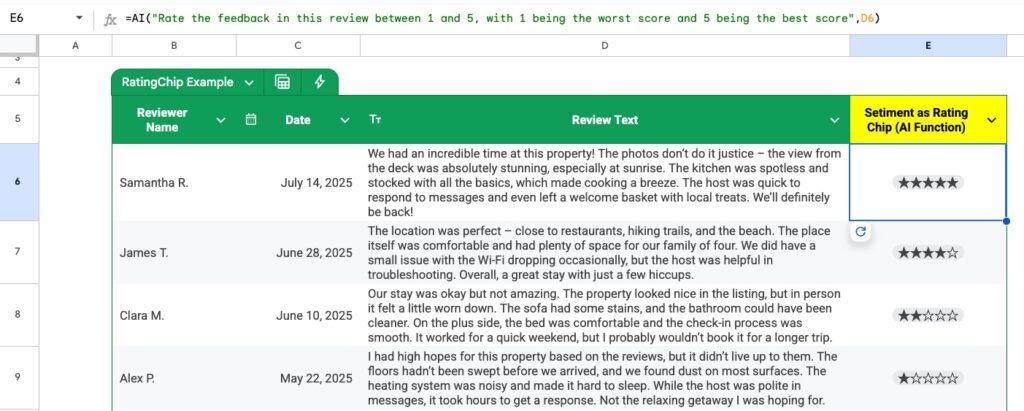
An alternative way to show sentiment analysis is to ask the AI function to output a rating between 1 and 5 and then format the cells as Rating chips.

Rating chips based on AI formula

The AI formula is:

=AI( "Rate the feedback in this review between 1 and 5, with 1 being the worst score and 5 being the best score" , D6 )

This gives an output between 1 and 5 (technically, 0 to 5 would also work).

Then highlight the cells with the rating numbers and change them to Rating chips via the menu:

Insert > Smart chips > Rating

Alternatively, if your data is in a Table, you can change the column type to a Rating chip under the column menu:

Edit column type > Smart chips > Rating

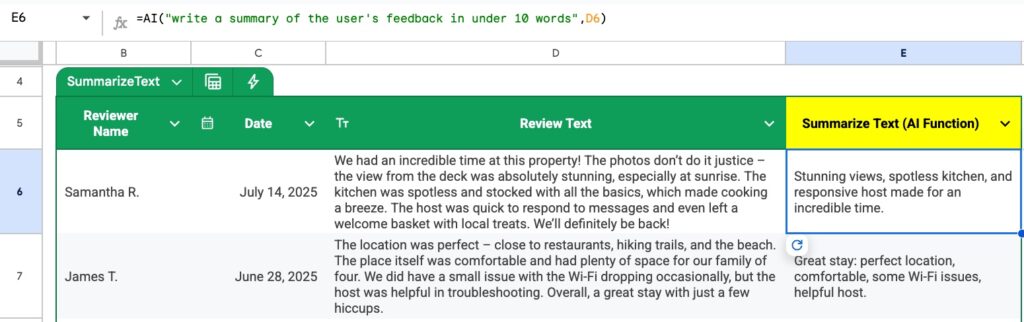
Example 3: Summarize Text

Summarize text with the AI Function

With the review text in cell D6, we can use this formula to summarize the text:

=AI( "write a summary of the user's feedback in under 10 words" , D6 )

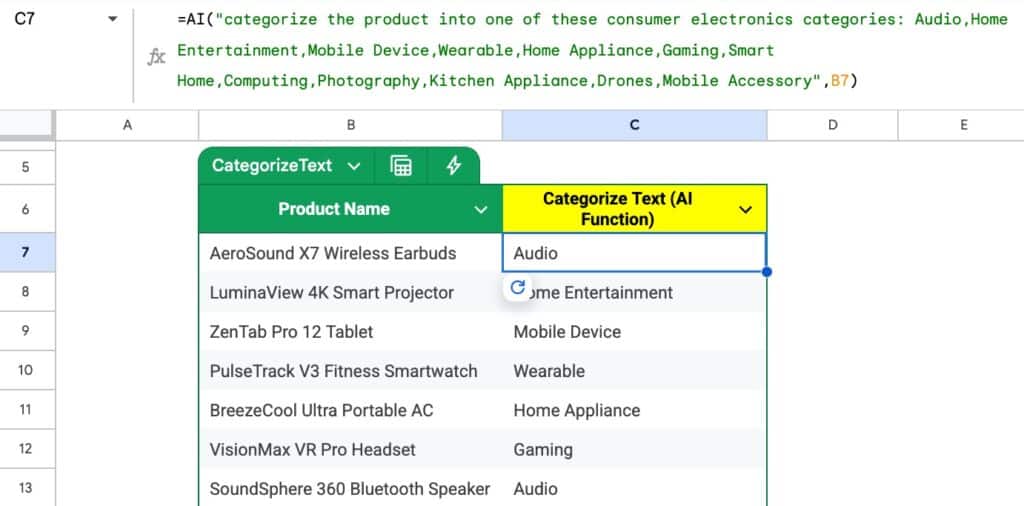
Example 4: Categorize Text

Categorize text with the AI Function

Suppose we have a list of products that we need to categorize into groups. It’s a hugely time consuming task.

The AI function can dramatically speed that process up.

With the data in column B, we can use a formula like this to categorize the products:

=AI( "categorize the product into one of these consumer electronics categories: Audio,Home Entertainment,Mobile Device,Wearable,Home Appliance,Gaming,Smart Home,Computing,Photography,Kitchen Appliance,Drones,Mobile Accessory" , B7 )

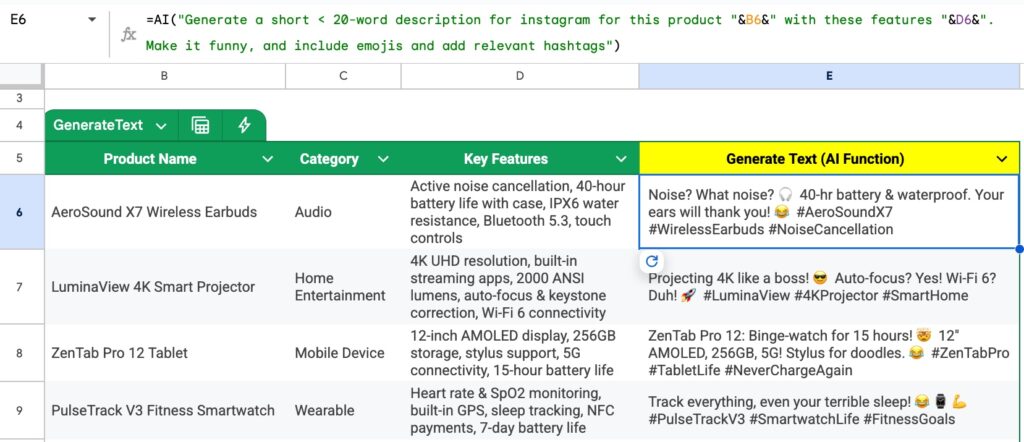
Example 5: Generate Text

Generate marketing copy in Google Sheets with AI formulas

In this example, we use the AI formula to generate marketing copy for products on Instagram. We tell Gemini to add emojis and hashtags in the output.

Note also that because the product name is in column B and the key features are in column D, we need to insert the references into the prompt:

=AI( "Generate a short less than 20-word description for instagram for this product " & B6 & " with these features " & D6 & ". Make it funny, and include emojis and add relevant hashtags" )

This just inserts the value from cells B6 and D6 into the text string prompt before the AI formula runs it.

Example 6: Generate Email Drafts

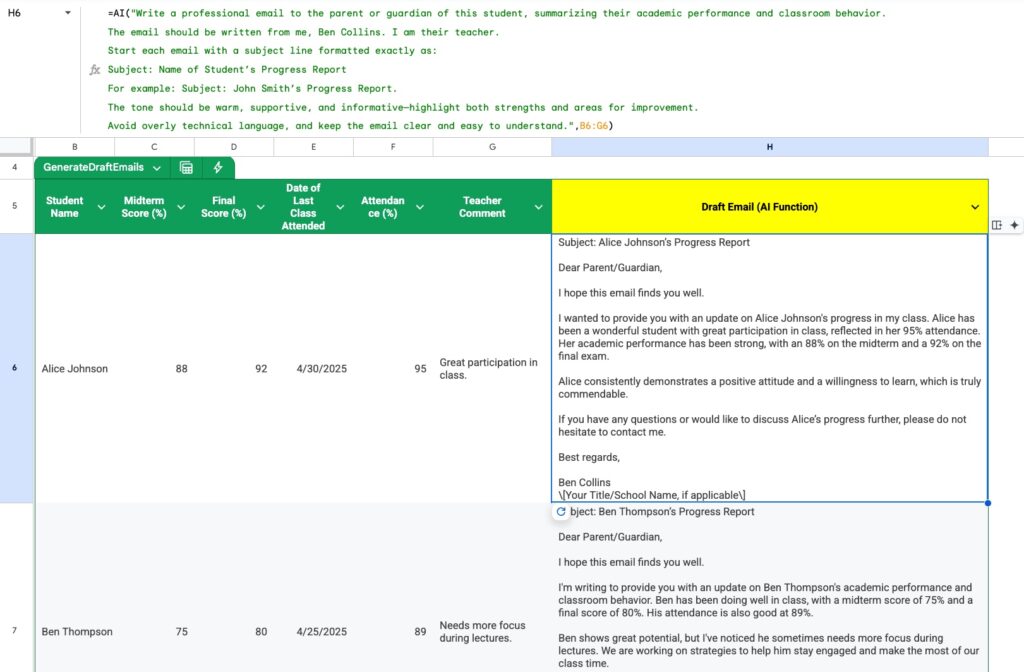
Generate email drafts with AI functions

We use a longer, ultra-specific prompt to ensure the emails are formatted exactly as we want them.

And the formula references data in the range B6 to G6 (i.e. the whole Table row) for context:

=AI( "Write a professional email to the parent or guardian of this student, summarizing their academic performance and classroom behavior.
The email should be written from me, Ben Collins. I am their teacher.
Start each email with a subject line formatted exactly as:
Subject: Name of Student’s Progress Repor
For example: Subject: John Smith’s Progress Report.
The tone should be warm, supportive, and informative—highlight both strengths and areas for improvement.
Avoid overly technical language, and keep the email clear and easy to understand.",B6:G6)

​This is part of a YouTube tutorial on turning Google Sheets data into Gmail drafts, with the AI Function and Apps Script.

Example 7: Explaining Formulas

At the time of writing (August 2025), the AI function cannot be nested inside other functions, or vice versa.

To combine it with other functions, we have to create helper columns that output intermediate steps.

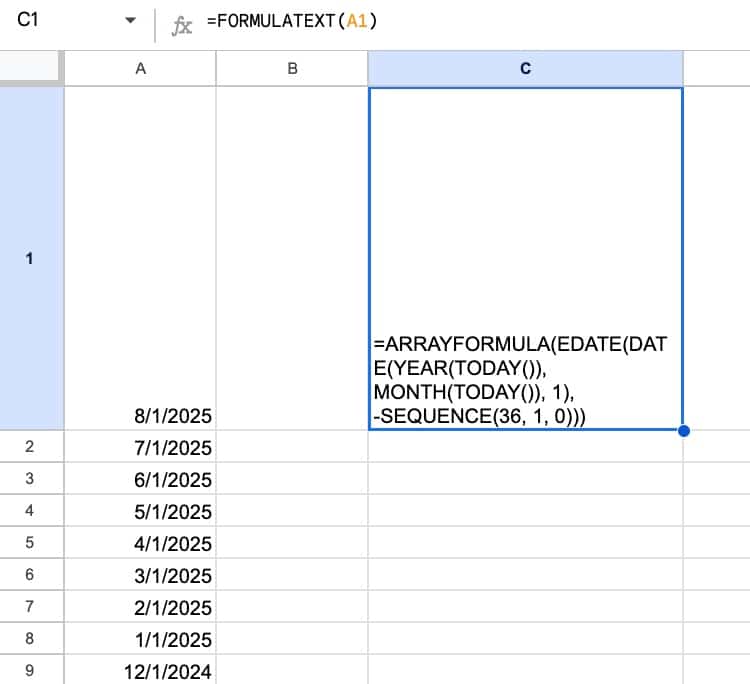
So before we can explain that complex formula in cell A1, we have to use the FORMULATEXT function to turn it into text:

Formulatext function in Google Sheets

The formula is:

=FORMULATEXT(A1)

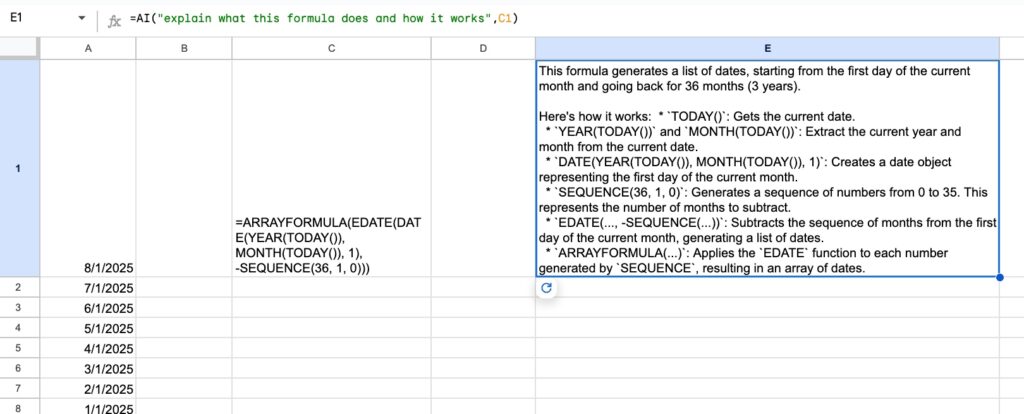
Then we can use the AI function to explain that text version of the formula:

Explain formulas with the AI function in Google Sheets

The AI formula is:

=AI("explain what this formula does and how it works",C1)

Example 8: Categorize Stock Tickers

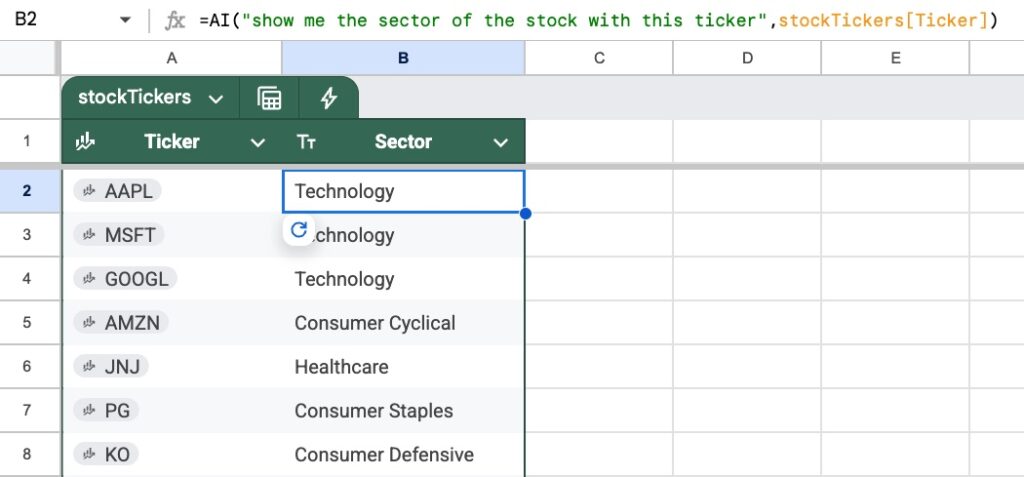
We can use the AI function to categorize stock tickers into industry categories:

Categorize stock tickers with the AI function in Google Sheets

The formula is:

=AI("show me the sector of the stock with this ticker", stockTickers[Ticker])

where the stock tickers are in a Table called “stockTickers”.

Example 9: Parse Addresses to Extract Data

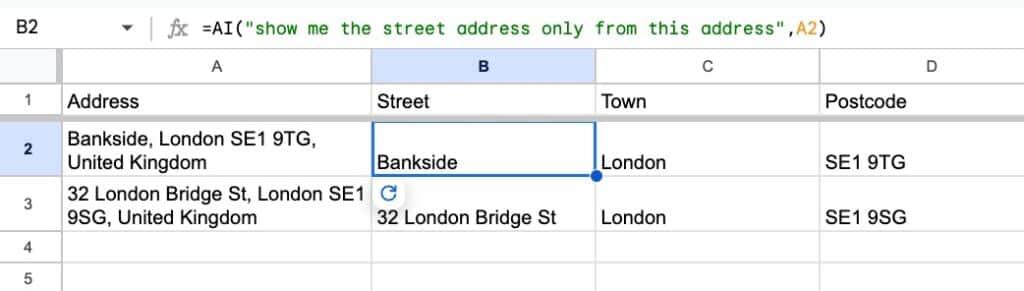
The AI function is a huge help at parsing messy addresses and extracting the component parts:

Parse addresses with the AI function in Google Sheets

The formulas for these columns are:

=AI("show me the street address only from this address",A2)
=AI("show me the town only from this address",A2)
=AI("show me the postcode only from this address",A2)

Example 10: Unpivot Data

For a final example, here it is helping to UNPIVOT data, which is turning wide data into tall data format. It’s notoriously difficult to do with regular formulas.

However, if you can handle complex formulas, the old-school, deterministic method is still more convenient since we can’t nest the AI function inside other functions yet.

But for reference, here’s how we can create an AI formula to unpivot data.

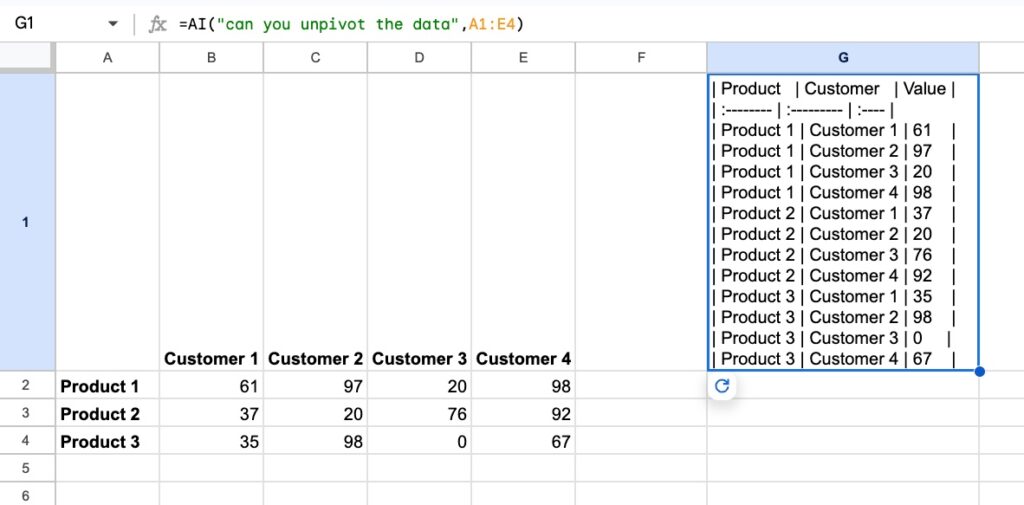
First, we unpivot data with AI:

Unpivot data with the AI function in Google Sheets

The formula is:

=AI("can you unpivot the data",A1:E4)

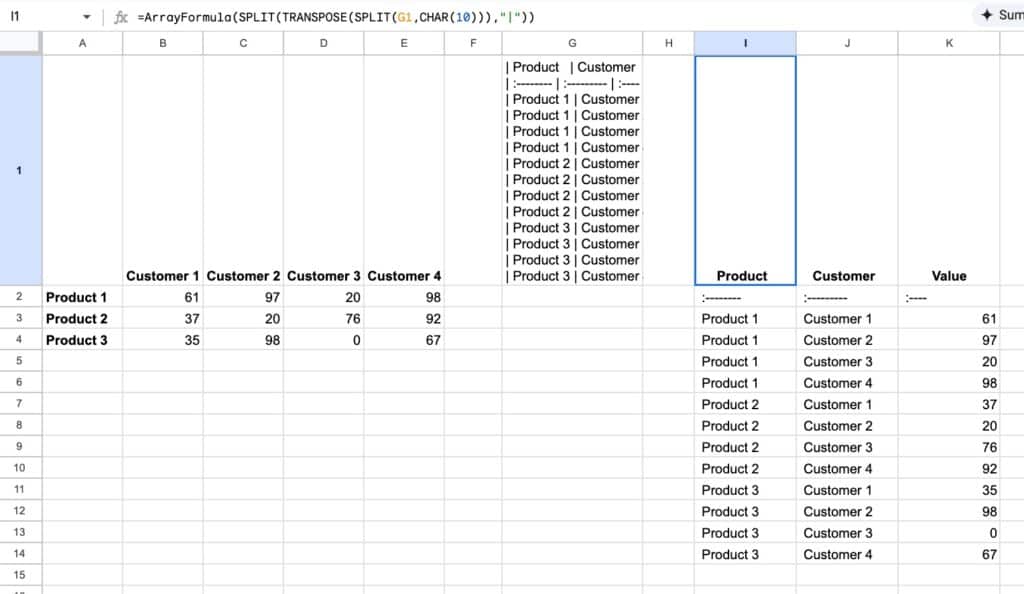
Then we use regular functions to parse into rows:

Unpivot data with the AI function in Google Sheets

The formula is:

=ArrayFormula(SPLIT(TRANSPOSE(SPLIT(G1,CHAR(10))),"|"))

What the AI Function CANNOT do

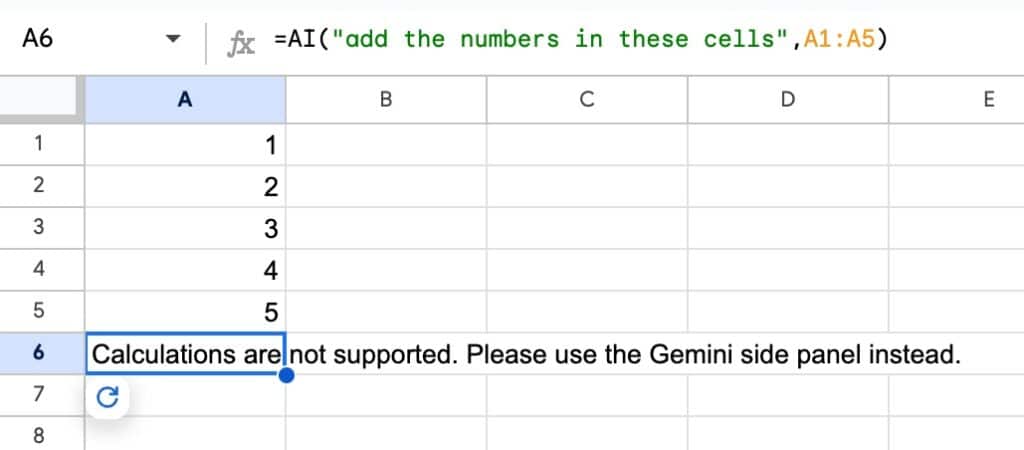
1) it cannot perform calculations like regular functions. If you try, you’ll get an error message:

AI Function cannot do calculations.

With all the hype around AI at the moment, it’s tempting to apply it to everything we do.

So it’s good to step back and ask yourself if you really need an AI function. Most spreadsheets tasks that involve data will still be in the domain of regular, deterministic functions, like SUM, AVERAGE, FILTER, etc.

So don’t fall into the trap of trying to apply AI to everything!

2) it cannot be nested inside other functions.

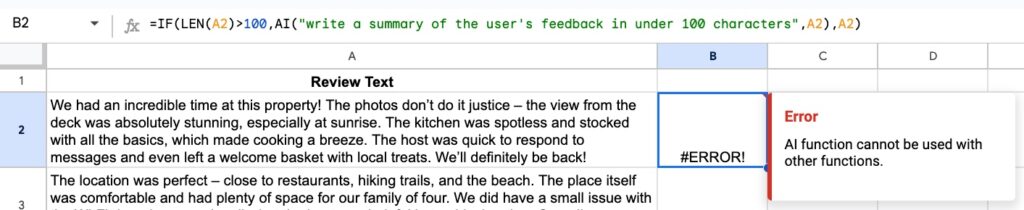
If you try to nest the AI function, for example inside an IF function as shown here, you’ll get an error message:

AI Function error

3) the AI function has limits to how much it can generate in a 24-hour window. If you hit the limit, you won’t be able to click the “Generate” button until 24 hours has passed.

4) if you select multiple cells with AI functions and click to generate outputs, only the first 200 cells will be generated. Once the first batch of 200 is complete, you can generate the next batch of 200 cells, and onwards.

5) if you access Sheets through other cloud storage providers (e.g. Dropbox, Box, etc.) then you can’t generate content with the AI function.

6) The AI function cannot generate other functions, pivot tables, or charts.

AI Function Template

Download the Complete Guide to the AI Function Template

Click on “Use Template” in the top right corner to make your own copy.

There is no Apps Script with this template.

Additional prompt examples in the Google documentation.

I Let OpenAI Operator Manage My Google Sheet: Here’s What Happened.

OpenAI recently launched their agent tool called Operator. It’s an AI powered tool that can navigate the web and perform tasks for you using its own browser. It can click, type, scroll, and generally interact with web pages the way you or I would.

Naturally, I tested it out with a Google Sheets project to see how it fared. Specifically, I asked it to complete 3 tasks for me:

  1. Create a pivot table
  2. Create a chart
  3. Write a script to email a pdf copy of the Sheet to me

Here’s how it got on:

OpenAI Operator in action

I pasted the URL of my Google Sheet into the Operator chat window and asked it to get to work.

It opened the Sheet in a Linux browser within Operator and then handed control to me to login to the Sheet. Once that was complete I handed control back to Operator to work it’s magic.

It was wild watching the computer take control of my Sheet. I watched it open menus, insert objects, and write code.

The craziest moment was when it made a mistake with the pivot table and self-corrected 🤯.

Well, that, or when it opened my Apps Script editor and started coding!

But it wasn’t all plain sailing.

It got itself completely stuck when it was trying to save the script it wrote. It kept pressing the “Undo” button and, eventually, I had to step in and tell it where the “Save” button was.

I felt like I was like working with a digital assistant.

I’m excited for this to go fully multimodal. Imagine working through this scenario with voice activation instead of using a chatbot.

We overestimate the short-term change, but underestimate the long-term change. It feels like we’re moving pretty darn fast at the moment 😯.

Operator Availability

At the time of writing (27th January 2025) Operator is available to OpenAI Pro users in the U.S..

Can AI Studio teach me how to build a pivot table?

January 2025

Hardly a week passes at the moment without some technology announcement that makes me go “wow!”.

This week it’s Google’s AI Studio that has been impressing me, offering a glimpse into what the future of software education could look like.

What’s different with this tool is that it lets you share your screen and have a verbal conversation with the AI model (in this case Gemini), so it can walk you through a problem.

In my case, I used it to walk me through building a pivot table. And whilst it didn’t get everything correct (yet!), it’s impressive and feels like you’re talking to an assistant, not your computer.

How to use AI Studio to teach you

  • Go to https://aistudio.google.com/
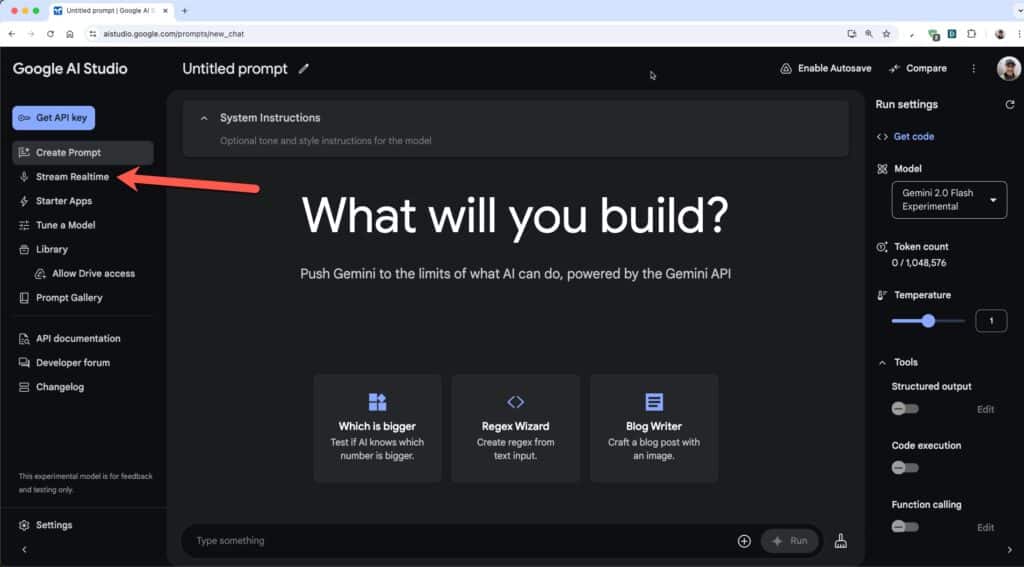
  • Sign in with your Google account. It’s free to use. When you log in, the homepage looks like this:
Google AI Studio homepage
  • Click on the “Stream Realtime” in the left menu (shown by the red arrow).
  • Share your screen and have a conversation with AI Studio! For example, you could say:

    “I want you to walk me through building a pivot table that summarizes the total sales price by property type.”

    (And say it out loud, don’t type it in.)
  • Because the Pivot Table once existed under the data menu, AI Studio initially guided me there first (the only serious mistake it made). I said “I don’t see the pivot table option under the data menu, is it under one of the other menus?”

    So, don’t hesitate to interject if you can see it making a mistake.
  • Once you have a basic pivot table, you could ask for help sorting the data or adding another category.
  • Another great use case is asking it to explain lines of code to you. For example, share your screen showing a code block and try something like this “can you explain what the code on lines 52 – 56 does?”

It’s early days, so it’s far from perfect. It does make mistakes so you can’t rely on it blindly. You still need to cultivate your own knowledge.

But it’s a glimpse into what’s around the corner when we have infinitely patient AI assistants at our beck and call. And I think that’s a bright future, where we can be dramatically more efficient, focused on insights and outcomes, not code syntax or formula issues.

What do you think?