If Google Sheets And Microsoft Excel Went For A Drink…

This is a transcript of a conversation between two famous spreadsheet applications, Google Sheets and Microsoft Excel, who sat down together at a well-known beach bar, The Pivot & Chart Tavern, for a catch-up after a long WORKDAY.

For the DURATION of their meeting, SMALL and LARGE FISHERmen came and went, smelling of POISSON from the Sea.

It was a DAY to remember.

Google Sheets: “Excel! Dude! GAUSS who, yo? It’s been DAYS, MONTHs even, since we caught up. You made it. You crash so often I wasn’t sure you’d get here.”

XL: “Ah Google Sheets, you again. Rude, impetuous, cheeky. I see you’re still as mature as toddler in a COT. Still on a formula-only diet are you? Do you know FACT from fiction yet? Is this establishment to your satisfaction? I do hope it’s NOT out of your PRICE range.”

Sheets: “Woah, so aggressive. Nope, I’m all grown up now. IMREAL deal! I’m TRIM, check out my ABS. Still TRENDy and UNIQUE of course. I have so much going on right NOW, so many cool and COMPLEX features, and an ever growing, engaged, passionate community.

What about you, Excel, still hanging on? Haha.”

XL: “Hanging on? Totally FALSE! You should respect your elders.

NOW listen to me young man, I was doing advanced financial modeling whilst you were still popping zits on your funny little (inter)face. I may be over 30 YEARs old but I’m in the best health I’ve ever been. I continue to enjoy consistent product GROWTH.

Contrary to some of the marketing materials new-fangled upstarts put out, I’m very much alive and kicking, and still dominating the office data analytics scene, thank you very much. It seems you’re in rude health too Sheets, your voice is LOWER NOW, full of CONFIDENCE. Let me buy you a drink.”

Sheets: Sure, a beer please.

XL: So unsophisticated.

Turning to the barman…

XL: A beer, and I’ll have your finest aged red wine please. Put it all on the same TAB, thank you.

Barman: That’ll be 0.00091 Bitcoin please.

XL: Oh come on! Can you convert that TO_DOLLARS please?

Barman: As you CHOOSE, let me SWITCH the payment….that’ll be 10 Dollars EVEN at TODAY‘s price…

Excel hands over a 20 Dollar bill.

Barman: Is that DMIN bill you’ve got?

XL: Yes, I’m sorry for the trouble.

Barman: Ok, DMAX change I have is in 1 Dollar bills…

XL: That is no problem.

After a short SEARCH for an AREA to sit, and a brief interruption when they were INTERCEPTed by an errant ROMAN soldier, they took their seats at one of the PIVOT TABLES near the bar, to continue their rather KURT conversation…

Sheets: Do you think ISODD Excel? I MEAN, here we are in rude health, still the pre-eminent way the majority of knowledge workers manage and analyze their data.

XL: Yes, it’s TRUE! We have some sticking POWER that’s for sure. I take it as a good SIGN that our respective platforms continue to evolve and maintain their critical usefulness.

Sheets: Ok, let’s get down to business then. I want to share my theory of why we’re still the pre-eminent solution for many people…

XL: Ok, Sheets, the FLOOR is yours:

Sheets: First off, we’re ubiquitous. We’re everywhere. You’re in every office and I’m in every browser. So there’s that.

Second, we can solve most problems. Yes, there is ultra-specific software that will do certain tasks better, but nobody beats us for overall utility.

Third, we’re easy to use. Beginners can just dive right in, but we’re complex enough that even the most advanced users will never run out of things to discover.

XL: RIGHT, All TRUE, all good points. We’re definitely on the same FREQUENCY here.

Sheets: AND, we’re super flexible, so we can easily adapt to new tasks or new use cases.

XL: Yes, yes, indeed. Plus, almost all SaaS platforms have a button that exports data to Excel or Sheets. I suspect a lot of people use this, but of course that’s not a good metric for a SaaS company to divulge.

XL AND Sheets both have a little chuckle at this…

The conversation rambled on for several more HOURs. The EFFECT of the drinks made the conversation take an ODD turn:

XL:Have you ever BIN2OCT-oberfest, Sheets? You know the one I mean, the beer festival in Bavaria in the fall?

Sheets: Yeah, yeah I know the one, but no, I haven’t. Have you ever BIN2HEXham, XL?

XL: You mean the market town in the UK, right? Only once. And the airline lost my TRUNC on that trip! What a palava that was!

Sheets: TRUNC! Bwah! Now you’re showing your age. Haha. And definitely no chance of a TAN at that TIME of YEAR.

At a lull in the conversation, they both look down at their phones.

Sheets: Check this out, old man.

Sheets holds up his phone, with an app open called INDEX MATCH.

Sheets: It’s a dating service for spreadsheets. You right click on Sheets you like, left click on ones you don’t. It uses their IMPORTRANGE algorithm to MATCH you with other Sheets. Super cool.

XL: Bah, sounds like it’s just for HLOOKUPs to me. The more discerning spreadsheets look for love through a service called EDATE, all based around your star SIGN.

Sheets: Sounds like hokum to me…

You hungry Excel? Shall we get a PI?

Excel: You mean like a pizza PI? Could do, as long as we ADD spinach and ricotta, MINUS the mushrooms. Though I’d rather have CHAR-grilled steak.

Later, replete after dinner, it was time for the two friends to bid farewell…

XL: Right then Sheets, before you SLOPE off, let me tell you, it was good to catch up. TEXT me whenever you want to have a drink together again.

Sheets: ISEMAIL ok?

XL: As you wish. I’ll ask Numbers, LibreOffice, Airtable and maybe a few others to JOIN us next time, ok? They’re PROBably feeling LEFT out.

Sheets: Yep, I’ll be there. Catch up soon!

It certainly was a DAY to remember.

Resources

The full list of 400+ functions in Google Sheets

Your biggest competitor is a spreadsheet

My rather silly story was inspired by a similar, although much funnier, function-themed story from Mr Spreadsheet himself, John Walkenbach. Sadly I can’t find it online anymore, but if anyone can share the link, I’ll add it here.
Formula Challenge #2: Matching Terms

This Formula Challenge originally appeared as part of Google Sheets Tip #52, my weekly newsletter, on 27 May 2019.

Sign up here so you don’t miss out on future Formula Challenges:


Find all the Formula Challenges archived here.

Your Challenge

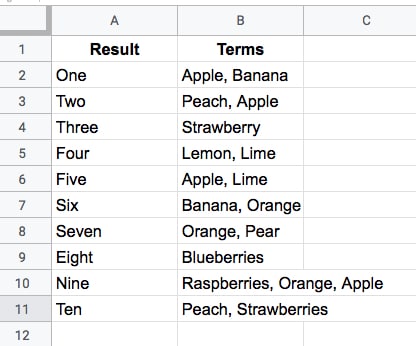
Start with this small data table in your Google Sheet:

Formula Challenge dataset

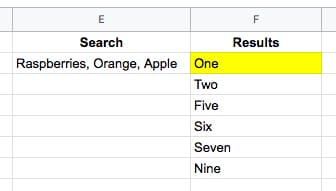
Your challenge is to create a single-cell formula that takes a string of search Terms and returns all the Results that have at least one matching term in the Terms column.

For example, this search (in cell E2 say)

Raspberries, Orange, Apple

would return the results (in cell F2 say):

One
Two
Five
Six
Seven
Nine

like this (where the yellow is your formula):

Formula Challenge expected results

Check out the ready-made Formula Challenge template.

The Solution

Solution One: Using the FILTER function

=FILTER(A2:A11,REGEXMATCH(B2:B11,JOIN("|",SPLIT(E2,", "))))

or even:

=FILTER(A2:A11,REGEXMATCH(B2:B11,SUBSTITUTE(E2,", ","|")))

These elegant solutions were also the shortest solutions submitted.

There were a lot of similar entries that had an ArrayFormula function inside the Filter, but this is not required since the Filter function will output an array automatically.

How does this formula work?

Let’s begin in the middle and rebuild the formula in steps:

=SPLIT(E2,", ")

The SPLIT function outputs the three fruits from cell E2 into separate cells:

Raspberries    Orange    Apple

Next, join them back together with the pipe “|” delimiter with

=JOIN("|",SPLIT(E2,", "))

so the output is now:

Raspberries|Orange|Apple

Then bring the power of regular expression formulas in Google Sheets to the table, to match the data in column B. The pipe character means “OR” in regular expressions, so this formula will match Raspberries OR Orange OR Apple in column B:

=REGEXMATCH(B2:B11,JOIN("|",SPLIT(E2,", ")))

On its own, this formula will return a #VALUE! error message. (Wrap this with the ArrayFormula function if you want to see what the array of TRUE and FALSE values looks like.)

However, when we put this inside of a FILTER function, the correct array value is passed in:

=FILTER(A2:A11,REGEXMATCH(B2:B11,JOIN("|",SPLIT(E2,", "))))

and returns the desired output. Kaboom!

Solution Two: Using the QUERY function

=QUERY(A2:B11,"select A where B contains '"&JOIN("' or B contains '",SPLIT(E2,", "))&"'")

As with solution one, there is no requirement to use an ArrayFormula anywhere. Impressive!

This formula takes a different approach to solution one and uses the QUERY function to filter the rows of data.

The heart of the formula is similar though, splitting out the input terms into an array, then recombining them to use as filter conditions.

=JOIN("' or B contains '",SPLIT(E2,", ",0))

which outputs a clause ready to insert into your query function, viz:

Raspberries' or B contains 'Orange' or B contains 'Apple

The QUERY function uses a pseudo-SQL language to parse your data. It returns rows from column A, whenever column B contains Raspberries OR Orange OR Apple.

Wonderful!

Click here to open a read-only version of the solution template (File > Copy to make your own editable copy).

I hope you enjoyed this challenge and learnt something from it. I really enjoyed reading all the submissions and definitely learnt some new tricks myself.

SPLIT function caveats

There are two dangers with the Split function which are important to keep in mind when using it (thanks to Christopher D. for pointing these out to me).

Caveat 1

The SPLIT function uses all of the characters you provide in the input.

So

=SPLIT("First sentence, Second sentence", ", ")

will split into FOUR parts, not two, because the comma and the space are used as delimiters. The output will therefore be:

First    sentence    Second    sentence

across four cells.

Caveat 2

Datatypes may change when they are split, viz:

=SPLIT("Lisa, 01",",")

gives an output of

Lisa    1

where the string has been converted into a number, namely 1.

See the other Formula Challenges here.

Formula Challenge #1: Repeating Images with Array Formulas

Introduction

I firmly believe that one of the most effective and rewarding ways to learn a skill is through practical application.

Solving problems you don’t know the answer to is arguably the best way to do this.

And that’s the idea behind these Formula Challenges.

I’ll post a challenge in my Monday newsletter — a question to be solved with formulas in Google Sheets — and a week later share solutions, both my own and those submitted by readers.

I’ll archive the challenges and solutions on my website here.

This first Formula Challenge originally appeared in my Google Sheets Tips newsletter, on 25 February 2019.

Sign up here so you don’t miss out on future Formula Challenges:


Find all the Formula Challenges archived here.

The Challenge

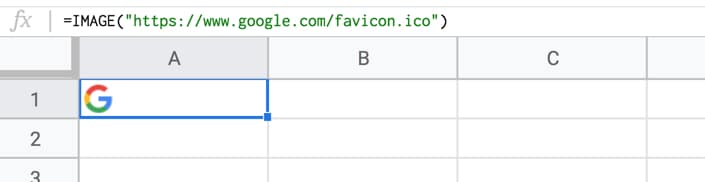
Start with a straightforward IMAGE function in cell A1, like this:

=IMAGE("https://www.google.com/favicon.ico")

Google Sheets Image Formula

Your Challenge

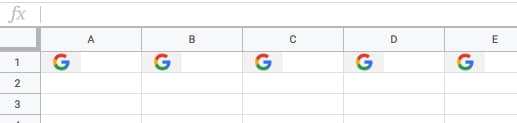
Your challenge is to modify the formula in cell A1 only, to repeat the image across multiple columns (say 5 as in this example), so it looks like this:

multiple images in Google Sheets

Rules

You’re only allowed to use a single formula in cell A1.

The problem is that the IMAGE function can’t be nested inside a REPT function, so you have to get a bit more creative.

The Solution

Solution One: using ROW or COLUMN counts

=ArrayFormula(IF(COLUMN(A:E),IMAGE("https://www.google.com/favicon.ico")))

How does this formula work?

The combination of ArrayFormula with COLUMN(A:E) will output an array of numbers 1 to 5: {1,2,3,4,5}

The IF statement treats the numbers as TRUE values, so prints out the image 5 times. For brevity, we can omit the FALSE value of the IF statement, since we don’t call it.

Solution Two: using REPT inside the IMAGE formula!

=ArrayFormula(IMAGE(SPLIT(REPT("https://www.google.com/favicon.ico"&"|",5),"|")))

How does this formula work?

As mentioned, the REPT function doesn’t work when wrapped around the IMAGE function. However, flip them around, with the REPT inside the IMAGE function, and it does work!

In other words the IMAGE function accepts arrays of URLs as an input.

Start with this formula in cell A1, which creates a single string of joined URLs, with a pipe ( | ) delimiter between them:

=ArrayFormula(REPT("https://www.google.com/favicon.ico"&"|",5))

Now, split these into an array of 5 separate URLs:

=ArrayFormula(SPLIT(REPT("https://www.google.com/favicon.ico"&"|",5),"|"))

Finally, wrap this with the IMAGE function to get the five images in a row:

=ArrayFormula(IMAGE(SPLIT(REPT("https://www.google.com/favicon.ico"&"|",5),"|")))

What I like about this solution is that you could put the number 5 into a different cell and reference it, so that you can easily change how many times the image is repeated.

You could even embed another formula to calculate how many times to repeat the image 😉

See the other Formula Challenges here.

6 Killer Productivity Tips for Google Sheets

Let’s kick off this post with one of the all-time top Google Sheet productivity tips:

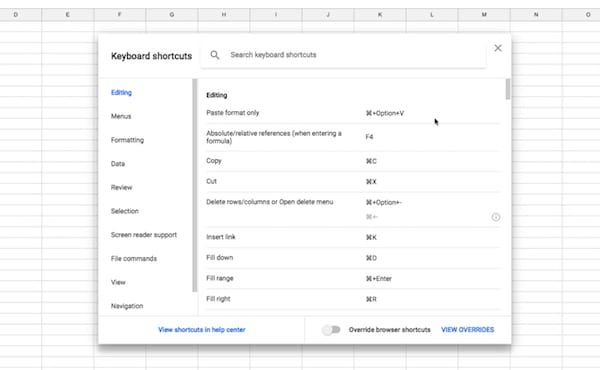
1. Shortcuts

Google Sheets Shortcuts

Use keyboard shortcuts to work more efficiently. It might feel clumsy at first, but persevere and it’ll pay off in spades as you become more efficient in your work.
Continue reading 6 Killer Productivity Tips for Google Sheets

VLOOKUP Multiple Criteria in Google Sheets

Have you ever wanted use the VLOOKUP function with multiple criteria?

For example, you may want to use first name and last name combined to search for a value using Vlookup.

In this post, you’ll see how to Vlookup multiple criteria in Google Sheets, with three different scenarios.
Continue reading VLOOKUP Multiple Criteria in Google Sheets