In this tutorial, we’ll create a checklist template in Google Sheets.
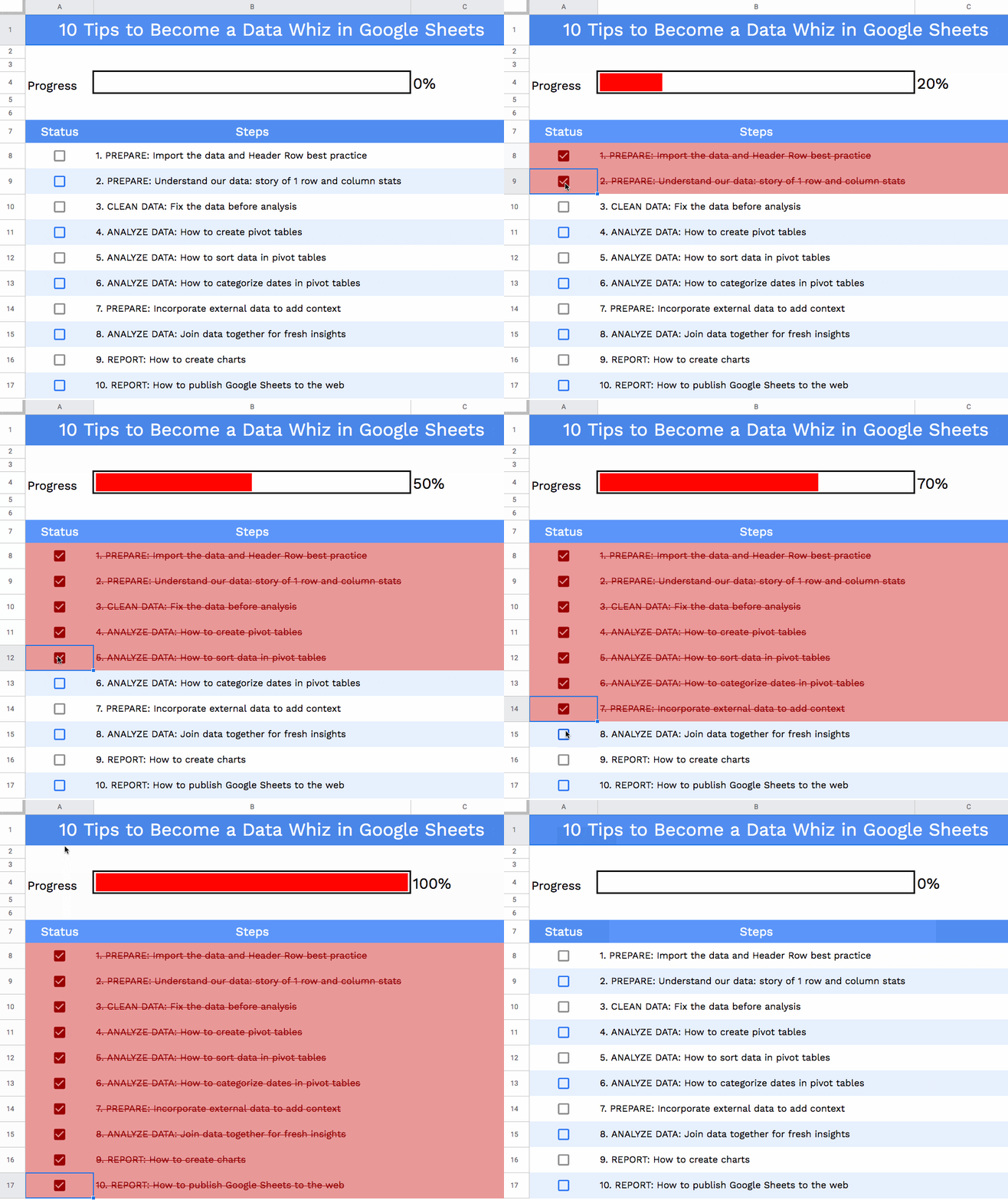
We’ll use checkboxes, conditional formatting and a sparkline to build a checklist template like this:

Educator and Google Developer Expert. Helping you navigate the world of spreadsheets & AI.
In this tutorial, we’ll create a checklist template in Google Sheets.
We’ll use checkboxes, conditional formatting and a sparkline to build a checklist template like this:
Update May 2022:
Sadly, the Alexa service, on which this post is based, has been discontinued, so the techniques shown below no longer work. However, the Apps Script to save the data on a daily basis is still a valid technique, and so I leave this post up for that reason.

Original Post:
This tutorial will show you how to create an Alexa Rank tracker in Google Sheets, using a couple of formulas and a few lines of code.
Alexa Rank is a third-party tool that measures how popular a website is. The lower your ranking, the higher your site traffic is.
For example, Google is ranked #1 and Facebook and Wikipedia also have very low rankings (and giant traffic). The full tool has a host of useful features, but I’ll show you how you can get a website’s Alexa Rank number and build an archive in your Google Sheet.
Here’s my website Alexa Rank over time:
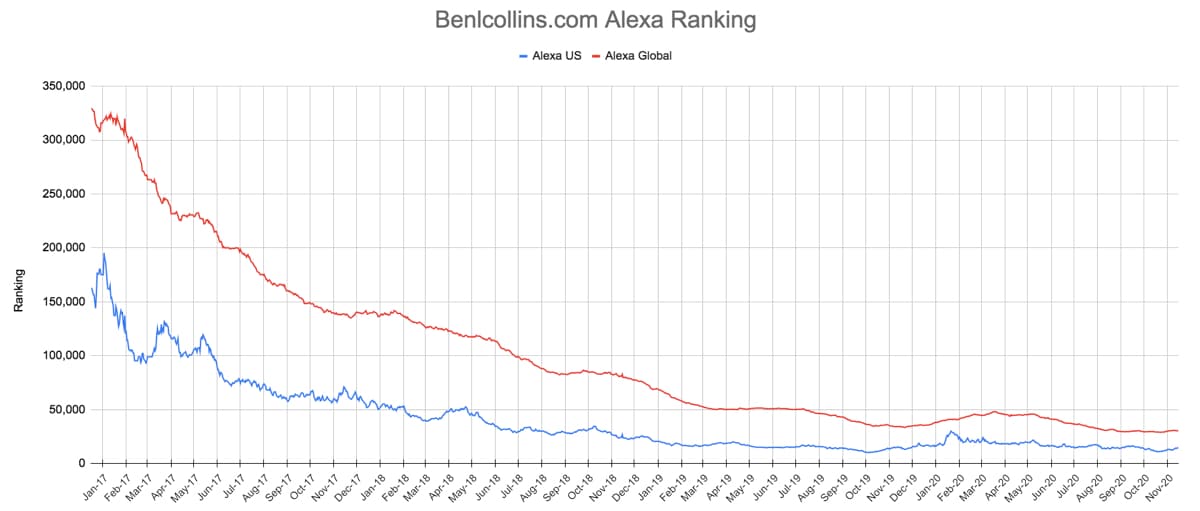
I’ve been running this Sheet since December 2016, about 1 year after my website was created. In that period, my Alexa global ranking has dropped from 320,000 to 30,000, and my Alexa US ranking has dropped from 160,000 to 15,000.
The first step is to setup a small settings Sheet with the formulas to import the Alexa Rank tracking data.
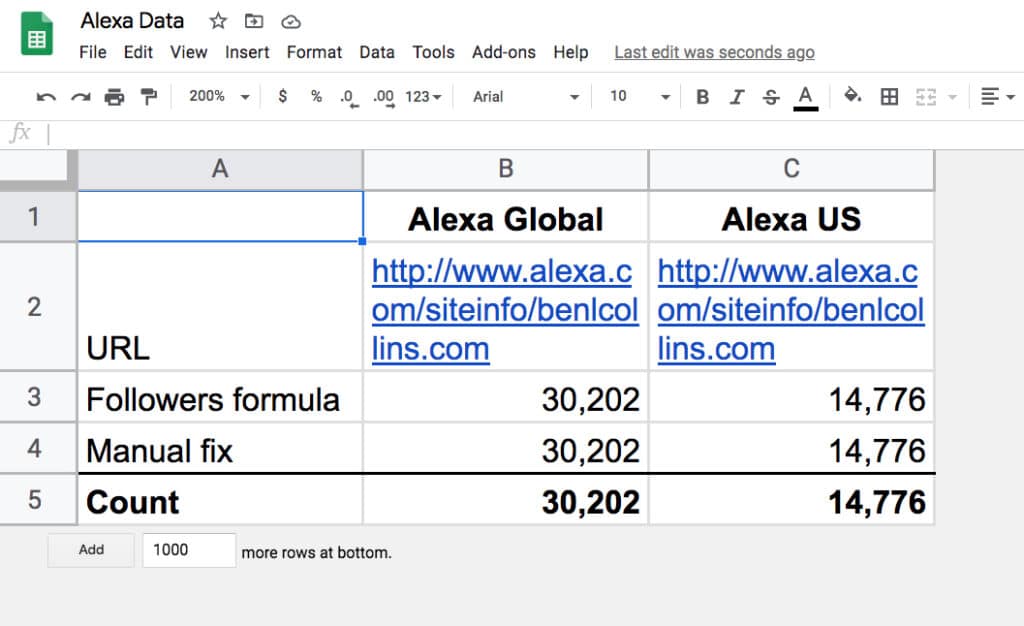
There are two columns: one for the global ranking figure and one for the US ranking figure.
Cells B2 and C2 are the same, containing the URL of the website in the Alexa Rank tracker: https://www.alexa.com/siteinfo/benlcollins.com
In cell B3, enter this formula to import the global rank:
=VALUE(REGEXEXTRACT(JOIN("|",ARRAY_CONSTRAIN(IMPORTDATA(B2),30,1)),"global.(.+)\|us"))In cell C3, enter this formula to import the US rank:
=VALUE(REGEXEXTRACT(JOIN("|",ARRAY_CONSTRAIN(IMPORTDATA(C2),30,1)),"us:.(.+)\|\}\|rating"))These formulas work by importing the content of the Alexa site info for the given website, and them parsing it with a Google Sheets REGEX formula to extract the relevant numbers.
For more information on these formulas, and an alternative Alexa formula, have a look at this post: How to import social media statistics into Google Sheets: The Import Cookbook
On row 4, in cells B4 and C4 are two manually typed values for the ranking, which are just used as backup values in case the import formula fails (which has happened only a handful of times in the past few years).
Periodically, I’ll paste in the latest formula values as text on row 4, to keep the backup as current as possible.
On row 5, use the IFERROR function in Google Sheets to catch errors and use the backup values instead:
=IFERROR(B3,B4)and
=IFERROR(C3,C4)That’s it for the settings Sheet.
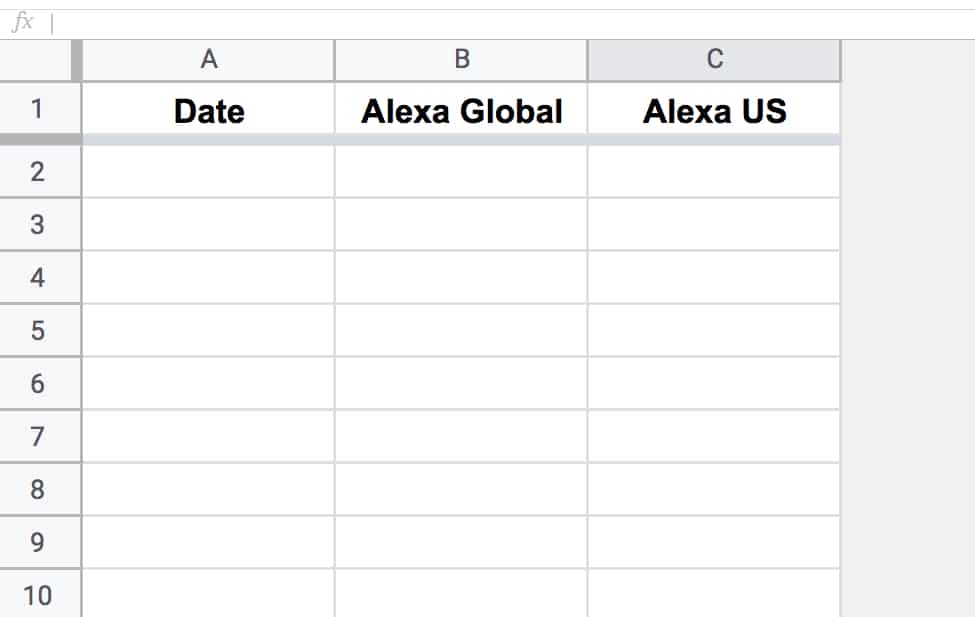
Add another blank Sheet to your Alexa Rank tracker Sheet, with 3 columns: date, global rank and US rank.
Call it alexa_rank.
Open your script editor: Tools > Script editor
And add the following code:
function saveAlexaData() {
  const ss = SpreadsheetApp.getActiveSpreadsheet();
  const dataSheet = ss.getSheetByName('alexa_rank');
  const settingsSheet = ss.getSheetByName('settings');

  // get the url, follower count and date from the first three cells
  const d = new Date();
  const global_count = settingsSheet.getRange(5,2).getValue();
  const us_count = settingsSheet.getRange(5,3).getValue();

  // append new ranking data to Sheet
  dataSheet.appendRow([d,global_count,us_count]);

  // format date string cell
  dataSheet.getRange(dataSheet.getLastRow(),1).setNumberFormat('MMM-YY');
}
Save and Run this script.
(You’ll be prompted to grant the script permission to access your Sheet files the first time you run it.)
It adds a row of data with the date and ranking data to your Sheet.
Run again if you want to see it add new data (but you’ll want to delete this row to avoid duplication).
Now let’s set it up to run on a daily basis.
Under the Triggers option in the left hand sidebar menu, create a new trigger.
Set it to time-driven and run it once a day.
The formulas reflect the value of the Alexa Rank at the current time. The script saves a copy of those ranking values at that point in time. Once the script has been running for a while, you’ll have an archive of historic data.
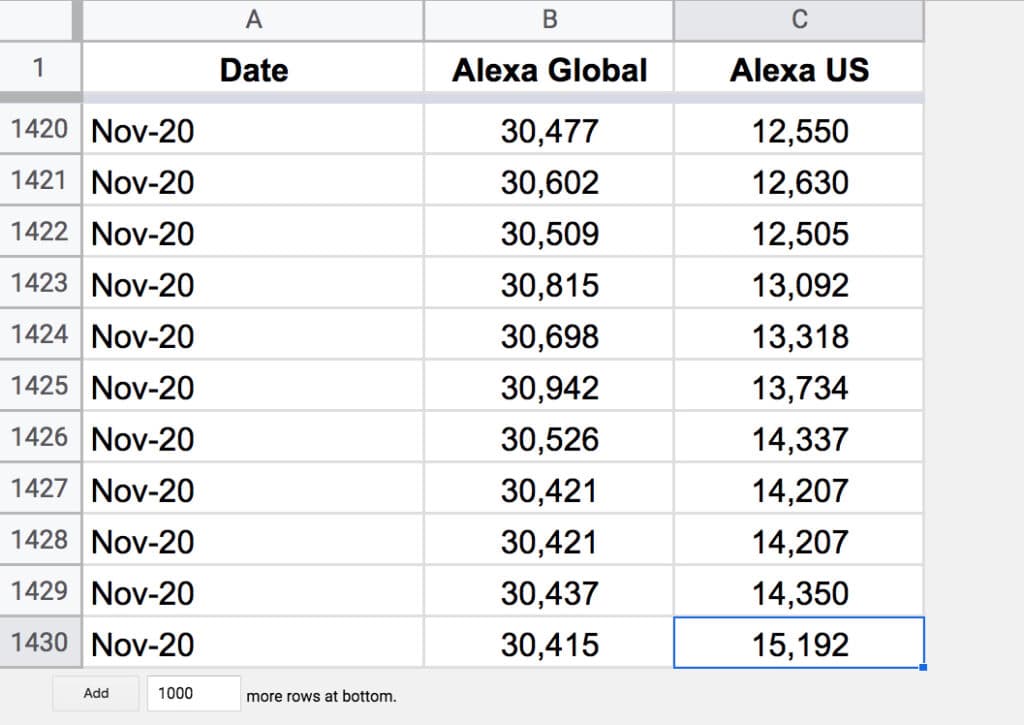
The final step is to highlight your table of ranking data and Insert > Chart
Format it as you wish.
Voilà! You can now see your Alexa Rank over time.
Using Google Sheets as a basic web scraper
How to import social media statistics into Google Sheets: The Import Cookbook
Earlier this year, The Washington Post told a story about the effects of Coronavirus on the US workforce, and illustrated the story with grid charts.
Grid charts can show you the breakdown of the whole into constituent parts, to allow at-a-glance understanding of the big picture.
In this post, I’ll show you how to create a Grid Chart in Google Sheets.
💡 This was tip #128 of my weekly Google Sheets newsletter. Join over 35k+ others and receive the Google Sheets Tips newsletter for exclusive tips, tricks and Google Sheets news.
Here’s a fictitious grid chart example in Google Sheets, showing how students fared in an exam:
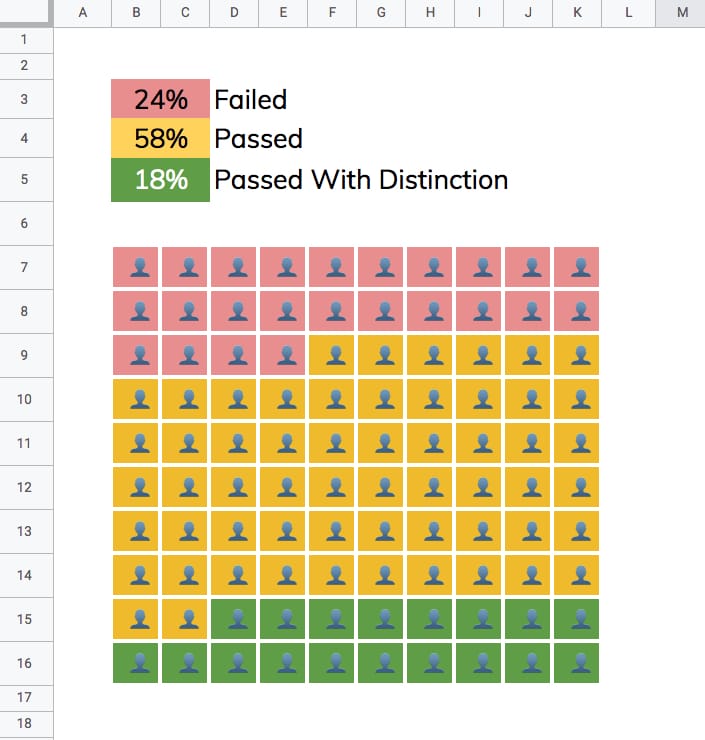
Changing the percentages in the cells above the chart will automatically adjust the chart colors to match.
1. Enter a % value in cell A1 e.g. 73%
2. Underneath, in cell A3, enter this SEQUENCE formula:
=SEQUENCE(10,10)This outputs a 10 by 10 grid of ascending numbers from 1 to 100.
3. Next, adjust the column widths (and row heights) so that the cells are square.
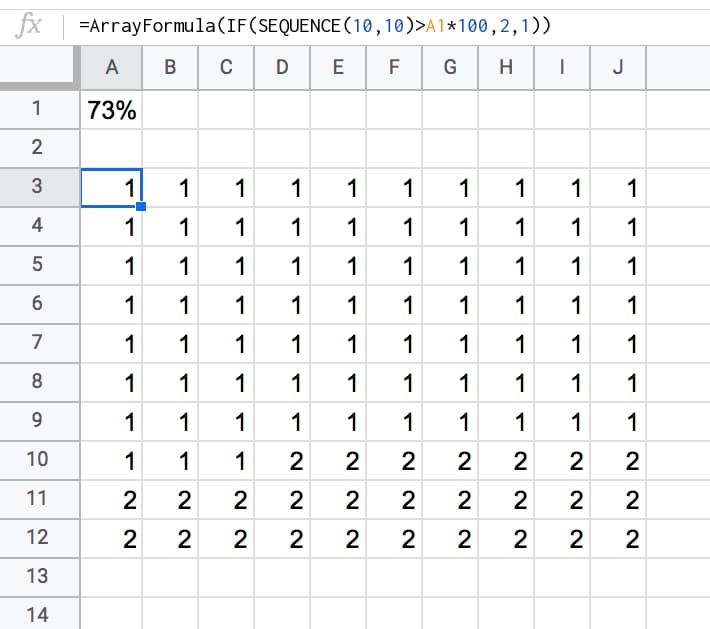
4. Wrap the sequence function with an IF statement and ArrayFormula to check whether the value in a given cell is greater than the threshold percentage:
=ArrayFormula(IF(SEQUENCE(10,10)>A1*100,2,1))Your output now will look like this:
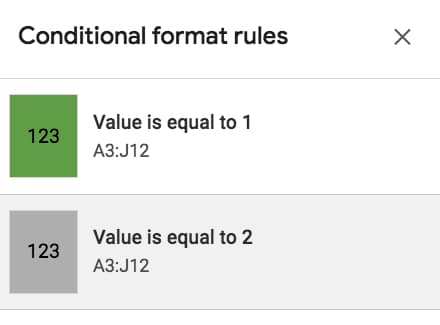
5. Highlight the 10 by 10 grid and add two conditional formatting rules:
6. With the 10 by 10 grid highlighted, add thick white borders to separate the grids. Turn off the gridlines for the Sheet too, for an even cleaner look.
7. Keeping the grid highlighted, change the number format to a custom number format with the emoji symbol: 👤
Format > Number > More formats > Custom number format, then paste in the emmoji: 👤
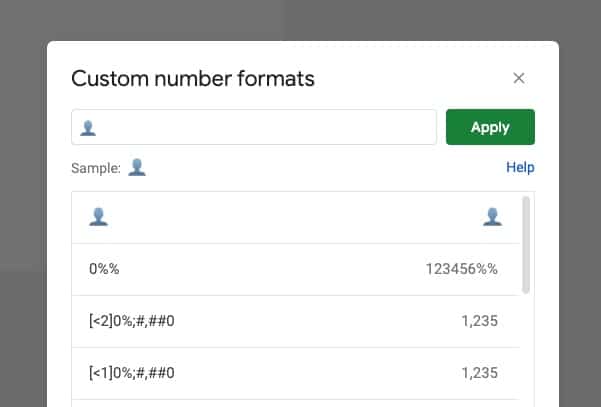
This changes all the values to 👤, regardless of whether it’s a 1 or a 2.
8. Finally, center-align the values horizontally and vertically:
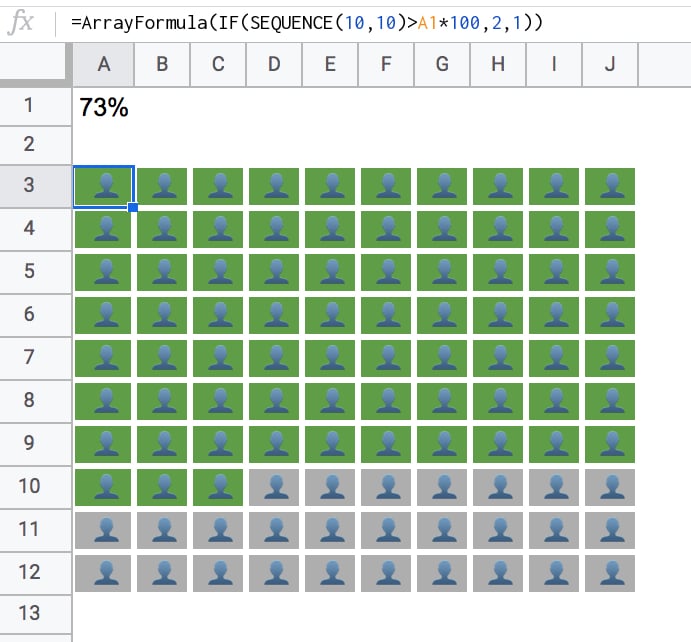
Nice!
When you change the % value, the chart will adjust automatically for you.
To create the 3-color chart shown above, add an additional percentage value and modify the formula to compare against both percentage figures using two IF statements, e.g.:
=ArrayFormula(IF(SEQUENCE(10,10)<=A1*100,1,IF(SEQUENCE(10,10)<=((A2+A1)*100),2,3)))In the second conditional test, you’ll notice I need to add percentage 1 and 2 together, to get the cumulative value at that point in time.
You also need to add an extra conditional formatting rule for the cells that have the value 3.
Click here to open the Google Sheets Grid Chart template.
This will open a view-only version of the template. Feel free to make your own copy: File > Make a copy
(If you’re unable to open this file it may be because it’s from an outside organization, and my G Suite domain is not whitelisted at your organization. You may be able to ask your G Suite administrator about this.
In the meantime, feel free to open in an incognito window to view it.)
Google Sheets custom number format rules are used to specify special formatting rules for numbers.
These custom rules control how numbers are displayed in your Sheet, without changing the number itself. They’re a visual layer added on top of the number. It’s a powerful technique to use because you can combine visual effects without altering your data.
Sheets already has many built-in formats (e.g. accounting, scientific, currency etc.) but you may want to go beyond and create a unique format for your situation.
Access custom number formats through the menu:
Format > Number > Custom number format
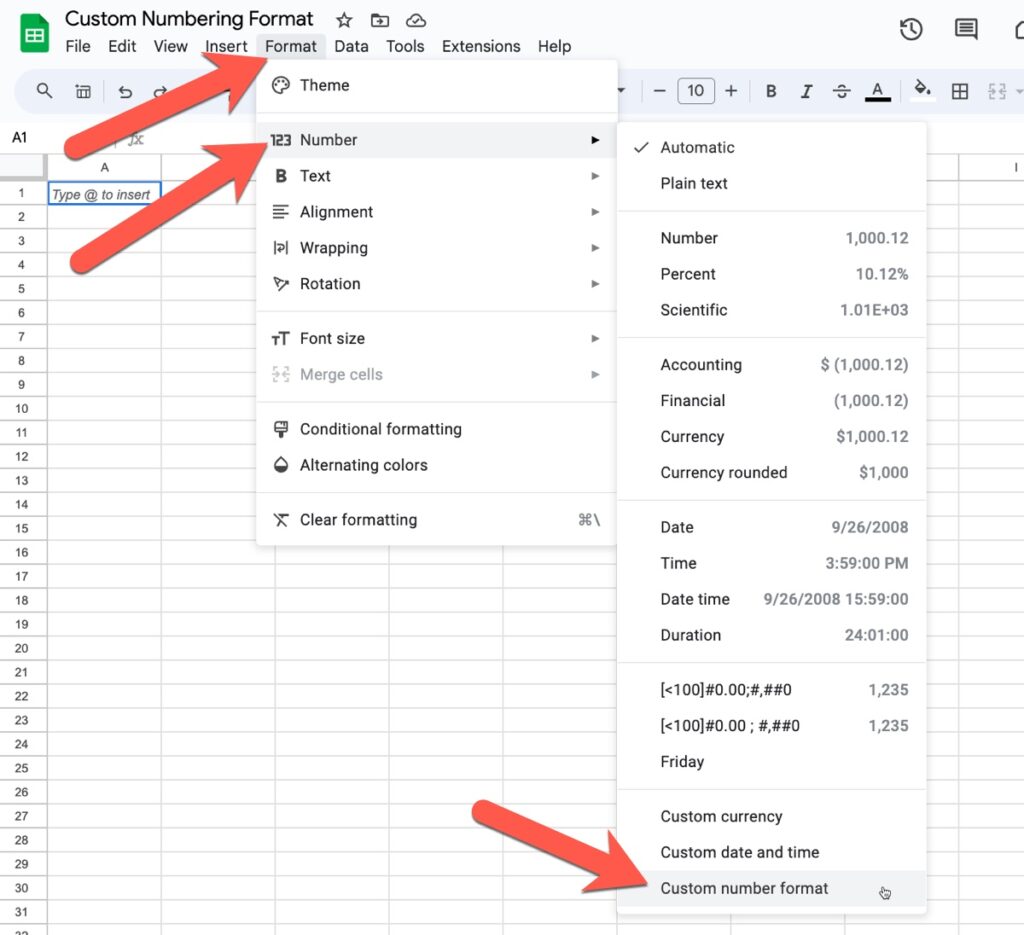
The custom number format editor window looks like this:
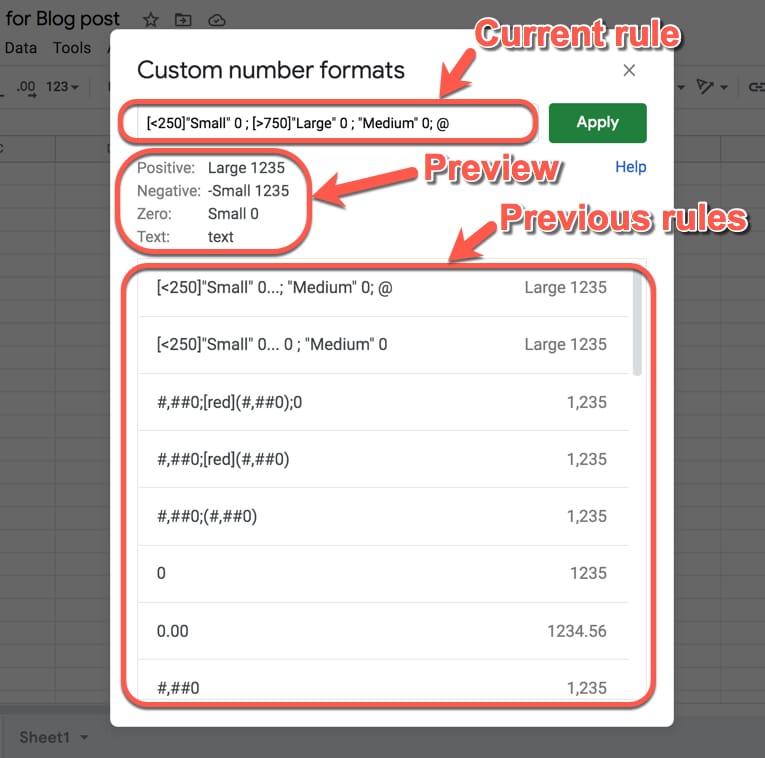
You type your rule in the top box and hit “Apply” to apply it to the cell or range you highlighted.
Under the input box you’ll see a preview of what the rule will do. It gives you a useful and pretty accurate indication of what your numbers will look like with this rule applied.
Previous rules are shown under the preview pane. You can click to restore and reuse any of these.
You have four “rules” to play with, which are entered in the following order and separated by a semi-colon:
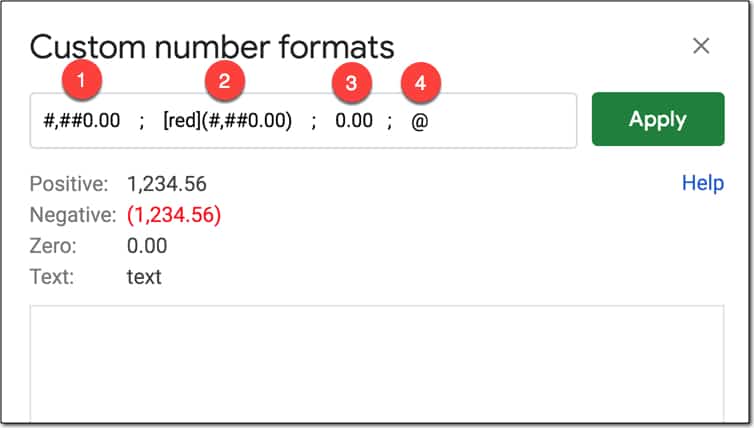
#,##0.00 ; [red](#,##0.00) ; 0.00 ; “some text “@
The first rule, which comes before the first semi-colon (;), tells Google Sheets how to display positive numbers.
#,##0.00 ; [red](#,##0.00) ; 0.00 ; “some text “@
The second rule, which comes between the first and second semi-colons, tells Google Sheets how to display negative numbers.
#,##0.00 ; [red](#,##0.00) ; 0.00 ; “some text “@
The third rule, which comes between the second and third semi-colons, tells Google Sheets how to display zero values.
| Rule | Before | After |
|---|---|---|
0;0;"Zero" |
0 | Zero |
#,##0.00 ; [red](#,##0.00) ; 0.00 ; “some text “@
The fourth rule, which comes after the third semi-colon, tells Google Sheets how to display text values.
No, you don’t have to specify them all everytime.
If you only specify one rule then it’s applied to all values.
If you specify a positive and negative rule only, any zero value takes on the positive value format.
Here are some examples of single- and multi-rule formats:
| Rule | Positive | Negative | Zero | Text |
|---|---|---|---|---|
0 |
1 | -1 | 0 | text |
0;(0) |
1 | (1) | 0 | text |
[red]0 |
1 | -1 | 0 | text |
0;[red]-0 |
1 | -1 | 0 | text |
0;[red]-0;[blue]0;[green]@ |
1 | -1 | 0 | text |
Zero (0) is used to force the display of a digit or zero, when the number has fewer digits than shown in the format rule. Use the zero digit rule (0) to force numbers to be a certain length and show leading zero(s).
For example:
| Rule | Before | After |
|---|---|---|
0.00 |
1.5 | 1.50 |
00000 |
721 | 00721 |
The pound sign (#) is a placeholder for optional digits. If your value has fewer digits than # symbols in the format rule, the extra # won’t display anything.
| Rule | Before | After |
|---|---|---|
#### |
15 | 15 |
#### |
1589 | 1589 |
#.## |
1.5 | 1.5 |
The comma (,) is used to add thousand separators to your format rule. The rule #,##0 will work for thousands and millions numbers.
| Rule | Before | After |
|---|---|---|
#,##0 |
1495 | 1,495 |
#,##0.00 |
1234567.89 | 1,234,567.89 |
The period (.) is used to show a decimal point. When you include the period in your format rule, the decimal point will always show, regardless of whether there are any values after the decimal.
| Rule | Before | After |
|---|---|---|
0. |
10 | 10. |
0. |
10.1 | 10. |
0.00 |
10 | 10.00 |
If you add thousand separators but don’t specify a format after the comma (e.g. 0,) then the hundreds will be chopped off the number. Combine this with a “k” or “K” to indicate the thousands and you have a nice way to showcase abbreviated numbers. To achieve this with millions, you need to specify two commas.
| Rule | Before | After |
|---|---|---|
0.0, |
2500 | 2.5 |
0,"k" |
2500 | 3k |
0.0,"k" |
2500 | 2.5k |
0.0,,"M" |
1234567 | 1.2M |
Brackets can be added to the negative number rule to change the format from -100 to (100), which is often seen in accounting and financial scenarios.
| Rule | Before | After |
|---|---|---|
0;(0) |
-100 | (100) |
The asterisk (*) is used to repeat digits in your format rule. The character that follows after the asterisk is repeated to fill the width of the cell.
In the following example, the dash is repeated to fill the width of the cell in Google Sheets:
| Rule | Before | After |
|---|---|---|
*-0 |
100 | ——————100 |
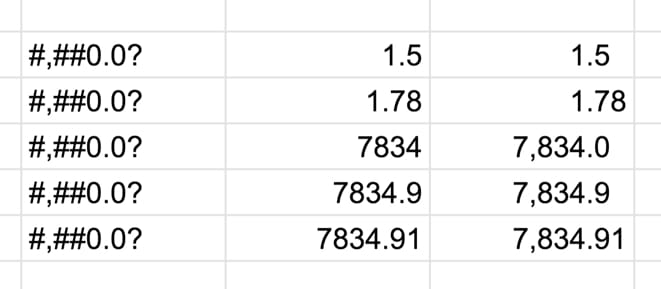
The question mark (?) is used to align values correctly by adding necessary space, even when the number of digits don’t match.
See this example:
The underscore (_) also adds space to your number formats.
In this case, the character that follows the underscore determines the size of the space to add (but is not shown). So this rule allows you to add precise amounts of space.
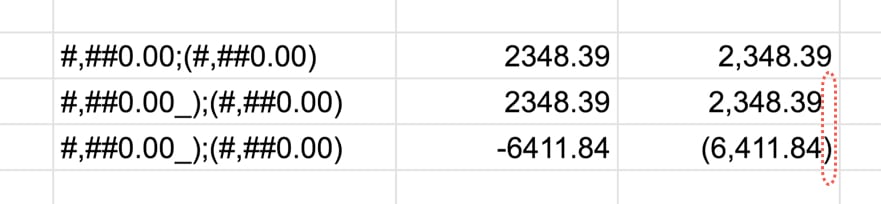
For example #,##0.00_);(#,##0.00) adds a space after the positive sign that is the width of one bracket, so that the decimal point lines up with the negative numbers with brackets.
You can see this clearly in the following image, where the first line does NOT have the spacing but the second line does. The red highlight has been added to show the result of the spacing:
Suppose you want to actually show a pound sign in your format. If you simply add it into your format rule, then Sheets will interpret it as a placeholder for optional digits (see above).
To actually show the pound sign, precede it with a backslash (\) to ensure it shows.
This applies to any of the other special characters too.
| Rule | Before | After |
|---|---|---|
#0 |
10 | 10 |
\#0 |
10 | #10 |
The At symbol (@) is used as a placeholder for text, which means don’t change the text entered.
| Rule | Before | After |
|---|---|---|
0;0;0;"Special text value!" |
Some text | Special text value! |
0;0;0;@ |
Some text | Some text |
The forward slash (/) is used to denote fractions.
For example, the rule # ?/? will show numbers as fractions:
| Rule | Before | After |
|---|---|---|
# ?/? |
2.3333333333 | 2 1/3 |
The percent sign (%) is used to format values as %. As with the other rules, you first specify the digits and then use the % sign to change to a percent e.g. 0.00%
| Rule | Before | After |
|---|---|---|
0.00% |
0.2829 | 28.29% |
For very large (or very small) numbers, use the exponent format rule to show them more compactly.
The rule is: number * E+n, in which E (the exponent) multiplies the preceding number by 10 to the nth power.
Let’s see an example:
| Rule | Before | After |
|---|---|---|
0.00E+00 |
23976986 | 2.40E+07 |
Adding conditions inside of square brackets replaces the default positive, negative and zero rules with conditional expressions.
For example:
| Rule | Before | After |
|---|---|---|
[<100]"Small" ; [>500]"Large" ; "Medium" |
50 | Small |
[<100]"Small" ; [>500]"Large" ; "Medium" |
300 | Medium |
[<100]"Small" ; [>500]"Large" ; "Medium" |
800 | Large |
Meta instructions for conditional rules from the Google Sheets API documentation.
Add colors to your rules with square brackets [ ].
There are 8 named colors you can use:
[black], [white], [red], [green], [blue], [yellow], [magenta], [cyan]
To get more colors, use the 2-digit color codes written:
[Color1], [Color2], [Color3], ..., [Color56]
For full rundown of the color palette for these 56 colors, click here.
| Rule | Before | After |
|---|---|---|
0;[red](0) |
-100 | (100) |
Here’s another example of using Google Sheets custom number format rules with colors: How To Make a Table in Google Sheets, and Make It Look Great
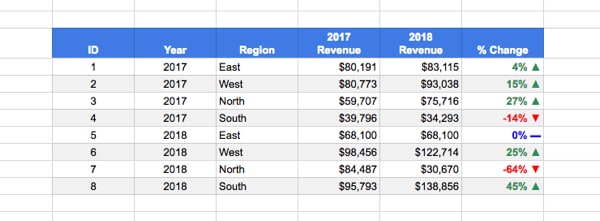
where the rule is:
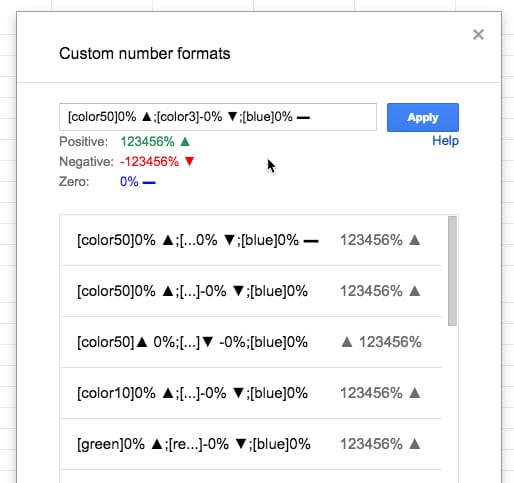
Meta instructions for color rules from the Google Sheets API documentation.
Turn any 11 digit number into a formatted telephone number with the zero digit rule and dashes:
| Rule | Before | After |
|---|---|---|
0 000-000-0000 |
18004567891 | 1 800-456-7891 |
Use conditional rules to pluralize words. Remember, these are still numbers under the hood so you can still do arithmetic with them. The formatting portion (“day” or “days”) is just added as a layer on top.
| Rule | Before | After |
|---|---|---|
[=1]0" day"; 0" days" |
1 | 1 day |
[=1]0" day"; 0" days" |
2 | 2 days |
[=1]0" day"; 0" days" |
100 | 100 days |
Use conditionals to classify numbers directly:
| Rule | Before | After |
|---|---|---|
[<250]"Small"* 0 ; [>750]"Large"* 0 ; "Medium"* 0 |
70 | Small 70 |
[<250]"Small"* 0 ; [>750]"Large"* 0 ; "Medium"* 0 |
656 | Medium 656 |
[<250]"Small"* 0 ; [>750]"Large"* 0 ; "Medium"* 0 |
923 | Large 923 |
Note: these are still numbers under the hood, so you can do arithmetic with them. Moreso, the “Small”, “Medium” and “Large” only exist in the format layer and cannot be accessed in formulas. For example, you can’t use a COUNTIF to count all the values with “Large”. To do that, you need to actually change the value so the word “Large” is in the cell, or add a helper column.
The “* ” part of the rule adds space between the word and the number so that it fills out the full width of the cell.
Add color scales to the conditional example:
| Rule | Before | After |
|---|---|---|
[color44][<250]"Small"* 0;[color46][>750]"Large"* 0;[color45]"Medium"* 0 |
70 | Small 70 |
[color44][<250]"Small"* 0;[color46][>750]"Large"* 0;[color45]"Medium"* 0 |
656 | Medium 656 |
[color44][<250]"Small"* 0;[color46][>750]"Large"* 0;[color45]"Medium"* 0 |
923 | Large 923 |
Combine conditionals with emojis to turn numbers into a emoji-scale, like this temperature example:
| Rule | Before | After |
|---|---|---|
[>90]🔥🔥🔥;[>50]🔥;❄️;"No data" |
37 | ❄️ |
[>90]🔥🔥🔥;[>50]🔥;❄️;"No data" |
75 | 🔥 |
[>90]🔥🔥🔥;[>50]🔥;❄️;"No data" |
110 | 🔥🔥🔥 |
[>90]🔥🔥🔥;[>50]🔥;❄️;"No data" |
N/a | “No data” |
How To Add Subscript and Superscript In Google Sheets
Google documentation on how to format numbers in Sheets.
Custom Number Format Builder for Google Sheets and Excel.
Questions? Comments? Have you used custom number formats? Seen any interesting examples? Leave a comment below.
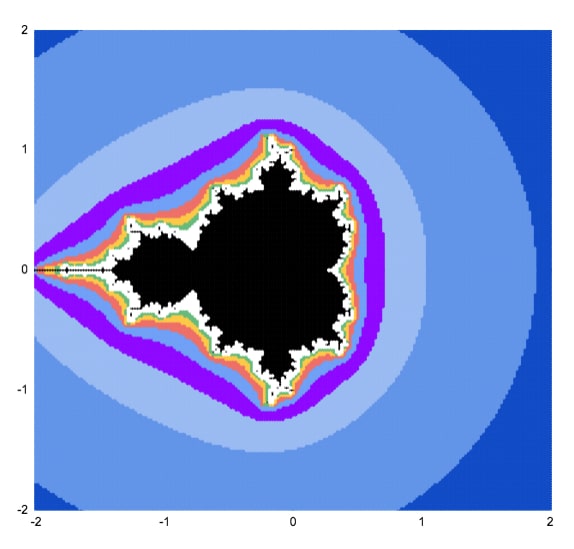
This article will walk you through how to draw the MandelBrot set in Google Sheets, using only formulas and the built-in chart tool.
The Mandelbrot set is a group of special numbers with some astonishing properties.
You’ve almost certainly seen an image of the Mandelbrot set before.
It’s one of the most famous mathematical concepts, known outside of mathematical circles even. It’s named after the French mathematician, Benoit Mandelbrot, who was the father of fractal geometry.
The Mandelbrot set is fantastically beautiful. It’s an exquisite work of art, generated by a simple equation.
More formally, the Mandelbrot set is the set of complex numbers c, for which the equation z² + c does not diverge when iterated from z = 0.
Gosh, what does that mean?
Well, it’s easier if you look at the picture at the top of this article. The black area represents points that do not run away to infinity when you keep applying the equation z² + c.
Consider c = -1.
It repeats -1, 0, -1, 0, -1… forever, so it never escapes. It’s bounded so it belongs in the Mandelbrot set.
Now consider c = 1.
Starting with z = 0, the first iteration is 1.
The second iteration is 1² + 1 = 2.
The third iteration is 2² + 1 = 5.
The fourth iteration is 5² + 1 = 26.
And so on 26, 677, 458330, 210066388901, … It blows up!
It diverges to infinity, so it is not in the Mandelbrot set.
Before we can draw the Mandelbrot set, we need to think about complex numbers.
It’s impossible to draw the Mandelbrot set without a basic understanding of complex numbers.
If you’re new to complex numbers, have a read of this primer article first: Complex Numbers in Google Sheets
It explains what complex numbers are and how you use them in Google Sheets.
To recap, complex numbers are numbers in the form
a + biwhere i is the square root of -1.
We can plot them as coordinates on a 2-dimensional plane, where the real coefficient “a” is the x-axis and the imaginary coefficient “b” is on the y-axis.
Taking each point on this 2-d plane in turn, we test it to see if it belongs to the Mandelbrot set. If it does belong, it gets one color. If it doesn’t belong, it gets a different color.
This scatter plot chart of colored points is an approximate view of the Mandelbrot set.
As we increase the number of points plotted and the number of iterations we get successively more detailed views of the Mandelbrot set. A point that may still be < 2 on iteration 3 may be clearly outside that boundary by iteration 5, 7 or 10.
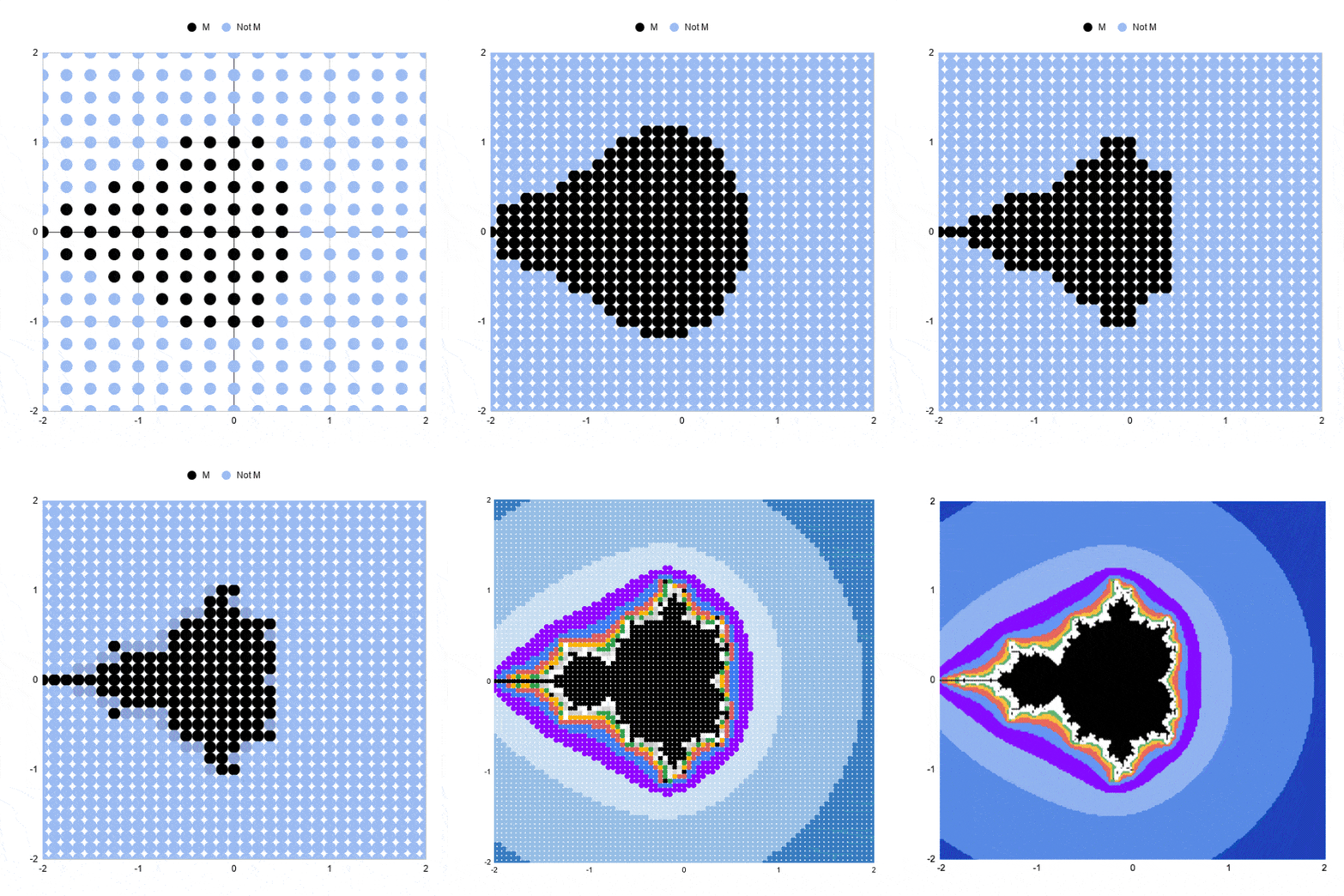
You can see the outline resembles the Mandelbrot set much more clearly at higher iterations.
 Google Sheets Template
Feel free to make your own copy: File > Make a copy
Here’s a simple approximation of the Mandelbrot set drawn in Google Sheets:
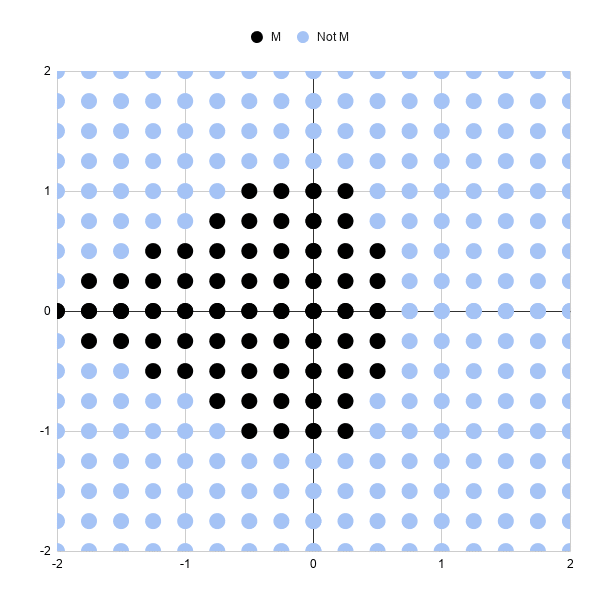
Let’s run through the steps to create it.
It’s a scatter plot with 289 points (17 by 17 points).
Each point is colored to show whether it’s in the Mandlebrot set or not, after 3 iterations.
Black points represent complex numbers, which are just coordinates (a,b) remember, whose sizes are still less than or equal to 2 after 3 iterations. So we’re including them in our Mandelbrot set.
Light blue points represent complex numbers whose sizes have grown larger than 2 and are not in our Mandelbrot set. In other words, they’re diverging.
Three iterations are not very many, which is why this chart is a very crude approximation of the Mandelbrot set. Some of these black points will eventually diverge on higher iterations.
And obviously, we need more points so we can fill in the gaps between the points and test those complex numbers.
But it’s a start.
In column A, we need the sequence going from 0 to 2 and repeating { 0, 0.25, 0.5, 0.75, 1, 1.25, 1.5, 1.75, 2, 0, 0.25, 0.5, …}
In column B, we need the sequence 0, then 0.25, then 0.5 repeating 9 times each until we reach 2 { 0, 0, 0, 0, 0, 0, 0, 0, 0, 0.25, 0.25, 0.25, …}
This gives us the combinations of x and y coordinates for our complex numbers c that we’ll test to see if they lie in the set or not.
It’s easier to see in the actual Sheet:
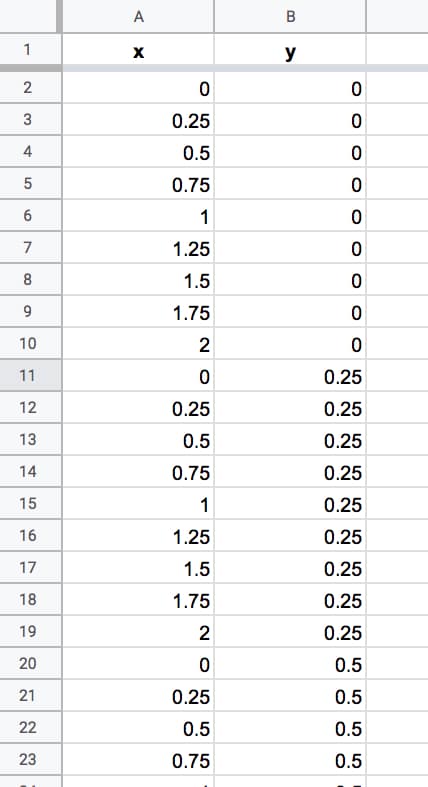
We keep going until we reach number 2 in column B. We have 324 rows of data. There are some repeated rows (like 0,0) but that doesn’t matter for now.
Columns A and B now contain the coordinates for our grid of complex numbers. Now we need to test each one to see if it belongs in the Mandelbrot set.
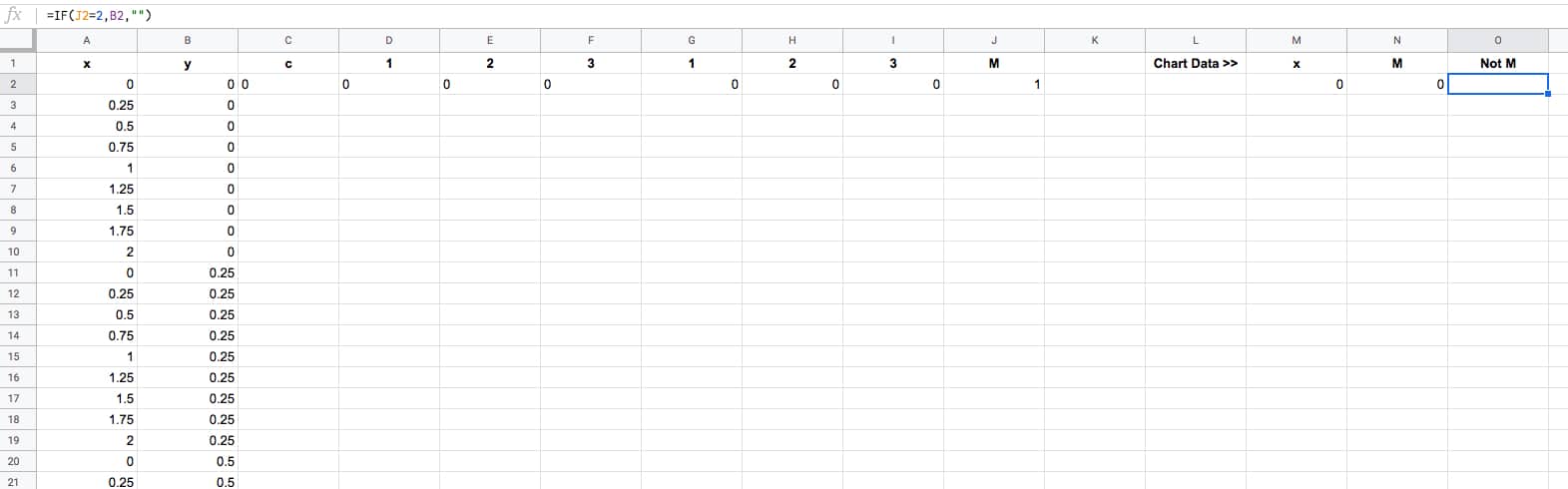
We create the algorithm steps in columns C through J.
In cell C2, we create the complex number by combining the real and imaginary coefficients:
=COMPLEX(A2,B2)Cell D2 contains the first iteration of the algorithm with z = 0, so the result is equal to C, the complex number in cell C2, hence:
=C2The second iteration is in cell E2. The equation this time is z² + c, where z is the value in cell D2 and C is the value from C2:
=IMSUM(IMPOWER(D2,2),$C2)It’s the same z² + c in F2, where z in this case is from E2 (the previous iteration):
=IMSUM(IMPOWER(E2,2),$C2)Notice the “$” sign in front of the C in both formulas in columns E and F. This is to lock our formula back to the C value for our Mandelbrot equation.
In cell G2:
=IMABS(D2)Drag this formula across cells H2 and I2 also.
In cell J2, use the IFERROR function:
=IFERROR(IF(I2<=2,1,2),2)Then leave a couple of blank columns, before putting the chart data in columns M, N and O, with the following formulas representing the x values and the two y series with different colors:
=A2=IF(J2=1,B2,"")=IF(J2=2,B2,"")Thus, our dataset now looks like this (click to enlarge):
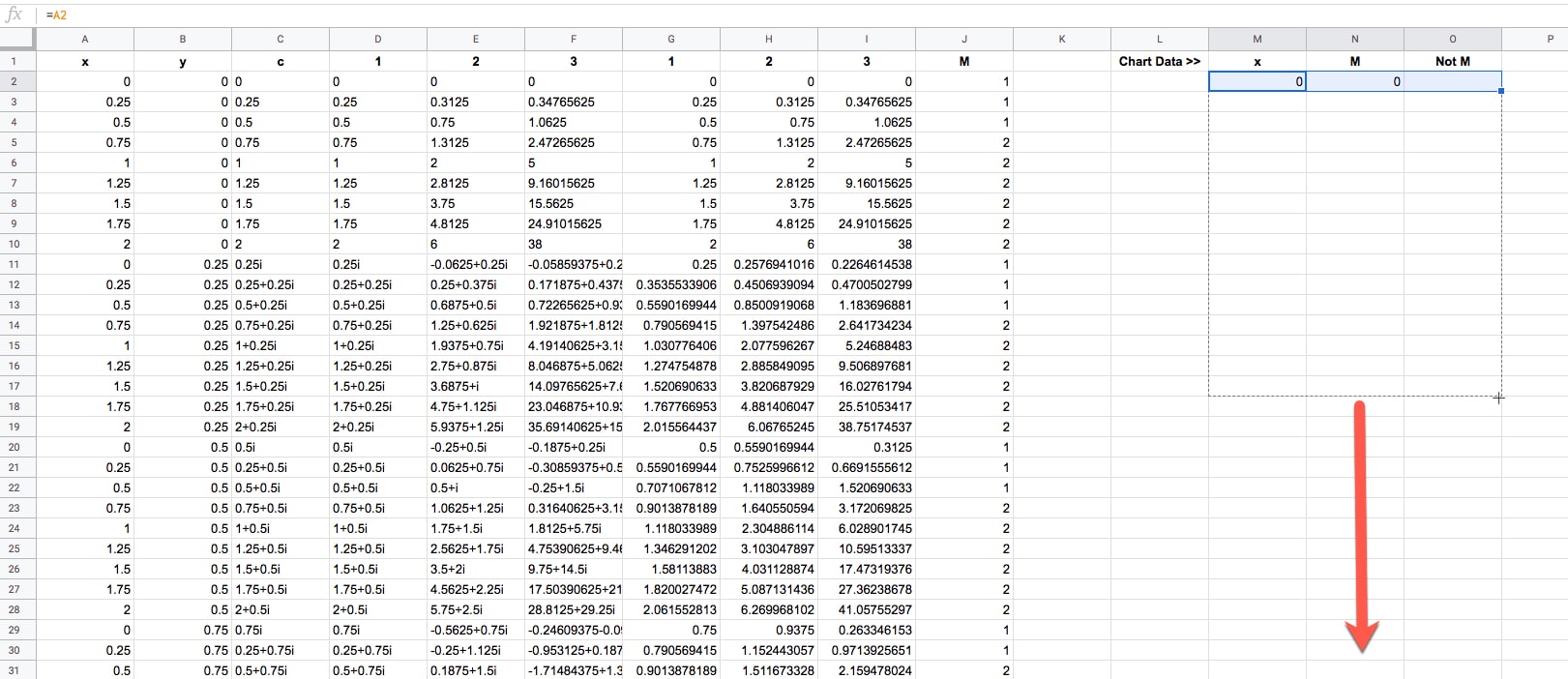
The final task is to drag that first row of formulas down to the bottom of the dataset, so that every row is filled in with the formulas (click to enlarge):
Ok, now we're ready to draw some pretty pictures!
Highlight columns M, N and O in your dataset.
Click Insert > Chart.
It'll open to a weird looking default Column Chart, so change that to a Scatter chart under Setup > Chart type.
Change the series colors if you want to make the Mandelbrot set black and the non-Mandelbrot set some other color. I chose light blue.
And finally, resize your chart into a square shape, using the black grab handles on the borders of the chart object.
Boom! There it is in all it's glory:
Note: you may need to manually set the min and max values of the horizontal and vertical axes to be -2 and 2 respectively in the Customize menu of the chart editor.
Generating those x-y coordinates manually is extremely tedious and not really practical beyond the simple example above.
Thankfully you can use the awesome SEQUENCE function, UNIQUE function, and Array Formulas in Google Sheets to help you out.
This formula will generate the x-y coordinates for a 33 by 33 grid, which gives a more filled-in image than the simple example above.
=ArrayFormula(UNIQUE({

MOD(SEQUENCE(289,1,0,1),17)/8,

ROUNDDOWN(SEQUENCE(289,1,0,1)/17)/8;

-MOD(SEQUENCE(289,1,0,1),17)/8,

ROUNDDOWN(SEQUENCE(289,1,0,1)/17)/8;

MOD(SEQUENCE(289,1,0,1),17)/8,

-ROUNDDOWN(SEQUENCE(289,1,0,1)/17)/8;

-MOD(SEQUENCE(289,1,0,1),17)/8,

-ROUNDDOWN(SEQUENCE(289,1,0,1)/17)/8

}))
Then drag the other formulas down your rows to complete the dataset as we did above.
Then you can highlight columns M, N, and O to draw your chart again.
Note: you may need to manually set the min and max values of the horizontal and vertical axes to be -2 and 2 respectively in the Customize menu of the chart editor.
With three iterations, the chart looks like:
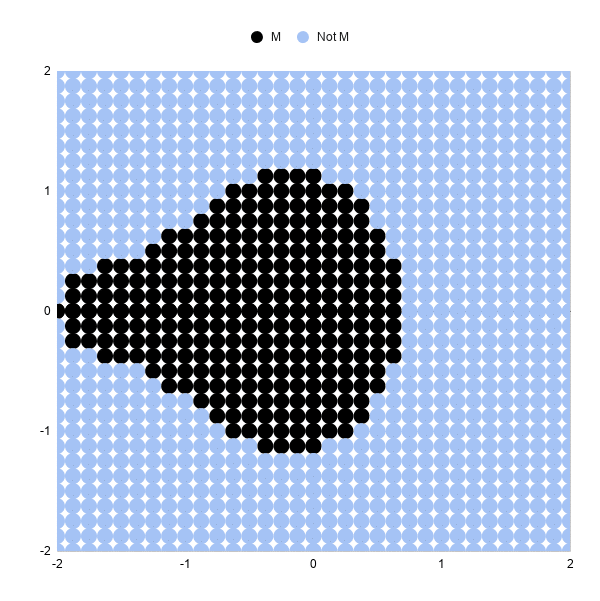
Let's look at 5 iterations and 10 iterations, and you'll see how much detail this adds.
To move from 3 iterations to 5, we need to add some columns to our Sheet and repeat the algorithm two more times.
So, insert two blank columns between F and G. Label the headings 4 and 5.
Drag the formula in F2 across the new blank columns G and H (this is the z² + c equation as a Google Sheet formula):
In G2:
=IMSUM(IMPOWER(F2,2),$C2)In H2:
=IMSUM(IMPOWER(G2,2),$C2)We need to add the corresponding size calculation columns. Between K and L, insert two new blank columns and drag the IMABS formula across.
Now in L2:
=IMABS(G2)And in M2:
=IMABS(H2)Finally, update the IF formula to ensure it's testing the value in column M now:
=IFERROR(IF(M2<=2,1,2),2)And that's it!
Our chart should update and look like this:
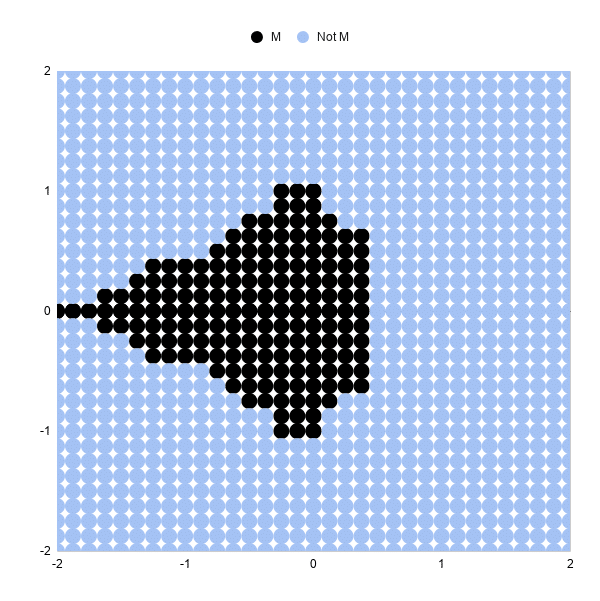
You can see the shape of the Mandelbrot set much more clearly now.
Increasing from 5 iterations to 10 iterations is exactly the same. Add 5 blank columns and populate with the formulas again.
The resulting 10 iteration chart is better again:
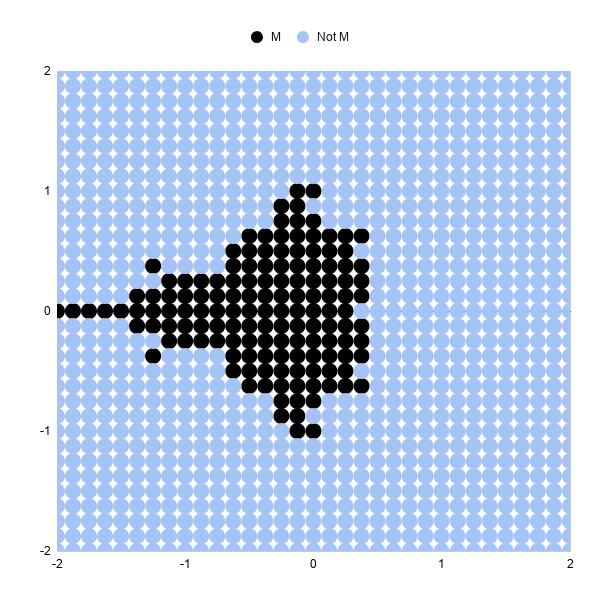
Increasing the number of points to 6,561 in an 81 by 81 grid will give a more "complete" picture than the examples above.
This sequence formula will generate these datapoints:
=ArrayFormula(UNIQUE({

MOD(SEQUENCE(1681,1,0,1),41)/20,

ROUNDDOWN(SEQUENCE(1681,1,0,1)/41)/20;

-MOD(SEQUENCE(1681,1,0,1),41)/20,

ROUNDDOWN(SEQUENCE(1681,1,0,1)/41)/20;

MOD(SEQUENCE(1681,1,0,1),41)/20,

-ROUNDDOWN(SEQUENCE(1681,1,0,1)/41)/20;

-MOD(SEQUENCE(1681,1,0,1),41)/20,

-ROUNDDOWN(SEQUENCE(1681,1,0,1)/41)/20

}))
Be warned, as you increase the number of formulas in your Sheet and the number of points to plot in your scatter chart, your Sheet will start to slow down!
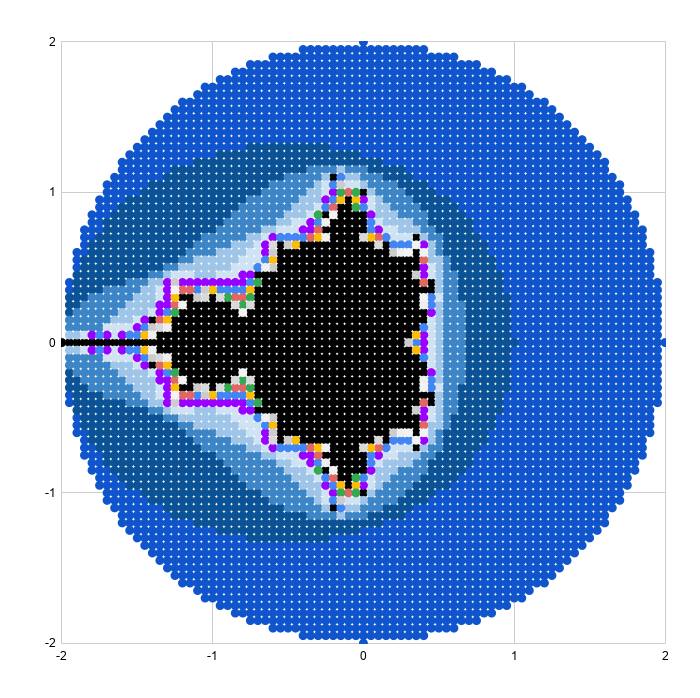
We can add color bands to show which iteration a given point "escaped" towards infinity.
For example, all of the points that are larger than our threshold on iteration 5 get a different color than those that are less than the threshold at iteration 5, but become larger on iteration 6.
The formulas for the iterations and size are the same as the examples above.
Then I determine if the point is still in the Mandelbrot set:
=IF(ISERROR(AG2),"No",IF(AG2<=2,"Yes","No"))And then what iteration it "escapes" to infinity, or beyond the threshold of 2 in this example:
=IF(AH2="Yes",0,MATCH(2,S2:AG2,1))These formulas are shown in the Google Sheets template:
Google Sheets TemplateNext, we create the series for the chart:
First, the Mandelbrot set:
=IF(AH2="Yes",B2,"")Then series 1 to 15:
=IF($AI2=AK$1,$B2,"")The range for the scatter plot is then:
A1:A6562,AJ1:AY6562where column A is the x-axis values and columns AJ to AY are the y-axis series.
Drawing the scatter plot and adjusting the series colors results in a pretty picture (this is an 81 by 81 grid):
As a final exercise, I increased the plot size to 40,401 representing a grid of 201 by 201 points. This really slowed the sheet down and took about half an hour to render the scatter plot, so not something I'd recommend.
The picture is very pretty though!
The 40,401 x-y coordinates can be generated with this array formula:
=ArrayFormula(UNIQUE({

MOD(SEQUENCE(10201,1,0,1),101)/50,

ROUNDDOWN(SEQUENCE(10201,1,0,1)/101)/50;

-MOD(SEQUENCE(10201,1,0,1),101)/50,

ROUNDDOWN(SEQUENCE(10201,1,0,1)/101)/50;

MOD(SEQUENCE(10201,1,0,1),101)/50,

-ROUNDDOWN(SEQUENCE(10201,1,0,1)/101)/50;

-MOD(SEQUENCE(10201,1,0,1),101)/50,

-ROUNDDOWN(SEQUENCE(10201,1,0,1)/101)/50

}))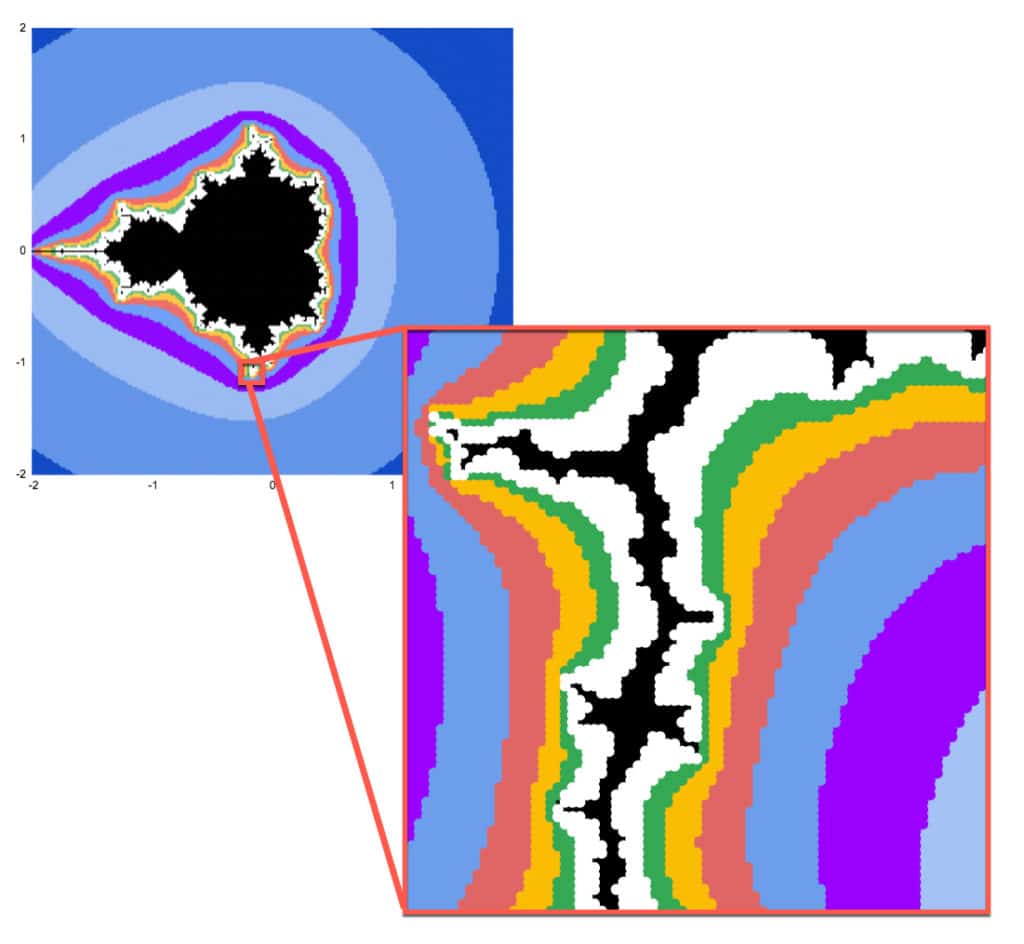
Mandelbrot sets have the property of self-similarity.
That is, we can zoom in on any section of the chart and see the same fractal geometry playing out on infinitely smaller scales. This is but one of the astonishing properties of the Mandelbrot set.
Google Sheets is definitely not the best tool for exploring the Mandelbrot set at increasing resolution. It's too slow to render graphically and too manual to make the changes to the formulas and axis bounds.
However, as the maxim says: the best tool is the one you have to hand.
So, if you want to explore in Google Sheets it is possible:
I'm going to zoom in on the point: -0.17033700000, -1.06506000000
(Thanks to this article, The Mandelbrot at a Glance by Paul Bourke, which highlighted some interesting points to explore.)
Starting with this formula in cell A2 to generate the 6,561 data points (I wouldn't recommend going above this because it becomes too slow):
=ArrayFormula(UNIQUE({

MOD(SEQUENCE(1681,1,0,1),41)/20,

ROUNDDOWN(SEQUENCE(1681,1,0,1)/41)/20;

-MOD(SEQUENCE(1681,1,0,1),41)/20,

ROUNDDOWN(SEQUENCE(1681,1,0,1)/41)/20;

MOD(SEQUENCE(1681,1,0,1),41)/20,

-ROUNDDOWN(SEQUENCE(1681,1,0,1)/41)/20;

-MOD(SEQUENCE(1681,1,0,1),41)/20,

-ROUNDDOWN(SEQUENCE(1681,1,0,1)/41)/20

}))
In columns C and D, I transformed this data by change the 0,0 center to -0.17033700000, -1.06506000000 and then adding the values from A and B to C and D respectively, divided by 100 to zoom in.
=C$2+A3/100=D$2+B3/100The rest of the process is identical.
I set the chart axes min and max values to match the min and max values in each of column C (x axis) and D (y axis).
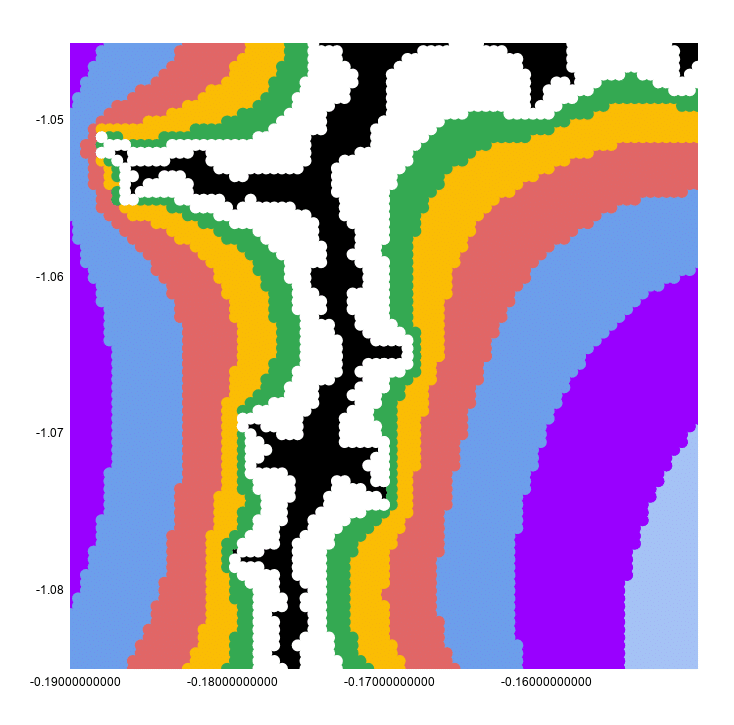
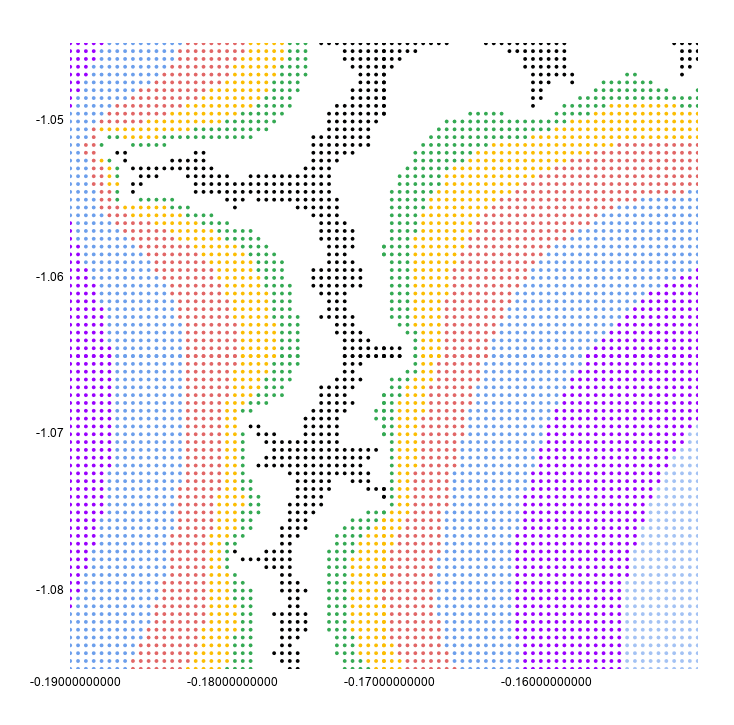
This looks continuous because the chart has a point size of 10px to make it look better.
If I reset that to 2px, you can see clearly that this is still a scatter plot:
I hope you enjoyed that exploration of the Mandelbrot set in Google Sheets! Let me know your thoughts in the comments below.
How To Draw The Cantor Set In Google Sheets
How To Draw The Sierpiński Triangle In Google Sheets
Exploring Population Growth And Chaos Theory With The Logistic Map, In Google Sheets