Blog

The TRANSPOSE Function in Google Sheets

The TRANSPOSE function in Google Sheets interchanges the rows and columns of an array or range of cells in Google Sheets.

For example, suppose you are given data in a horizontal format like this:

horizontal Range in Google Sheets

It’s awkward to read because it’s too wide to fit on a single screen. We’re also better at scanning down columns than across rows.

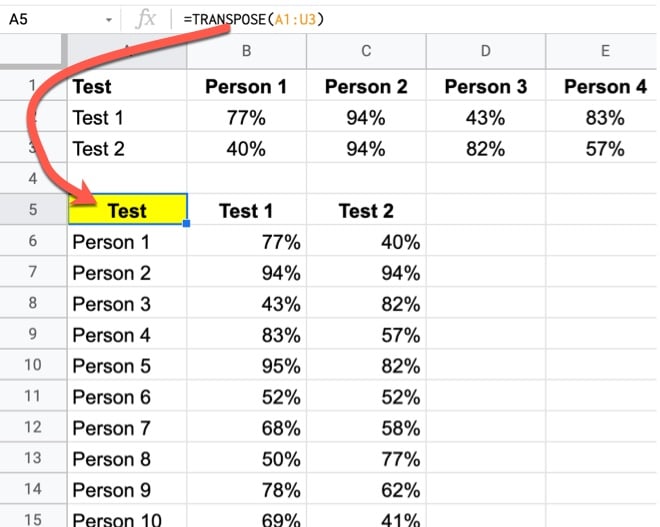
The TRANSPOSE function will flip the horizontal arrangement to a vertical arrangement:

=TRANSPOSE(A1:U3)

like so:

Transpose Function in Google Sheets

Much easier to use!

And it works better with other formulas like QUERY, SORT, FILTER, etc.

TRANSPOSE Function in Google Sheets Syntax

=TRANSPOSE(array_or_range)

It takes a single argument: an array or range of cells.

Transposition works by swapping the row and column positions of each value. For example, a value in position row 3 column 10 will be put into position row 10 column 3 by the transposition operation.

As a result, ranges of size X rows and Y columns will become ranges of size Y rows and X columns.

In the screenshots at the top of this screen, the horizontal range with 3 rows and 21 columns became a vertical-oriented range with 21 rows and 3 columns.

It’s part of the Array family of functions in Google Sheets.

TRANSPOSE function template

Click here to open a view-only copy >>

Feel free to make a copy: File > Make a copy…

If you can’t access the template, it might be because of your organization’s Google Workspace settings. If you right-click the link and open it in an Incognito window you’ll be able to see it.

The TRANSPOSE function is also covered in the Day 25 lesson of my free Advanced Formulas 30 Day Challenge course.

You can also read about it in the Google Documentation.

TRANSPOSE Formula Examples

The TRANSPOSE function is useful in a wide variety of projects that make use of advanced formulas.

It pairs well with other text or array formulas, like the SPLIT function.

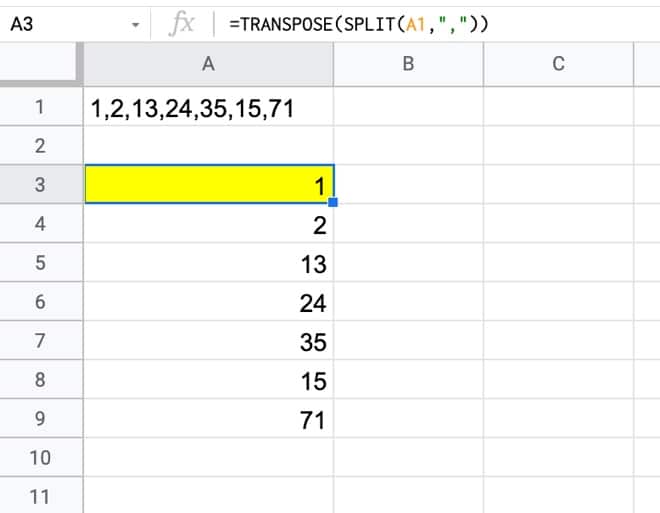
For example, maybe your data contains strings of comma-separated values in a cell that you want to present in column format. E.g. suppose you have an array of numbers in cell A1:

1,2,13,24,35,15,71

Then you can combine the TRANSPOSE function with the SPLIT function to achieve this:

=TRANSPOSE(SPLIT(A1,","))

Transpose Function with Split Function Google Sheets

This post on how to alphabetize comma-separated strings uses this TRANSPOSE + SPLIT technique to break apart a string, before going on to sort the data and recombine.

More examples of TRANSPOSE formulas

Etch A Sheet In Google Sheets

Running Total Array Formulas Using The MMULT Function

A Complete Guide To The CHAR Function In Google Sheets

The CHAR function in Google Sheets is a nifty function that converts a number into a special character according to the current Unicode table.

It’s super easy to use and is a great way to add some fun to your Google Sheets.

What is the CHAR Function?

It’s a function that turns numbers into special characters, e.g. emojis, in your Google Sheets.

For example, suppose you want to add a smiling emoji to your Sheet.

Of course you can copy-paste it into your Sheet, but you can also enter it via a formula:

Smiley Face Emoji with CHAR function

Adding it via a formula has the advantage that you can generate and use these special characters in other formulas more easily than if they are text characters.

As another example, maybe you want some fish in your Google Sheet? Sure, here you go:

Fish formula with CHAR function

Or perhaps a picture of a lion next to the Statue of Liberty:

Lion Statue Liberty in Google Sheets

The point is, you can use the CHAR function to generate thousands of special characters in your Google Sheets and add some fun and self-expression.

There are lots of more practical examples of the CHAR function further down this post.

CHAR Function in Google Sheets Syntax

It takes one argument that is a number. It can be entered directly as a number, reference another cell containing a number, or contain a nested formula that outputs a number.

E.g.

=CHAR(128578)

or

=CHAR(A1)

or

=CHAR(IF(RAND()>0.5,128994,128308))

It converts the given number into a special character according to the current Unicode table.

It’s part of the TEXT family of functions in Google Sheets.

How To Get The Numbers For The CHAR Function

I use a tool called Graphemica to find the number of special characters.

The workflow is:

  1. Search for a character, e.g. music
  2. Select the character you want, e.g. quarter note ♩
  3. Scroll down to the Code section
  4. Copy the numbers after &# from the HTML Entity (Decimal) section, e.g. 9833. The HTML Entity number is the decimal representation of the unicode number, which the CHAR function requires.
  5. Add to the CHAR function in your Google Sheet, e.g.
    =CHAR(9833)

Here is what this process looks like:

Graphemica Workflow

You can also explore the CHAR formula output by putting this formula into cell A1:

=CHAR(ROW())

And dragging it down as far as you dare!

Or open this Sheet where I’ve done that for you 😉

The first 32 rows are blank and the emoji characters start around row 129292…

CHAR Function Template

Click here to get a copy of the CHAR Function Template

Feel free to make a copy: File > Make a copy…

If you can’t access the template, it might be because of your organization’s Google Workspace settings. If you right-click the link and open it in an Incognito window you’ll be able to see it.

The CHAR formula is also covered in the Day 30 lesson of my free Advanced Formulas 30 Day Challenge course.

You can also read about it in the Google documentation.

Interesting CHAR Function Examples

Star Rating

You can use the CHAR function with the REPT function to create a star rating system.

Star Rating in Google Sheets

The formula is:

=REPT(CHAR(11088),B2)

Header Tricks

Header with arrows in Google Sheets

The formula for this is:

="Cohort " & CHAR(8594) & CHAR(10) & "Months after signup "&CHAR(8595)

Here’s an alternative header trick, using text rotation:

Header with text rotation in Google Sheets using the CHAR function

The formula for this example is:

="Sales Quarter" & CHAR(10) & REPT(CHAR(8211),15) & CHAR(10) & "Regions"

Set the text rotation to -35 or -45 to achieve the same look.

Superscript and Subscript Example

Use the CHAR function to add superscripts and subscripts to words, which is especially useful for creating math or science equations in Google Sheets:

Math Equation in Google Sheets

See this post: How To Add Subscript and Superscript In Google Sheets

Playing Cards

Here’s a nice example of the CHAR function used to show playing cards in your Google Sheet, as part of an explanation as to why a shuffled deck of cards is unique.

Deck of cards in Google Sheets with the CHAR function

Fruit Machine

Naturally, you can and should build something silly with the CHAR function, like this fruit machine.

Toggle the checkbox to shuffle the fruits to see if you hit the jackpot!

Fruit Machine Jackpot with the CHAR function

How does this work?

Firstly, we create a lookup table with the fruits, shown here with their character codes:

Fruits Array in Google Sheets

Then we create the fruit machine algorithm with the RANDBETWEEN function, the INDEX function, and array literals:

={ INDEX(B6:B14,RANDBETWEEN(1,9)), INDEX(B6:B14,RANDBETWEEN(1,9)), INDEX(B6:B14,RANDBETWEEN(1,9)) }

The RANDBETWEEN function randomly selects a number between 1 and 9. The INDEX function returns the fruit at that position from the fruit array.

The curly brackets (array literals) create an array of the three fruits next to each other.

Every time the checkbox is toggled, it causes the RANDBETWEEN to recalculate.

Finally, we use this IF function to check if it’s a jackpot:

=IF(PRODUCT(B20:D20)=343,"JACKPOT!!!","Try again...")

There are thousands more CHAR characters to explore, so I encourage you to go and experiment.

How To Save Data In Google Sheets With Timestamps Using Apps Script

In this post, you’ll learn how to save the data in Google Sheets with timestamps, so that you have a record of the data at set time intervals (e.g. once a day or once a week).

We use Apps Script to save the data and set it to run automatically in the background.

save data in google sheet

Continue reading How To Save Data In Google Sheets With Timestamps Using Apps Script

Repeatable Task: To Script Or Not To Script, That Is The Question

Automation Flowchart

This post was inspired by a question from a reader, who recently asked:

“When should I go to the trouble of writing a script versus doing the quick and easy approach?”

This is absolutely a valid question that you should ask before diving into your code editor.

Let’s create a framework for answering this question.

Question 1: Is It A Repeatable Task?

If you’re debating whether to create a script to automate a task, or simply do the task manually, the crucial question to ask is:

1) Is it a repeatable task?

If you answer YES, then ask yourself: 

2) Do I have time right now to write a script?

If you answer YES to this, then ask yourself: 

3) Do I know how to do it?

If you answer YES, then go for it!

If you answer NO to any of those questions, it’s probably going to be quicker and easier to do it the usual (manual) way.

But I encourage you to learn a little Apps Script on the side, so you can answer YES next time!

I would actually argue that questions 2) and 3) are almost superfluous now.

The current generative AI tools are so good at writing short scripts that the time to automate a process is much, much shorter than previously.

Skill is no longer a barrier.

Yes, you need to understand the basics of Apps Script (i.e. where to find it, how to run it) but you can rely on the AI tool to write the actual code.

So a true flow chart might actually look more like this:

To script or not to script: automation decision flowchart

Question 2: How Long Does It Take?

The next crucial question to ask is: how long does it take to do the task?

The time it takes to do the task manually is how much time you’ll save each time if you can simply click a button to run a script.

So, if the answer is “the task takes lots of time”, then you should definitely consider automation.

Over the long run, it’s beneficial to turn repeatable tasks into automated scripts so the task can be done with a few button clicks.

Upfront Cost

Of course, there’s an upfront cost in the additional time it takes to create a script. It might take longer than just doing the task manually.

Consider the following chart showing the time taken for a particular task:

Chart

The first time – when you write the script to do a task automatically – takes longer than doing it manually, but subsequent tasks are much, much quicker.

Eventually, the cumulative time doing the task manually will far surpass the cumulative time of using the script (assuming it doesn’t require any major updates).

Once the script has been created, it takes minimal time (and effort) to perform future tasks, so the cumulative time effectively flat lines.

However, that manual process always takes about the same amount of time, so the cumulative time keeps increasing in a linear fashion…up, up, and up.

Repeatable Task versus Manual process

There’s an inflection point where the script starts saving you time. And it’s probably sooner than you think.

Consider a 30-minute repeatable task that you automate. Assuming it takes you 2 hours to create the script the first time, that’s only 4 repetitions until you “break-even” on time.

And now, with the rise of generative AI models, the time to create scripts has come way down. It’s possible to generate useful utility automations in a matter of minutes, not hours.

XKCD has a helpful matrix to show you how much time you should allow to automate a task:

Automation Matrix

Question 3: How Complex Is The Repeatable Task?

Don’t underestimate the time it takes to automate a task.

Sometimes automation looks more like this:

Automation gone wrong
(Source XKCD)

And you find yourself in this situation:

The best way to avoid this is to automate tasks that take a long time but are relatively simple.

For example, a set of data transformations is a good contender. An approvals pipeline involving 3 different people is not a good contender because the process is likely to be complex.

Benefits Of Automating A Repeatable Task

Saving Time

Years ago, I faced a dilemma:

Each month the client would send me their data. It took me a couple of hours to wrangle that data into the correct format, with formulas and pivot tables, so I could use it to update the dashboard.

Realizing this was a tedious and repeatable task, I wrote a script to automate the data transformation steps.

Now I click a button and it automatically does the task.

This frees me up to work on higher-value tasks, like thinking strategically about what insights the data shows or how to improve the model.

Avoiding Mistakes

When you keep doing a repeatable task manually, you stop learning. When you stop learning, you stop being engaged with the work.

After the 3rd or 4th repeat, you’re running on autopilot. You lose focus, get distracted, and make mistakes.

A script never gets bored, distracted, or tired!

How I Built A Glide App And Turned My Google Sheet Into A Simple No-Code App

This is a guest post from my wife Alexis Grant.

We use Google Sheets to solve all sorts of challenges in our family.

We combine Sheets with Tiller to track our family finances. We rely on a Google spreadsheet to stay on top of our home renovation project. And whenever one of us launches a digital product for one of our businesses, we build a dashboard in Google Sheets so we can watch sales in real-time.

Usually, when we build something fancy with Google Sheets, I need Ben’s help. But over the last few months, I used Google Sheets and a third-party tool to solve a problem I’d noticed in our town… and I didn’t need Ben’s help at all.

For this project, I used a no-code app builder called Glide. This was my first time using a no-code tool to build an app, and the first time I organized an app via Google Sheets. Here’s how I did it.

My no-code Glide App in Google Sheets: Hiking in Harpers Ferry, WV

Our family moved to Harpers Ferry, West Virginia, a year and a half ago. We decided to live here for access to hiking trails, and wow, has the town delivered on that promise. Several days a week, one or both of us leave our home at dawn for a walk in the woods or up the mountain.

Maryland Heights

Lots of tourists come to Harpers Ferry to hike, too. Yet there’s no one resource that outlines all the hiking options. The Harpers Ferry National Historical Park shares trails in the park. The Appalachian Trail Conservancy features local walks on the AT, and the C&O Canal Trust gives visitors local options, too.

But we couldn’t find a resource to share with visitors that combined all of these walks, plus others in town that don’t fall into any of these categories.

So I decided to build it.

I picked Glide because I’d heard about them at SheetsCon, Ben’s Google Sheets conference, where the company was a sponsor. I’d thought the concept was cool — an easy-to-use, web-based, drag-n-drop app builder that pulls data from Google Sheets. And it was free to get started.

In the end, Glide was as easy to use as I’d hoped, and the app I put together achieved just what I’d hoped.

You can access it at HarpersFerryTrails.com.

You can use it in a laptop web browser, but it’s really designed for mobile. Since it’s browser-based, you don’t have to use a lot of data to download the app; it simply pops up in your browser.

Below I’ll review more details on how Glide works and which features I used.

How to create apps with Glide App, the no-code app builder

Glide App Screenshot Hikes

You can see in this screenshot of the app that it covers hiking Harpers Ferry, WV, as well as eating and parking.

While it took some practice to learn how to use the drag-and-drop interface, Glide was easy to use even for a first-timer. Here are the steps I followed to make an app with this no-code app builder.

1. Created the Google Sheets that power the app

All the information displayed in the app is housed in Google Sheets, so pulling that information together was the first step.

I created several tabs within my sheet, one each for hikes, restaurants, and parking. Then I added rows for each option and columns for details about those options.

For example, here’s what this looks like for the hikes tab:

Harpers Ferry App

This was the most time-consuming part of making the app: gathering all the information and photos. Yet it’s also what makes the app truly useful.

2. Learned how to use Glide’s drag-and-drop interface

Next, I pulled that spreadsheet into my Glide account and fiddled with the settings to get each screen to look the way I wanted.

To adjust the information included in the app, I made changes to the spreadsheet. To adjust the presentation of that information, I changed items within the app itself, using different settings to choose various icons, titles, links, etc.

There was a bit of a learning curve since it was my first time using Glide, but the tool is generally user-friendly. In a few spots I had trouble figuring out how to do what I wanted, but with some poking around, I eventually accomplished it. I would have appreciated more tutorials or how-to instructions in Glide’s help community on how to accomplish specific tasks within the app; hopefully, they’ll build that out over time.

I liked how there were different ways to showcase the information, so I could pick the option that worked best for each screen. The restaurant screen below, for example, has shorter rows, while the hiking screen above shows a photo for each hike. Information can also be presented as a checklist, tiles, a calendar, and more.

Glide App Screenshot Eats

Once I was happy with the Hike, Eat and Park tabs, I added an About tab to share some background on how the app came about and help users easily share it with their friends.

3. Built a landing page for my no-code app

Glide makes it possible to send new users directly to the app’s home screen. But I wanted a slightly different experience, a landing page that explained what to expect from the app.

As far as I can see, there’s no option to create this type of landing page within Glide itself, so I used Carrd.co to build a simple one-pager.

This particular landing page was incredibly easy to create; it only took a few minutes. The hardest part was getting my web host (MediaTemple) to point the URL, HarpersFerryTrails.com, which I already owned, to the Carrd.co site.

I love how simple and modern it turned out:

Carrd Landing Page

Carrd.co is not only easy to use, it’s also cheap. I upgraded to a $19/year pro account to use a custom URL.

4. Published the Glide app and asked for feedback

Once I published the app, I asked for beta users on Twitter and also had a few friends try the app.

I wanted feedback on whether the app was intuitive. Generally, the answer was yes, and I also received some helpful feedback that prompted me to make some tweaks.

(If you have any feedback you want to share, I’m all ears! Contact me here.)

Step 5: Help users find the app

Now I need people to use the app to navigate hiking, eating, and parking in Harpers Ferry! This is always the hardest part of creating anything online: helping the right people know about it.

While I’ve mentioned it to some residents already, I want to dedicate time and energy in 2021 to let people know this resource is available, and that it’s free.

One way I began to attract new users near the end of 2020 was by working with our tourism board to add a temporary Holiday Lights tab. They organized a driving tour that showcased holiday decorations, a socially-distanced way for visitors to experience the town this winter.

Since I’d already built this app, it was easy to add an additional tab showcasing the holiday lights driving tour. This was a win-win: the app made it easy for people to follow the route on their phone as they enjoy the lights, and people who tried the app for the lights tour might return to it later for hiking or restaurant information, and maybe share it with their friends.

The holiday lights tour screen defaults to a map view:

Glide App Screenshot Map

I wish there was a way to make this work more like a Google Map, with a route that shows the users’ location. I couldn’t figure out how to do that, so for this year, I kept it simple.

Now that the holiday lights tour is over, I can easily remove that tab from the app.

How to make apps for free: How much does a Glide App cost?

Because this isn’t a revenue-generating project and I plan to keep the app free for users, I didn’t want to spend much money to create it.

Glide made that possible: I used their free tier initially to create this no-code app. I was pleased from the get-go that the free tier provided everything I needed to make it functional.

However, there are a few features available with the paid version that later prompted me to upgrade to their lowest-paid tier:

  • Map functionality. The free tier allows for a map, but only up to 10 locations. If you want to show more than 10 locations on a map, you have to upgrade to the paid version of Glide. Because we ended up adding more than 10 locations for the holiday lights tour, for example, I upgraded to the paid version to accommodate.
  • Vanity URL. On the free tier, my app’s URL looks like this: https://ibo7l.glideapp.io/. That’s not easy to share or remember. With a paid upgrade, I could nab a custom, more memorable domain. That doesn’t really matter right now since I’m sending new users to the landing page at HarpersFerryTrails.com, but it could be a nice-to-have feature in the future.
  • Creative icons. Glide’s free tier gives you access to a selection of basic icons, but you get more choices if you upgrade. Before I upgraded, for example, I had a peace sign for the Eat tab, because I didn’t have access to icons that were more food-related. Now all the icons feel intuitive.

When I wrote this post, here’s what the pricing tiers looked like:

  • Personal app: Free
  • Pro app: $32/mo or $24/year
  • Private app: $40/mo + $2 per extra user

With paid tiers, you get more storage, more data rows pulled from your Google Sheets and more features. The company also offers business plans that charge according to how many users you have.

I’d really like to use their Google Analytics integration to see how many people use the app, but that feature isn’t included in the Basic plan, only in the Pro version. Since I didn’t have this feature during the holiday lights tour, I wasn’t able to see how many people actually used the app. (Another data point: We allowed people who drove the tour to vote for the best-decorated house through a Google Form, and we had more than 200 responses, which I suspect represents only a fraction of people who took the tour.) It would be fun to use Google Analytics to watch the user base for this app grow, so I might splurge for an upgrade in the future.

Glide is still just a few years old (founded by former Microsoft employees), so I won’t be surprised if their pricing options morph over time.

Conclusion

I never thought of myself as someone who would create an app or join the no-code movement. Yet this was enjoyable to build! Using Google Sheets as an organizational method felt natural and satisfying, and I appreciate that Glide allows me to iterate as I build, so the app is always improving.

Most of all, I’m happy to see the information I wanted to share available in a format that’s visual and easy to digest, which increases the benefit to users. I’m already scheming other ways to use Glide to create fun and useful apps, including an app that shows the schedule of events for a series of workcations I’m organizing called Retreat & Create.

These types of informational apps are really just the tip of the iceberg; you can also use Glide to build tools for your business, for example, an employee directory, applicant tracker, or inventory tracker.

Have you tried Glide or another no-code product that’s built on Google Sheets? We’d be keen to hear about your experience in the comments.

This post includes affiliate links, which means I get a small commission if you purchase a subscription via one of the links in this post.