In this post, you’ll learn how to set default values for cells in Google Sheets, without using Google Apps Script code.
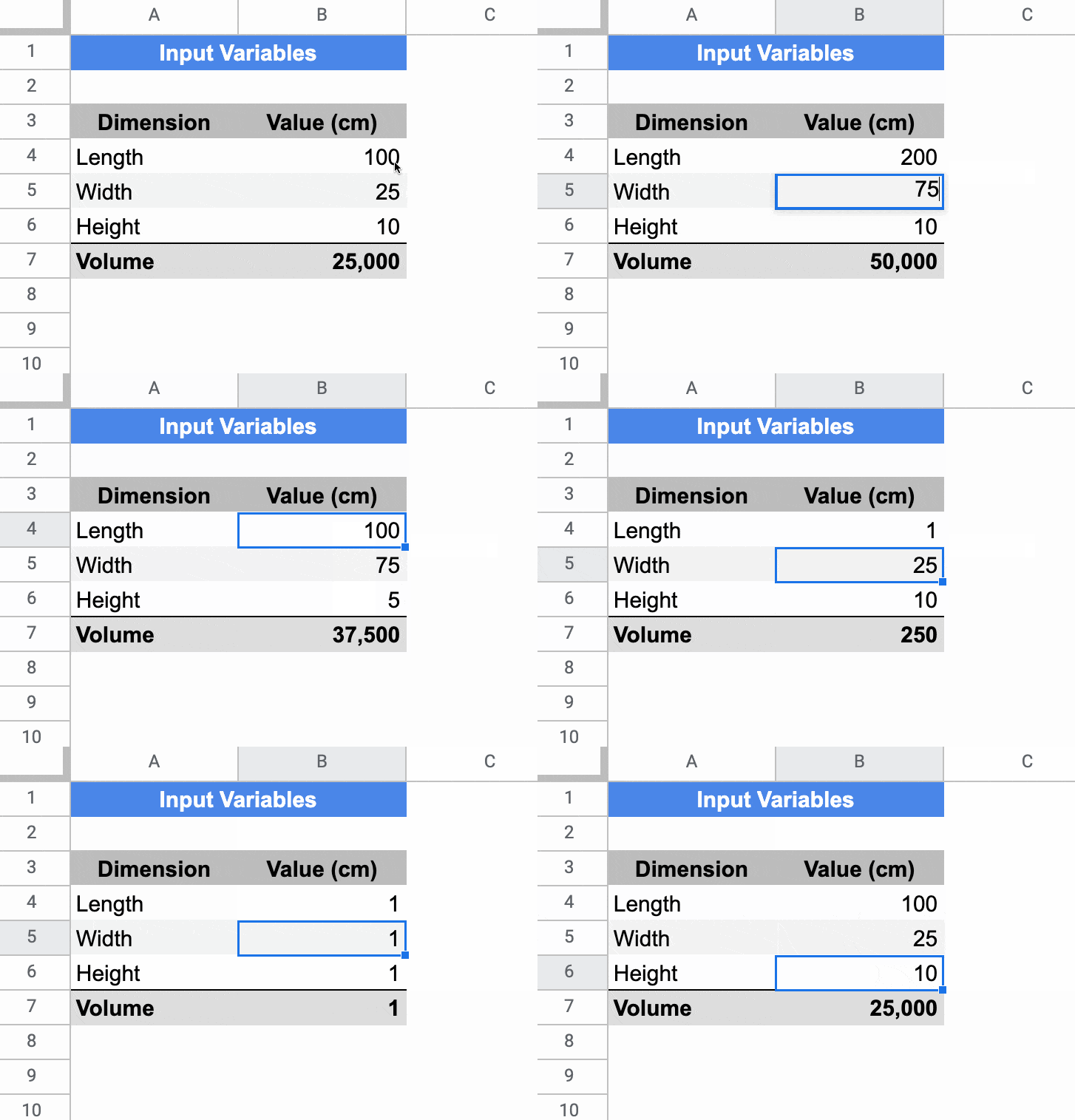
In the Sheet below, the cells in column B have default values of 100, 25, and 10 respectively. If a user types in a value (e.g. 200) it overwrites the default value. If a user deletes whatever value is in the cell already, then the default value of 100 is displayed again.
Setting Default Values For Cells In Google Sheets
The key to make this technique work is to use Array Literals to create a formula which spills into the adjacent cell. This is a rather abstract concept, so let’s run through an example.
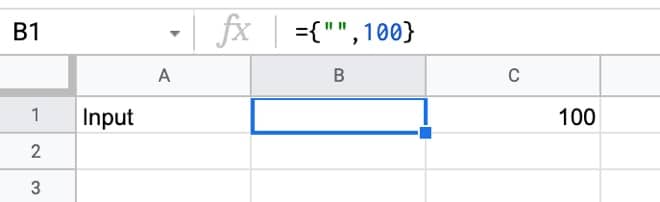
In a blank Sheet, write the value “Input” in cell A1. In cell B1, type this formula:
={"",100}
Your Sheet will look like this:
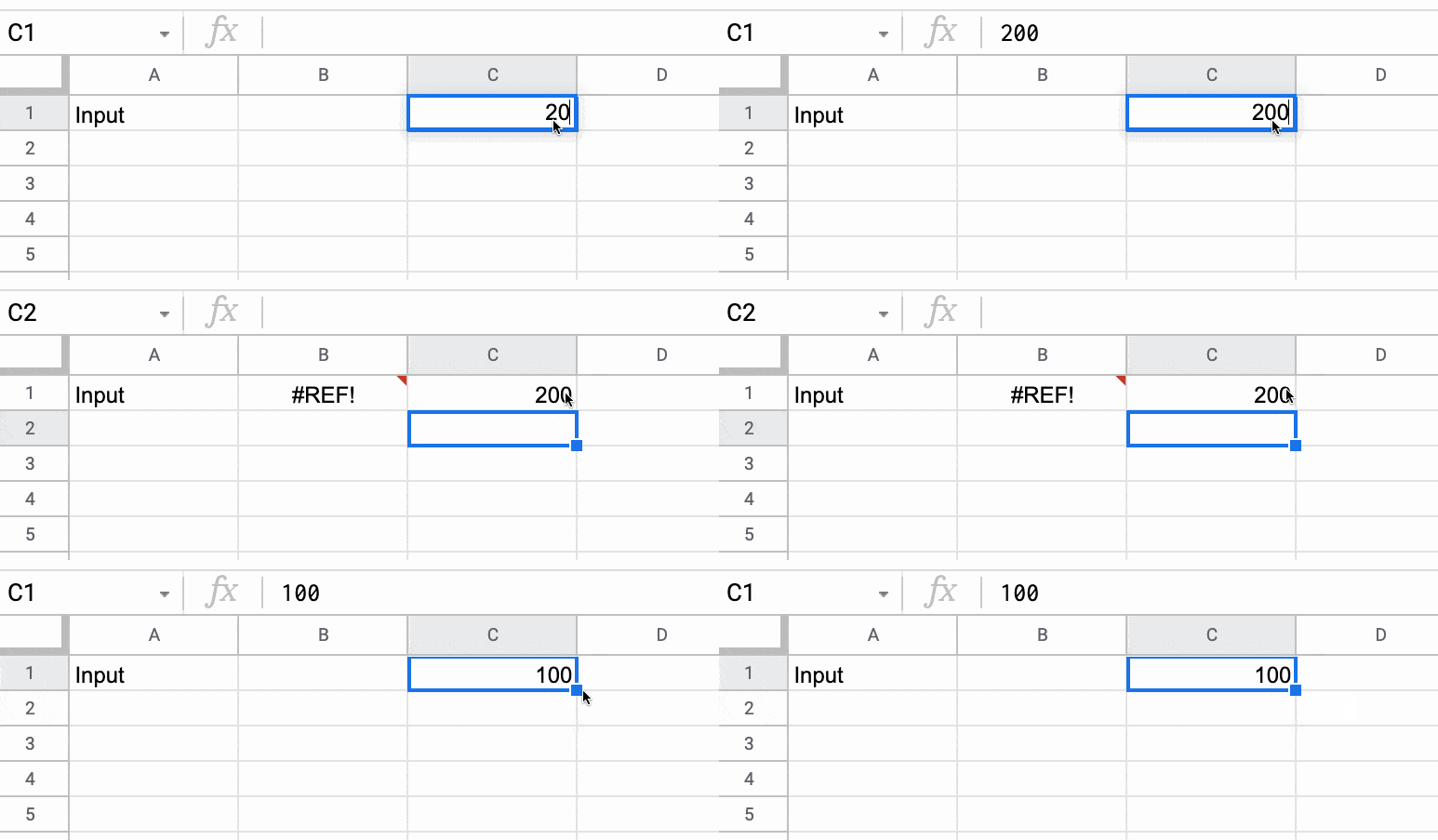
Try typing 200 in cell C1, over the top of the 100.
Cell C1 will show the 200, but cell B1 now displays a #REF! error.
Now, delete the value you just typed in cell C1. The error message disappears and the default value of 100 is displayed again.
Finally, hide column B so that the #REF! error is never seen, and you have a default value of 100 set for cell C1.
🎩 Hat tip to my friend Scott Ribble for showing me this ingenious solution.
Advanced Default Values Without Hidden Column
The method above suffers from one drawback though: it necessitates a hidden column.
However, we can use a clever circular formula to address this.
In a new blank Sheet, add this formula in cell A1:
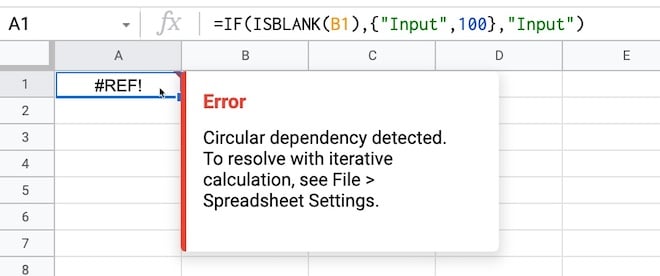
=IF(ISBLANK(B1),{"Input",100},"Input")
Initially, you may see this error message about a circular error (i.e. a formula that references itself):
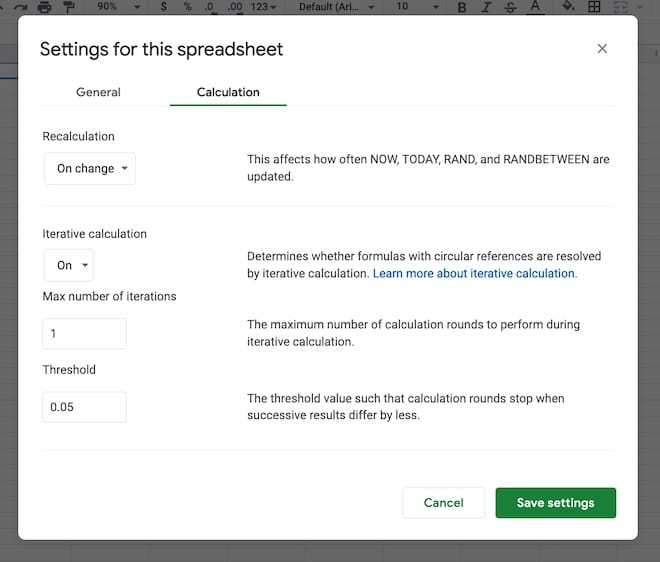
That is a problem, but we fix it by switching on iterative calculations and restricting them to a single iteration from the menu:
File > Settings
Go to “Calculation”.
Set “Iterative calculation” to “On” and the “Max number of iterations” to 1.
(The threshold can be left at 0.05 because it doesn’t apply in this case.)
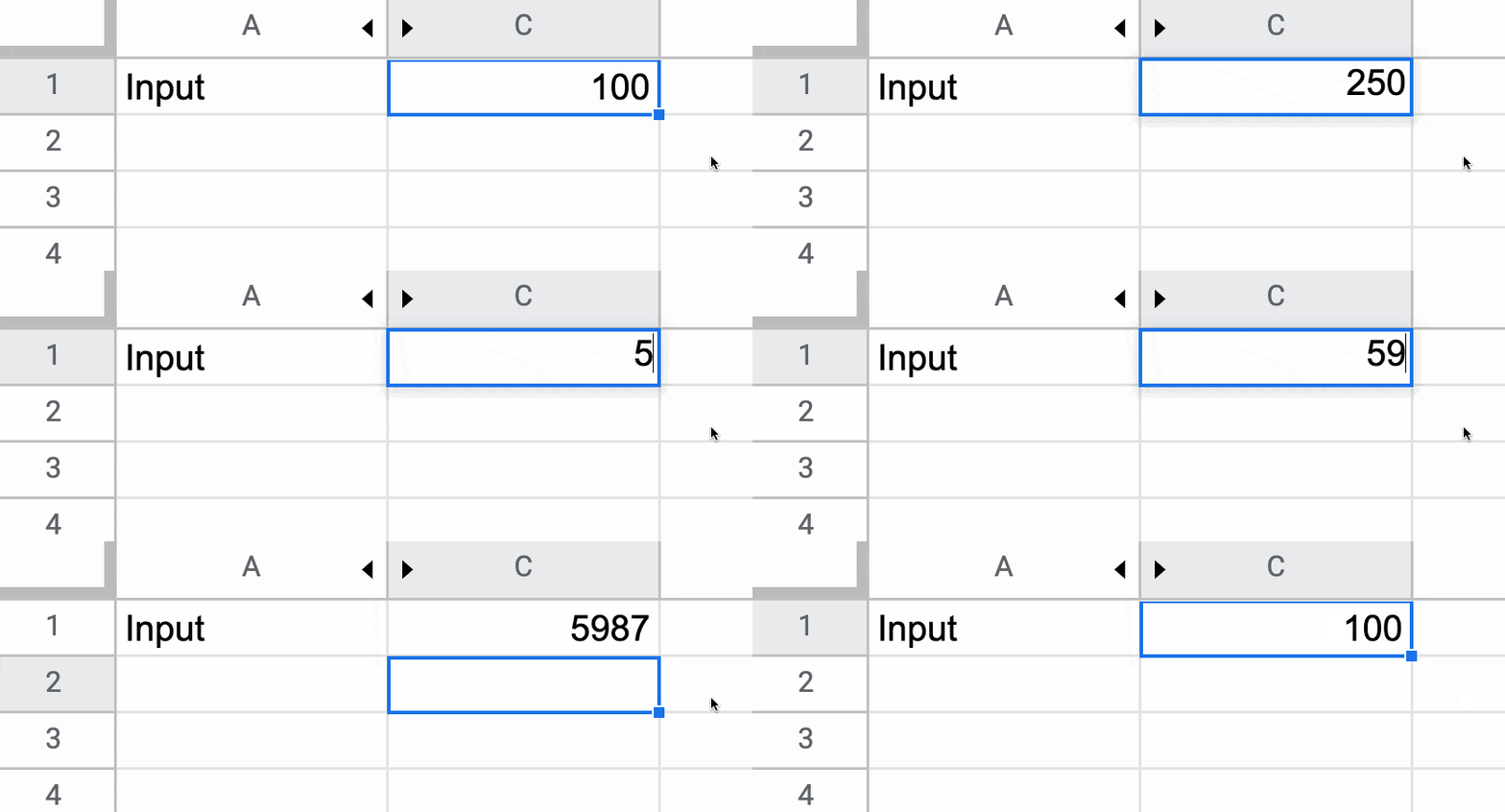
Now, you can enter any value you want in cell B1 and if you delete it, the default value of 100 will be shown.
If it is blank, then it outputs the array literal:
{"Input",100}
which displays “Input” in cell A1 and the value 100 in cell B1.
However, if cell B1 already has a value then the IF function output is just the string “Input” in cell A1.
Note: default values are not limited to numbers. It could be text, an image, or even another formula.
Default Values Checkbox Example
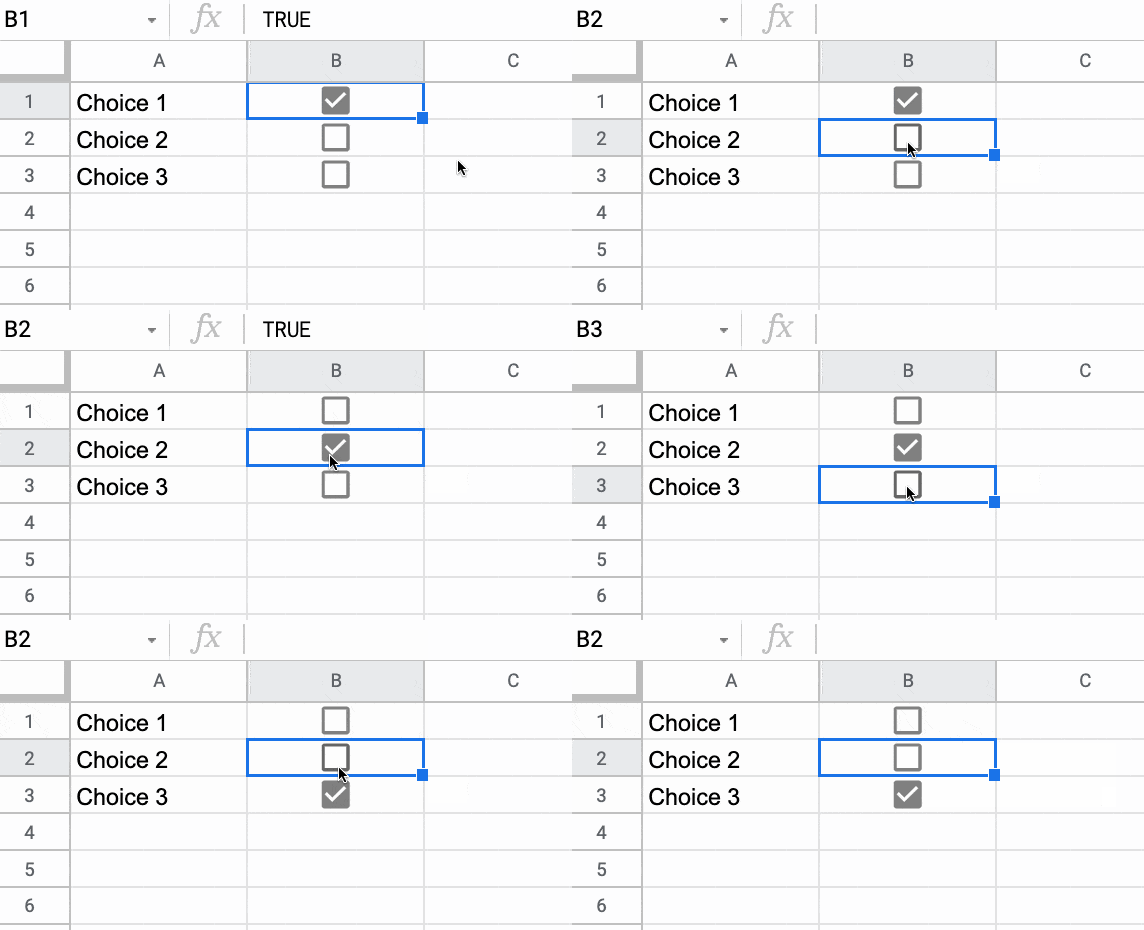
You can use default values to check or uncheck checkboxes. Here’s a cool illustration of how to create a select all checkbox in Google Sheets, using deafult values.
The Cantor set is a special set of numbers lying between 0 and 1, with some fascinating properties.
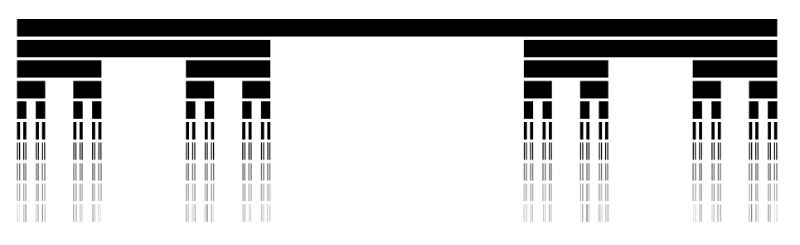
It’s created by removing the middle third of a line segment and repeating ad infinitum with the remaining segments, as shown in this gif of the first 7 iterations:
The formulas used to create the data for the Cantor set in Google Sheets are interesting, so it’s worth exploring for that reason alone, even if you’re not interested in the underlying mathematical concepts.
But let’s begin by understanding the set in more detail…
What Is The Cantor Set?
The Cantor set was discovered in 1874 by Henry John Stephen Smith and subsequently named after German mathematician Georg Cantor.
The construction shown in this post is called the Cantor ternary set, built by removing the middle third of a line segment and repeating ad infinitum with the remaining segments.
It is sometimes known as Cantor dust on account of the dust of points that remain after repeatedly removing the middle thirds. (Cantor dust also refers to the multi-dimensional version of the Cantor set.)
The set has some fascinating, counter-intuitive properties:
It is uncountable. That is, there are as many points left behind as there were to begin with.
It’s self-similar, meaning each subset looks like the whole set.
It’s fractal with a dimension that is not an integer.
It has an infinite number of points but a total length of 0.
Wow!
How To Draw The Cantor Set In Google Sheets
To be clear, the Cantor set is the set of numbers that remain after removing the middle third an infinite number of times. That’s hard to comprehend, let alone do in a Google Sheet 😉
But we can create a picture representation of the Cantor set by repeating the algorithm ten times, as shown in this tutorial:
Create The Data
Step 1:
In a blank sheet called “Data”, type the number “1” into cell A1.
As we drag this formula to adjacent columns, the relative column references will change so that it always references the preceding column.
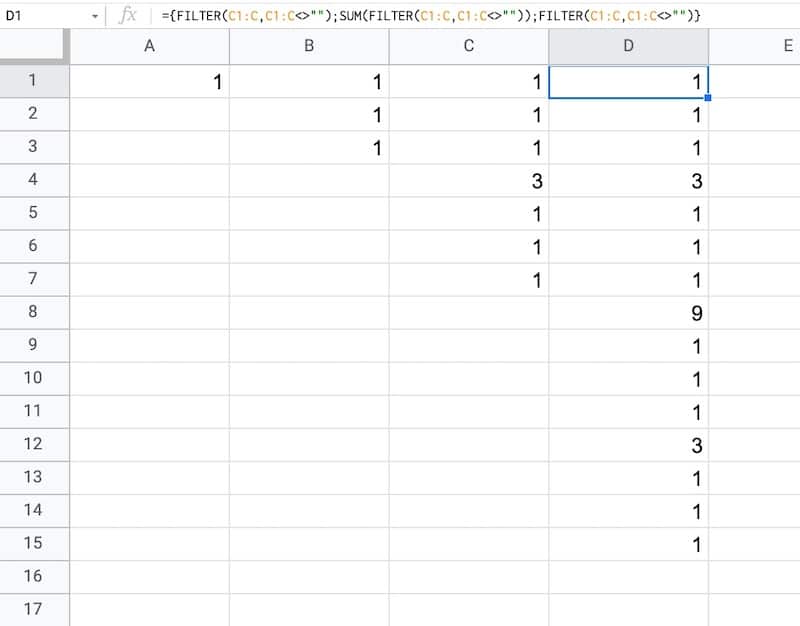
In column B, the output is:
1,1,1
Then in column C, we get:
1,1,1,3,1,1,1
And in column D:
1,1,1,3,1,1,1,9,1,1,1,3,1,1,1
etc.
This data is used to generate the correct gaps for the Cantor set.
Draw The Cantor Set
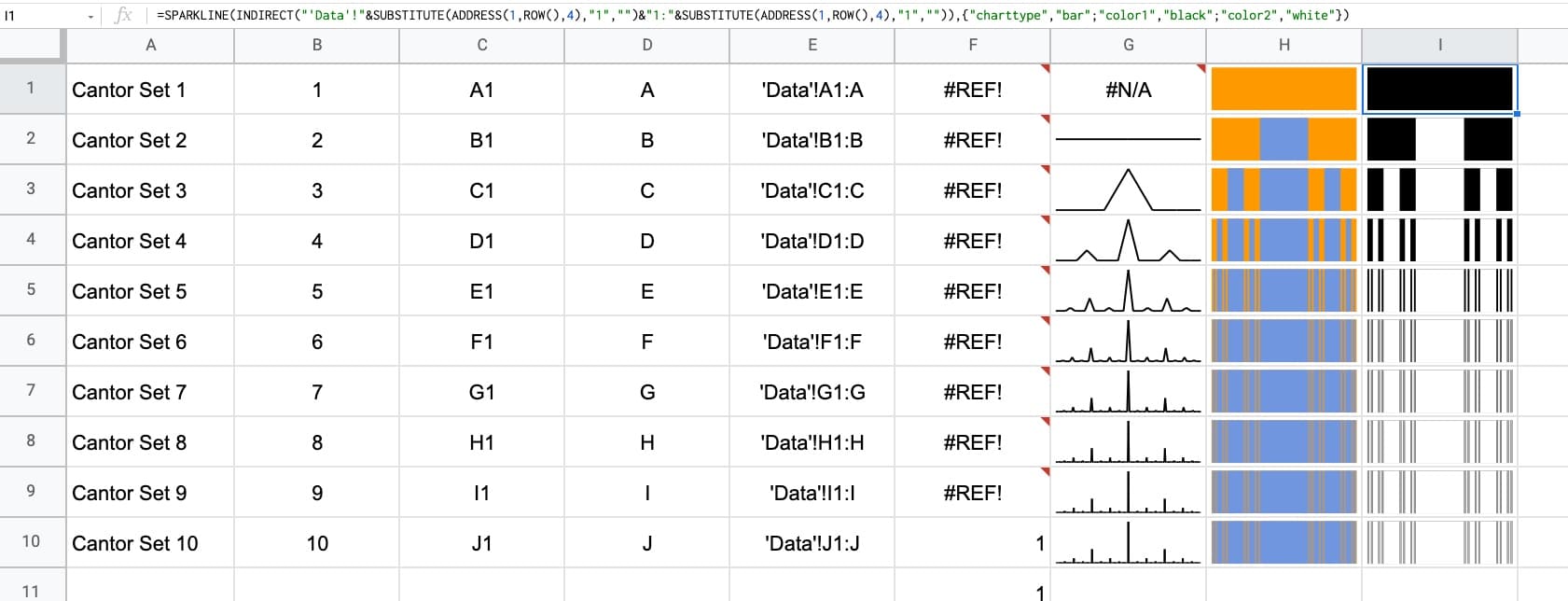
We’ll use sparklines to draw the Cantor set in Google Sheets.
Click to enlarge
Step 4:
Create a new blank sheet and call it “Cantor Set”.
Step 5:
Next, create a label in column A to show what iteration we’re on.
Put this formula in cell A1 and copy down the column to row 10:
="Cantor Set "&ROW()
This creates a string, e.g. “Cantor Set 1”, where the number is equal to the row number we’re on.
Step 6:
The next step is to dynamically generate the range reference. As we drag our formula down column B, we want this formula to travel across the row in the “Data” tab to get the correct data for this iteration of the Cantor set.
Start by generating the row number for each row with this formula in cell B1 and copy down the column:
=ROW()
(I set up my sheet with the data in columns because it’s easier to create and read that way. But then I want the Cantor set in a column too, hence why I need to do this step.)
Step 7:
Use the row number to generate the corresponding column letter with this formula in cell C1 and copy down the column:
=ADDRESS(1,ROW(),4)
This uses the ADDRESS function to return the cell reference as a string.
Step 8:
Remove the row number with this formula in cell D1 and copy down the column:
=SUBSTITUTE(ADDRESS(1,ROW(),4),"1","")
Step 9:
Combine these two references to create an open-ended range reference for the correct column of data in the “Data” sheet.
Put this formula in cell E1 and copy down the column:
Feel free to delete any working columns once you have finished the formula showing the Cantor set.
Finished Cantor Set In Google Sheets
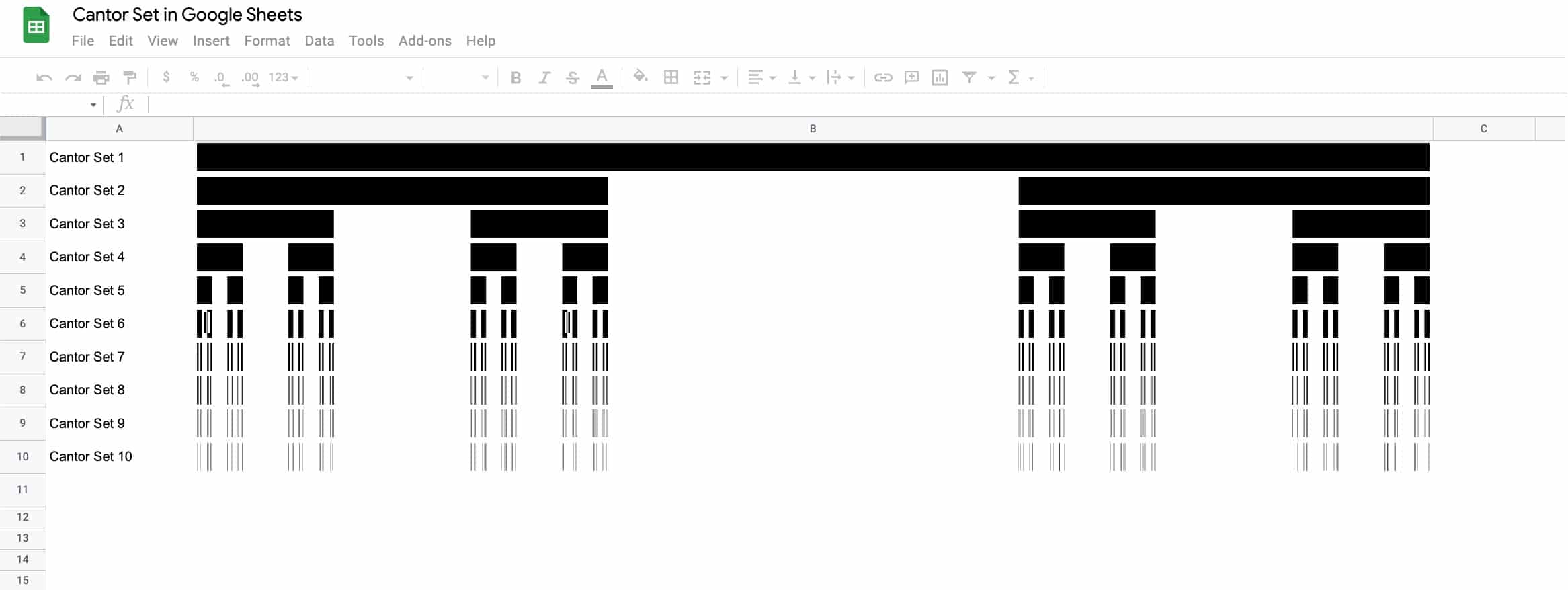
Here are the first 10 iterations of the algorithm to create the Cantor set:
Click to enlarge
Of course, this is a simplified representation of the Cantor set. It’s impossible to create the actual set in a Google Sheet since we can’t perform an infinite number of iterations.
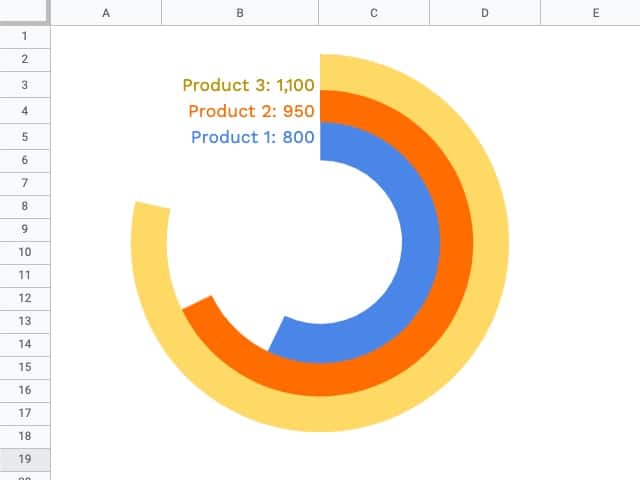
In this post, I’m going to show you how to create radial bar charts in Google Sheets.
They look great and grab your attention, which is important in this era of information overload.
But they should be used sparingly because they’re harder to read than a regular bar chart (because it’s harder to compare the length of the curved bars).
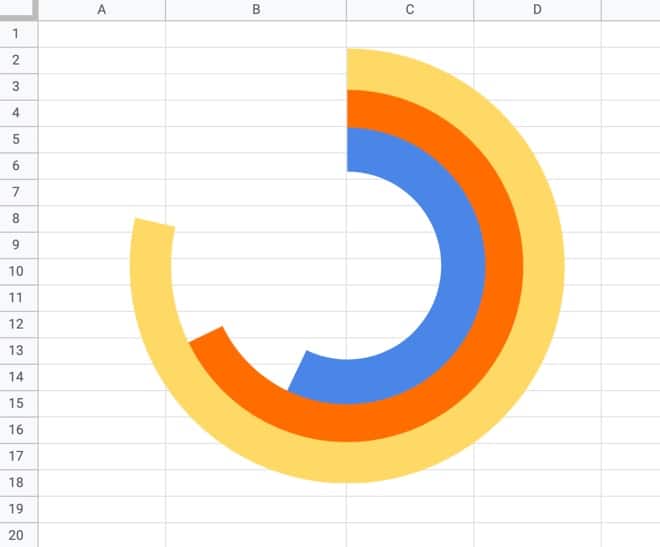
How To Create A Radial Bar Chart In Google Sheets
Let’s begin with the data.
In this example, we’ll create a radial bar chart in Google Sheets with 3 series.
We need a column of values for these 3 series, for example, products with a number of units sold.
Next, we need some upper limit (max value) for our bars. This allows us to scale the bars properly.
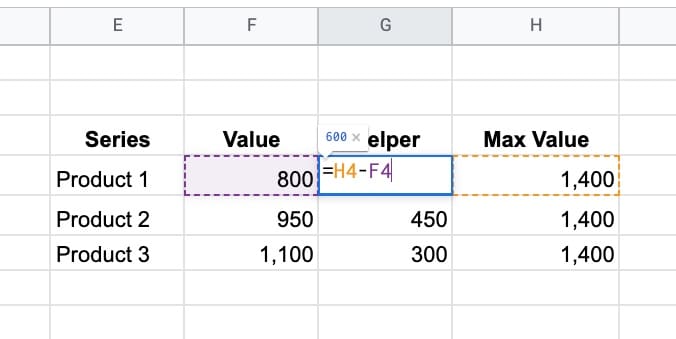
Lastly, we need a helper column that calculates the difference between the max value and the actual value.
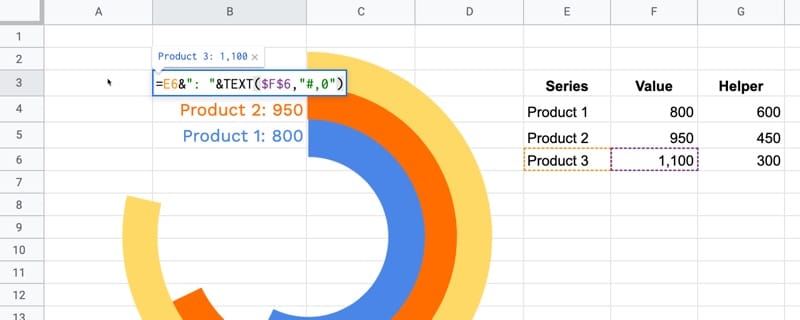
Here’s the data for the radial bar chart, in cells E3:H6:
Ok, I’m going to let you in on a little secret now…
This is not a single chart. No sir, it’s three charts overlaid on top of each other.
And yes, this means it takes three times as long to create!
Step 1: Create the inner circle
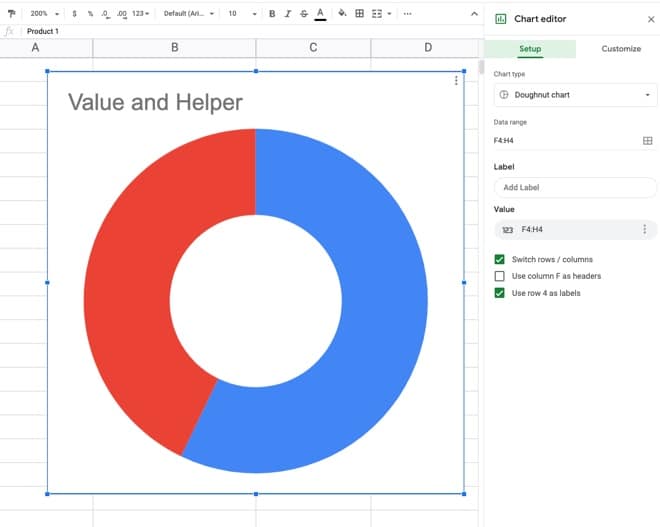
Highlight the first row of data but exclude the max value column. In the example dataset above, highlight E4:G4 and insert a chart.
Select a doughnut chart.
Under the Setup menu, make sure to check the “Switch rows/columns” checkbox, so your chart looks like this:
Under the customize menu of the chart tool, set the following conditions:
Background color: None
Chart border color: None
Donut hole size: 67%
Set Slice 2 color to none
Remove the chart title
Set the legend to none
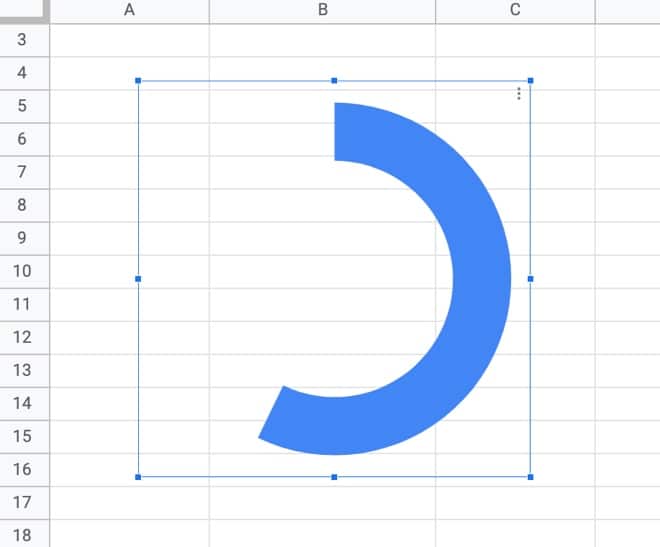
This is what the inner donut should look like:
Step 2: Create the middle circle
Repeat the steps above for the inner circle, but use the next row of data, choose a different color, and set the donut hole size to 77% (you may have to experiment with these percentages to line everything up at the end).
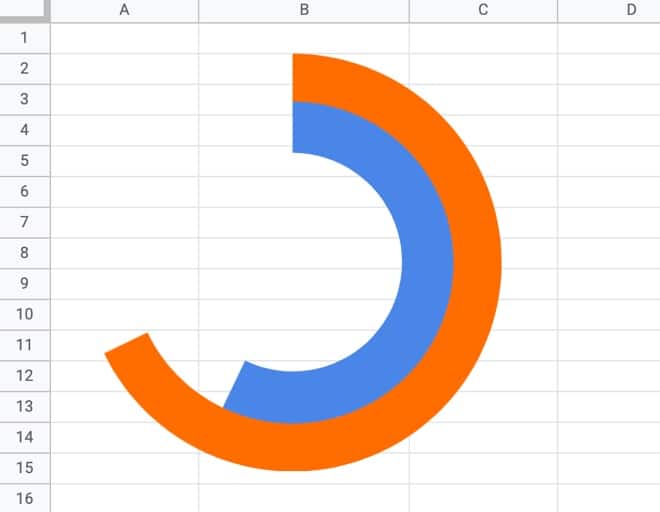
Drag the second donut chart on top of the first and line up the radial bars to get:
Step 3: Create the outer circle
Again, repeat the steps above from the inner circle to create a third donut chart, using the third row of data, a different color, and setting the donut hole size to 81% (again, this might need tweaking to line everything up).
Drag this third donut chart on top of the other two and you have a radial bar chart in Google Sheets!
Note on editing charts:
Since the charts are placed on top of each other, you’ll only be able to access the top chart to edit. You’ll have to move it to the side to access the chart underneath, and then move that one if you want to access the inner chart.
Step 4: Add the data labels
It gets messy to add the data labels to each chart through the chart editor, so I opted to create formulas to add my data labels into the cells next to each bar of the radial bar chart.
To access cells underneath the charts, click on a cell outside of the chart area and then use the arrow keys on your keyboard to reach the desired cell.
My friend Jeff Sauer, who founded Data Driven U to teach people data-driven marketing, contacted me recently about creating a radial bar chart for one of his workshops.
He is graciously sharing his report here, so you can see a radial bar chart with six rings:
This is a screenshot of his Google Sheet!
(If you’re looking for top draw digital marketing, then you should definitely check out Jeff’s site: DataDrivenU.com This is not an affiliate link, just a personal recommendation!)
You’ve probably also seen a radial bar chart in the wild with the Apple Watch Rings Chart!
This post explores the Google Sheets REGEX formulas with a series of examples to illustrate how they work.
Regular expressions, or REGEX for short, are tools for solving problems with text strings. They work by matching patterns.
You use REGEX to solve problems like finding names or telephone numbers in data, validating email addresses, extracting URLs, renaming filenames containing the word “Application” etc.
They have a reputation for being hard, but once you learn a few basic rules and understand how they work you can use them effectively.
There are three Google Sheets REGEX formulas: REGEXMATCH, REGEXEXTRACT, and REGEXREPLACE.
Each has a specific job:
• REGEXMATCH will confirm whether it finds the pattern in the text.
• REGEXEXTRACT will extract text that matches the pattern.
• REGEXREPLACE will replace text that matches the pattern.
Let’s start with a mind-blowing fact, and then use the FACT function in Google Sheets to explain it.
Pick up a standard 52 card deck and give it a good shuffle.
The order of cards in a shuffled deck will be unique.
One that has likely never been seen before in the history of the universe and will likely never be seen again.
I’ll let that sink in.
Isn’t that mind-blowing?
Especially when you picture all the crazy casinos in Las Vegas.
Let’s understand why, and in the process learn about the FACT function and basic combinatorics (the study of counting in mathematics).
Four Card Deck
To keep things simple, suppose you only have 4 cards in your deck, the four aces.
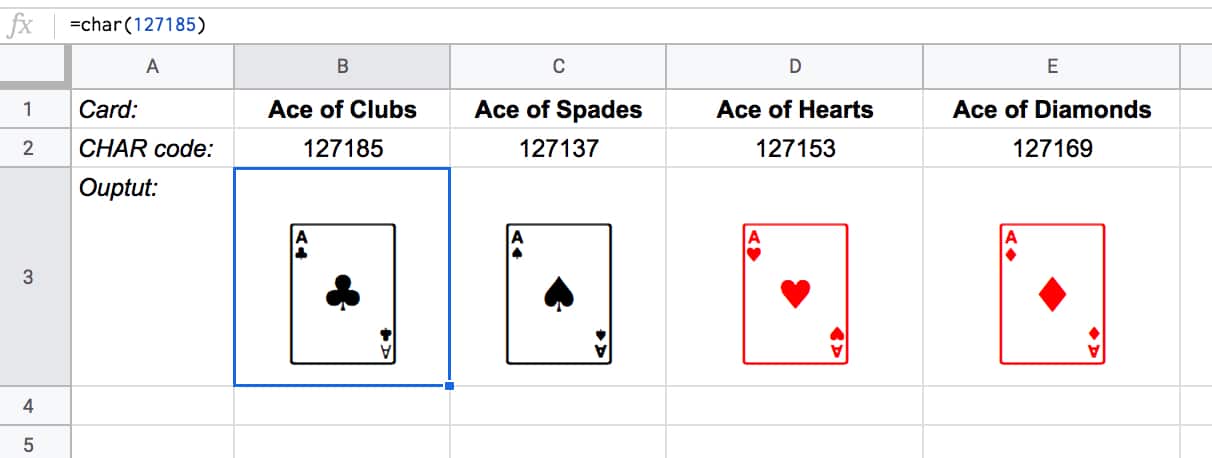
You can create this deck in Google Sheets with the CHAR function:
The formulas to create these four cards are:
Ace of Clubs:
=CHAR(127185)
Ace of Spades:
=CHAR(127137)
Ace of Hearts:
=CHAR(127153)
Ace of Diamonds:
=CHAR(127169)
Let’s see how many different combinations exist with just these four cards.
Pick one of them to start. You have a choice of four cards at this stage.
Once you’ve chosen the first one, you have three cards left, so there are 3 possible options for the second card choice.
When you’ve picked that second card, you have two cards left. So you have a choice of two for the third card.
The final card is the last remaining one.
So you have 4 choices * 3 choices * 2 choices * 1 choice = 4 * 3 * 2 * 1 = 24
There are 24 permutations (variations) with just 4 cards!
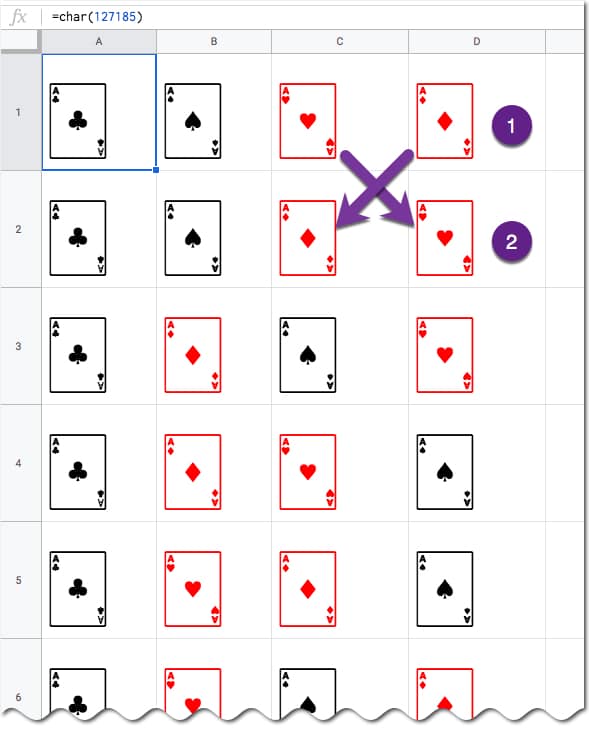
Visually, we can show this in our Google Sheet by displaying all the different combinations with the card images from above:
(I’ve just shown the first 6 rows for brevity.)
You can see for example, when moving from row 1 to row 2, we swapped the position of the two red suits: the Ace of Hearts and the Ace of Diamonds.
Five Card Deck
This time there are 5 choices for the first card, then 4, then 3, then 2, and finally 1.
So the number of permutations is 5 * 4 * 3 * 2 * 1 = 120
Already a lot more! I have not drawn this out in a Google Sheet and leave that as an optional exercise for you if you wish.
The FACT function
The FACT function in Google Sheets (see documentation) is a math function that returns the factorial of a given number. The factorial is the product of that number with all the numbers lower than it down to 1.
In other words, exactly what we’ve done above in the above calculations.
Four:
The 4 card deck formula is:
=FACT(4)
which gives an answer of 24 permutations.
Five:
The 5 card deck formula is:
=FACT(5)
which gives an answer of 120 permutations.
Six:
A 6 card deck is:
=FACT(6)
which gives an answer of 720 permutations.
Twelve:
A 12 card deck has 479,001,600 different ways of being shuffled:
=FACT(12)
(You’re more likely to win the Powerball lottery at 1 in 292 million odds than to get two matching shuffled decks of cards, even with just 12 cards!)
Fifty Two:
Keep going up to a full deck of 52 cards with the formula and it’s a staggeringly large number.
=FACT(52)
Type it into Google Sheets and you’ll see an answer of 8.07E+67, which is 8 followed by 67 zeros!
(This number notation is called scientific notation, where huge numbers are rounded to the first few digits multiplied by a 10 to the power of some number, 67 in this case.)
This answer is more than the number of stars in the universe (about 10 followed by 21 zeros).
Put another way if all 6 billion humans on earth began shuffling cards at 1 deck per minute every day of the year for millions of years, we still wouldn’t even be close to finding all possible combinations.