Unpivot in Google Sheets is a method to turn “wide” tables into “tall” tables, which are more convenient for analysis.
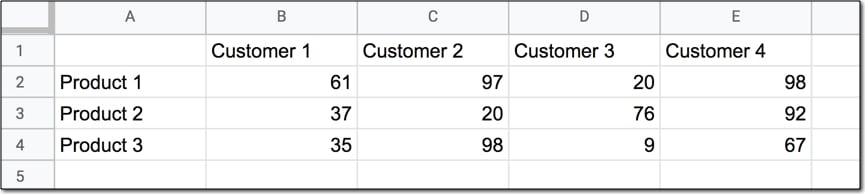
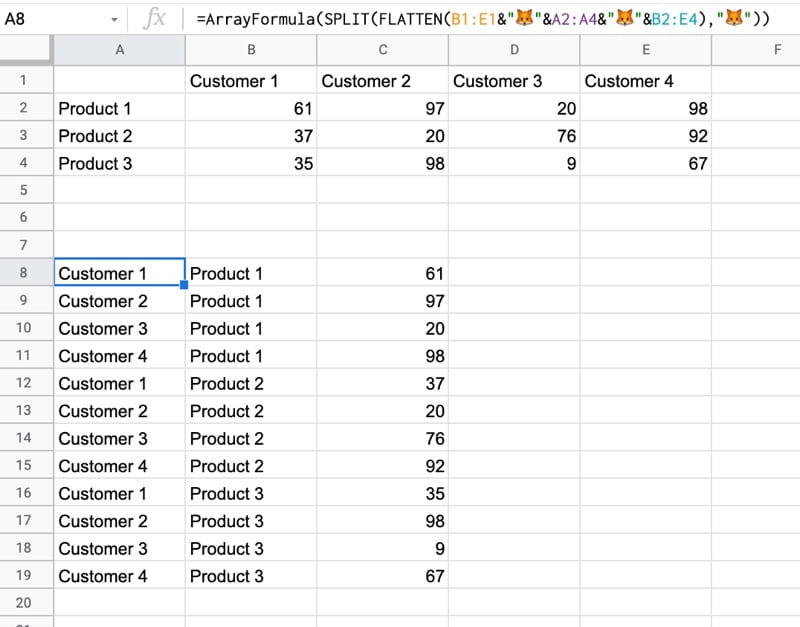
Suppose we have a wide table like this:
Wide data like this is good for the Google Sheets chart tool but it’s not ideal for creating pivot tables or doing analysis. The main reason is that data is captured in the column headings, which prevents you using it in pivot tables for analyis.
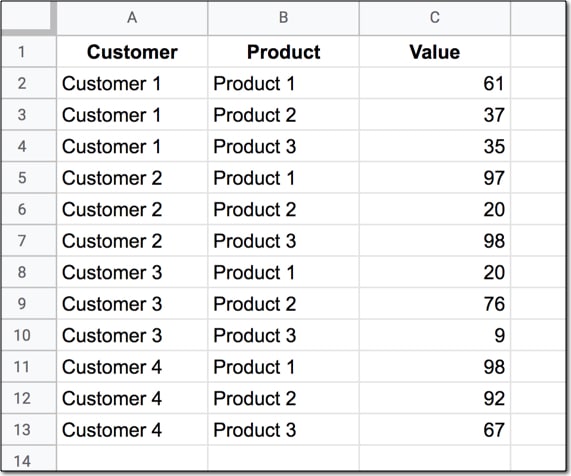
So we want to transform this data — unpivot it — into the tall format that is the way databases store data:
But how do we unpivot our data like that?
It turns out it’s quite hard.
It’s harder than going the other direction, turning tall data into wide data tables, which we can do with a pivot table.
This article looks at how to do it using formulas so if you’re ready for some complex formulas, let’s dive in…
Unpivot in Google Sheets
We’ll use the wide dataset shown in the first image at the top of this post.
The output of our formulas should look like the second image in this post.
In other words, we need to create 16 rows to account for the different pairings of Customer and Product, e.g. Customer 1 + Product 1, Customer 1 + Product 2, etc. all the way up to Customer 4 + Product 4.
Of course, we’ll employ the Onion Method to understand these formulas.
Feel free to make your own copy (File > Make a copy…).
(If you can’t open the file, it’s likely because your G Suite account prohibits opening files from external sources. Talk to your G Suite administrator or try opening the file in an incognito browser.)
Step 1: Combine The Data
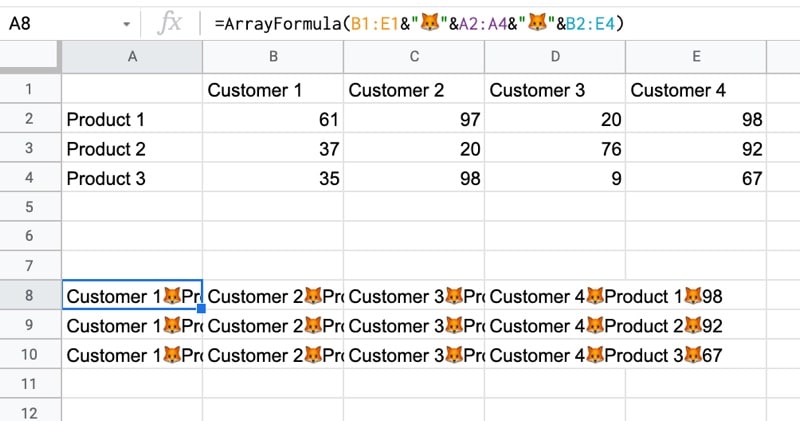
Use an array formula like this to combine the column headings (Customer 1, Customer 2, etc.) with the row headings (Product 1, Product 2, Product 3, etc.) and the data.
It’s crucial to add a special character between these sections of the dataset though, so we can split them up later on. I’ve used the fox emoji (because, why not?) but you can use whatever you like, provided it’s unique and doesn’t occur anywhere in the dataset.
=ArrayFormula(B1:E1&"🦊"&A2:A4&"🦊"&B2:E4)
The output of this formula is:
Step 2: Flatten The Data
Before the introduction of the FLATTEN function, this step was much, much harder, involving lots of weird formulas.
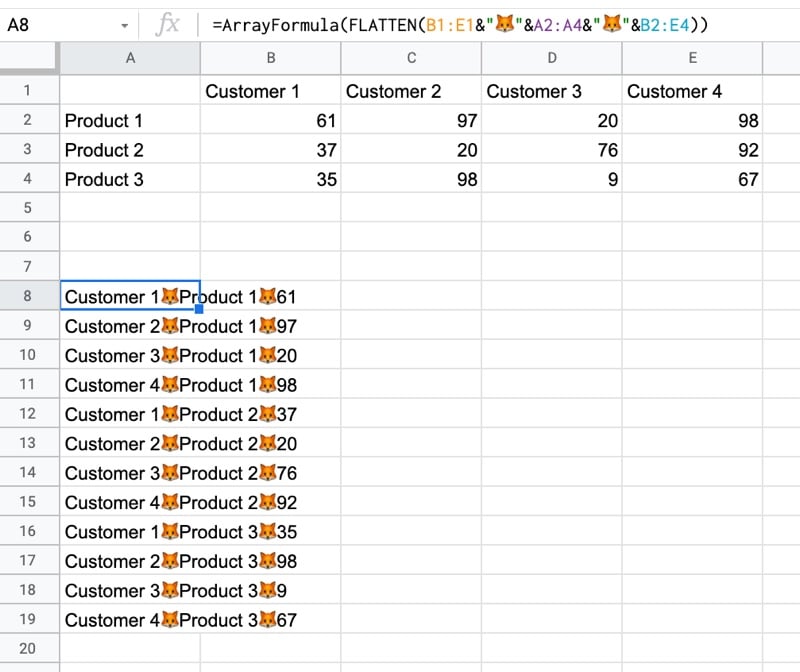
Thankfully the FLATTEN function does away with all of that and simply stacks all of the columns in the range on top of each other. So in this example, our combined data turns into a single column.
=ArrayFormula(FLATTEN(B1:E1&"🦊"&A2:A4&"🦊"&B2:E4))
The result is:
Step 3: Split The Data Into Columns
The final step is to split this new tall column into separate columns for each data type. You can see now why we needed to include the fox emoji so that we have a unique character to split the data on.
Wrap the formula from step 2 with the SPLIT function and set the delimiter to “🦊”:
💡 Learn moreLearn how to write Apps Script and turbocharge your Google Workspace experience with the new Beginner Apps Script course
What is Google Apps Script?
Google Apps Script is a cloud-based scripting language for extending the functionality of Google Apps and building lightweight cloud-based applications.
It means you write small programs with Apps Script to extend the standard features of Google Workspace Apps. It’s great for filling in the gaps in your workflows.
With Apps Script, you can do cool stuff like automating repeatable tasks, creating documents, emailing people automatically and connecting your Google Sheets to other services you use.
Writing your first Google Script
In this Google Sheets script tutorial, we’re going to write a script that is bound to our Google Sheet. This is called a container-bound script.
(If you’re looking for more advanced examples and tutorials, check out the full list of Apps Script articles on my homepage.)
Hello World in Google Apps Script
Let’s write our first, extremely basic program, the classic “Hello world” program beloved of computer teaching departments the world over.
Begin by creating a new Google Sheet.
Then click the menu: Extensions > Apps Script
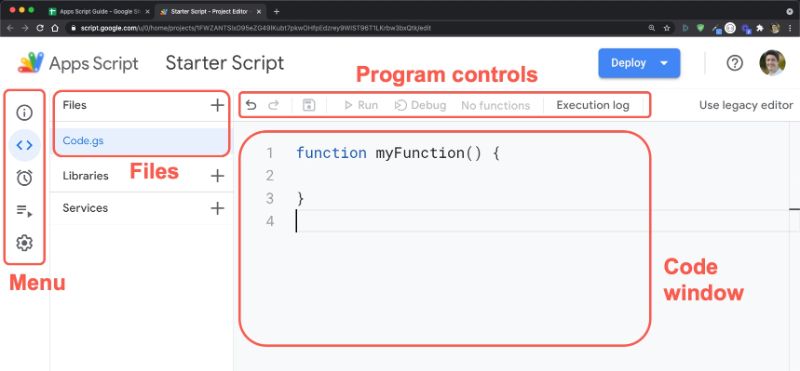
This will open a new tab in your browser, which is the Google Apps Script editor window:
By default, it’ll open with a single Google Script file (code.gs) and a default code block, myFunction():
function myFunction() {

}
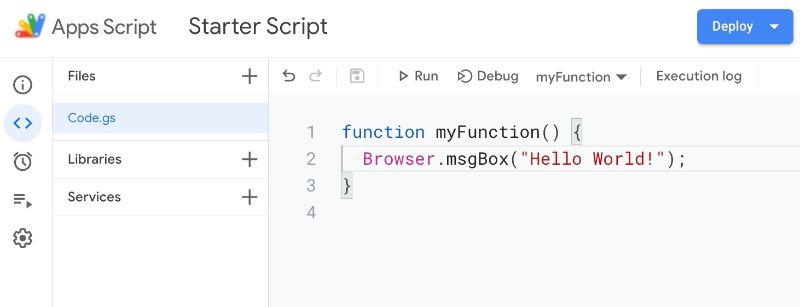
In the code window, between the curly braces after the function myFunction() syntax, write the following line of code so you have this in your code window:
function myFunction() {
  Browser.msgBox("Hello World!");
}
Your code window should now look like this:
Google Apps Script Authorization
Google Scripts have robust security protections to reduce risk from unverified apps, so we go through the authorization workflow when we first authorize our own apps.
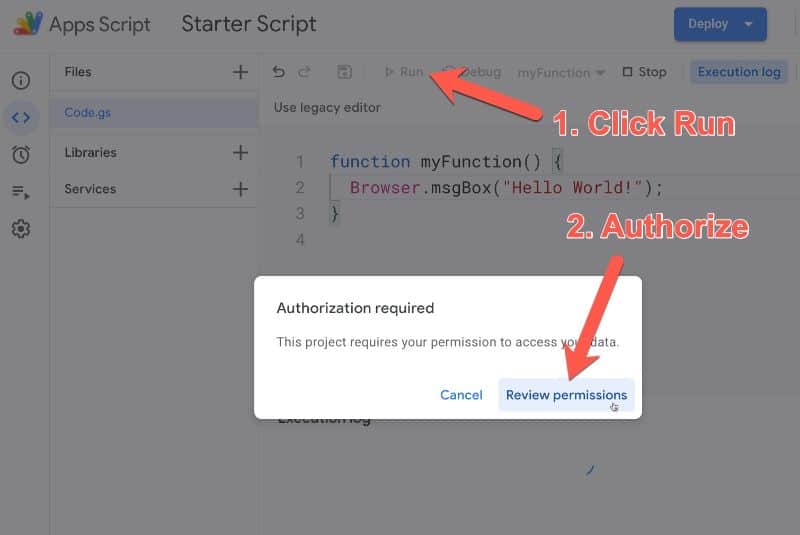
When you hit the run button for the first time, you will be prompted to authorize the app to run:
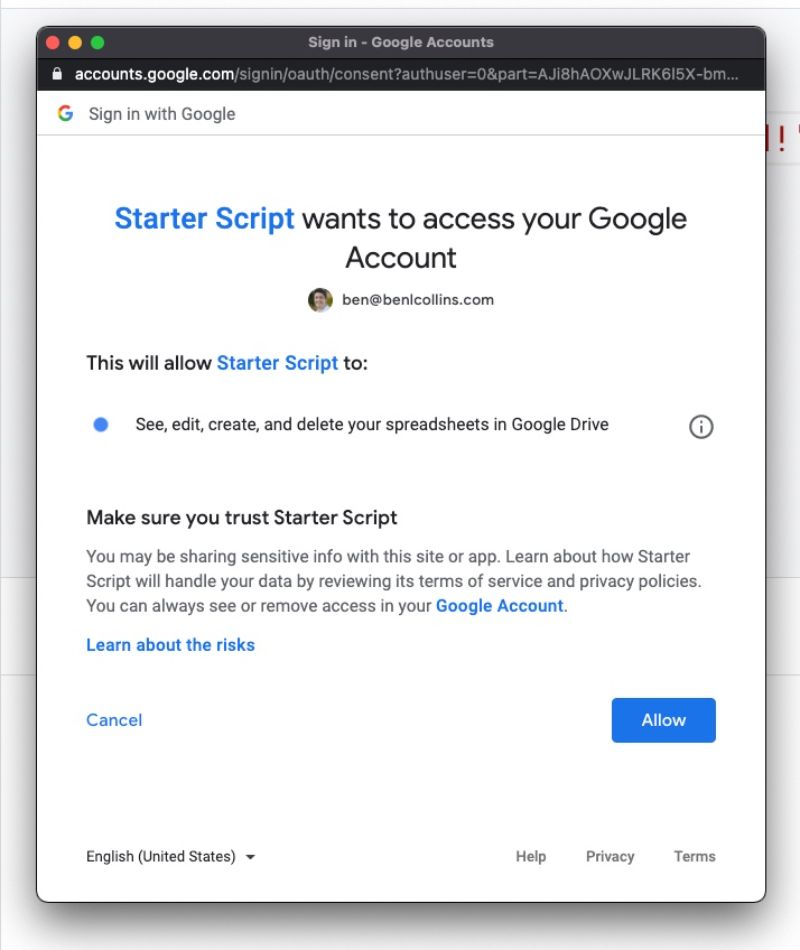
Clicking Review Permissions pops up another window in turn, showing what permissions your app needs to run. In this instance the app wants to view and manage your spreadsheets in Google Drive, so click Allow (otherwise your script won’t be able to interact with your spreadsheet or do anything):
❗️When your first run your apps script, you may see the “app isn’t verified” screen and warnings about whether you want to continue.
In our case, since we are the creator of the app, we know it’s safe so we do want to continue. Furthermore, the apps script projects in this post are not intended to be published publicly for other users, so we don’t need to submit it to Google for review (although if you want to do that, here’s more information).
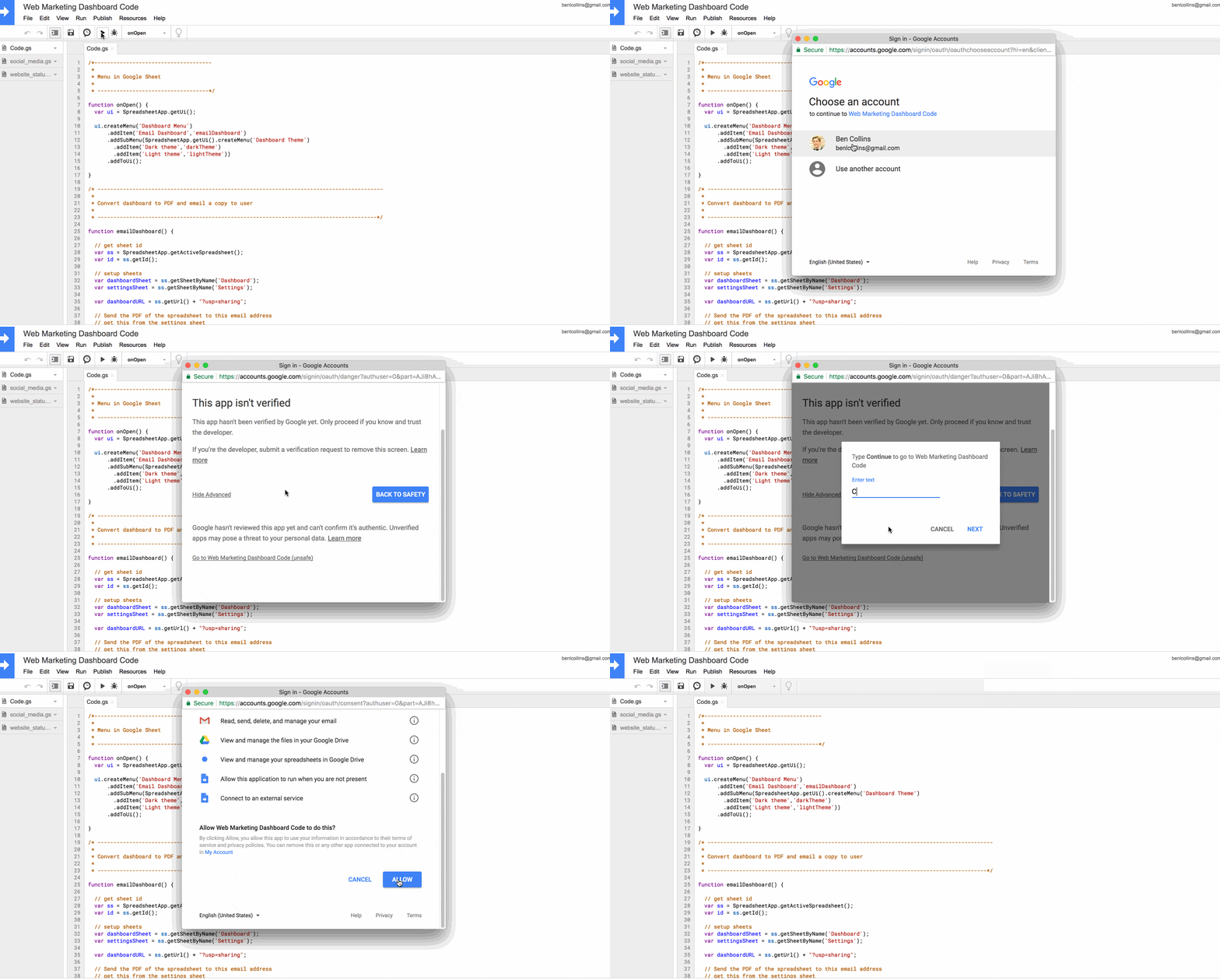
Click the “Advanced” button in the bottom left of the review permissions pop-up, and then click the “Go to Starter Script Code (unsafe)” at the bottom of the next screen to continue. Then type in the words “Continue” on the next screen, click Next, and finally review the permissions and click “ALLOW”, as shown in this image (showing a different script in the old editor):
Once you’ve authorized the Google App script, the function will run (or execute).
If anything goes wrong with your code, this is the stage when you’d see a warning message (instead of the yellow message, you’ll get a red box with an error message in it).
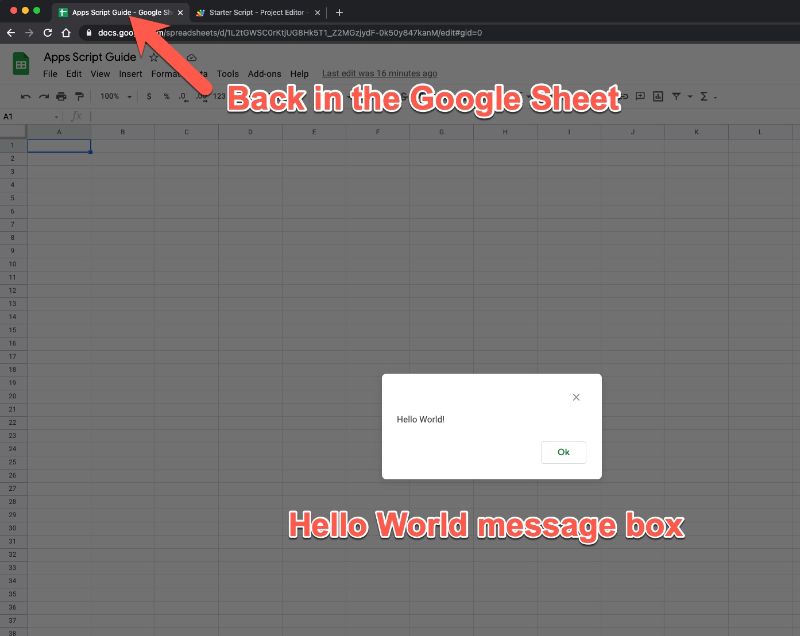
Return to your Google Sheet and you should see the output of your program, a message box popup with the classic “Hello world!” message:
Click on Ok to dismiss.
Great job! You’ve now written your first apps script program.
Rename functions in Google Apps Script
We should rename our function to something more meaningful.
At present, it’s called myFunction which is the default, generic name generated by Google. Every time I want to call this function (i.e. run it to do something) I would write myFunction(). This isn’t very descriptive, so let’s rename it to helloWorld(), which gives us some context.
So change your code in line 1 from this:
function myFunction() {
  Browser.msgBox("Hello World!");
}
to this:
function helloWorld() {
  Browser.msgBox("Hello World!");
}
Note, it’s convention in Apps Script to use the CamelCase naming convention, starting with a lowercase letter. Hence, we name our function helloWorld, with a lowercase h at the start of hello and an uppercase W at the start of World.
Adding a custom menu in Google Apps Script
In its current form, our program is pretty useless for many reasons, not least because we can only run it from the script editor window and not from our spreadsheet.
Let’s fix that by adding a custom menu to the menu bar of our spreadsheet so a user can run the script within the spreadsheet without needing to open up the editor window.
This is actually surprisingly easy to do, requiring only a few lines of code. Add the following 6 lines of code into the editor window, above the helloWorld() function we created above, as shown here:
If you look back at your spreadsheet tab in the browser now, nothing will have changed. You won’t have the custom menu there yet. We need to re-open our spreadsheet (refresh it) or run our onOpen() script first, for the menu to show up.
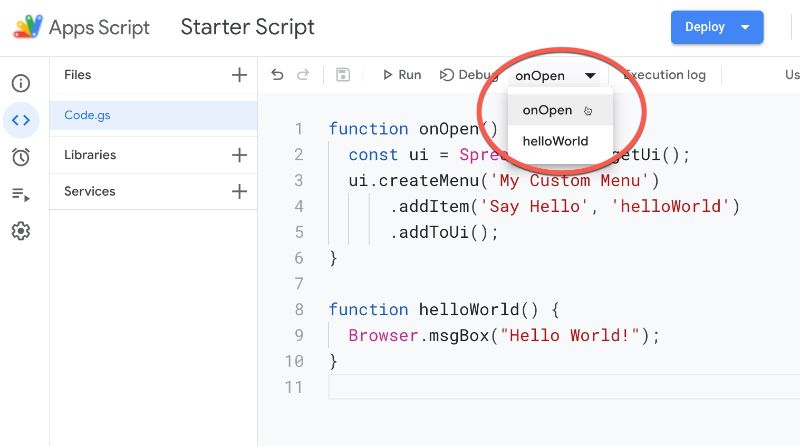
To run onOpen() from the editor window, first select then run the onOpen function as shown in this image:
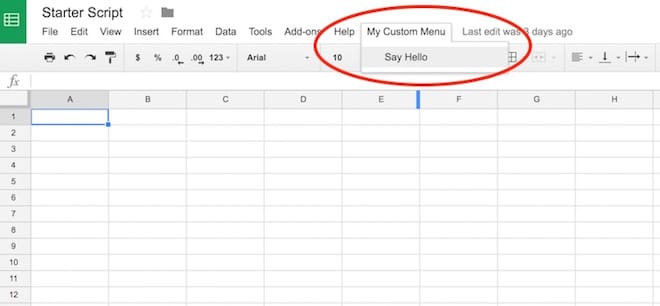
Now, when you return to your spreadsheet you’ll see a new menu on the right side of the Help option, called My Custom Menu. Click on it and it’ll open up to show a choice to run your Hello World program:
Run functions from buttons in Google Sheets
An alternative way to run Google Scripts from your Sheets is to bind the function to a button in your Sheet.
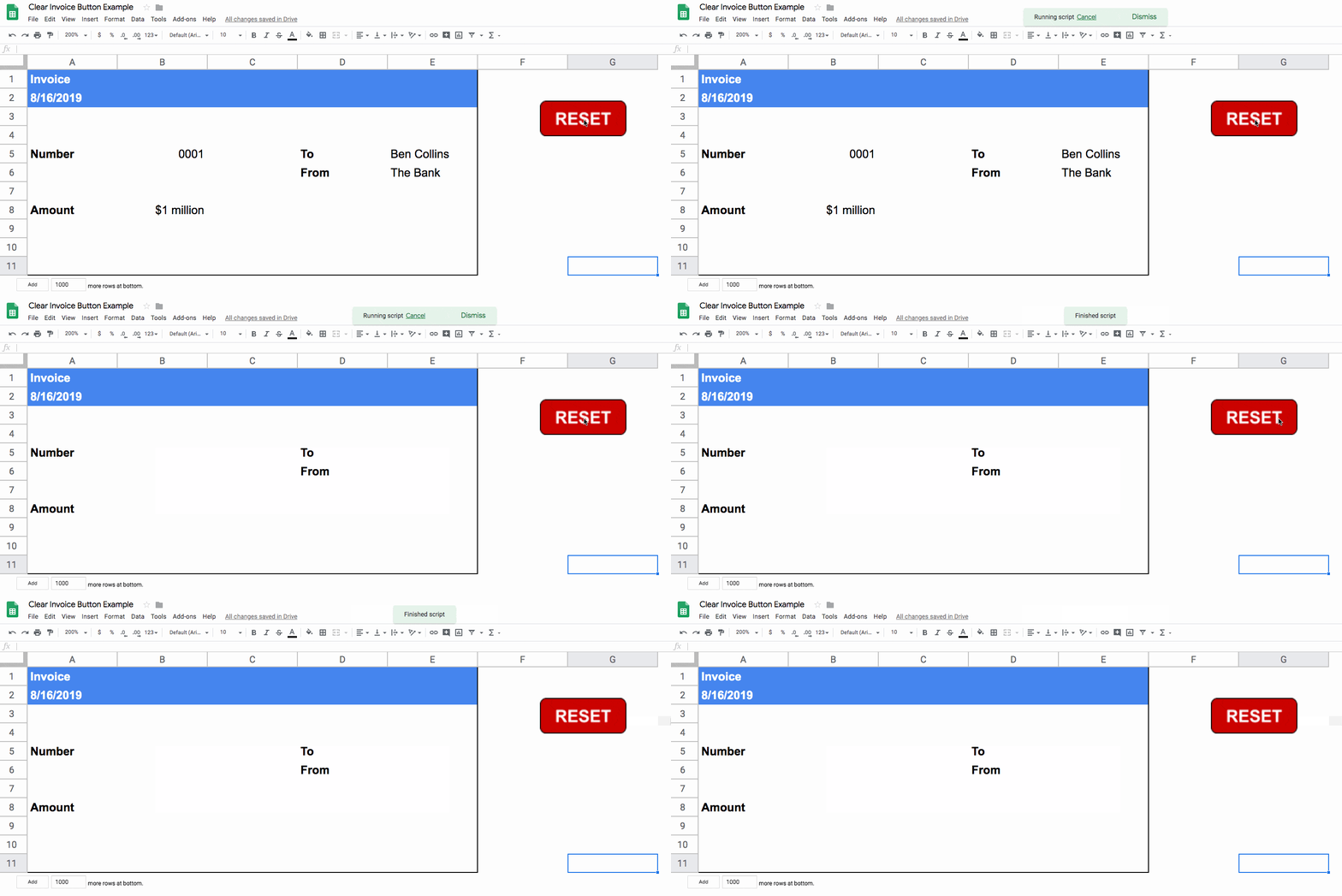
For example, here’s an invoice template Sheet with a RESET button to clear out the contents:
Another great way to get started with Google Scripts is by using Macros. Macros are small programs in your Google Sheets that you record so that you can re-use them (for example applying standard formatting to a table). They use Apps Script under the hood so it’s a great way to get started.
Let’s create a custom function with Apps Script, and also demonstrate the use of the Maps Service. We’ll be creating a small custom function that calculates the driving distance between two points, based on Google Maps Service driving estimates.
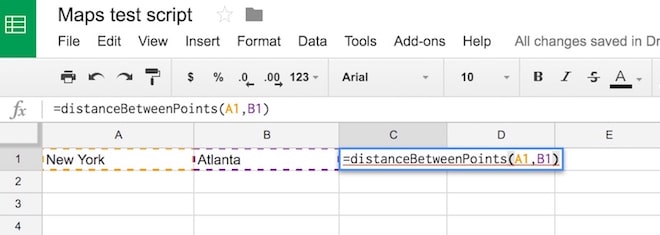
The goal is to be able to have two place-names in our spreadsheet, and type the new function in a new cell to get the distance, as follows:
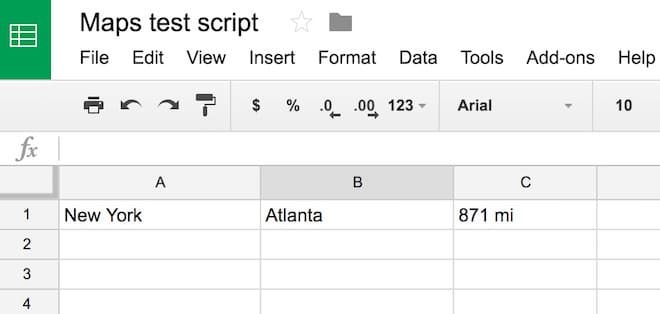
The solution should be:
Copy the following code into the Apps Script editor window and save. First time, you’ll need to run the script once from the editor window and click “Allow” to ensure the script can interact with your spreadsheet.
function distanceBetweenPoints(start_point, end_point) {
  // get the directions
  const directions = Maps.newDirectionFinder()
     .setOrigin(start_point)
     .setDestination(end_point)
     .setMode(Maps.DirectionFinder.Mode.DRIVING)
     .getDirections();

  // get the first route and return the distance
  const route = directions.routes[0];
  const distance = route.legs[0].distance.text;
  return distance;
}
Saving data with Google Apps Script
Let’s take a look at another simple use case for this Google Sheets Apps Script tutorial.
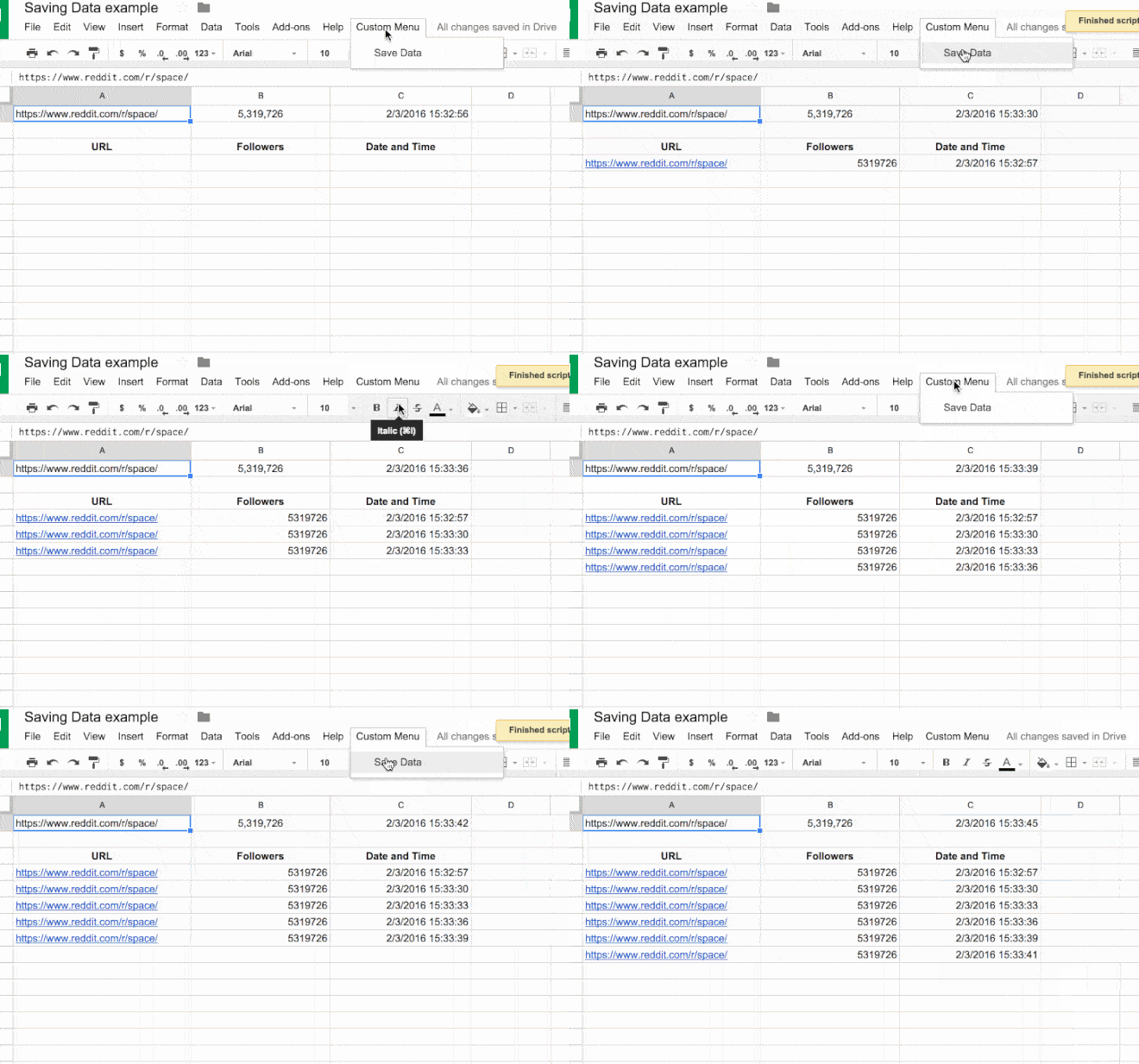
Suppose I want to save copy of some data at periodic intervals, like so:
In this script, I’ve created a custom menu to run my main function. The main function, saveData(), copies the top row of my spreadsheet (the live data) and pastes it to the next blank line below my current data range with the new timestamp, thereby “saving” a snapshot in time.
The code for this example is:
// custom menu function
function onOpen() {
  const ui = SpreadsheetApp.getUi();
  ui.createMenu('Custom Menu')
      .addItem('Save Data','saveData')
      .addToUi();
}

// function to save data
function saveData() {
  const ss = SpreadsheetApp.getActiveSpreadsheet();
  const sheet = ss.getSheets()[0];
  const url = sheet.getRange('Sheet1!A1').getValue();
  const follower_count = sheet.getRange('Sheet1!B1').getValue();
  const date = sheet.getRange('Sheet1!C1').getValue();
  sheet.appendRow([url,follower_count,date]);
}
2. Open script editor from the menu: Extensions > Apps Script
3. In the newly opened Script tab, remove all of the boilerplate code (the “myFunction” code block)
4. Copy in the following code:
// code to add the custom menu
function onOpen() {
  const ui = DocumentApp.getUi();
  ui.createMenu('My Custom Menu')
      .addItem('Insert Symbol', 'insertSymbol')
      .addToUi();
}

// code to insert the symbol
function insertSymbol() {
  // add symbol at the cursor position
  const cursor = DocumentApp.getActiveDocument().getCursor();
  cursor.insertText('§§');

}
5. You can change the special character in this line
cursor.insertText('§§');
to whatever you want it to be, e.g.
cursor.insertText('( ͡° ͜ʖ ͡°)');
6. Click Save and give your script project a name (doesn’t affect the running so call it what you want e.g. Insert Symbol)
7. Run the script for the first time by clicking on the menu: Run > onOpen
8. Google will recognize the script is not yet authorized and ask you if you want to continue. Click Continue
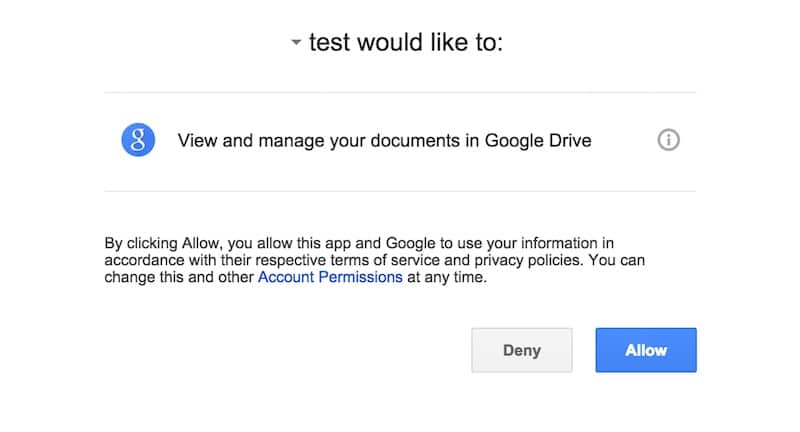
9. Since this the first run of the script, Google Docs asks you to authorize the script (I called my script “test” which you can see below):
10. Click Allow
11. Return to your Google Doc now.
12. You’ll have a new menu option, so click on it:
My Custom Menu > Insert Symbol
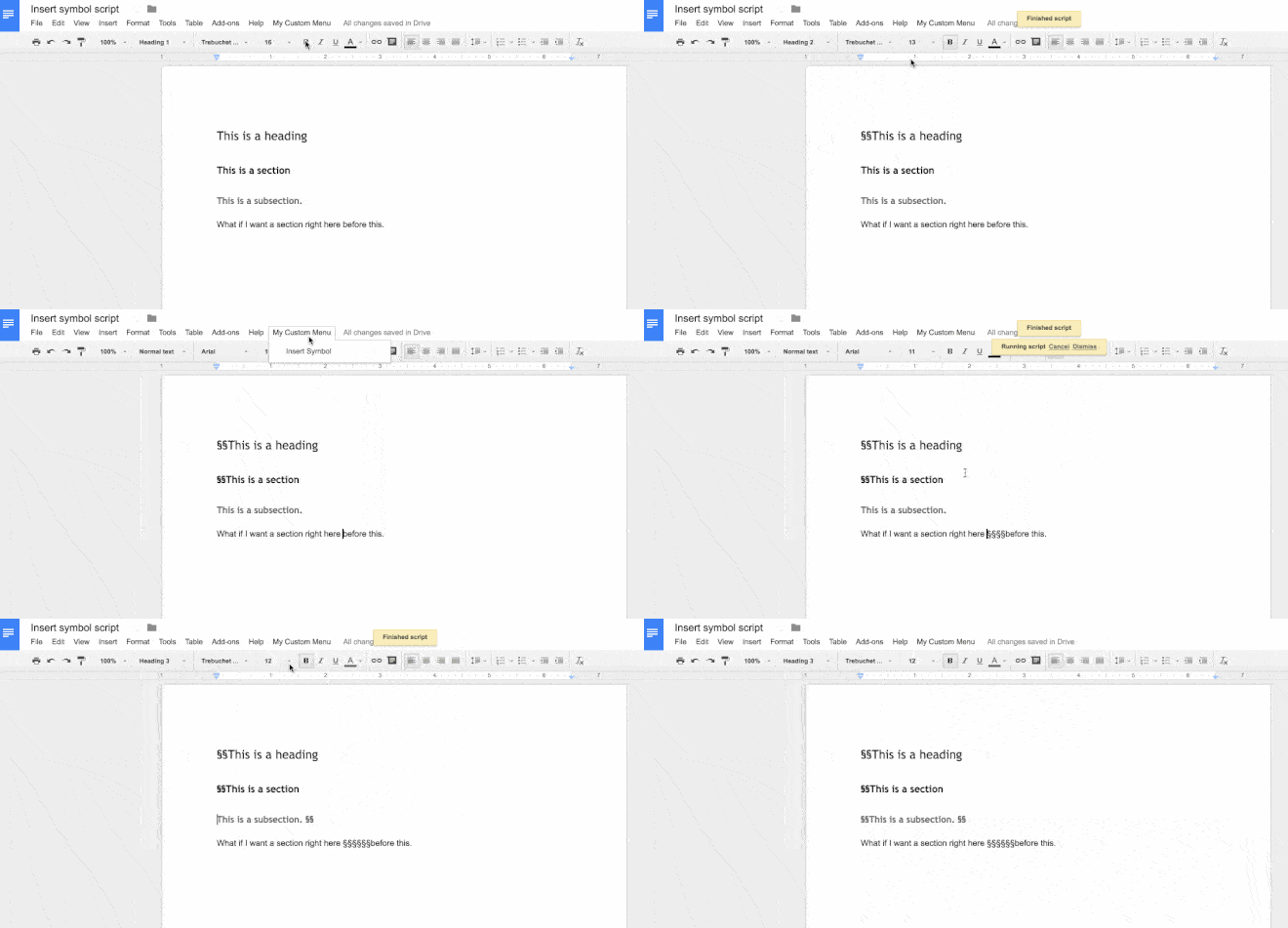
13. Click on Insert Symbol and you should see the symbol inserted wherever your cursor is.
Google Apps Script Tip: Use the Logger class
Use the Logger class to output text messages to the log files, to help debug code.
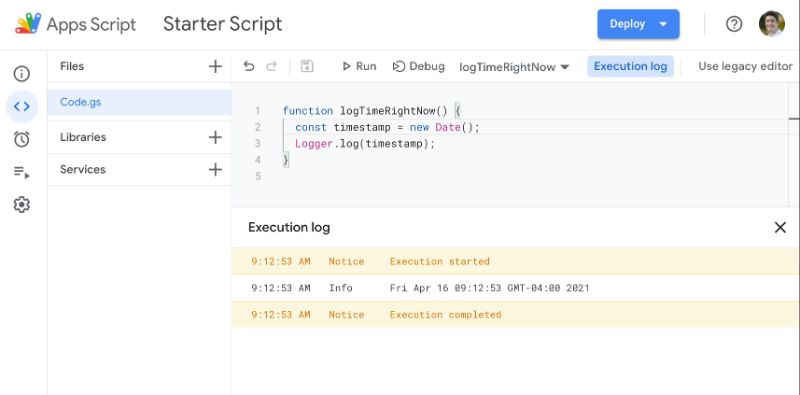
The log files are shown automatically after the program has finished running, or by going to the Executions menu in the left sidebar menu options (the fourth symbol, under the clock symbol).
The syntax in its most basic form is Logger.log(something in here). This records the value(s) of variable(s) at different steps of your program.
For example, add this script to a code file your editor window:
function logTimeRightNow() {
  const timestamp = new Date();
  Logger.log(timestamp);
}
Run the script in the editor window and you should see:
Real world examples from my own work
I’ve only scratched the surface of what’s possible using G.A.S. to extend the Google Apps experience.
Here are a couple of interesting projects I’ve worked on:
1) A Sheets/web-app consisting of a custom web form that feeds data into a Google Sheet (including uploading images to Drive and showing thumbnails in the spreadsheet), then creates a PDF copy of the data in the spreadsheet and automatically emails it to the users. And with all the data in a master Google Sheet, it’s possible to perform data analysis, build dashboards showing data in real-time and share/collaborate with other users.
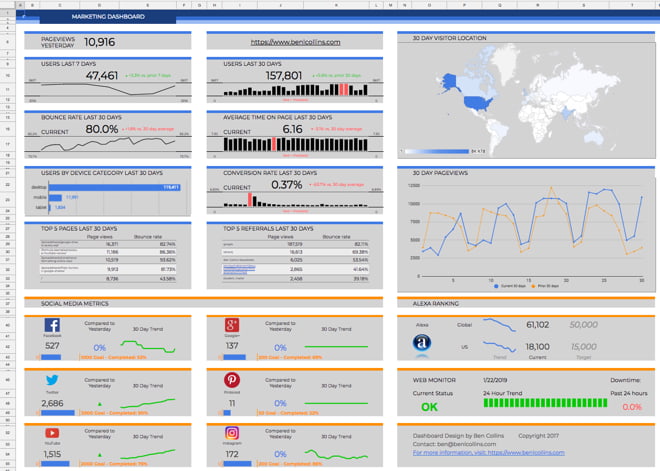
2) A dashboard that connects to a Google Analytics account, pulls in social media data, checks the website status and emails a summary screenshot as a PDF at the end of each day.
Imagination and patience to learn are the only limits to what you can do and where you can go with GAS. I hope you feel inspired to try extending your Sheets and Docs and automate those boring, repetitive tasks!
In this tutorial, you’ll use Apps Script to build a tool called Sheet Sizer, to measure the size of your Google Sheets!
Google Sheets has a limit of 10 million cells, but it’s hard to know how much of this space you’ve used.
Sheet Sizer will calculate the size of your Sheet and compare it to the 10 million cell limit in Google Sheets.
Sheet Sizer: Build a sidebar to display information
Step 1:
Open a blank sheet and rename it to “Sheet Sizer”
Step 2:
Open the IDE. Go to Tools > Script editor
Step 3:
Rename your script file “Sheet Sizer Code”
Step 4:
In the Code.gs file, delete the existing “myFunction” code and copy in this code:
/**
* Add custom menu to sheet
*/
function onOpen() {

  SpreadsheetApp.getUi()
    .createMenu('Sheet Sizer')
    .addItem('Open Sheet Sizer', 'showSidebar')
    .addToUi();
}

/**
* function to show sidebar
*/
function showSidebar() {

  // create sidebar with HTML Service
  const html = HtmlService.createHtmlOutputFromFile('Sidebar').setTitle('Sheet Sizer');

// add sidebar to spreadsheet UI
  SpreadsheetApp.getUi().showSidebar(html);
}
There are two functions: onOpen, which will add the custom menu to your Sheet, and showSidebar, which will open a sidebar.
The text between the /* ... */ or lines starting with // are comments.
Step 5:
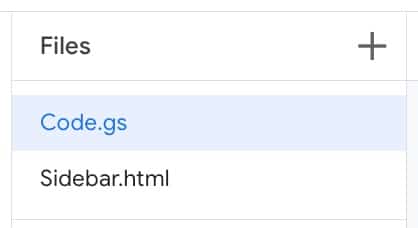
Click the + next to Files in the left menu, just above the Code.gs filename.
Add an HTML file and call it “Sidebar”. It should look like this:
Step 6:
In the Sidebar file, on line 7, between the two BODY tags of the existing code, copy in the following code:
Step 8:
Select the Code.gs file, then select the onOpen function in the menu bar (from the drop down next to the word Debug). Then hit Run.
Step 9:
When you run for the first time, you have to accept the script permissions. If you see an “App isn’t verified” screen, click on Advanced, then “Go to…” and follow the prompts. (More info here.)
Step 10:
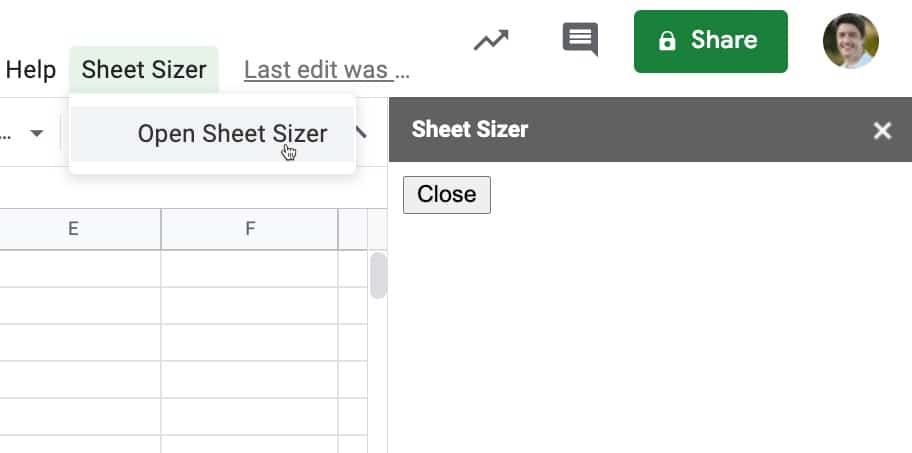
After authorizing the app in step 8, jump back to your Google Sheet. You should see a new custom menu “Sheet Sizer” in the menu bar, to the right of the Help menu.
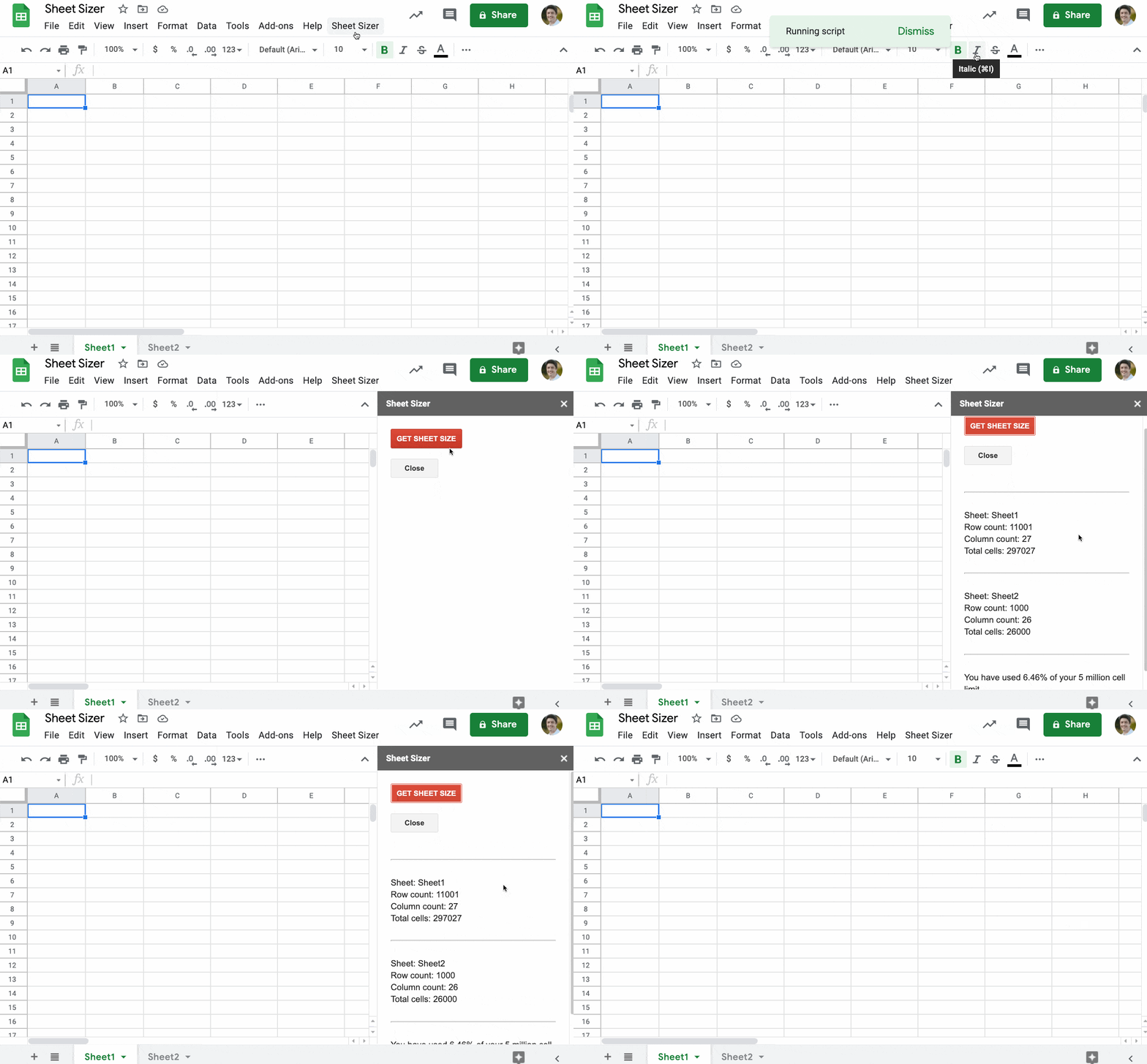
Click the menu to open the sidebar.
Step 11:
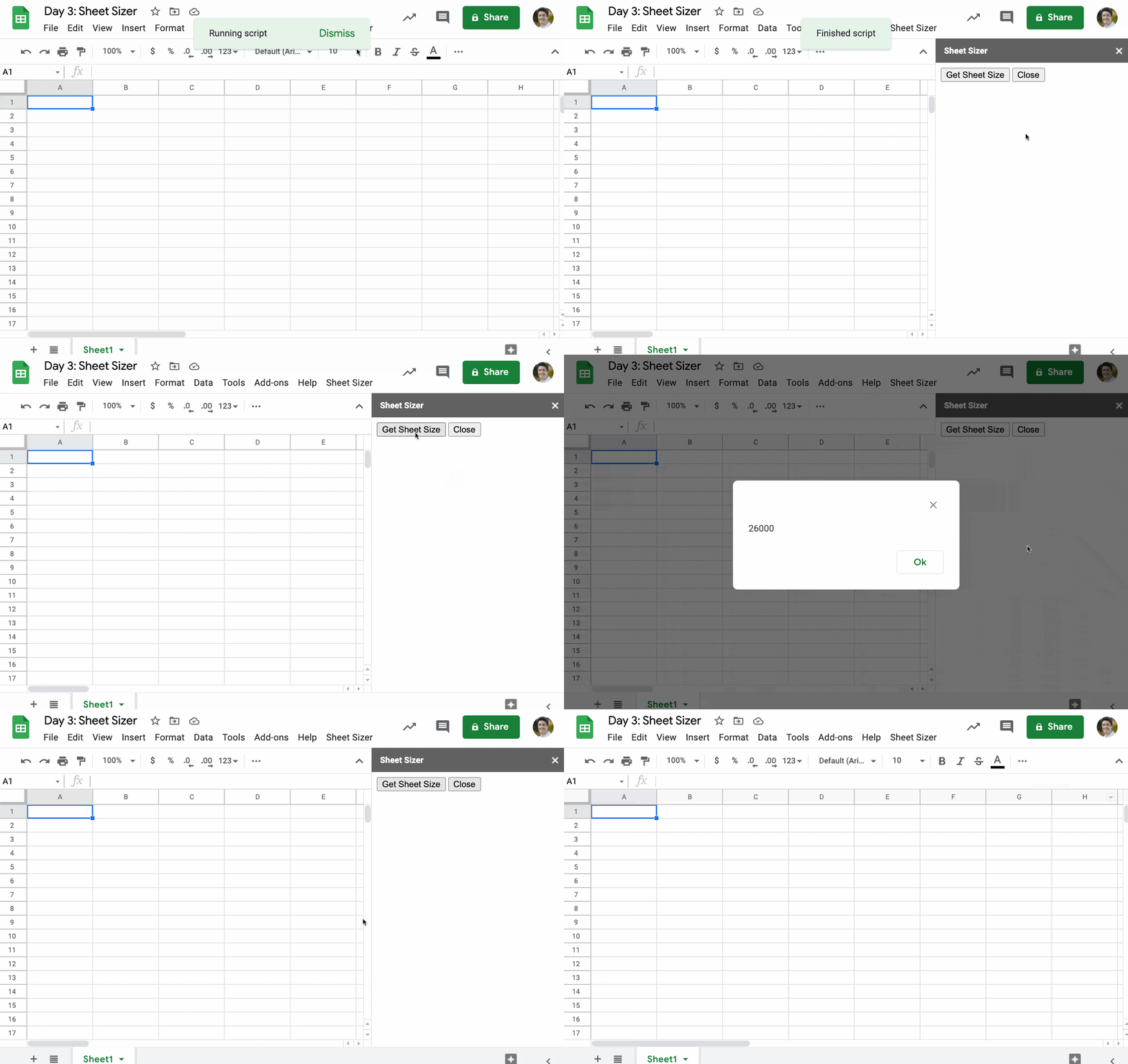
Close the menu using the button.
Here’s what you’ve built so far:
Sheet Sizer: Add a new button and functionality to the sidebar
Step 12:
In the Sidebar file, after the first BODY tag, on line 6, and before the INPUT tag on line 7, add a new line.
When clicked, this will run a function called getSheetSize.
Step 13:
Add the getSheetSize function into the Sidebar file with the following code.
Copy and paste this after the two INPUT tags but before the final BODY tag, on line 9.
<script>
function getSheetSize() {

  google.script.run.auditSheet();

}
</script>
When the button is clicked to run the getSheetSize function (client side, in the sidebar), it will now run a function called auditSheet in our Apps Script (server side).
Step 14:
Go to the Code.gs file
Step 15:
Copy and paste this new function underneath the rest of your code:
/**
* Get size data for a given sheet url
*/
function auditSheet() {
  // get Sheet
  const ss = SpreadsheetApp.getActiveSpreadsheet();
  const sheet = ss.getActiveSheet();

  // get sheet name
  const name = sheet.getName();

  // get current sheet dimensions
  const maxRows = sheet.getMaxRows();
  const maxCols = sheet.getMaxColumns();
  const totalCells = maxRows * maxCols;

  // output
  SpreadsheetApp.getUi().alert(totalCells);
}
This gets the active Sheet of your spreadsheet and calculates the total number of cells as max rows multiplied by max columns.
Finally, the last line displays an alert popup to show the total number.
Step 16:
Back in your Google Sheet, run Sheet Sizer from the custom Sheet Sizer menu.
When you click on the “Get Sheet Size” button, you should see a popup that shows the number of cells in your Sheet:
Sheet Sizer: Display the Sheet size in the sidebar
Step 17:
Delete this line of code in the auditSheet function:
SpreadsheetApp.getUi().alert(totalCells);
Step 18:
Paste in this new code, to replace the code you deleted in Step 4:
// put variables into object
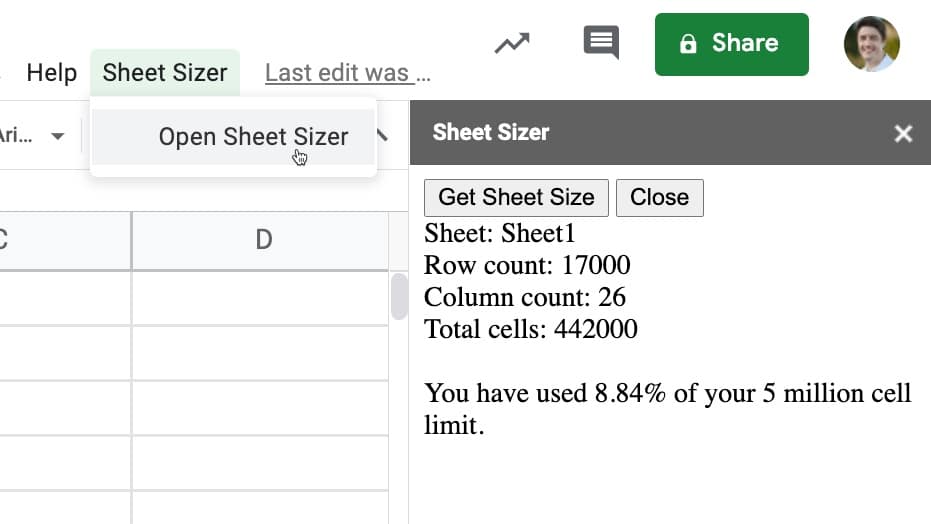
const sheetSize = 'Sheet: ' + name +
  '<br>Row count: ' + maxRows +
  '<br>Column count: ' + maxCols +
  '<br>Total cells: ' + totalCells +
  '<br><br>You have used ' + ((totalCells / 5000000)*100).toFixed(2) + '% of your 10 million cell limit.';

return sheetSize;
Now, instead of showing the total number of cells in an alert popup, it sends the result back to the sidebar.
Let’s see how to display this result in your sidebar.
Step 19:
Go to the Sidebar file and copy this code after the two INPUT tags but before the first SCRIPT tag:
<div id="results"></div>
This is a DIV tag that we’ll use to display the output.
Step 20:
Staying in the Sidebar file, replace this line of code:
It runs when the Apps Script function auditSheet successfully executes on the server side. The return value of that auditSheet function is passed to a new function called displayResults, which we’ll create now.
Step 21:
Underneath the getSheetSize function, add this function:
function displayResults(results) {
  // display results in sidebar
  document.getElementById("results").innerHTML = results;
}
When this function runs, it adds the results value (our total cells count) to that DIV tag of the sidebar you added in step 7.
Step 22:
Back in your Google Sheet, run Sheet Sizer from the custom Sheet Sizer menu.
When you click on the “Get Sheet Size” button, you should see a popup that shows the number of cells in your Sheet:
Sheet Sizer: Handle multiple sheets
Step 23:
Modify your auditSheet code to this:
/**
* Get size data for a given sheet url
*/
function auditSheet(sheet) {

  // get spreadsheet object
  const ss = SpreadsheetApp.getActiveSpreadsheet();

  // get sheet name
  const name = sheet.getName();

  // get current sheet dimensions
  const maxRows = sheet.getMaxRows();
  const maxCols = sheet.getMaxColumns();
  const totalCells = maxRows * maxCols;

  // put variables into object
  const sheetSize = {
    name: name,
    rows: maxRows,
    cols: maxCols,
    total: totalCells
  }

  // return object to function that called it
  return sheetSize;

}
Step 24:
In your Code.gs file, copy and paste the following code underneath the existing code:
/**
* Audits all Sheets and passes full data back to sidebar
*/
function auditAllSheets() {

  // get spreadsheet object
  const ss = SpreadsheetApp.getActiveSpreadsheet();
  const sheets = ss.getSheets();

  // declare variables
  let output = '';
  let grandTotal = 0;

  // loop over sheets and get data for each
  sheets.forEach(sheet => {

    // get sheet results for the sheet
    const results = auditSheet(sheet);

    // create output string from results
    output = output + '<br><hr><br>Sheet: ' + results.name +
      '<br>Row count: ' + results.rows +
      '<br>Column count: ' + results.cols +
      '<br>Total cells: ' + results.total + '<br>';

    // add results to grand total
    grandTotal = grandTotal + results.total;

  });

  // add grand total calculation to the output string
  output = output + '<br><hr><br>' +
    'You have used ' + ((grandTotal / 5000000)*100).toFixed(2) + '% of your 10 million cell limit.';

  // pass results back to sidebar
  return output;

}
This adds a new function, auditAllSheets, which loops over all the sheets in your Google Sheet and calls the auditSheet function for each one. The results for each Sheet are joined together into a result string, called output.
The callback function is the general auditAllSheets function, not the specific individual sheet function.
Step 26:
Back in your Google Sheet, add another sheet to your Google Sheet (if you haven’t already) and run Sheet Sizer.
It will now display the results for all the sheets within your Google Sheet!
Sheet Sizer: Add CSS styles
This step is purely cosmetic to make the sidebar more aesthetically pleasing.
Step 27:
Add these CSS lines inside the HEAD tags of the sidebar file:
<!-- Add CSS code to format the sidebar from google stylesheet -->
<link rel="stylesheet" href="https://ssl.gstatic.com/docs/script/css/add-ons1.css">

<style>
  body {
    padding: 20px;
  }
</style>
One final improvement from me is to move the 10 million cell limit number into a global variable.
Currently, it’s buried in your script so it’s difficult to find and update if and when Google updates the Sheets cell limit.
It’s not good practice to hard-code variables in your code for this reason.
The solution is to move it into a global variable at the top of your Code.gs file, with the following code:
/**
 * Global Variable
 */
const MAX_SHEET_CELLS = 10000000;
And then change the output line by replacing the 5000000 number with the new global variable MAX_SHEET_CELLS:
// add grand total calculation to the output string
output = output + '<br><hr><br>' +
  'You have used ' + ((grandTotal / MAX_SHEET_CELLS)*100).toFixed(2) + '% of your 10 million cell limit.';
Here is your final Sheet Sizer tool in action:
Click here to see the full code for the Sheet Sizer tool on GitHub.
Next steps: have a go at formatting the numbers shown in the sidebar, by adding thousand separators so that 1000 shows as 1,000 for example.
The Challenge: Merge Columns With Single Range Reference
Question: How can you merge n number of columns and get the unique values, without typing each one out?
In other words, can you create a single formula that gives the same output as this one:
=SORT( UNIQUE( {A:A;B:B;C:C;...;XX:XX} ))
but without having to write out A:A, B:B, C:C, D:D etc. and instead just write A:XX as in the input?
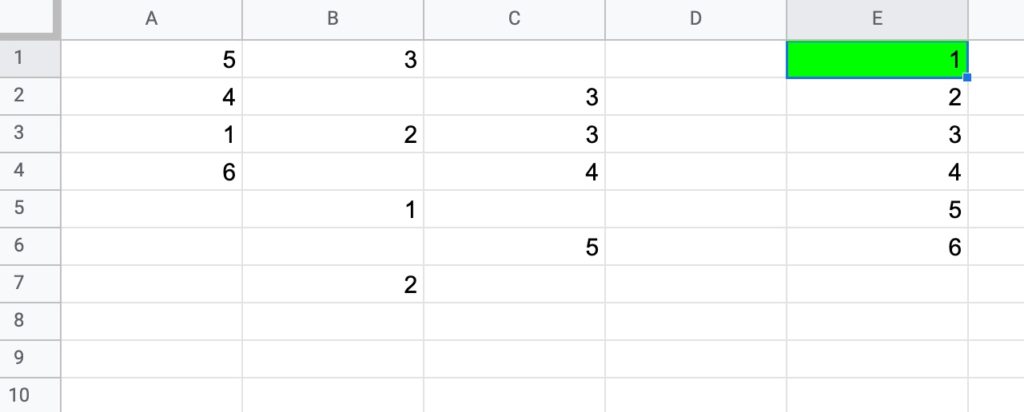
Use this simple dataset example, where your formula will be in cell E1 (in green):
Your answer should:
be a formula in a single cell
work with the input range in the form A:XX (e.g. A:C in this example)
work with numbers and/or text values
return only the unique values, in an ascending order in a SINGLE COLUMN.
Solutions To Sort A Column By Last Name
I received 67 replies to this formula challenge with two different methods for solving it. Congratulations to everyone who took part!
I learnt so much from the different replies, many of which proffered a shorter and more elegant second solution than my own original formula.
Here I present the two solutions.
There’s a lot to learn by looking through them.
1. FLATTEN method
=SORT(UNIQUE(FLATTEN(A:C)))
The formula uses the FLATTEN function to collect data from the input ranges into a single column before the UNIQUE function selects the unique ones before they are finally sorted.
Note 1: you can have multiple inputs (arguments) to the FLATTEN function. Data is ordered by the order of the inputs, then row and then column.
Note 2: at the moment the FLATTEN function doesn’t show up in the auto-complete when you start typing it out. You can still use it, but you’ll have to type it out fully yourself.
Thanks to the handful of you that shared this neat solution with me. Great work!
2. TEXTJOIN method
Join all the values in A:C with TEXTJOIN, using a unique character as the delimiter (in this case, the King and Queen chess pieces!)
You want to use an identifier that is not in columns A to C.
=TEXTJOIN("♔♕",TRUE,A:C)
Split on this unique delimiter using the SPLIT function:
=SPLIT(TEXTJOIN("♔♕",TRUE,A:C),"♔♕")
Use the TRANSPOSE function to switch to a column, select the unique values only and finally wrap with a sort function to get the result:
This tutorial is written for Google Sheets users who have datasets that are too big or too slow to use in Google Sheets. It’s written to help you get started with Google BigQuery.
If you’re experiencing slow Google Sheets that no amount of clever tricks will fix, or you work with datasets that are outgrowing the 10 million cell limit of Google Sheets, then you need to think about moving your data into a database.
As a Google user, probably the best and most logical next step is to get started with Google BigQuery and move your data out of Google Sheets and into BigQuery.
By the end of this tutorial, you will have created a BigQuery account, uploaded a dataset from Google Sheets, written some queries to analyze the data and exported the results back to Google Sheets to create a chart.
You’ll also do the same analysis side-by-side in a Google Sheet, so you can understand exactly what’s happening in BigQuery.
I’ve highlighted the action steps throughout the tutorial, to make it super easy for you to follow along:
Google BigQuery exercise steps are shown in blue.
Actions for you to do in Google BigQuery.
Google Sheet exercise steps are shown in green.
Actions for you to do in Google Sheets.
Section 1: What is BigQuery?
Google BigQuery is a data warehouse for storing and analyzing huge amounts of data.
Officially, BigQuery is a serverless, highly-scalable, and cost-effective cloud data warehouse with an in-memory BI Engine and machine learning built in.
This is a formal way of saying that it’s:
Works with any size data (thousands, millions, billions of rows…)
Easy to set up because Google handles the infrastructure
Grows as your data grows
Good value for money, with a generous free tier and pay-as-you-go beyond that
Lightning fast
Seamlessly integrated with other Google tools, like Sheets and Data Studio
Can import and export data from and to many sources
Has Built-in machine learning, so predictive modeling can be set up quickly
What’s the difference between BigQuery and a “regular” database?
BigQuery is a database optimized for storing and analyzing data, not for updating or deleting data.
It’s ideal for data that’s generated by e-commerce, operations, digital marketing, engineering sensors etc. Basically, transactional data that you want to analyze to gain insights.
A regular database is suitable for data that is stored, but also updated or deleted. Think of your social media profile or customer database. Names, emails, addresses, etc. are stored in a relational database. They frequently need to be updated as details change.
Section 2: Google BigQuery Setup
It’s super easy to get started wit Google BigQuery!
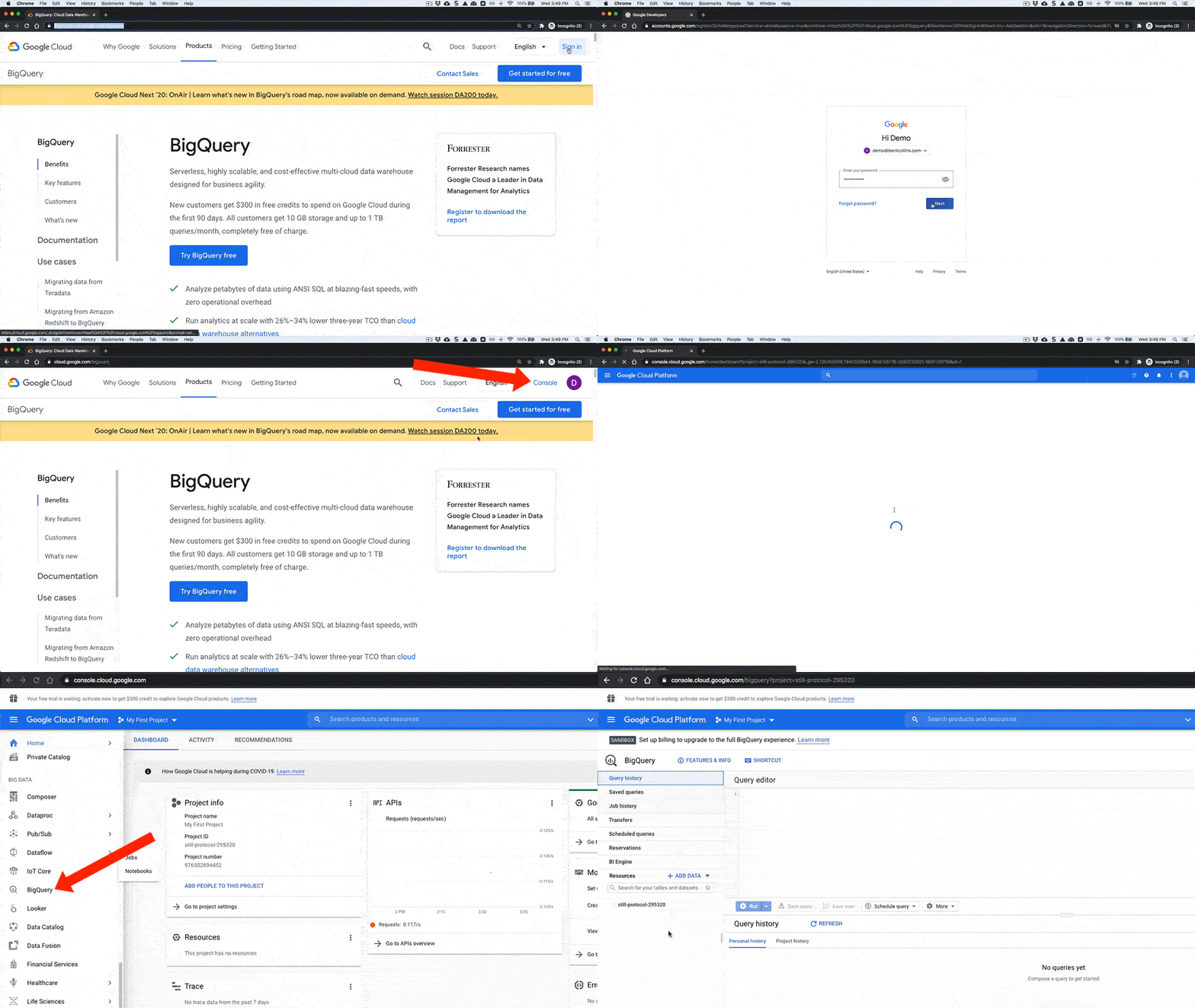
There are two ways to get started: 1) use the free sandbox account (no billing details required), or 2) use the free tier (requires you to enter billing details, but you’ll also get $300 free Cloud credits).
In either case, this tutorial won’t cost you anything in BigQuery, since the volume of data is so tiny.
We’ll proceed using the sandbox account, so that you don’t have to enter any billing details.
A new project called “My First Project” is automatically created
In the left side pane, scroll down until you see BigQuery and click it
Here’s that process shown as a GIF:
You’re ready for Step 2 below.
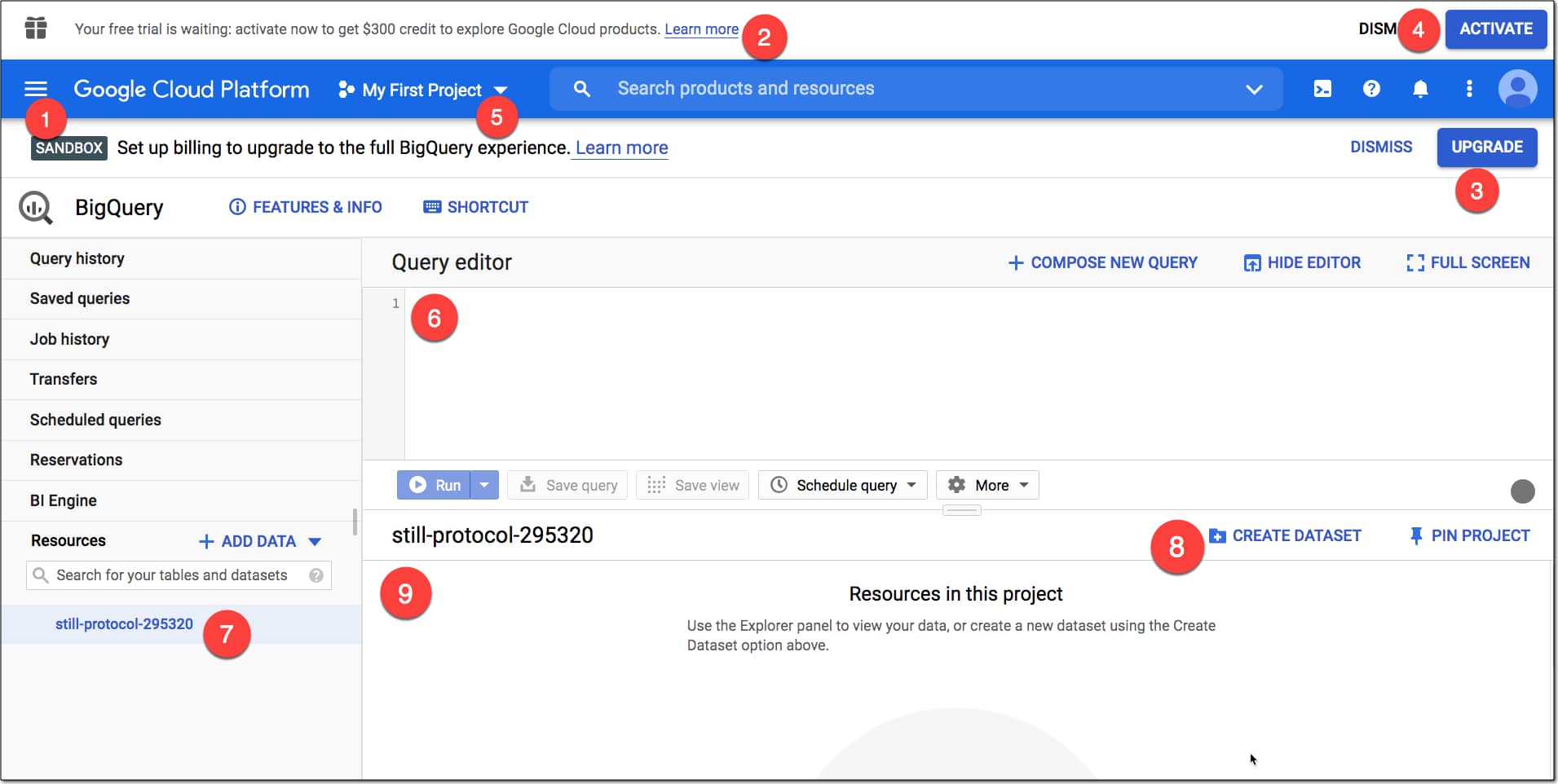
BigQuery Console
(click to enlarge)
Here’s what you can see in the console:
The SANDBOX tag to tell you you’re in the sandbox environment
Message to upgrade to the free trial and $300 credit (may or may not show)
UPGRADE button to upgrade out of the Sandbox account
ACTIVATE button to claim the free $300 credit
The current project and where to create new projects
The Query editor window where you type your SQL code
Current project resource
Button to create a new dataset for this project (see below)
Query outputs and table information window
What is the free Sandbox Account?
The sandbox account is an option that lets you use BigQuery without having to enter any credit card information. There are limits to what you can do, but it gives you peace of mind that you won’t run up any charges whilst you’re learning.
In the sandbox account:
Tables or views last 60 days
You get 10 Gb of storage per month for free
And 1 Tb data processing each month
It’s more than enough to do everything in this tutorial today.
Unlike Google Sheets, you have to pay to use BigQuery based on your storage and processing needs.
However, there is a sandbox account for free experimentation (see below) and then a generous free tier to continue using BigQuery.
In fact, if you’re working with datasets that are only just too big for Sheets, it’ll probably be free to use BigQuery or very cheap.
BigQuery charges for data storage, streaming inserts, and for querying data, but loading and exporting data are free of charge.
Your first 1 TB (1,000 GB) per month is free.
Full BigQuery pricing information can be found here.
Clicking on the blue “Try BigQuery free” button on the BigQuery homepage will let you register your account with billing details and claim the free $300 cloud credits.
Section 3: How to get your data into BigQuery
Extracting, loading and transforming (ELT) is sometimes the most challenging and time consuming part of a data analysis project. It’s the most engineering-heavy stage, where the heavy lifting happens.
You can load data into BigQuery in a number of ways:
From a readable data source (such as your local machine)
From Google Sheets
From other Google services, such as Google Ad Manager and Google Ads
Use a third-party data integration tool, e.g. Supermetrics, Stitch
You might want to make a SECOND copy in your Drive folder too, so you can keep one copy untouched for the upload to BigQuery and use the second copy for doing the follow-along analysis in Google Sheets.
The first dataset is a record of pedestrian traffic crossing Brooklyn Bridge in New York city (source).
It’s only 7,000 rows, so it could be easily analyzed in Sheets of course, but we’ll use it here so that you can do the same steps in BigQuery and in Sheets.
The second dataset is a daily total of bike counts for New York’s East River bridges (source).
There’s nothing inherently wrong with putting “small” data into BigQuery. Yes, it’s designed for truly gigantic datasets (billions of rows+) but it works equally well on data of any size.
Back in the BigQuery Console, you need to set up a project before you can add data to it.
Get started with Google BigQuery: Loading data From A Google Sheet
Think of the Project as a folder in Google Drive, the Dataset as a Google Sheet and the Table as individual Sheet within that Google Sheet.
The first step to get started with Google BigQuery is to create a project.
In step 1, BigQuery will have automatically generated a new project for you, called “My First Project”.
If it didn’t, or you want to create another new project, here’s how.
Step 3: Create a new Project
In the top bar, to the right of where it says “Google Cloud Platform”, click on Project drop-down menu.
In the popup window, click NEW PROJECT.
Give it a name, organization (your domain) and location (parent organization or folder).
Optionally, you can choose to bookmark this project in the Resources section of the sidebar. Click “PIN PROJECT” to do this.
Step 4: Create a new Dataset
Next you need to create a dataset by clicking “CREATE DATASET“.
Name it “start_bigquery”. You’re not allowed to have any spaces or special characters apart from the underscore.
Set the data location to your locale, leave the other settings alone and then click “Create dataset”
This new dataset will show up underneath your project name in the sidebar.
Step 5: Create a new Table
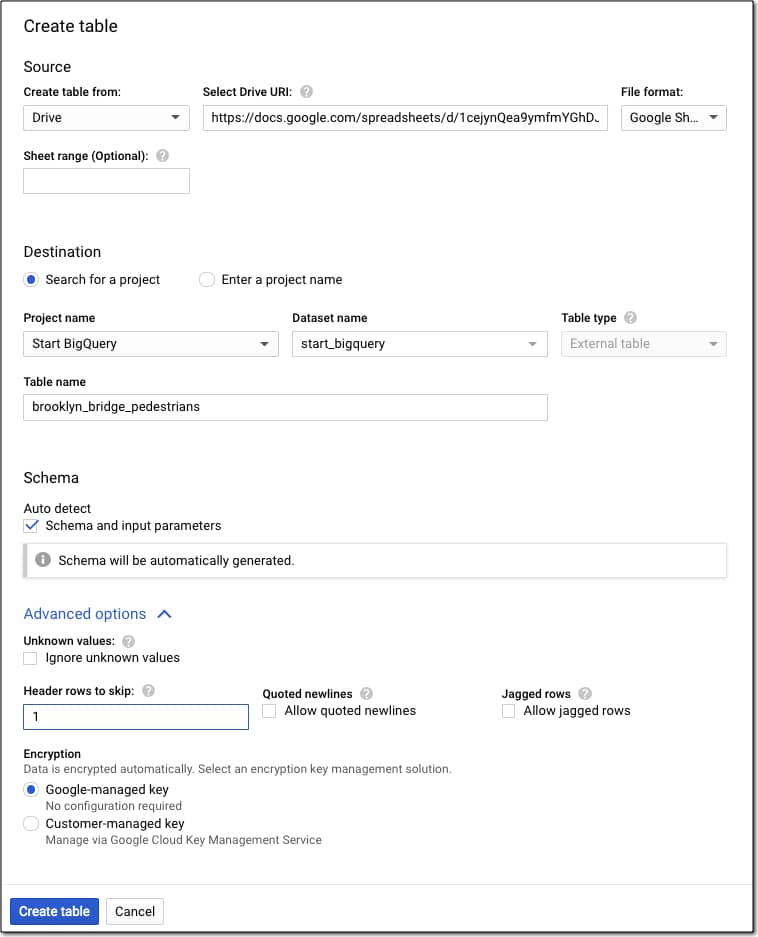
With the dataset selected, click on the “+ CREATE TABLE” or big blue plus button.
You want to select “Drive”, add the URL and set the file format to Google Sheets.
Name your table “brooklyn_bridge_pedestrians”.
Choose Auto detect schema.
Under Advanced settings, tell BigQuery you have a single header row to skip by entering the value 1.
Your settings should look like this:
If you make a mistake, you can simply delete the table and start again.
Section 4: Analyzing Data in BigQuery
Google BigQuery uses Structure Query Language (SQL) to analyze data.
The Google Sheets Query function uses a similar SQL style syntax to parse data. So if you know how to use the Query function then you basically know enough SQL to get started with Google BigQuery!
Basic SQL Syntax for BigQuery
The basic SQL syntax to write queries looks like this:
SELECT these columns
FROM this table
WHERE these filter conditions are true
GROUP BY these aggregate conditions
HAVING these filters on aggregates
ORDER BY i.e. sort by these columns
LIMIT restrict answer to X number of rows
You’ll see all of these keywords and more in the exercises below.
Get started with Google BigQuery: First Query
The BigQuery console provides a button that gives you a starter query.
Step 6: Write your first query
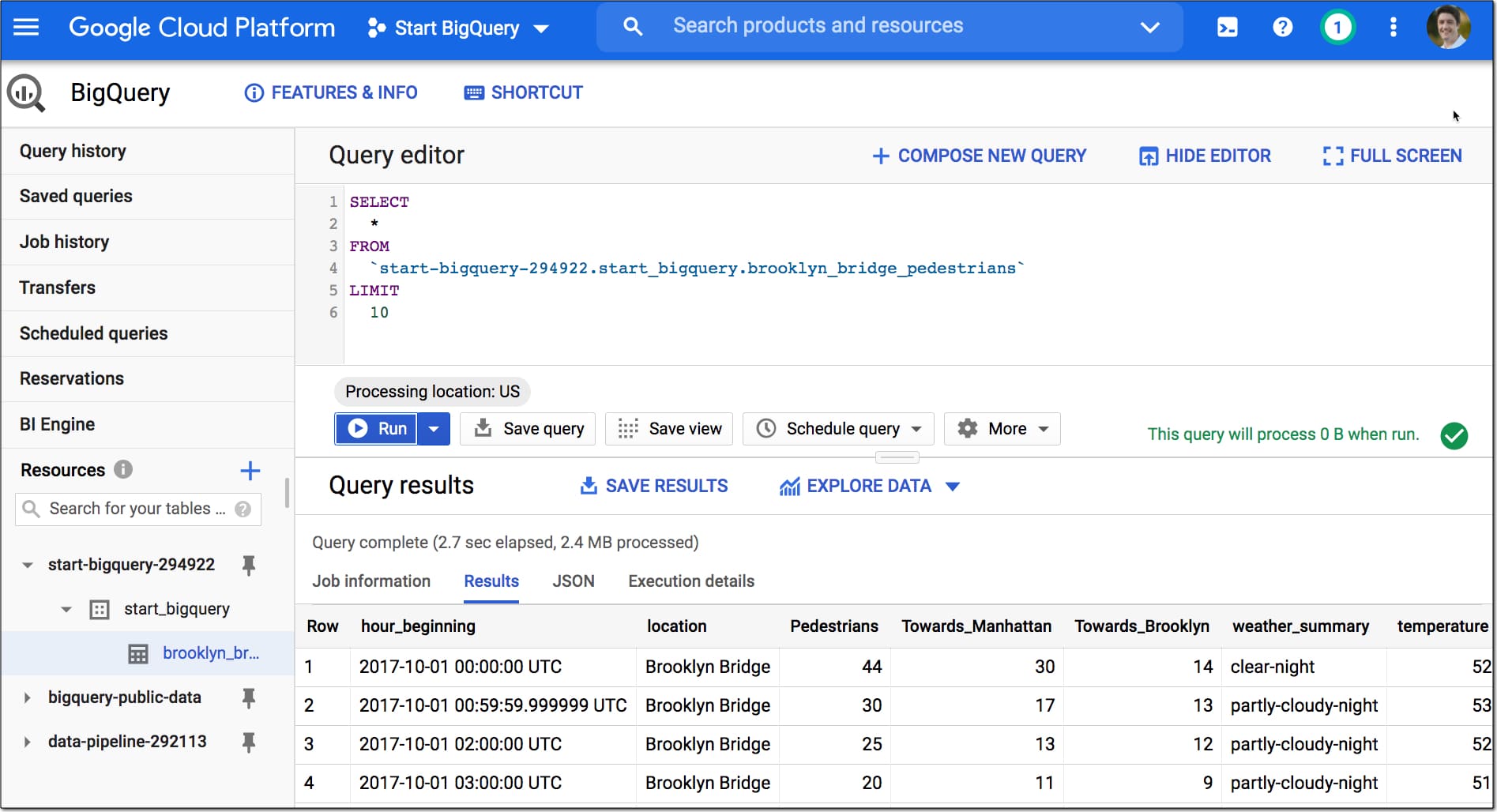
Click on “QUERY TABLE” and this query shows up in your editor window:
SELECT FROM `start-bigquery-294922.start_bigquery.brooklyn_bridge_pedestrians` LIMIT 1000
Modify it by adding a * between the SELECT and FROM, and reducing the number after LIMIT to 10:
SELECT
  *
FROM
  `start-bigquery-294922.start_bigquery.brooklyn_bridge_pedestrians`
LIMIT
  10
Then format your query across multiple lines with through the menu: More > Format
SELECT
*
FROM
`start-bigquery-294922.start_bigquery.brooklyn_bridge_pedestrians`
LIMIT
10
Click “▶️ Run” to execute the query.
The output of this query will be 10 rows of data showing under the query editor:
(click to enlarge)
Woohoo!
You just wrote your first query in Google BigQuery.
Let’s continue and analyze the dataset:
Exercise 2: Analyzing Data In BigQuery
Run through the following steps:
Step 7: tell the story of one row
I always advocate doing this with any new dataset.
Write a query that selects all the columns (SELECT *) and a limited number of rows (e.g. LIMIT 10), as you did in step 6 above.
Run that query and look at the output. Scan across one whole row. Look at every column and think about what data is stored there.
Think about doing the equivalent step in Google Sheets. Look at your dataset and scroll to the right, telling the story of a single row.
We do this step to understand our data, before getting too immersed in the weeds.
Select Specific Columns
Step 8: Select specific columns
Select specific columns by writing the column names into your query.
You can also click on column names in the schema view (click on the table name in the left sidebar to access this) to add them to the query directly.
SELECT
  hour_beginning,
  location,
  Pedestrians,
  weather_summary
FROM
  `start-bigquery-294922.start_bigquery.brooklyn_bridge_pedestrians`
LIMIT
  10
Math Operations
Let’s find out the total number of pedestrians that crossed the Brooklyn Bridge across the whole time period.
Step 9: Calculate total in Google Sheets
Open the Google Sheet you copied in Step 2, called “Copy of Brooklyn Bridge pedestrian count dataset”
Add this simple SUM function to cell C7298 to calculate the total:
=SUM(C2:C7297)
This gives an answer of 5,021,692
Let’s see how to do that in BigQuery:
Step 10: Math operations in BigQuery
Write a query with the pedestrians column and wrap it with a SUM function:
SELECT
  SUM(Pedestrians) AS total_pedestrians
FROM
  `start-bigquery-294922.start_bigquery.brooklyn_bridge_pedestrians`
This gives the same answer of 5,021,692
You’ll notice that I gave the output a new column name using the code “AS total_pedestrians“. This is similar to using the LABEL clause in the QUERY function in Google Sheets
Filtering Data
In SQL, the WHERE clause is used to filter rows of data.
It acts in the same way as the filter operation on a dataset in Google Sheets.
Step 11: Filtering data in Google Sheets
Back in your Google Sheet with the pedestrian data, add a filter to the dataset: Data > Create a filter
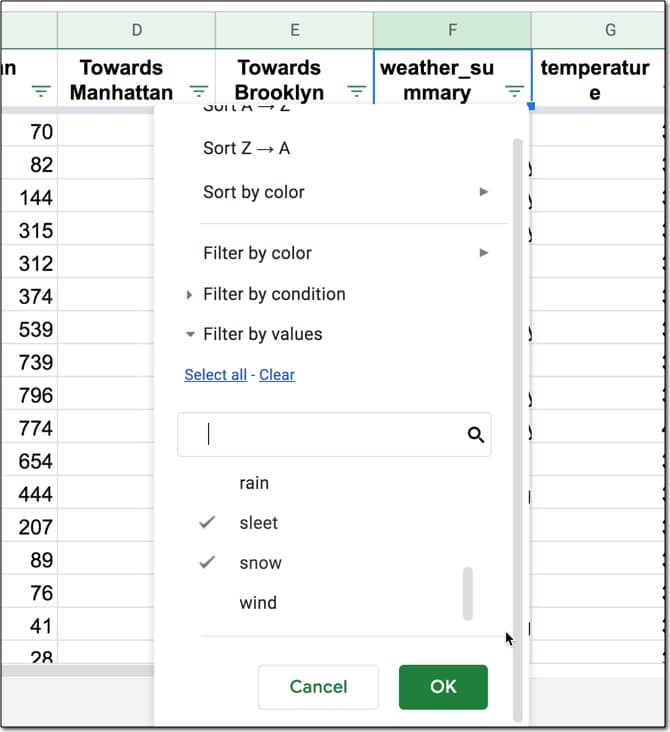
Click on the filter on the weather_summary column to open the filter menu.
Click “Clear” to deselect all the items.
Then choose “sleet” and “snow” as your filter values.
Hit OK to implement the filter.
You end up with 61 rows of data showing only the “sleet” or “snow” rows.
Now let’s see that same filter in BigQuery.
Step 12: WHERE filter keyword
Add the WHERE clause after the FROM line, and use the OR statement to filter on two conditions.
SELECT
  *
FROM
  `start-bigquery-294922.start_bigquery.brooklyn_bridge_pedestrians`
WHERE
  weather_summary = 'snow' OR weather_summary = 'sleet'
Check the count of the rows outputted by the this query. It’s 61, which matches the row count from your Google Sheet.
Ordering Data
Another common operation we want to do to understand our data is sort it. In Sheets we can either sort through the filter menu options or through the Data menu.
Step 13: Sorting data in Google Sheets
Remove the sleet and snow filter you applied above.
On the temperature column, click the Sort A → Z option, to sort the lowest temperature records to the top.
(Quick aside: it’s amazing to still see so many people walking across the bridge in sub-zero temps!)
Let’s recreate this sort in BigQuery.
Step 14: ORDER BY sort keyword
Add the ORDER BY clause to your query, after the FROM clause:
SELECT
  *
FROM
  `start-bigquery-294922.start_bigquery.brooklyn_bridge_pedestrians`
ORDER BY
  temperature ASC;
Use the keyword ASC to sort ascending (A – Z) or the keyword DESC to sort descending (Z – A).
You might notice that the first two records that show up have “null” in the temperature column, which means that no temperature value was recorded for those rows or it’s missing.
Let’s filter them out with the WHERE clause, so you can see how the WHERE and ORDER BY fit together.
Step 15: Filter out null values
The WHERE clause comes after the FROM clause but before the ORDER BY.
Remove the nulls by using the keyword phrase “IS NOT NULL”.
SELECT
  *
FROM
  `start-bigquery-294922.start_bigquery.brooklyn_bridge_pedestrians`
WHERE
  temperature IS NOT NULL
ORDER BY
  temperature ASC;
Aggregating Data
In Google Sheets, we group data with a pivot table.
Typically you choose a category for the rows and aggregate (summarize) the data into each category.
In this dataset, we have a row of data for each hour of each day. We want to group all 24 rows into a single summary row for each day.
Step 16: Pivot tables in Google Sheets
With your cursor somewhere in the pedestrian dataset, click Data < Pivot table
In the pivot table, add hour_beginning to the Rows.
Uncheck the “Show totals” checkbox.
Right click on one of the dates in the pivot table and choose “Create pivot date group“.
Select “Day of the month” from the list of options.
Add hour_beginning to Rows again, and move it so it’s the top category in Rows.
Check the “Repeat row labels” checkbox.
Right click on one of the dates in the pivot table and choose “Year-Month” from the list of options.
Add Pedestrians field to the Values section, and leave it set to the default SUM.
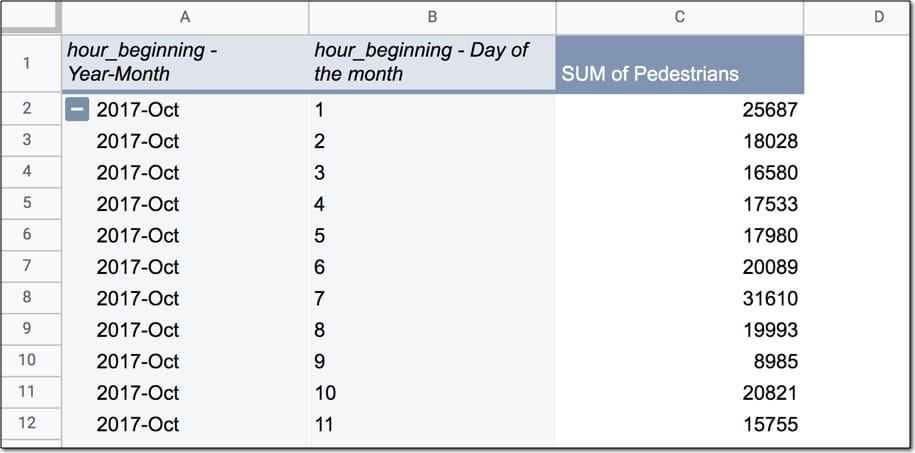
Your pivot table should look like this, with the total pedestrian counts for each day:
Now let’s recreate this in BigQuery.
If you’ve ever used the QUERY function in Google Sheets then you’re probably familiar with the GROUP BY keyword. It does exactly what the pivot table in Sheets does and “rolls up” the data into the summary categories.
Step 17: GROUP BY in BigQuery to aggregate data
First off, you need to use the EXTRACT function to extract the date from the timestamp in BigQuery.
This query selects the extracted date and the original timestamp, so you can see them side-by-side:
SELECT
  EXTRACT(DATE FROM hour_beginning) AS bb_date,
  hour_beginning
FROM
  `start-bigquery-294922.start_bigquery.brooklyn_bridge_pedestrians`
The EXTRACT DATE function turns “2017-10-01 00:00:00 UTC” into “2017-10-01”, which lets us aggregate by the date.
Modify the query above to add the SUM(Pedestrians) column, remove the “hour_beginning” column you no longer need and add the GROUP BY clause, referencing the grouping column by the alias name you gave it “bb_date”
SELECT
  EXTRACT(DATE FROM hour_beginning) AS bb_date,
  SUM(Pedestrians) AS bb_pedestrians
FROM
  `start-bigquery-294922.start_bigquery.brooklyn_bridge_pedestrians`
GROUP BY
  bb_date
The output of this query will be a table that matches the data in your pivot table in Google Sheet. Great work!
Functions in BigQuery
You’ll notice we used a special function (EXTRACT) in that previous query.
Like Google Sheets, BigQuery has a huge library of built-in functions. As you make progress on your BigQuery journey, you’ll find more and more of these functions to use.
For more information on functions in BigQuery, have a look at the function reference.
We saw the WHERE clause earlier, which lets you filter rows in your dataset.
However, if you aggregate your data with a GROUP BY clause and you want to filter this grouped data, you need to use the HAVING keyword.
Remember:
WHERE = filter original rows of data in dataset
HAVING = filter aggregated data after a GROUP BY operation
To conceptualize this, let’s apply the filter to our aggregate data in the Google Sheet pivot table.
Step 18: Pivot table filter in Google Sheets
Add hour_beginning to the filter section of your pivot table in Google Sheets.
Filter by condition and set it to Date is before > exact date > 11/01/2017
This filter removes rows of data in your Pivot Table where the data is on or after 1 November 2017. It leaves just the October 2017 data.
By now, I think you know what’s coming next.
Let’s apply that same filter condition in BigQuery using the HAVING keyword.
Step 19: HAVING filter keyword
Add the HAVING clause to your existing query, to filter out data on or after 1 November 2017.
Only data that satisfies the HAVING condition (less than 2017-11-01) is included.
SELECT
  EXTRACT(DATE FROM hour_beginning) AS bb_date,
  SUM(Pedestrians) AS bb_pedestrians
FROM
  `start-bigquery-294922.start_bigquery.brooklyn_bridge_pedestrians`
GROUP BY
  bb_date
HAVING
  bb_date < '2017-11-01'
The output of this query is 31 rows of data, for each day of the month of October.
Get started with Google BigQuery: Joining Data
A SQL Query walks into a bar.
In one corner of the bar are two tables.
The Query walks up to the tables and asks:
Mind if I join you?
JOIN pulls multiple tables together, like the VLOOKUP function in Google Sheets. Let's start in your Google Sheet.
Step 20: Vlookup to join data tables in Google Sheets
Create a new blank Sheet inside your Google Sheet.
Drag the formula down the rows to complete the dataset.
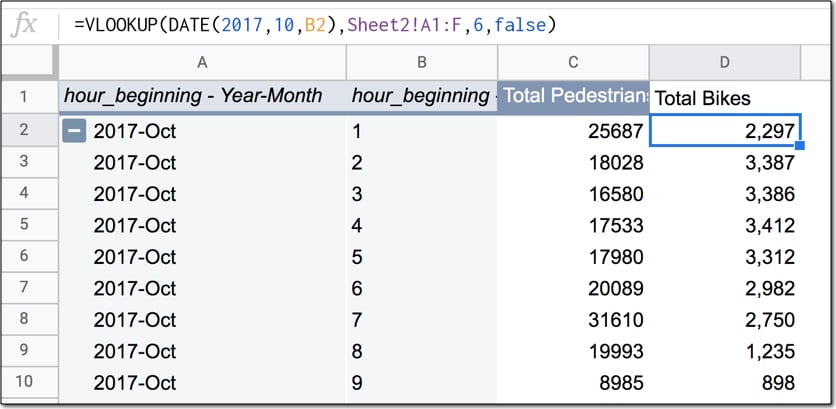
The data in your Sheet now looks like this:
That's great!
We summarized the pedestrian data by day and joined the bicycle data to it, so you can compare the two numbers.
As you can see, there's around 10k - 20k pedestrian crossings/day and about 2k - 3k bike crossings/day.
Joining tables in BigQuery
Let's recreate this table in BigQuery, using a JOIN.
Step 21: Upload bicycle data to BigQuery
Following step 5 above, create a new table in your start_bigquery dataset and upload the second dataset, of bike data for NYC bridges from October 2017.
Name your table "nyc_bridges_bikes"
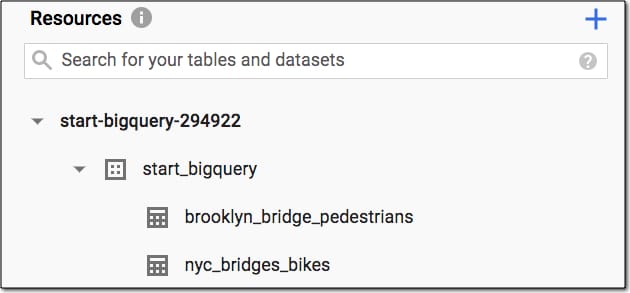
Your project should now look like this in the Resources pane in the left sidebar:
What we want to do now is take the table the you created above, with pedestrian data per day, and add the bike counts for each day to it.
To do that we use an INNER JOIN.
There are several different types of JOIN available in SQL, but we'll only look at the INNER JOIN in this article. It creates a new table with only the rows from each of the constituent tables that meet the join condition.
In our case the join condition is matching dates from the pedestrian table and the bike table.
We'll end up with a table consisting of the date, the pedestrian data and the bike data.
Ready? Let's go.
Step 22: JOIN the datasets in BigQuery
First, wrap the query you wrote above with the WITH clause, so you can refer to the temporary table that's created by the name "pedestrian_table".
WITH pedestrian_table AS (
  SELECT
    EXTRACT(DATE FROM hour_beginning) AS bb_date,
    SUM(Pedestrians) AS bb_pedestrians
  FROM
    `start-bigquery-294922.start_bigquery.brooklyn_bridge_pedestrians`
  GROUP BY
    bb_date
  HAVING
    bb_date < '2017-11-01'
)
Next, select both columns from the pedestrian table and one column from the bike table:
SELECT
  pedestrian_table.bb_date,
  pedestrian_table.bb_pedestrians,
  bike_table.Brooklyn_Bridge AS bb_bikes
FROM
  pedestrian_table
Of course, you need to add in the bike table to the query so the bike data can be retrieved:
INNER JOIN
  `start-bigquery-294922.start_bigquery.nyc_bridges_bikes` AS bike_table
Finally, specify the join condition, which tells the query what columns to match:
ON
  pedestrian_table.bb_date = bike_table.Date
Phew, that's a lot!
Here's the full query:
WITH pedestrian_table AS (
  SELECT
    EXTRACT(DATE FROM hour_beginning) AS bb_date,
    SUM(Pedestrians) AS bb_pedestrians
  FROM
    `start-bigquery-294922.start_bigquery.brooklyn_bridge_pedestrians`
  GROUP BY
    bb_date
  HAVING
    bb_date < '2017-11-01'
)
SELECT
  pedestrian_table.bb_date,
  pedestrian_table.bb_pedestrians,
  bike_table.Brooklyn_Bridge AS bb_bikes
FROM
  pedestrian_table
INNER JOIN
  `start-bigquery-294922.start_bigquery.nyc_bridges_bikes` AS bike_table
ON
  pedestrian_table.bb_date = bike_table.Date
You'll notice that the names of the columns in our SELECT clause are preceded by the table name, e.g. "pedestrian_table.bb_date".
This ensures there is no confusion over which columns from which tables are being requested. It’s also necessary when you join tables that have common column headings.
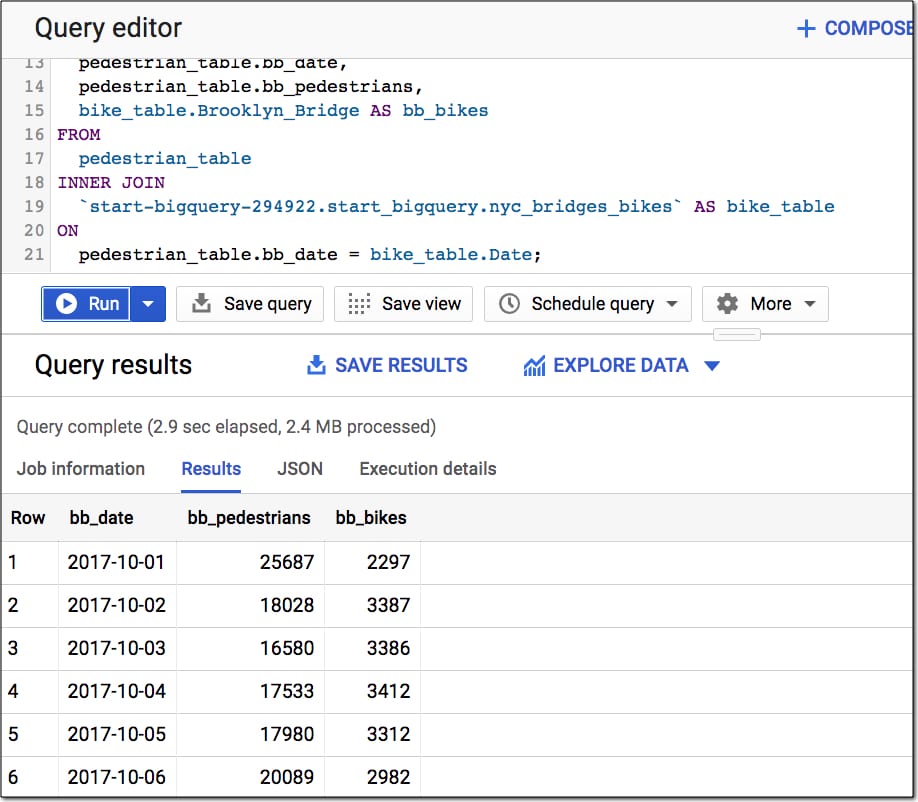
The output of this query is the same as the table you created in your Google Sheet step 20 (using the pivot table and VLOOKUP).
Formatting Your Queries
Last couple of things to mention with the SQL syntax is how to add comments and format your queries.
Step 23: Formatting Your Queries
You can add comments in SQL two ways, with a double dash "--" or forward slash and star combination "/*...*/".
-- single line comment, ignored when the program is run
or
/* multi-line comment
everything between the slash-stars
is ignored by the program when it's run */
It's also a good habit to put SQL keywords on separate lines, to make it more readable.
Use the menu More > Format to do this automatically.
Section 5: Export Data Out Of BigQuery
You have a few options to export data out of BigQuery.
In the Query results section of the editor, click on the "SAVE RESULTS" button to:
Save as a CSV file
Save as a JSON file
Export query results to Google Sheets (up to 16,000 rows)
Copy to Clipboard
In this tutorial, we're going to export the data out of BigQuery and back into a Google Sheet, to create a chart. We're able to do this because the summary dataset we've created is small (it's aggregated data we want to use to create a chart, not the row-by-row data).
Explore BigQuery Data in Sheets or Data Studio
If you want to create a chart based on hundreds of thousands or millions of rows of data, then you can explore the data in Google Sheets or Data Studio directly, without taking it out of BigQuery.
Click on the "EXPLORE DATA" option in the Query results section of the editor:
Explore in Google Sheets using Connected Sheets (Enterprise customers only)
Explore directly in Data Studio
Get started with Google BigQuery: Export to Google Sheets
In this tutorial, the output table is easily small enough to fit in Google Sheets, so let's export the data out of BigQuery and into Sheets.
There, we'll create chart a chart showing the pedestrian and bike traffic across the Brooklyn Bridge.
Step 24: Export Data Out Of BigQuery
Run your query from step 22 above, which outputs a table with date, pedestrian count and bike count.
Click on the "SAVE RESULTS" and select Google Sheets.
Hit Save.
Select Open in the toast popup that tells you a new Sheet has been created, or find it in your Drive root folder (the top folder).
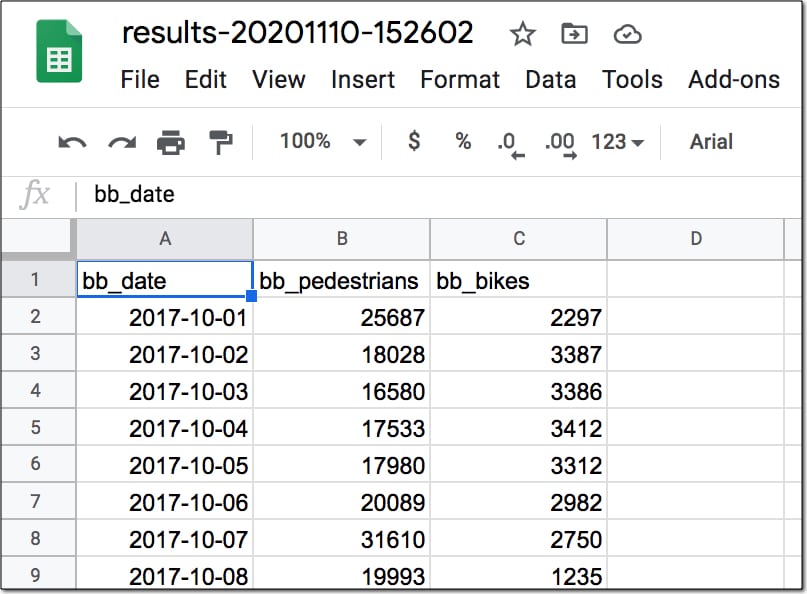
The data now looks like this in the new Sheet:
Yay! Back on familiar territory!
From here, you can do whatever you want with your data.
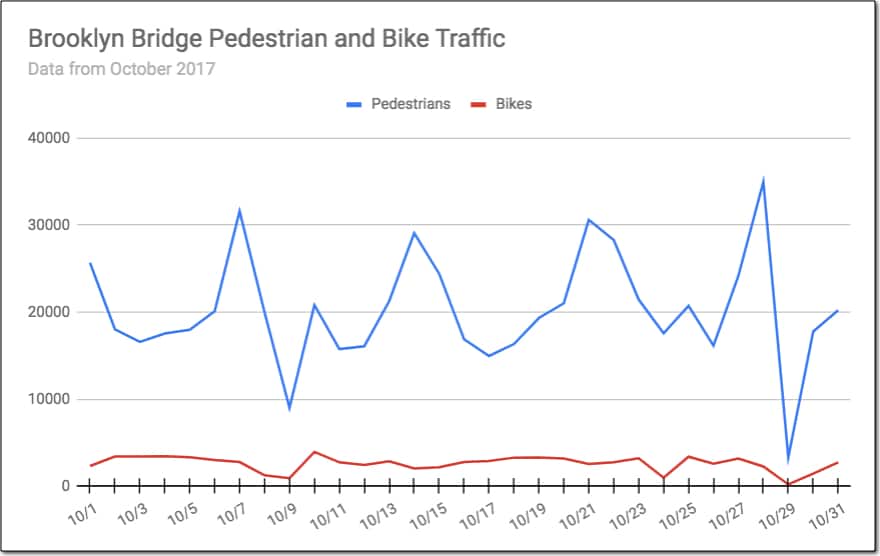
I chose to create a simple line chart to compare the daily foot and bike traffic across Brooklyn Bridge:
Step 25: Display the data in a chart in Google Sheets
Highlight your dataset and go to Insert > Chart
Select the line chart (if it isn't selected as the default).
Fix the title and change the column names to display better in chart.
Under the Horizontal Axis option, check the "Treat labels as text" checkbox.
See how much information this chart gives you, compared to thousands of rows of raw data.
It tells you the story of the pedestrian and bike traffic crossing the Brooklyn Bridge.
Congratulations!
You've completed your first end-to-end BigQuery + Google Sheets data analysis project.