Etch A Sheet In Google Sheets

I was playing with my children the other day when one of them grabbed our Etch A Sketch toy and started drawing a treasure map with it.

Sitting in my office later that day I had a crazy thought “Could I build a working Etch A Sketch in Google Sheets?”

Two days later and boom! Here it is:
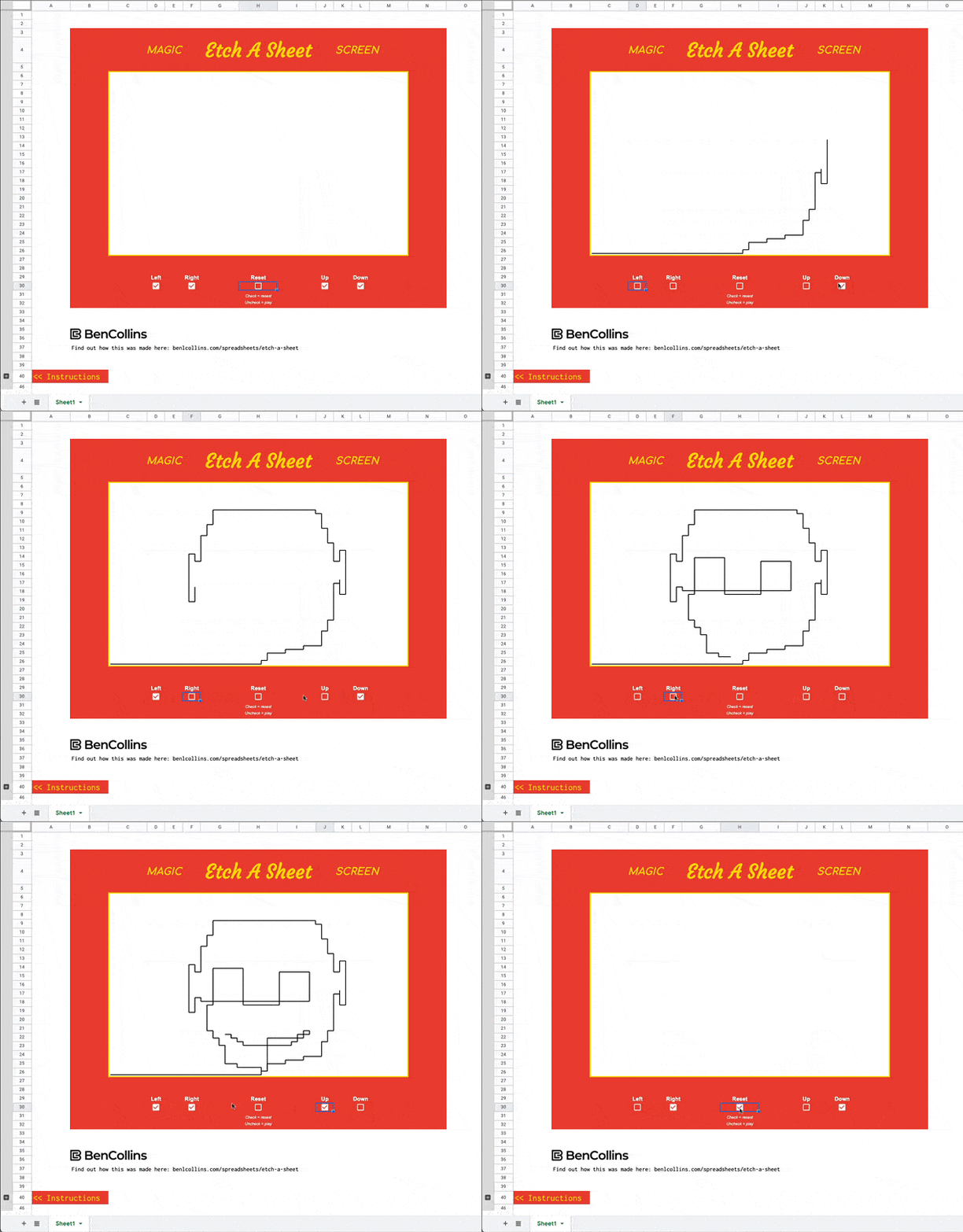
Etch A Sheet Game In Google Sheets

🔗 Grab your own copy of the template at the bottom of this article.

The game works using four techniques:

  1. Checkboxes as buttons
  2. Self-referencing formulas with iterative calculations
  3. Dynamic array, or spill, formulas to generate coordinates
  4. A sparkline formula to draw the line

It doesn’t use any code. In fact, it’s created entirely with the native built-in functions of Google Sheets.

Before I dive in though, I want to acknowledge a fellow Google Sheets aficionado…

Hat Tip To Tyler Robertson

Tyler Robertson is a Google Sheets wizard who’s built an amazing portfolio of spreadsheet games (described by some as the Sistine Chapel for spreadsheets) using only built-in formulas.

Thankfully, he hasn’t built an Etch A Sketch clone yet 😉

This Etch A Sheet game uses Tyler’s checkboxes as a button technique, and has similar logic to his moving-a-character-around-a-Sheet game.

So thank you, Tyler, for your amazing work!

How Does Etch A Sheet Work?
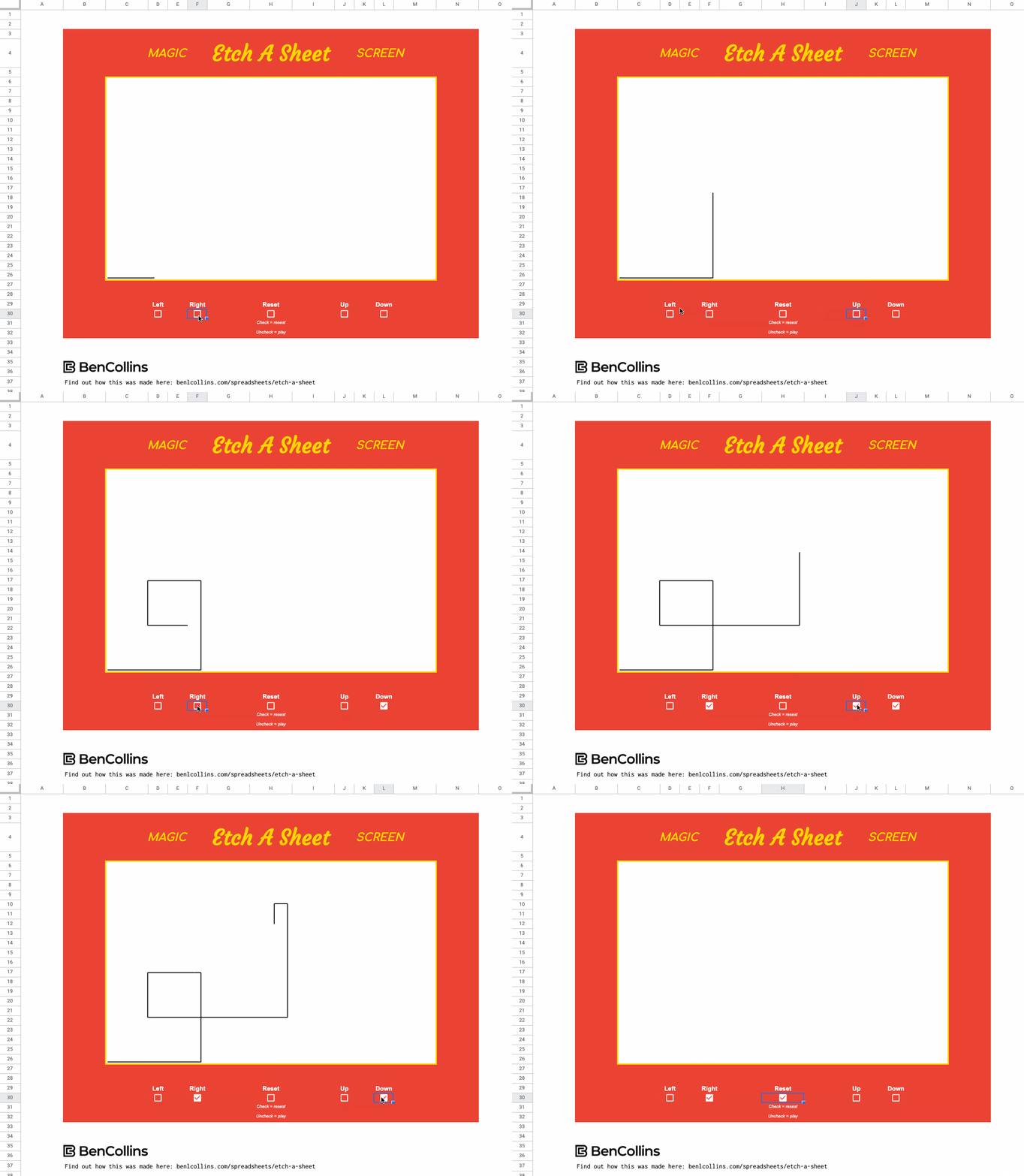
Etch A Sheet Game In Google Sheets

Just like the real Etch A Sketch game, there are controls to move the stylus left or right and up or down, to create lineographic images.

Since you can’t “shake” a Google Sheet (although I bet you wish you could sometimes!), there’s an additional reset checkbox to clear out the image and put the stylus back to the bottom left corner.

Etch A Sheet Formulas

There’s a button to open up the right side of the Sheet and see the formulas that generate coordinates for the sparkline function:
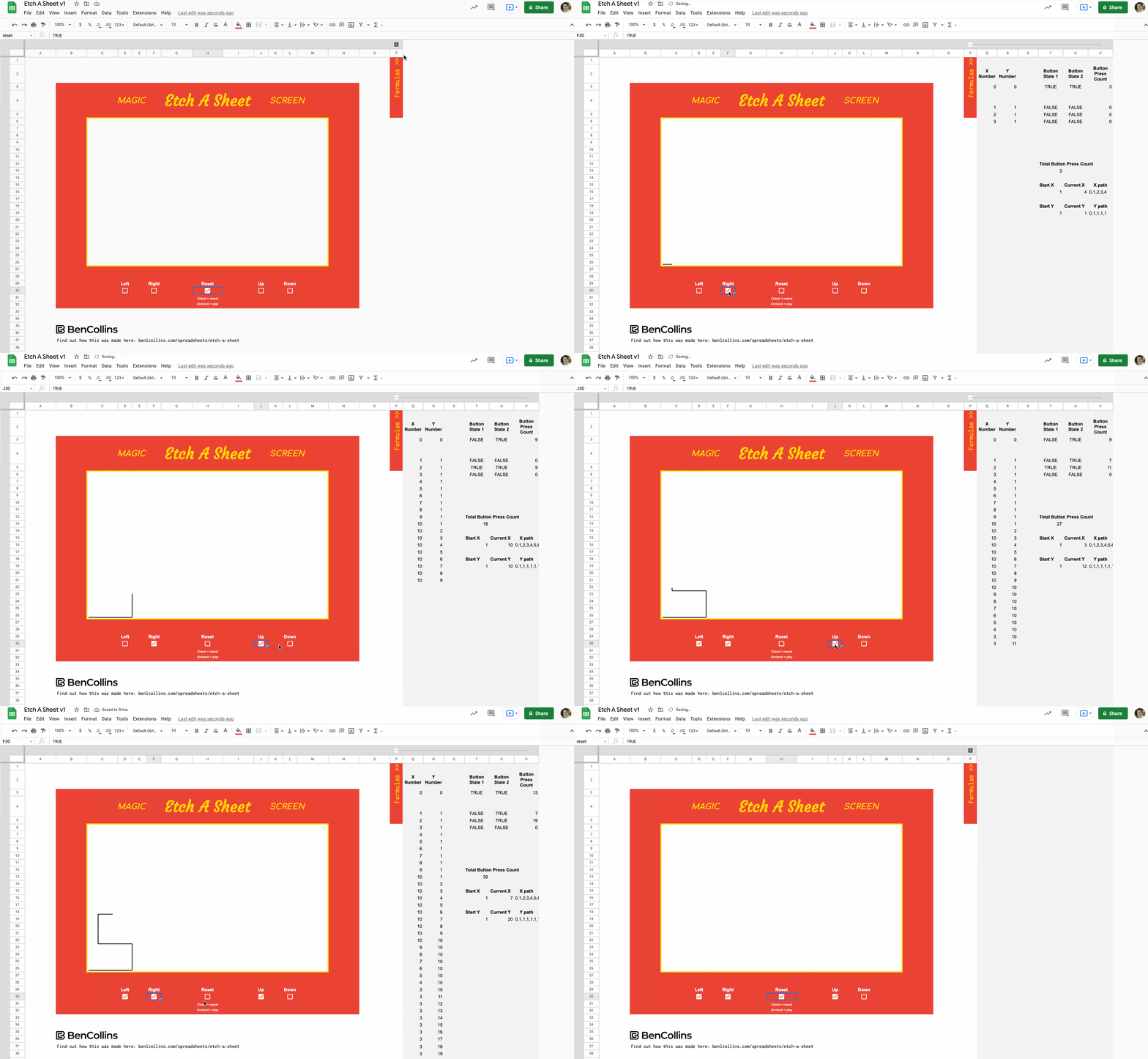
Etch A Sheet formulas

The buttons are regular checkboxes, which toggle a TRUE/FALSE value in the cell.

The checkbox in cell H30 is the reset checkbox and I’ve called it “reset” in the named ranges box.
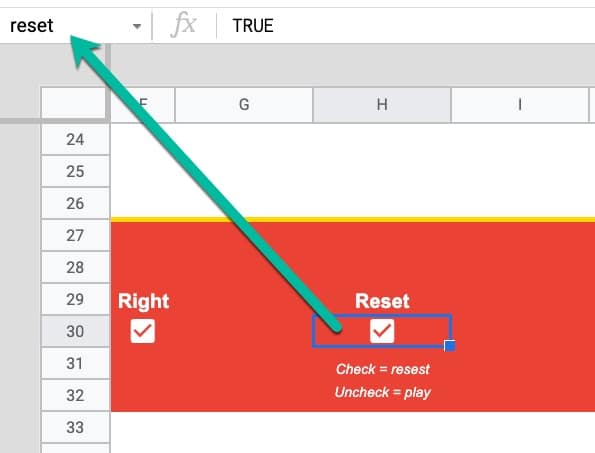
Named Range in Google Sheets

Left Button Formulas

In cell V3:

=IF(F30<>V3,F30,V3)

In cell U3:

=F30<>V3

I also named U3 “right”.

Then in cell W3:

=IF(reset,0,IF(right,W3+1,W3))

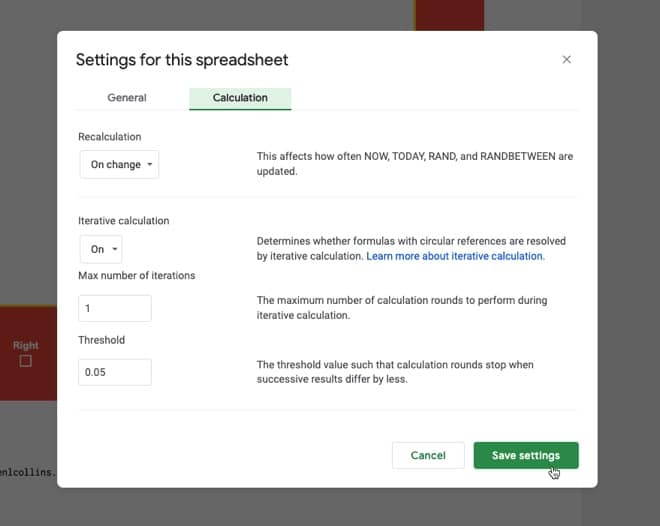
With iterative calculation switched on (see File > Settings > Calculation) and set to a maximum of 1 iteration, these formulas let the checkboxes function as buttons (see Tyler Robertson’s post for more details of how this works).

Starting Coordinates

I put the value 1 in cell U16 and named it “startX”.

Similarly, I put a 1 in cell U19 and named it “startY”.

Current X Formula

The main IFS function, which controls the horizontal X coordinate, is in cell V16:

=IFS(reset, startX, AND(right,currentX<50), currentX+1, AND(left,currentX>1), currentX-1, TRUE, currentX)

This formula cell is labeled as a named range “currentX”.

Firstly, it checks if the reset button is checked and if it is, resets the value of the cell to the starting X value.

If the reset button is unchecked, i.e. FALSE, then it checks if the right button is pressed and the current X is less than 50, using an AND function, and if it is, adds 1 to the current value.

Otherwise, if the left button is pressed and the current X is greater than 1, it subtracts 1 from the current value.

Finally, there is a TRUE condition to act as a catch-all when the previous conditions fail. It sets the value back to the start value.

X Path Formula

This self-referencing formula is put into the adjacent cell, W16, and called “xPath”.

It appends each new current value to itself to create a string of x values as the buttons are pressed, i.e. “1”, “1,2”, “1,2,3”, “1,2,3,4” etc.

=IF(reset,,xPath & "," & currentX)

For this to work, the spreadsheet needs to have iterative calculations enabled with a max of 1 iteration.

The settings are found under the File > Settings > Calculation:
Google Sheet settings

X Number Formula

This formula turns the xPath string of values into a column of numbers, which is fed into the sparkline function in the next step.

=IFERROR(TRANSPOSE(SPLIT(xPath,",")),"")

The SPLIT function breaks up the previous string of data, by the comma separator.

The TRANSPOSE function turns the array from a row vector to a column vector.

The IFERROR function wrapper hides the error message when the xPath variable is empty.

Y Formulas

The same formulas are replicated to create a column of Y coordinates.

Sparkline Formula

=IFERROR(SPARKLINE(Q3:R,{"linewidth",2 ; "xmin",1 ; "xmax",50 ; "ymin",1 ; "ymax",50}),"")

Here, the sparkline formula takes the X Number and Y Number coordinates (two columns of numbers) and simply plots them as a line.

In the sparkline options, I’ve set the linewidth to 2 so it stands out more. I also set min and max values for the canvas, so that the drawing always starts from the bottom left.

Using Groups To Show/Hide Content

This is another interesting technique, used here to show or hide content that doesn’t need to be on display all the time. I’ve used the same technique for the “Formulas” section, shown in the GIF above.

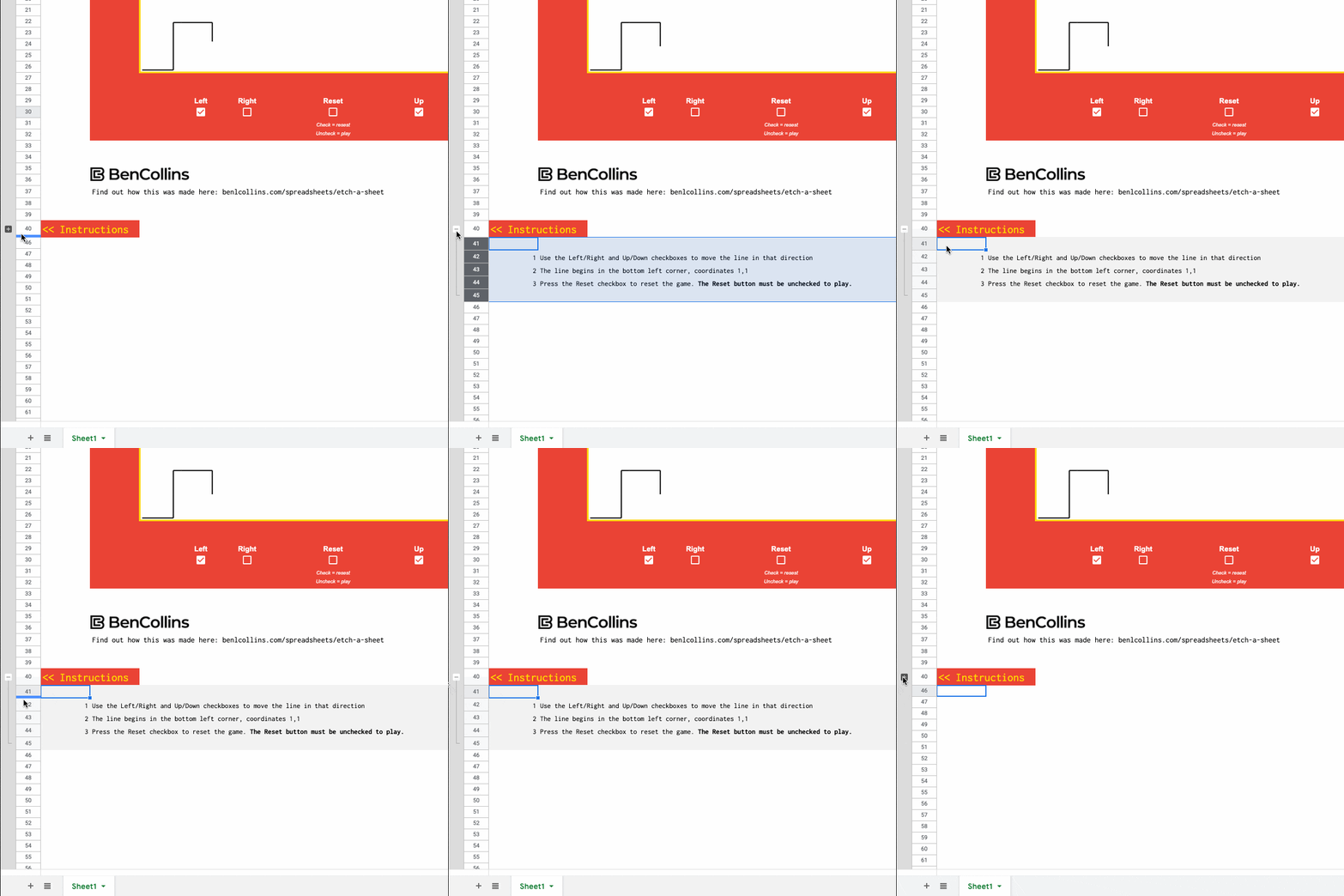
The grouped row button below the Etch A Sheet board shows and hides the instructions section when it is toggled:
Etch A Sheet instructions

Finishing Touches

There are a few other steps to complete the Etch A Sheet:

  • Merge a big section of cells for the sparkline area
  • Add a thick red background around the outside of the Etch A Sheet
  • Add a heading, in a playful gold-colored font
  • Remove gridlines (one of the best tips to make your Sheets look good!)

And there you have it!

Improvements

Alternative Controls

To stay true to the original game, I put the horizontal checkbox buttons on the left side and the vertical controls on the right side.

However, these are awkward to press because you have to jump back and forth between them with your cursor. Of course, it doesn’t matter with the physical Etch A Sketch because the dials are positioned for each hand and can be operated simultaneously.

Perhaps a better approach in the Sheet version is to put the checkbox buttons close together so that the cursor movement is minimized.

Alternative Controls

Starting From The Previous Position

Every Etch A Sheet game restarts from (1,1).

However, when you turn a real Etch A Sketch upside down, shake it, and then restart, the line is drawn from wherever it last finished. It does NOT revert back to the bottom left.

So I’ll leave this as a challenge for you! Can you modify the formulas to match this behavior?

Formula Bug

If you look really closely at the GIFs in this post, you’ll notice that the line is one step behind the button press. I.e. when I press a button, it has to draw the previous step still before registering the new button action. Obviously, this is not ideal.

Again, I leave this as a challenge for you to explore…

Unfortunately, I have to get back to my actual work now, so I’m going to leave this fix for another day. This project exceeded my expectations (It was a lot of fun! It was intellectually challenging! I learned some new techniques!) so I feel satisfied with this outcome. I don’t feel the need to make it perfect.

Etch A Sheet Template

Open the Etch A Sheet template here.

Make your own copy: File > Make a copy

(Note: If you are unable to open this file, it’s probably because it’s from an outside organization and my Google Workspace domain is not whitelisted at your organization. You may be able to ask your Google Workspace administrator about this. In the meantime, feel free to open it in an incognito window and you should be able to view it.)

If it does not appear to work, check you have the iterative calculations enabled.

Go to File > Settings > Calculation

Make sure Iterative Calculations is ON and set to 1 iteration. See the image under “X Path Formula” for more details.

If you do make a copy, I’d love to see what you draw with it!
Dot Plots In Google Sheets

Dot plots are simple charts consisting of dots plotted on a simple scale, typically used to show small counts or distributions.

Dot plots are one of the simplest statistical charts, only suitable for small-sized data sets. They’re helpful for understanding the “shape” of your data by highlighting clusters, gaps, and outliers. (A histogram is better suited to showing the data distribution of larger datasets, e.g. > 30 datapoints.)

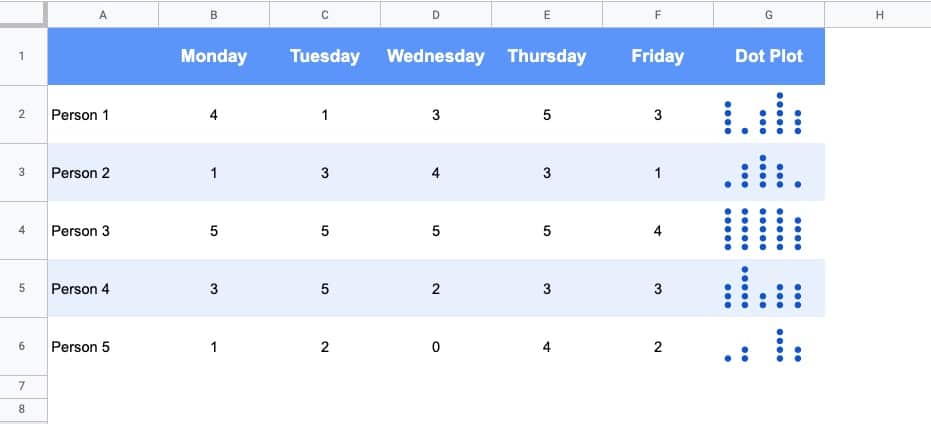
Here’s a table using dot plots to show the hypothetical number of meetings per day for these five employees:

Dot Plot in Google Sheets

How To Create Dot Plots In Google Sheets

You create dot plots in Google Sheets with formulas! 

Suppose we have this data in row 1 of a Google Sheet, in cells A1 to E1:

Data for Dot Plot in Google Sheets

Step 1: 

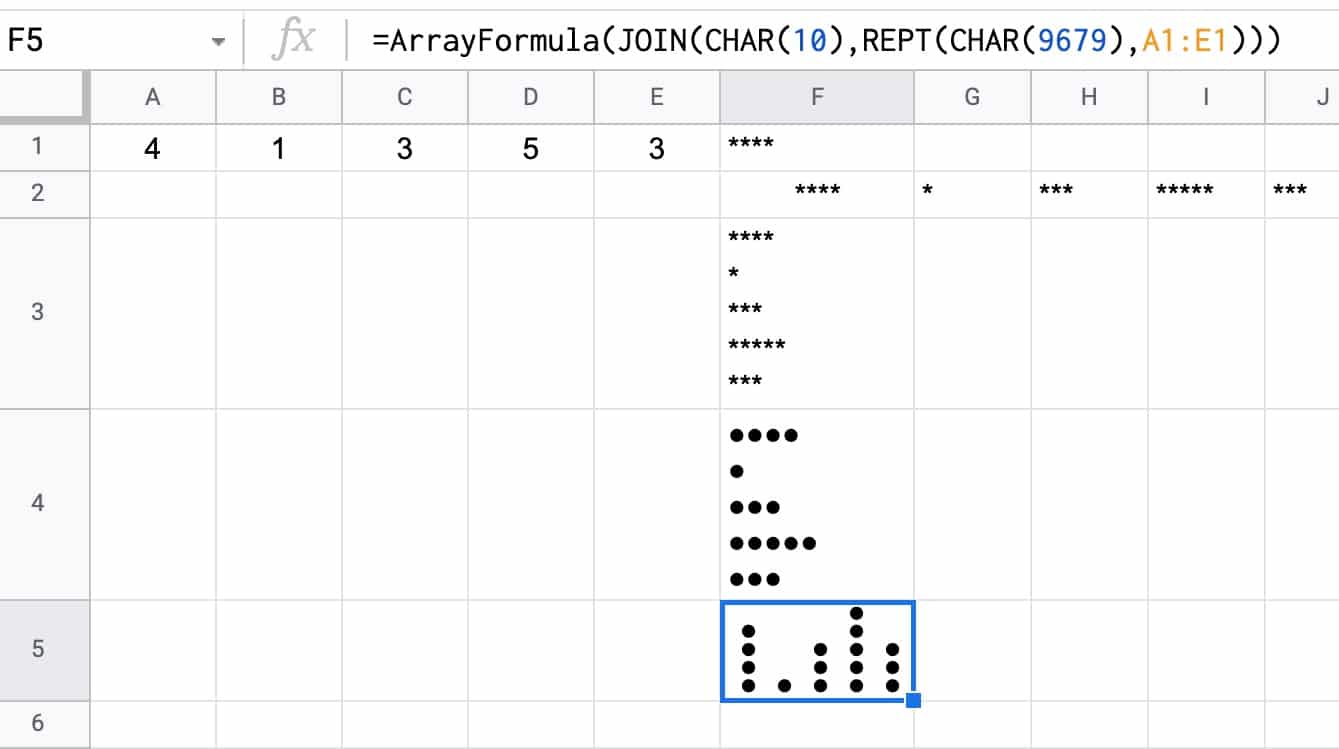
Create a basic REPT function next to the data, e.g. in cell F1:

=REPT("*",A1)

Step 2:

Next, turn this REPT formula into an array formula:

=ArrayFormula(REPT("*",A1:E1))

Step 3:

Then use the JOIN function and CHAR function to combine the array output. CHAR(10) creates a carriage return, which we use as the delimiter:

=ArrayFormula(JOIN(CHAR(10),REPT("*",A1:E1)))

Step 4 (optional):

Convert the * into circles with the CHAR function:

=ArrayFormula( JOIN(CHAR(10),REPT(CHAR(9679), A1:E1)))

Step 5 (optional):

Rotate the cell up:

Format > Rotation > Rotate up

Here’s an image showing the outputs for these 5 steps in column F:

Dot Plot workings

How To Create Multi-Colored Dot Plots In Google Sheets

Taking this idea one step further, we can add colored symbols to indicate the relative counts.

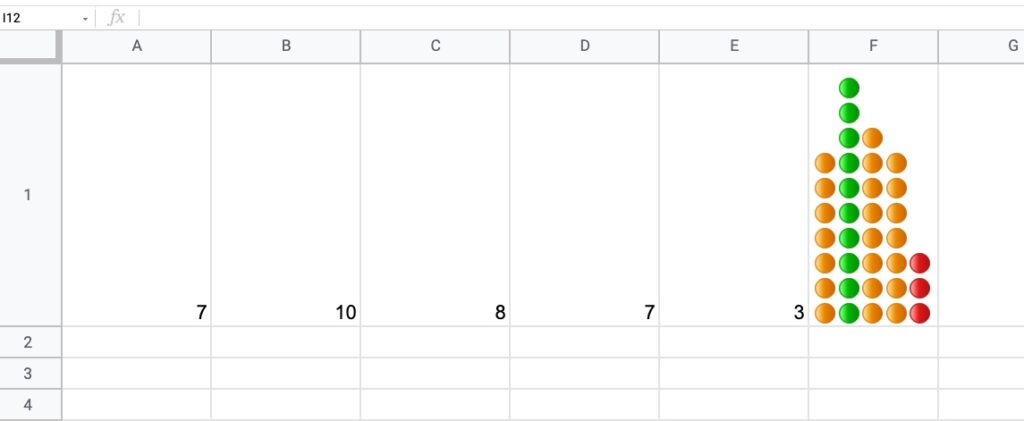
Here’s an example with green dots for large counts, then orange, and then red dots for the smallest counts:

Multi-Colored Dot Plot in Google Sheets

The formula is more complex and uses the IFS Function to categorize the inputs by relative size:

=ArrayFormula(JOIN(CHAR(10),REPT(IFS(A1:E1/MAX(A1:E1)>0.85,"🟢",A1:E1/MAX(A1:E1)>0.5,"🟠",TRUE,"🔴"),A1:E1)))

How does this formula work?

It’s an array formula that takes an input of the five numbers in columns A to E.

Inside the IFS function, the number (e.g. 7) is divided by the maximum number in the range (10 in this example) and compared to see if it’s bigger than the first threshold (0.85 in this example). If this is true, then the green dot is plotted, otherwise, the threshold is checked (0.5 in this example) If that’s true, then orange dot is used. If that is not true, then the red dot is used as the default.

The REPT function and the JOIN function perform the same way as step 3 above for the simpler single color example.

You can also replace the colored dots in this formula with their CHAR function equivalents, to keep it entirely formula driven:

=ArrayFormula(JOIN(CHAR(10),REPT(IFS(A1:E1/MAX(A1:E1)>0.85,CHAR(128994),A1:E1/MAX(A1:E1)>0.5,CHAR(128992),TRUE,CHAR(128308)),A1:E1)))

As a final step, don’t forget to rotate the cell text up, to get the dots plotted as columns rather than bars.

Notes

This Dot Plot technique first appeared in issue 188 of my weekly Google Sheets Tips newsletter. Signup here if you’d like to receive it!.

Thanks to reader Marcel L. for his sharing his idea for the multi-colored dot plot.

Slow Google Sheets? Here are 27 Ideas to Try Today 🐢

June 2024 update:

Google announced they’ve doubled the speed of calculations in Google Sheets! 🎉

So hopefully you won’t need as many of these ideas anymore 😉

Slow Google Sheets?

We’ve all been there, stuck watching the little loading bar creep slowly, frustratingly to its conclusion:

Slow Google Sheets loading bar

How can you speed up a slow Google Sheet?

First off, this is a difficult question to answer because there are so many factors that may or may not be causing you to have a slow Google Sheet.

What follows in this article is some suggested optimization strategies and some research into what causes slow Google Sheets.


Strategies to speed up Google Sheets
  1. How to recognize slow Google Sheets
  2. Know the size limits of Google Sheets
  3. Measure a Google Sheet’s size
  4. Measure a Google Sheet’s calculation speed
  5. Delete un-used cells
  6. Convert formulas to static values wherever possible
  7. Use closed range references
  8. Remove volatile functions or use with caution
  9. Vlookup strategies
  10. Index-Match strategies
  11. Query function strategies
  12. Array Formula strategies
  13. Import Formula strategies
  14. Google Finance function strategies
  15. Use IF statements to manage formula calls
  16. Manage expensive formulas with a control switch
  17. Use Filter, Unique and Array_Constrain functions to create smaller helper tables
  18. Avoid long calculation chains
  19. Reference data on the same Sheet
  20. Use helper columns
  21. Split your slow Google Sheet into separate Sheets
  22. Use Conditional Formatting sparingly
  23. Leverage the power of Apps Script
  24. Use custom formulas sparingly
  25. Other troubleshooting tips for slow Google Sheets
  26. Understand changes in the cloud can take time to propagate
  27. Know when it’s time to move to a database

Continue reading Slow Google Sheets? Here are 27 Ideas to Try Today 🐢

How To Set Default Values For Cells In Google Sheets

In this post, you’ll learn how to set default values for cells in Google Sheets, without using Google Apps Script code.

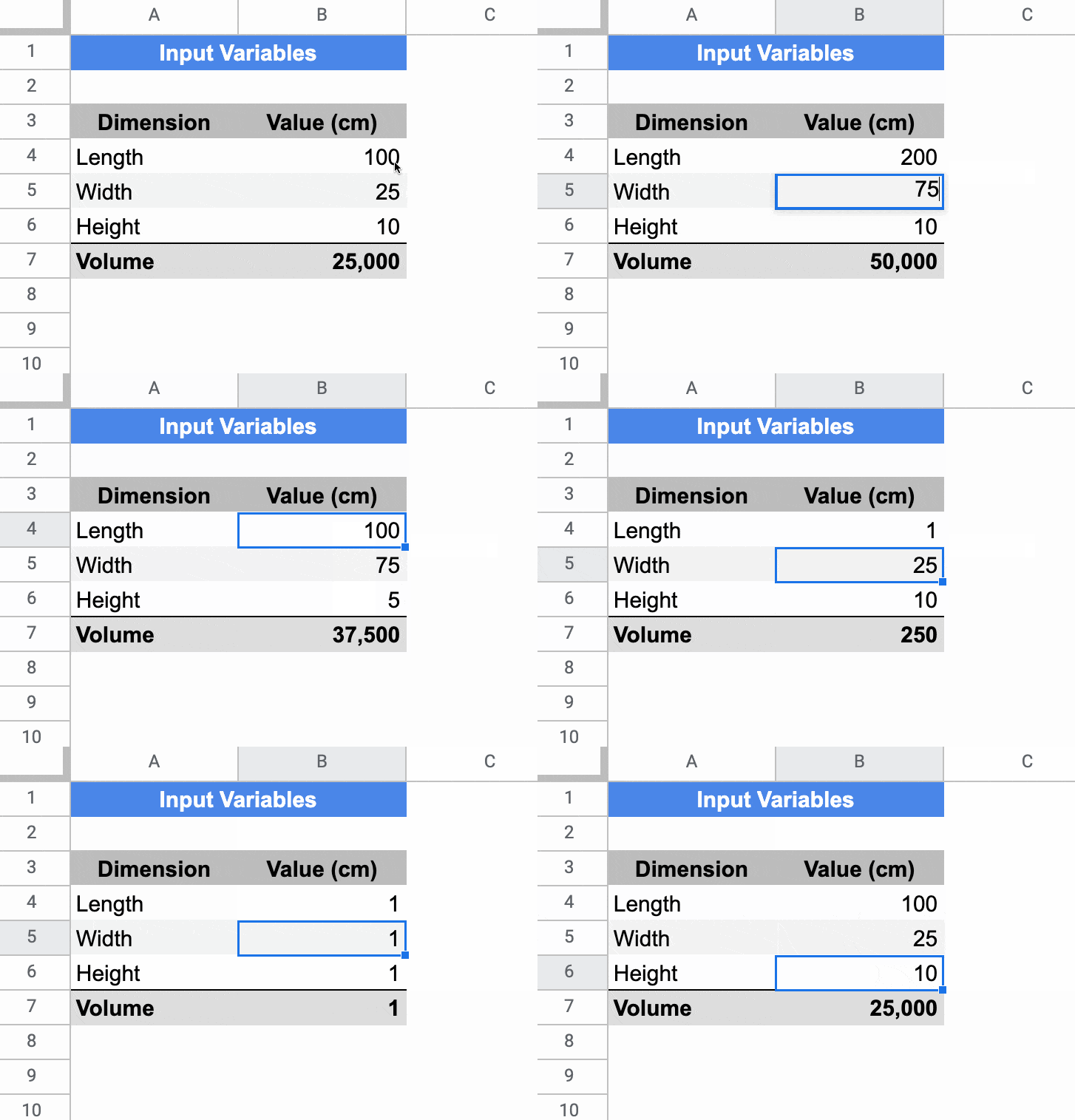
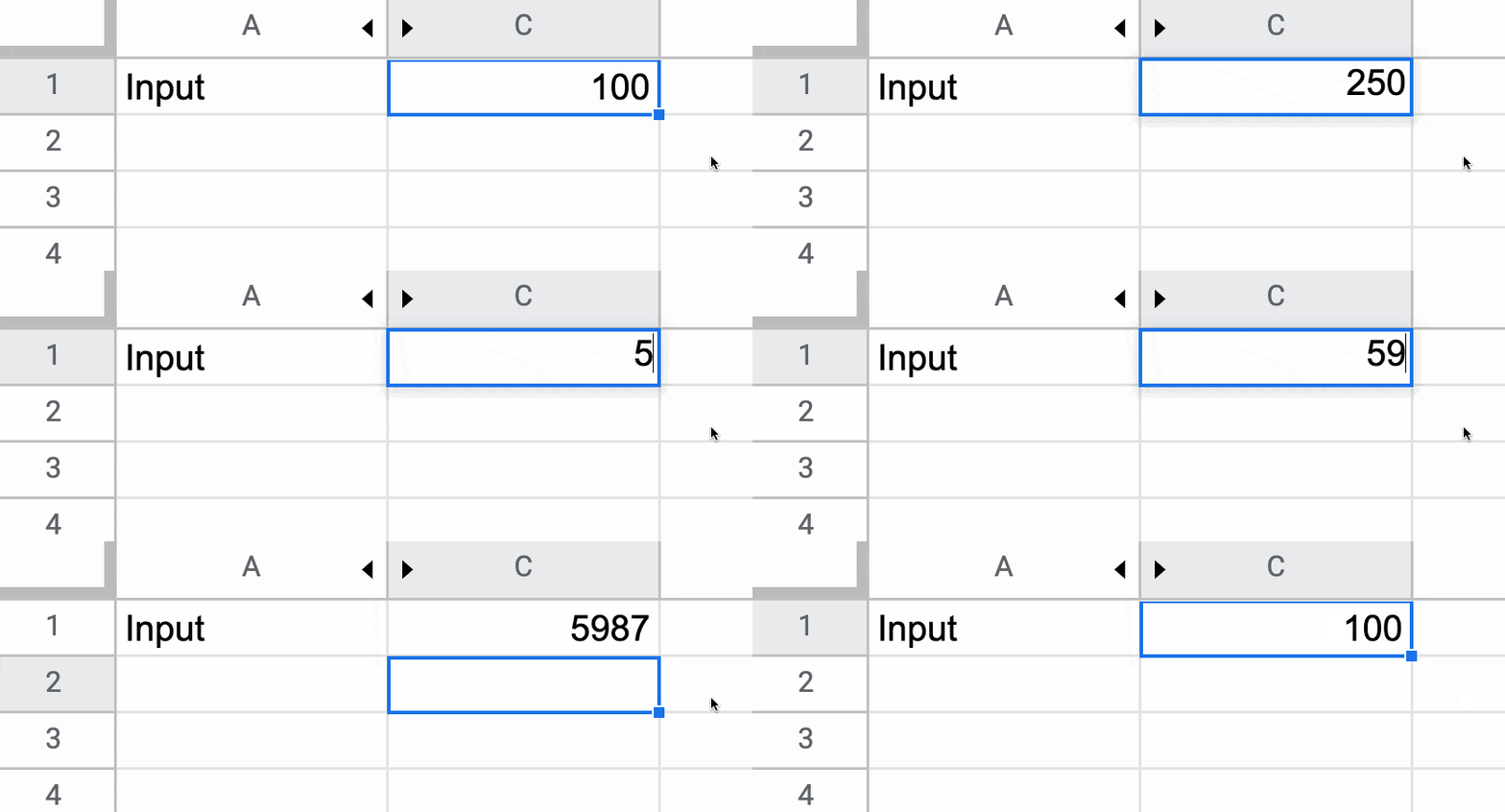
In the Sheet below, the cells in column B have default values of 100, 25, and 10 respectively. If a user types in a value (e.g. 200) it overwrites the default value. If a user deletes whatever value is in the cell already, then the default value of 100 is displayed again.

Default Values for cell in Google Sheets

Setting Default Values For Cells In Google Sheets

The key to make this technique work is to use Array Literals to create a formula which spills into the adjacent cell. This is a rather abstract concept, so let’s run through an example.

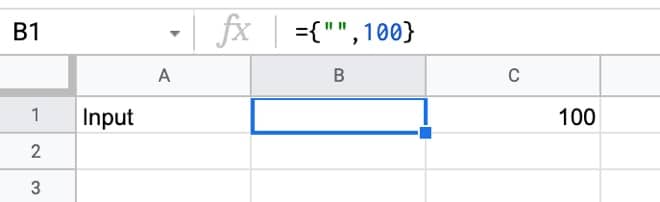
In a blank Sheet, write the value “Input” in cell A1. In cell B1, type this formula:

={"",100}

Your Sheet will look like this:

Default Value Setup Google Sheet

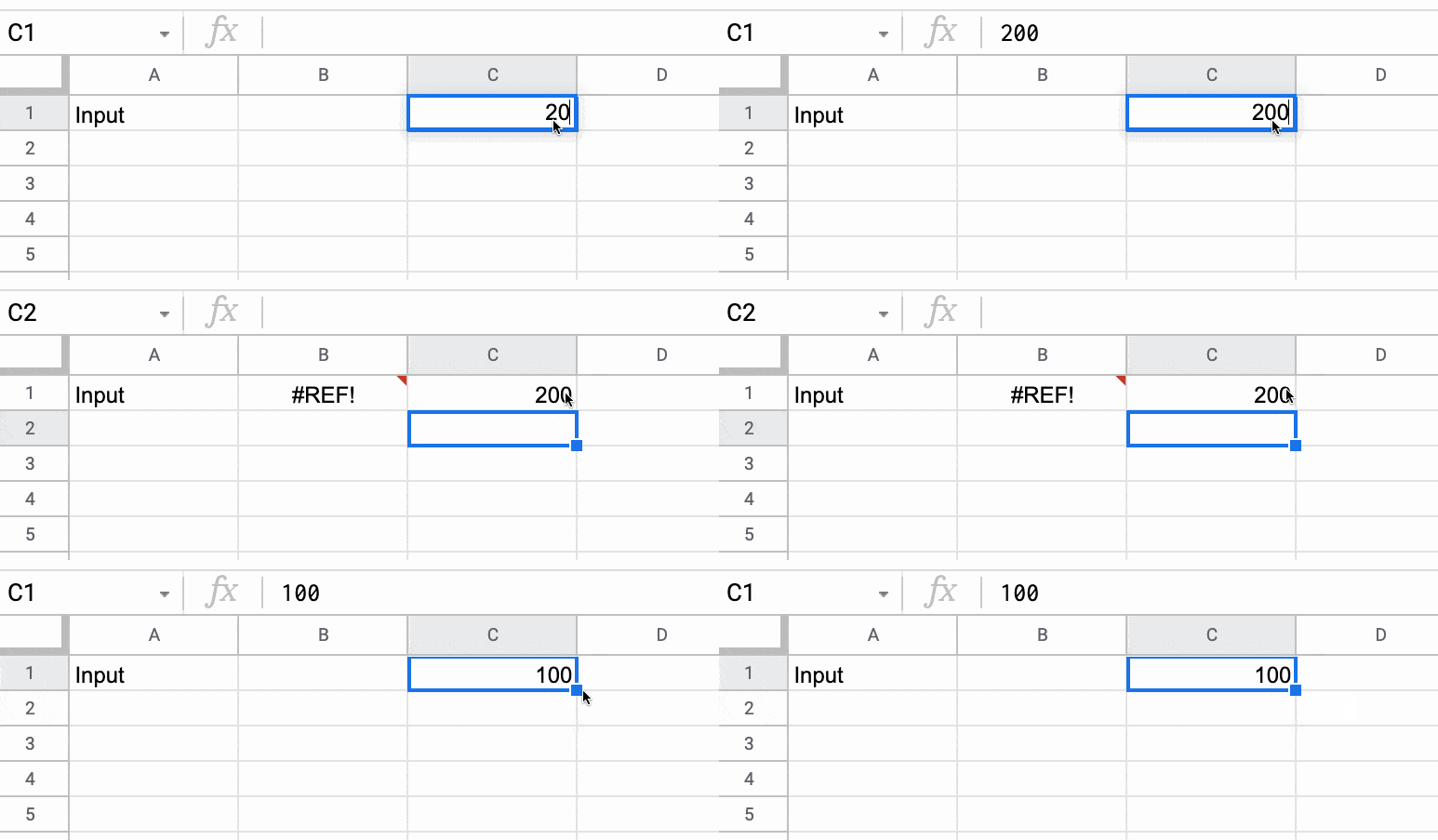
Try typing 200 in cell C1, over the top of the 100.

Cell C1 will show the 200, but cell B1 now displays a #REF! error.

Now, delete the value you just typed in cell C1. The error message disappears and the default value of 100 is displayed again.

Default cell Google Sheets

Finally, hide column B so that the #REF! error is never seen, and you have a default value of 100 set for cell C1.

Hidden column default value Google Sheets

🎩   Hat tip to my friend Scott Ribble for showing me this ingenious solution.

Advanced Default Values Without Hidden Column

The method above suffers from one drawback though: it necessitates a hidden column.

However, we can use a clever circular formula to address this.

In a new blank Sheet, add this formula in cell A1:

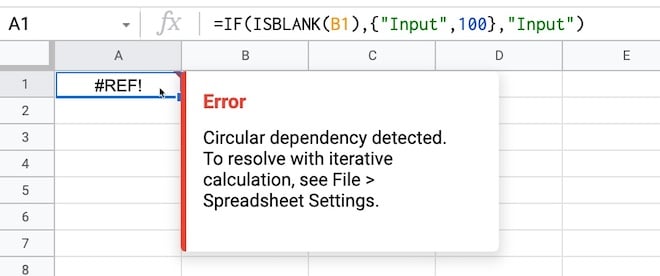
=IF(ISBLANK(B1),{"Input",100},"Input")

Initially, you may see this error message about a circular error (i.e. a formula that references itself):

Circular Error in Google Sheets

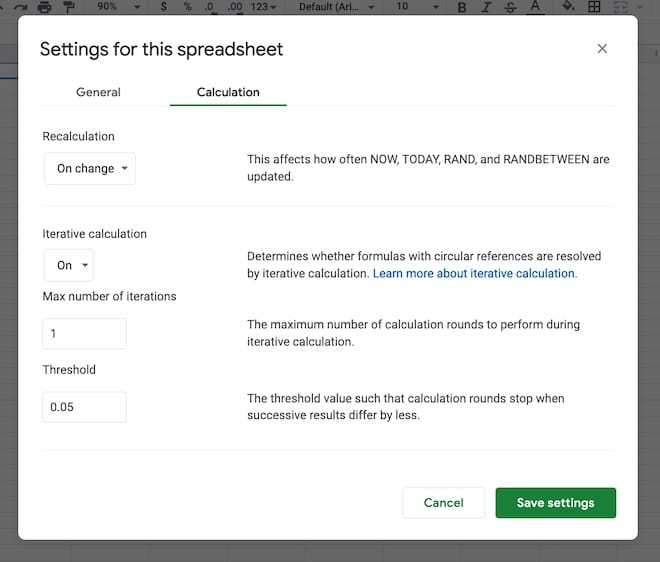
That is a problem, but we fix it by switching on iterative calculations and restricting them to a single iteration from the menu:

File > Settings

Go to “Calculation”.

Set “Iterative calculation” to “On” and the “Max number of iterations” to 1.

(The threshold can be left at 0.05 because it doesn’t apply in this case.)

Iterative Calculation Google Sheets

Now, you can enter any value you want in cell B1 and if you delete it, the default value of 100 will be shown.

How Does This Work?

The IF function checks whether cell B1 is blank.

If it is blank, then it outputs the array literal:

{"Input",100}

which displays “Input” in cell A1 and the value 100 in cell B1.

However, if cell B1 already has a value then the IF function output is just the string “Input” in cell A1.

Note: default values are not limited to numbers. It could be text, an image, or even another formula.

Default Values Checkbox Example

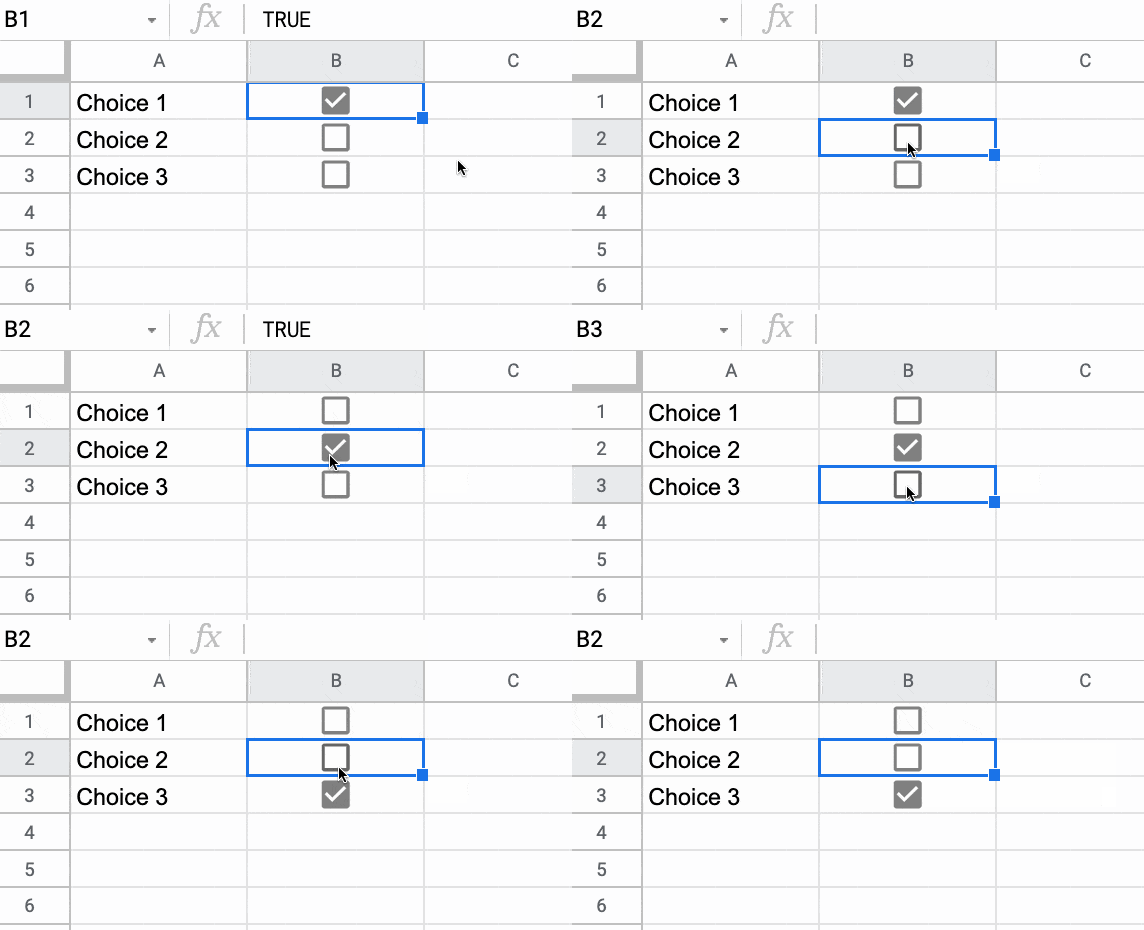
You can use default values to check or uncheck checkboxes. Here’s a cool illustration of how to create a select all checkbox in Google Sheets, using deafult values.

Thanks to one of the readers in the comments below for sharing this solution.

Default Values Formulas To Mimic Radio Buttons

Another interesting use case for these default values is to mimic radio buttons with formulas and checkboxes.

Radio button behavior with checkboxes and formulas

Column A contains array literal formulas that ensure a user can only select a single checkbox at a time.

Three Benefits Of Cohort-Based Courses

The world of online education is very different today than it was 10 years ago.

We now live in an age of information abundance, with all of human knowledge only a click away.

And that means we can shift the focus of online courses from information-heavy lectures to a community-driven learning environment with interactive sessions, collaboration, and shared knowledge.

And right now, accelerated by the pandemic, community-driven online courses are having their moment in the sun.

Online creators are seeing incredible demand for their live courses. Top-tier VC firms are investing in companies that facilitate these live, cohort-based courses.

Here are three reasons why these cohort-based courses are the best way to learn:

1. Cohort-Based Courses Hold You Accountable

Cohort based course group

Hands up if you’ve bought an online course with good intentions, but then never got past the introduction video?

Yup! Guilty as charged…

I kid myself that I’ll get around to it one day, but, like all of us, life is busy.

What is there was a different way?

There is!

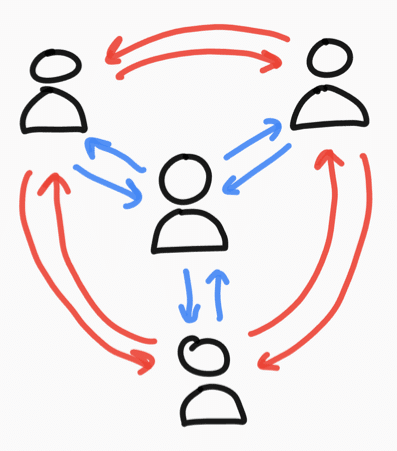
Join a cohort-based course — like Pro Sheets — and you learn with other people, at scheduled times, with defined and manageable goals.

Turns out that we’re not very good at making and, crucially, keeping promises we make with ourselves. Even if we start a venture with huge enthusiasm, it’s hard to sustain, especially when the journey gets hard or we hit the inevitable hurdles.

Being part of a group offloads some of this willpower burden. Once you become part of something greater than yourself, you don’t want to let the group down by not bringing your best self to the table.

We as humans care deeply about what our fellow humans think of us, even when we’re told not to, or even though we know other people are too busy with their own realities to care much about ours. And yet, this external influence remains very strong.

In other words, when you join a live, group course, you’re giving yourself much better odds at actually sticking through the course and completing it, reaching your goal, and reaping the benefits.

With dedicated time slots and friendly faces waiting to greet you, you’ll feel inspired to attend as many live sessions as possible.

And by simply turning up, again and again, you’ll see the results you’re after.

I was a student in a cohort-based course earlier this year, and I was pumped every time a live class rolled around. I couldn’t wait to join and catch up with everyone. There’s no way I would have stuck with a video-only version of this course on my own.

2. Learning Together Is Faster

Remember the game minesweeper?

It was a classic strategy game, with a very strong 90s PC desktop vibe, requiring players to make calculated decisions and educated guesses on where the mines lay on the board.

Minesweeper makes for a nice analogy with learning a new skill or deepening an existing skill.

You have your existing knowledge, represented in Minesweeper by the portion of the board that is uncovered.

Now, suppose you’ve reached an impasse with your learning. You don’t know how to proceed.

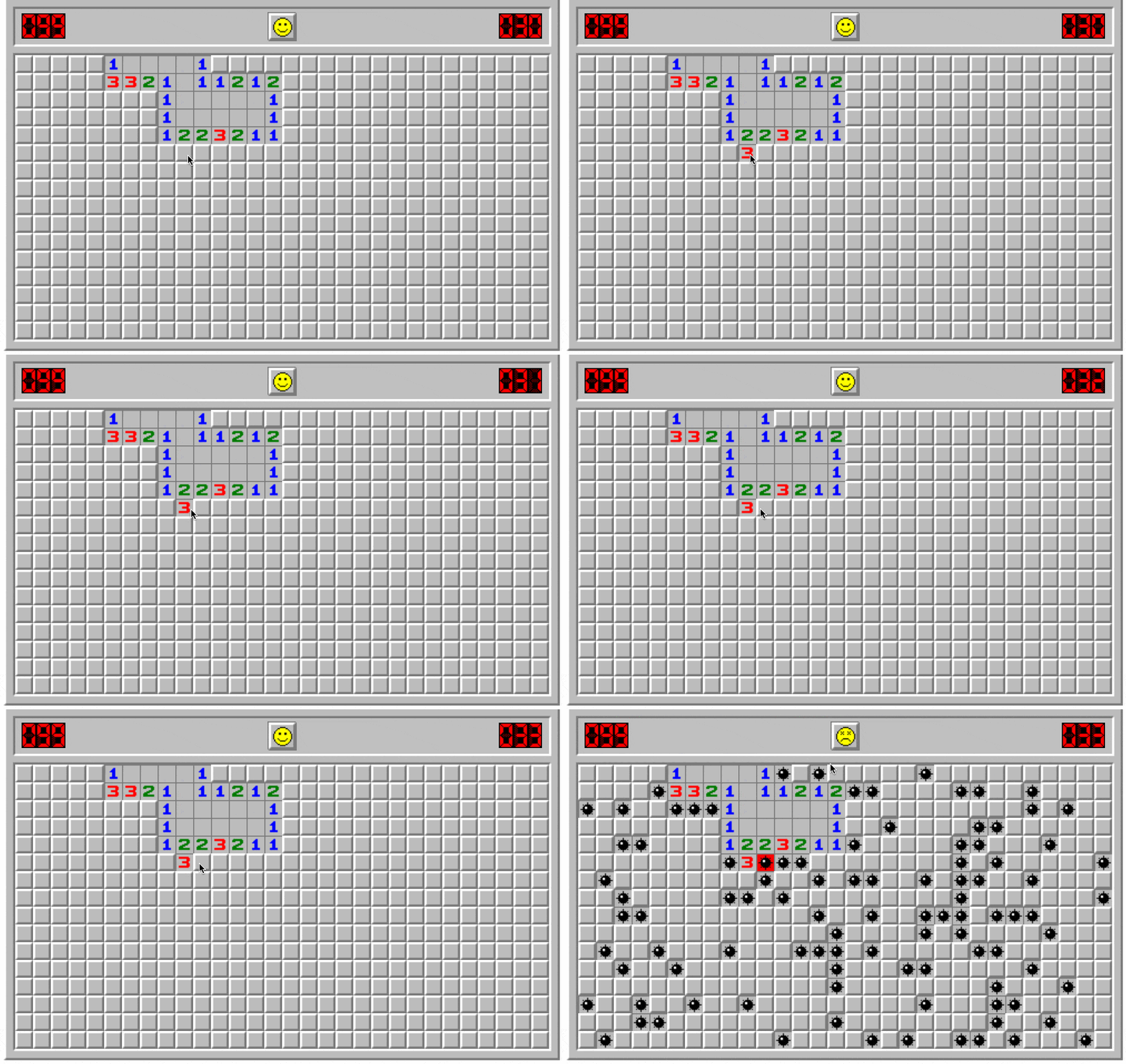
This is like one of those vexing 2-3-3-4-1 combinations on the Minesweeper board that eventually require an educated guess.

Continuing alone is possible, but it will be slow going and frustrating, and you will make mistakes — step on mines — along the way.

Minesweeper

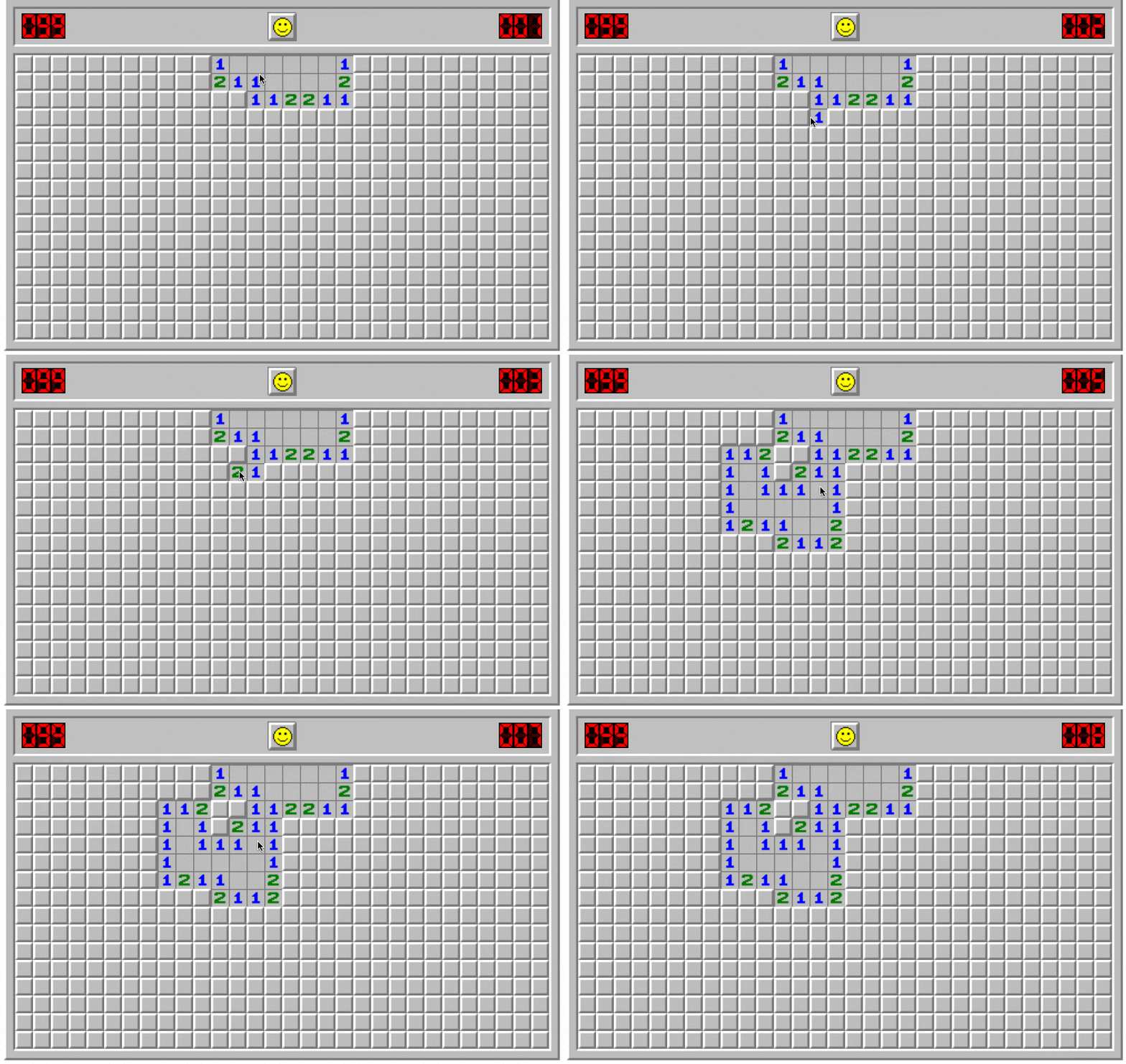
If you learn with others though, whether they’re experts or just slightly ahead of you on their journey, they can show you the next move.

They can unlock the board for you, so whole new regions of knowledge open up in front of you.

Minesweeper

Your journey will be dramatically quicker with a guide, simply because you make fewer mistakes and better decisions.

3. It’s More Fun

Look at all these beautiful smiles in the final live session of Pro Sheets Accelerator earlier this year:

Pro Sheets cohort-based course community

When I launched Pro Sheets Accelerator, I expected students to say their favorite part was learning new formulas, scripts, or frameworks.

But by the end of the course, it wasn’t the formulas or scripts that students most appreciated, it was the community.

They loved learning with other spreadsheet enthusiasts!

One of the students, Jen, an educator from Massachusetts, summed it up well:

“It was really just nice to have other nerdy people to talk to and to share stories and ask questions to, who just really cared about talking through it in a high-quality conversation.”

And I was chatting recently with another student, Jim, a financial advisor from California, who said:

“Getting together with like-minded people who were really passionate about spreadsheets was just magic.”

By learning in a group, you meet like-minded people to share the highs and lows of the journey. You’ll laugh and have fun along the way, and your best learning happens when you’re happy and having fun.